Versions is a very useful option when the calculation mechanism in your product is changing through time. In Versions, you can create new Regions and Versions of Regions
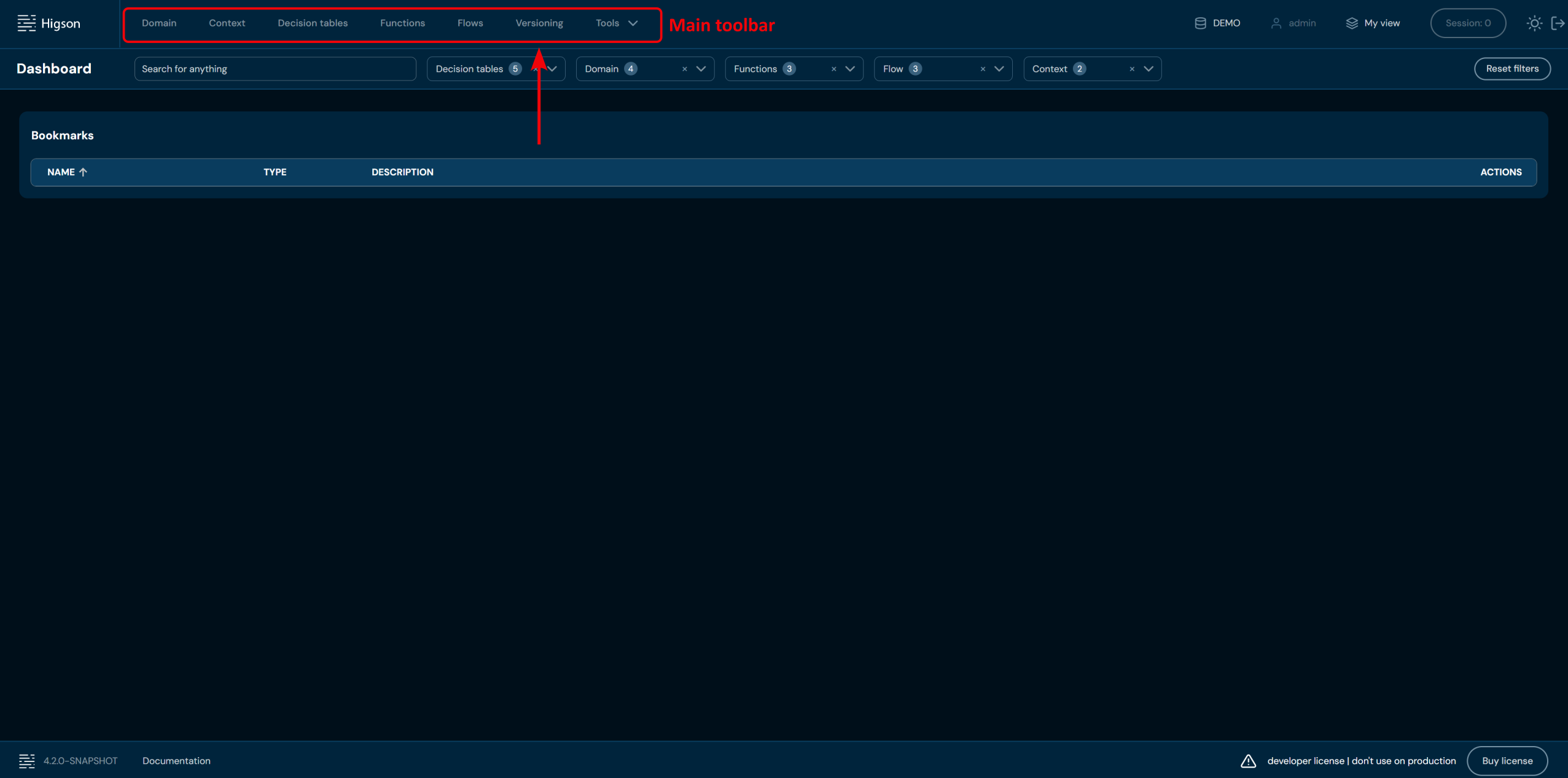
In order to see Versions, select Versioning in Main Toolbar.
After you enter Versioning you will see screen of all Regions:
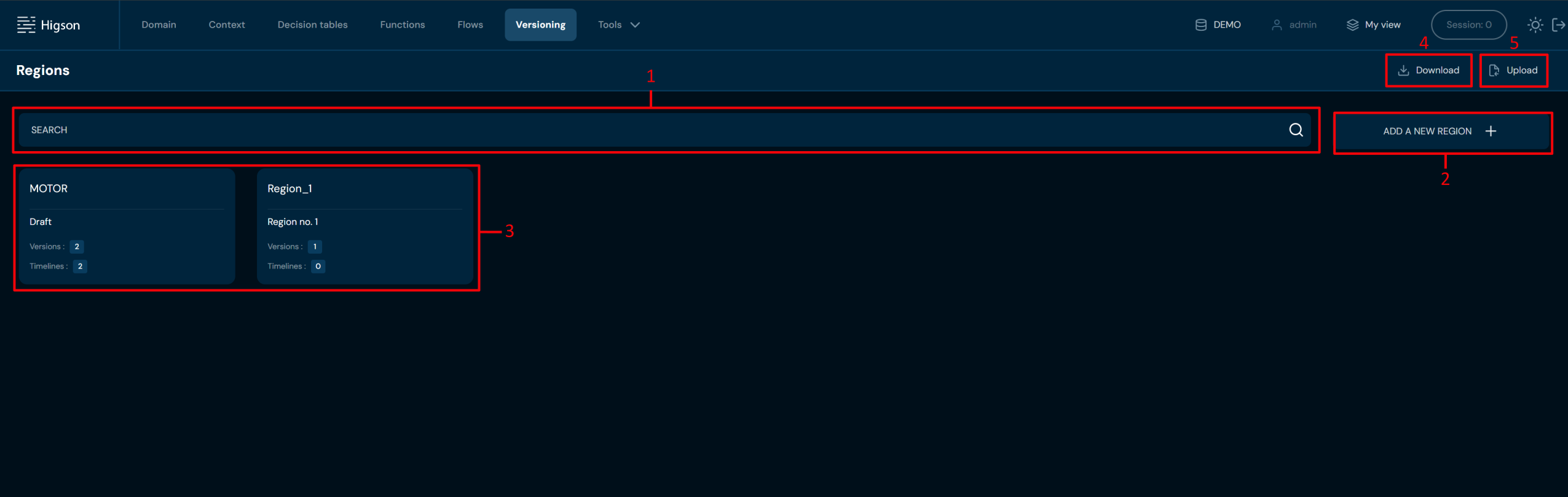
| No. | Name | Description |
|---|---|---|
| 1 | Regions search | Filter by any string provided by the user. All Regions matching the provided criteria are filtered. |
| 2 | Add a new Region | Allows creating new Regions. To learn more about adding Regions, go here. |
| 3 | All Regions | Displays every Region created. |
| 4 | Download Regions | Downloads an XLSX file containing all Regions and Versions of Regions. To learn more about downloading Regions, go here. |
| 5 | Upload Regions | Allows uploading Regions from an XLSX file. To learn more about uploading Regions, go here. |
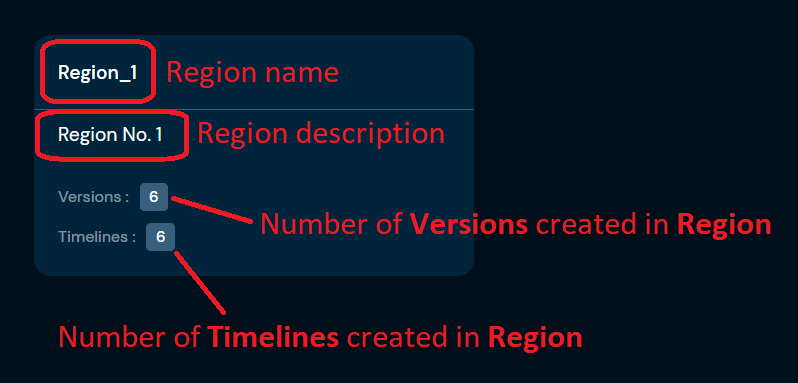
Region tile:
Add a New Region#
If you want to add a new region, follow these steps:
-
Choose Versions in Main toolbar.
-
Choose ADD A NEW REGION +
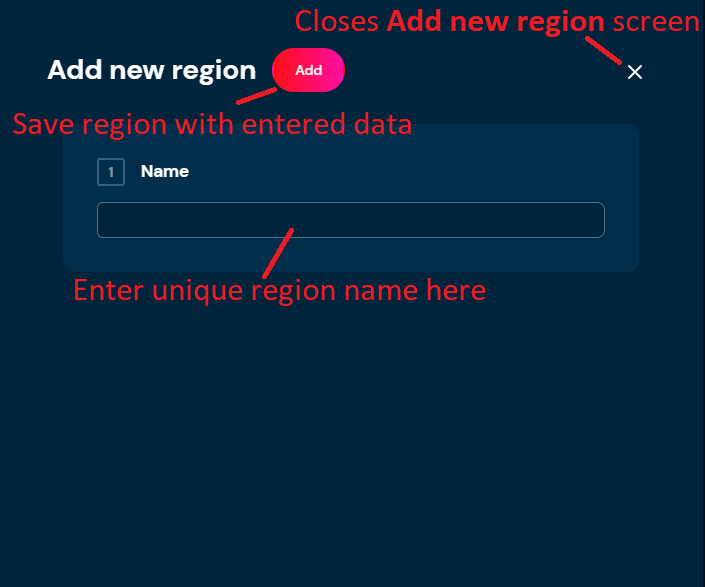
a. Choosing ADD A NEW REGION + opens Add new region screen.
-
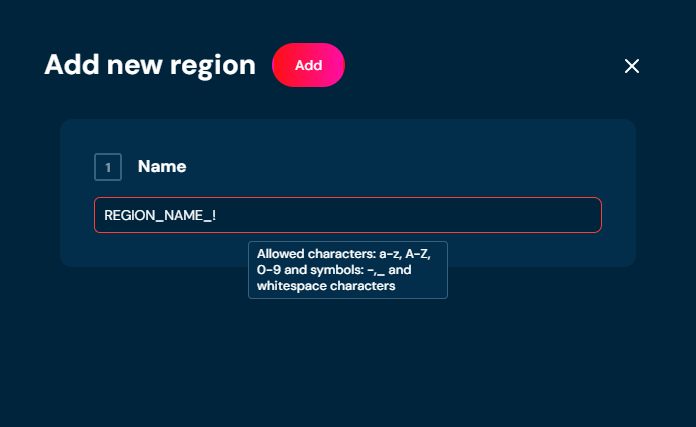
Provide unique Region name. Name can contain only characters from the collection: a-z; A-Z; 0-9; “-”; “_” and white-space characters.
-
Choose Add.
a. Region with data you provided is created.
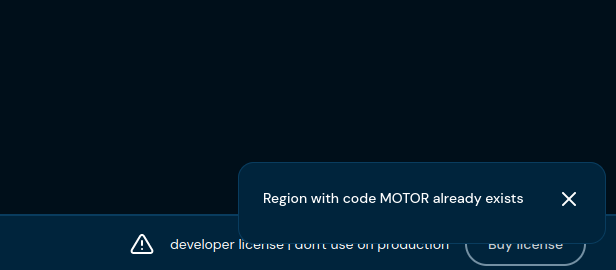
b. If you enter the same name as one of the Regions already created, then validation error will appear.
Download Regions#
If you want to download Regions, follow these steps:
-
Choose Versions in Main toolbar.
-
Choose Download.
a. Choosing Download downloads a XLSX file, that contains all Regions and Versions of Regions.
Upload Regions#
If you want to upload Regions, follow these steps:
-
Choose Versions in Main toolbar.
-
Choose Upload.
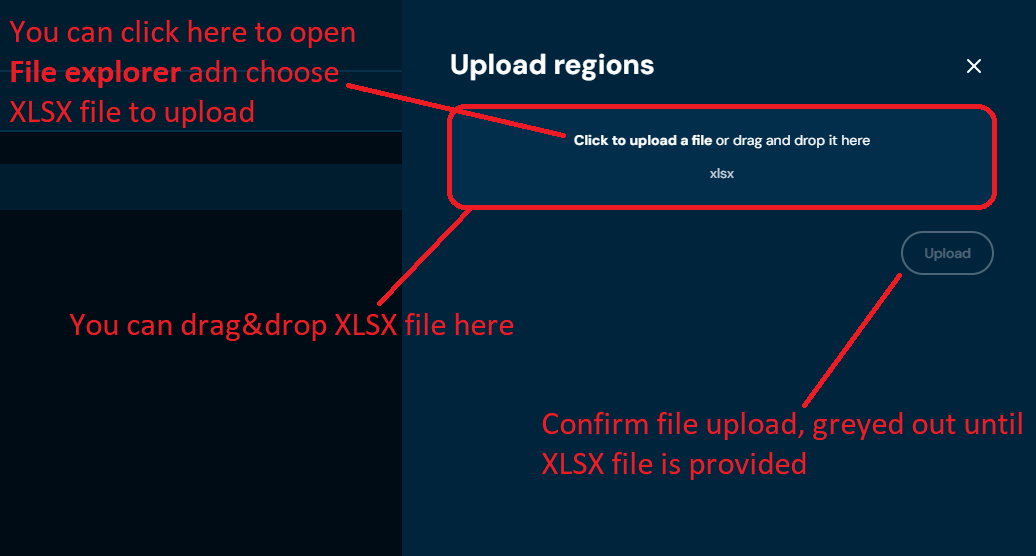
a. Choosing Upload brings up Upload regions screen.
-
Drag&drop desired file or Click to upload a file and choose file in File explorer.
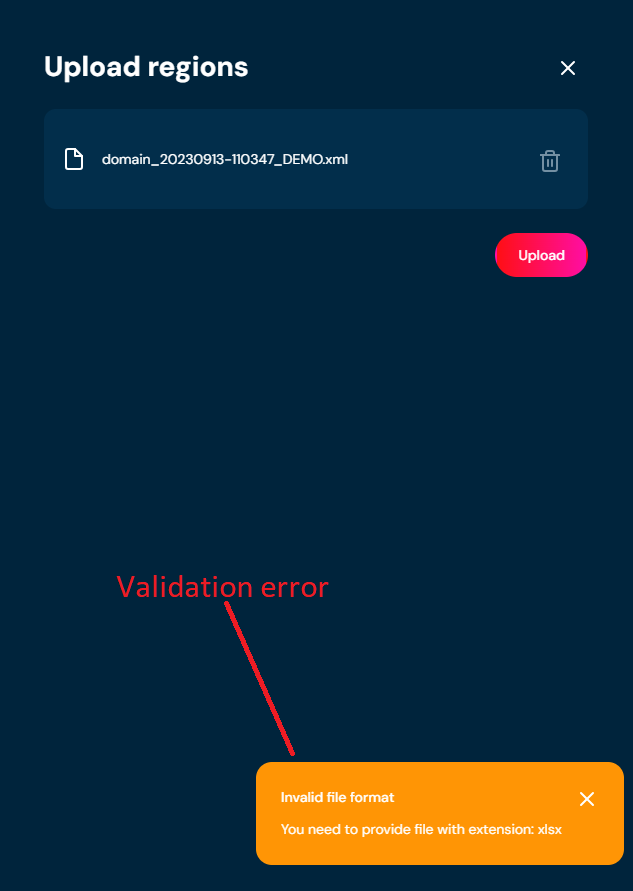
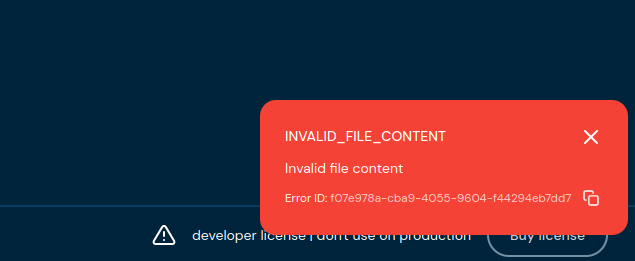
a. If you choose a file with extension other than XLSX, then validation error will pop up.
b. If there is something wrong with data in XLSX file, then validation error will appear.
-
Choose Upload.
-
When the progress bar reaches 100%, it means that regions were uploaded correctly.
a. If a validation error occurs (see above), then an upload process is being aborted.
Region Details Screen#
You can access Region details by left-clicking on the specific region tile in the screen of all Regions. You can also see Region details by changing from Tiles view to List view.
An important difference in the Versions screen is that Regions have no read-only mode. Another important difference is that changes made in Regions are instant, without session mechanism.
Data in Regions is editable all the time.
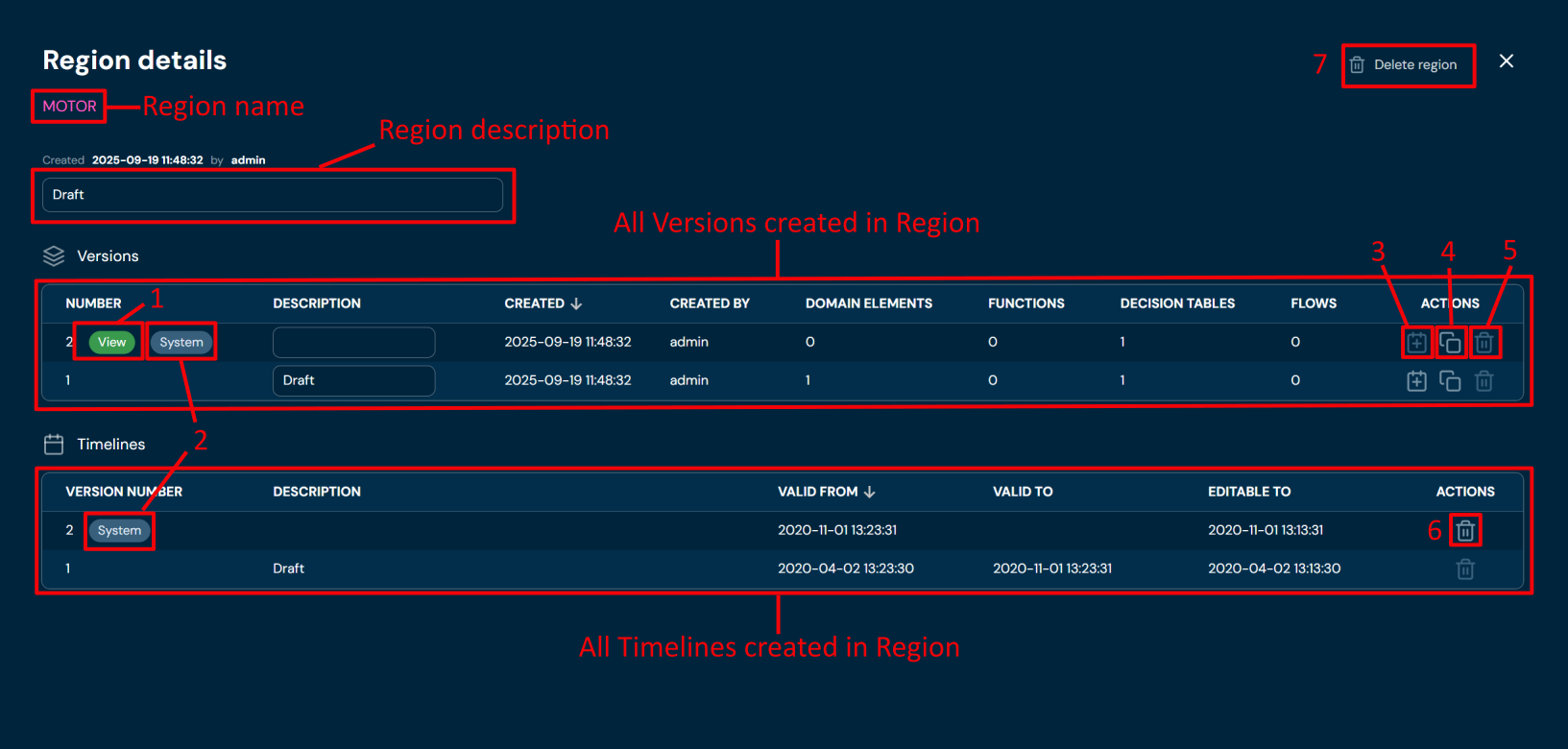
| No. | Name | Description |
|---|---|---|
| 1 | View | Indicates which Version is currently visible based on My View settings. To learn more about My View, go here. |
| 2 | System | “System” Version is set by Timeline based on VALID TO and VALID FROM dates. Currently valid Version is labeled as “System”. |
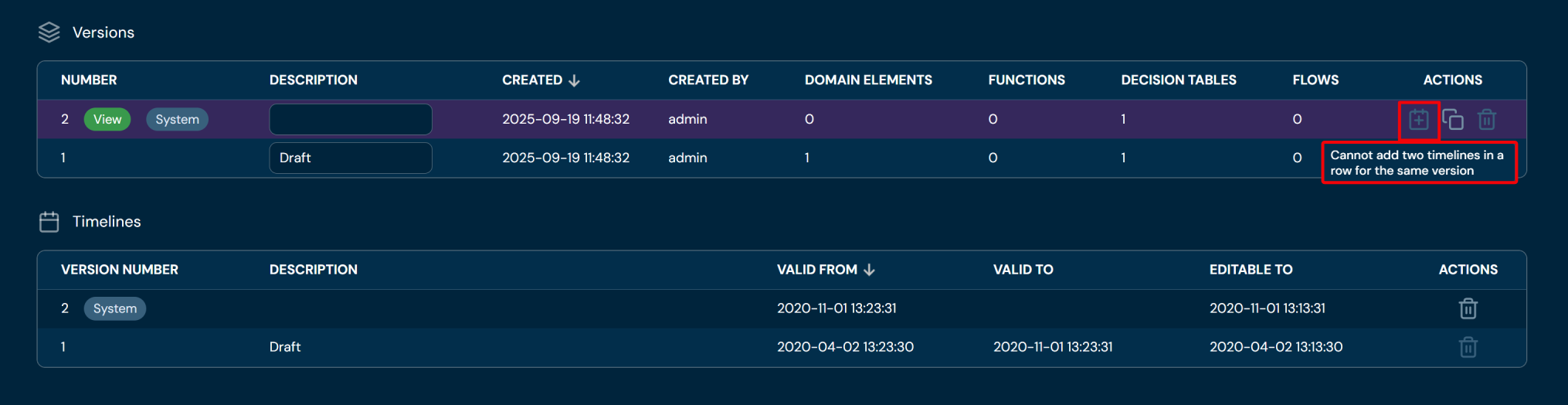
| 3 | Add to | Allows adding Version to Timelines. User cannot add Version to Timelines twice in a row; in this case, the action will be greyed out. To learn more about adding a version to Timelines, go here. |
| 4 | Clone | Allows cloning Version. To learn more about cloning a version, go here. |
| 5 | Delete Version | Deletes a version of the region. If the action is greyed out, it means that the version is assigned to Timelines and cannot be deleted. To learn more about deleting a version, go here. |
| 6 | Delete Timelines | Deletes Timelines; only the newest Timeline can be deleted. “Delete” action is greyed out for older Timelines. To learn more about deleting Timelines, go here. |
| 7 | Delete region | Deletes a Region. To learn more about deleting regions, go here. |
Add Version to Timelines#
If you want to add a version to Timelines, follow these steps:
-
Choose Versions.
-
Left-click on a region you wish to add Timelines to.
a. Left-clicking on region brings up Region details screen.
-
Choose Add to Timelines action for desired Version.
a. If action is greyed out, it means that this particular Version was added to the newest Timeline. You cannot add the same Version to Timelines twice in a row.
-
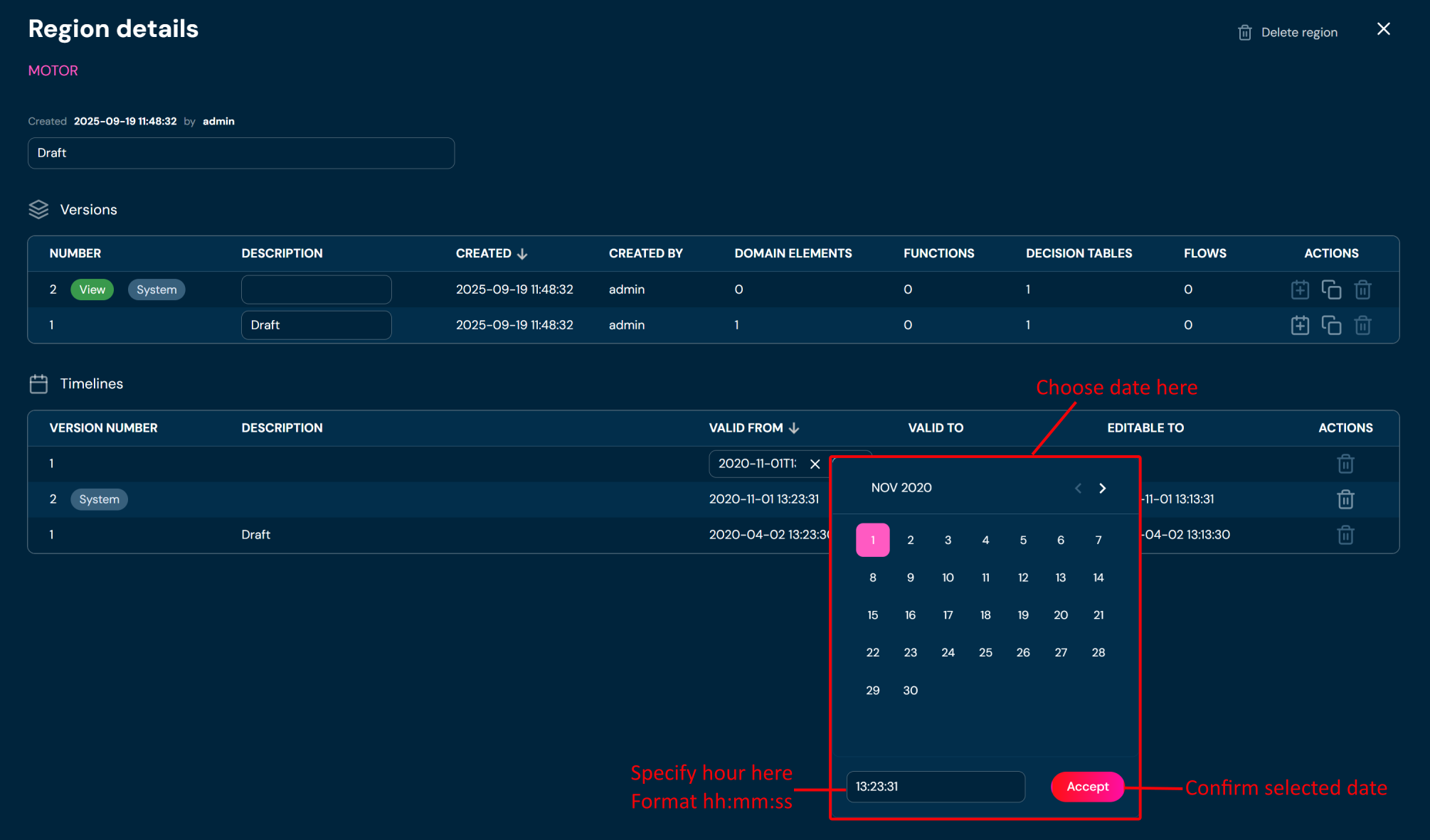
Choose VALID FROM date in calendar.
-
Choose Accept.
a. New Timeline is created.
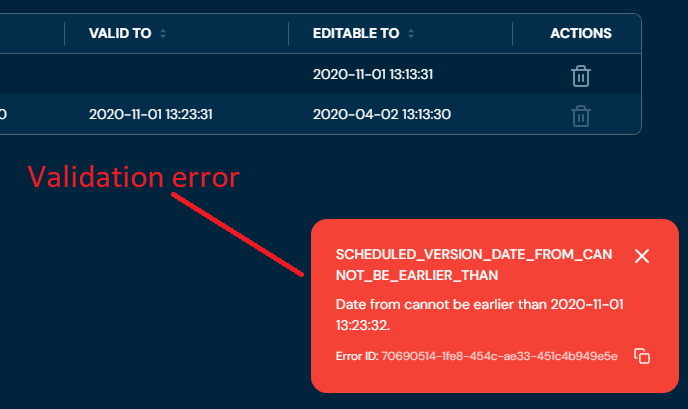
b. If you choose a date older than the VALID FROM date of the currently newest Timeline, then a validation error will appear.
Clone Version#
If you want to clone a version, follow these steps:
-
Choose Versions.
-
Left-click on a region you wish to clone a version.
a. Left-clicking on region brings up Region details screen.
-
Choose Clone version action for desired Version.
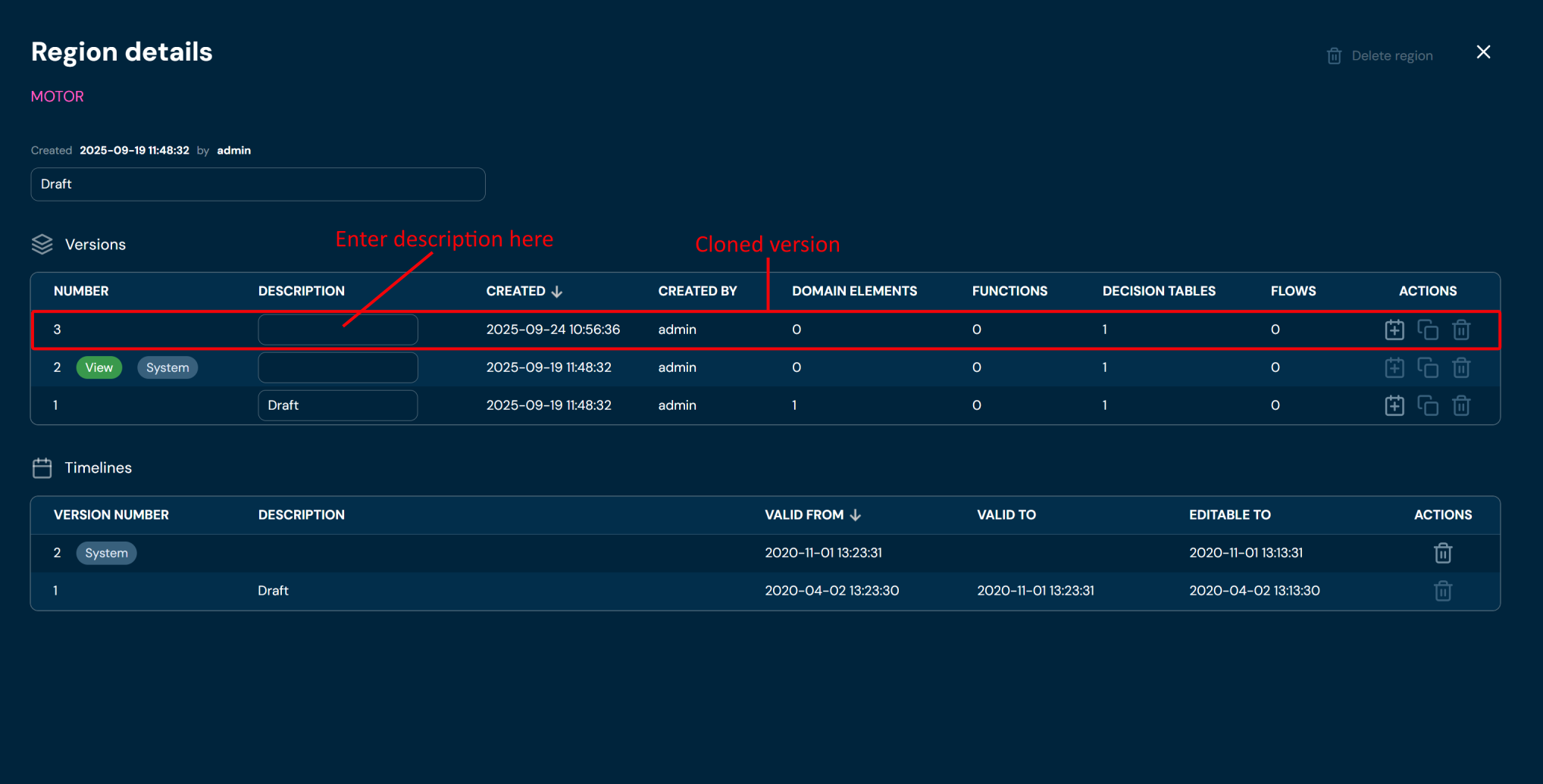
a. The New version is created as a clone.
-
You can enter the description for created version.
Delete Version#
If you want to delete a version, follow these steps:
-
Choose Versions.
-
Left-click on a region you wish to clone a version.
a. Left-clicking on region brings up Region details screen.
-
Choose Delete version action for desired Version.
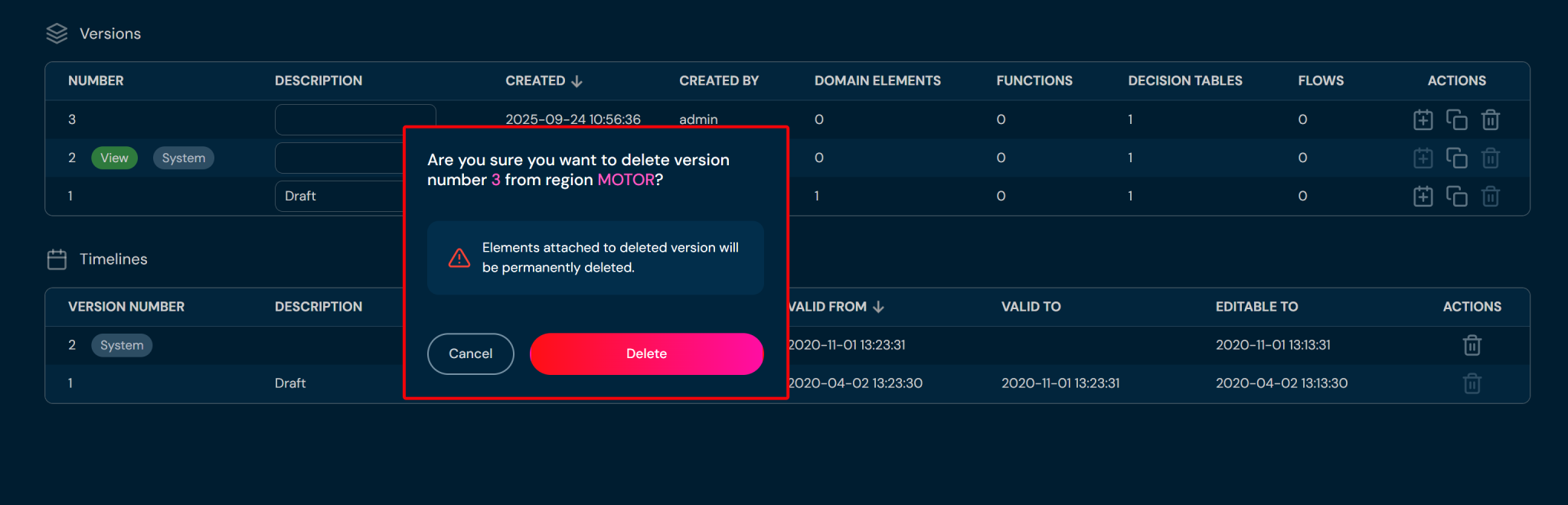
a. After choosing Delete version action, confirmation pop up will appear.
-
Choose Delete.
a. Version is being deleted from Region.
b. Bear in mind that deleting version will also permanently delete all attached elements (Decision Tables, Functions, Domain Configuration elements).
Delete Timelines#
If you want to delete timelines, follow these steps:
-
Choose Versions.
-
Left-click on a region you wish to clone a version.
a. Left-clicking on region brings up Region details screen.
-
Choose Delete timeline action for the newest timeline.
a. Bear in mind that only the newest timeline can be deleted. Delete action for older timelines is greyed out.
Delete Region#
If you want to delete a region, follow these steps:
-
Choose Versions.
-
Left-click on a region you wish to delete.
a. Left-clicking on region brings up Region details screen.
-
Choose Delete region.
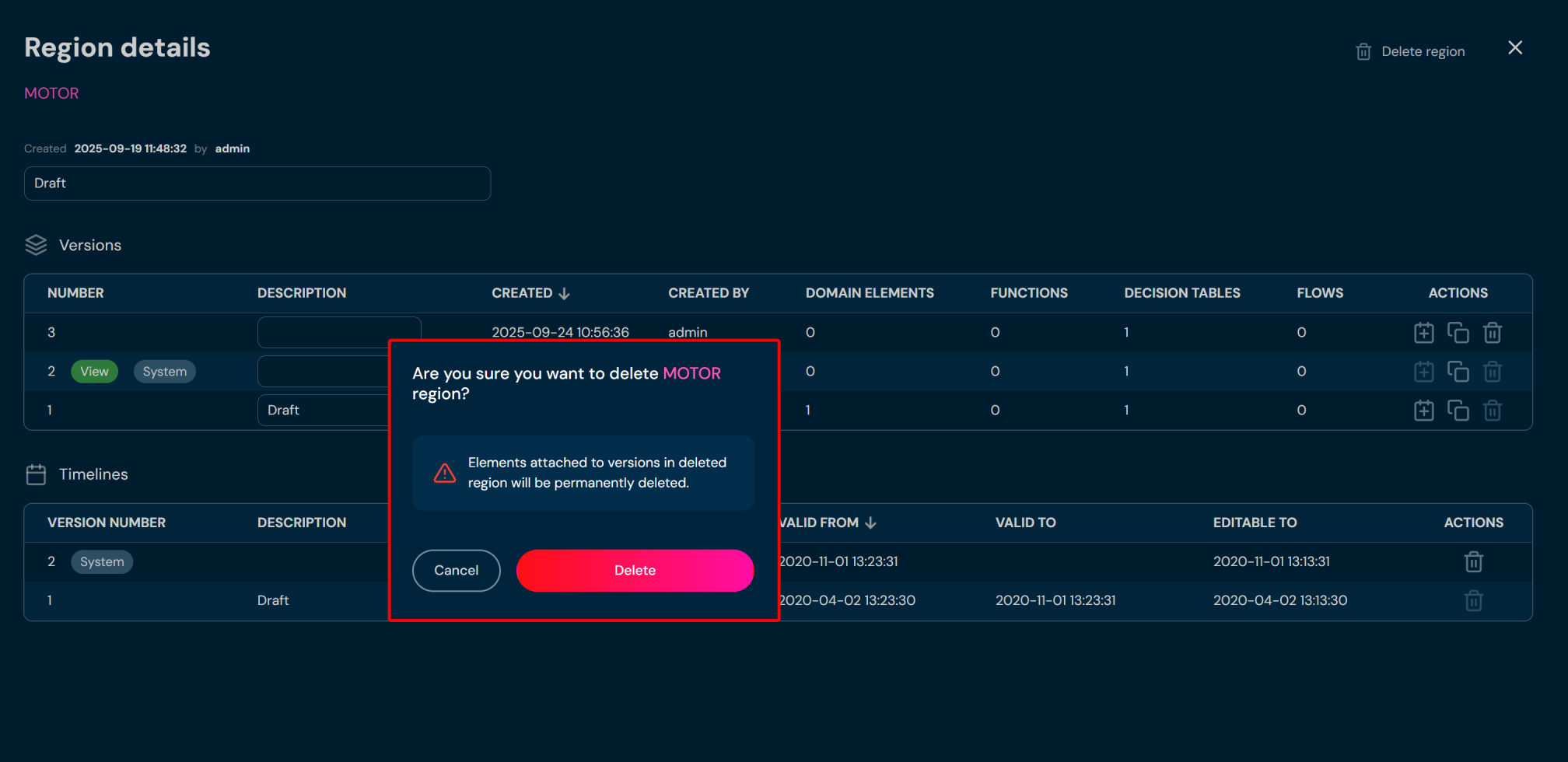
a. After choosing Delete region action, confirmation pop up will appear.
-
Choose Delete.
a. The Region is being deleted from the environment.
b. Bear in mind that deleting region will also permanently delete all attached elements (Decision Tables, Functions, Domain Configuration elements).