License Overview#
Higson Studio requires a valid license to operate. Without a loaded license, Higson Studio will be blocked and access to all features will be unavailable.
License Protection#
Starting from version 4.3, Higson introduces a license protection system with Runtime usage diagnostics and clear notifications inside Higson Studio about upcoming renewal deadlines. From now on, users:
- Receive clear, progressive notifications about expiring licenses, without blocking the Runtime.
- Get improved service support - environment analysis based on a diagnostic file.
- Benefit from greater security - easy detection of system use approaching license expiration thanks to visible, escalating alerts.
- Maintain consistency with the Diagnostic Panel - license and diagnostic data become part of a broader monitoring ecosystem.
Production License#
A production license must be loaded on every production environment. To obtain a production license, contact oktawia.jakubik@decerto.com
Developer License#
Starting from version 4.3, a developer license is required for all non-production environments. The developer license is unlimited in terms of both the number of CPU cores and its duration. This means it can be used without any restrictions on the number of CPU cores and has no expiration date. Clients migrating from earlier versions of Higson are encouraged to reach out for a developer license. To obtain one, contact:
- Product Manager: oktawia.jakubik@decerto.com
- Sales team: lukasz.niedospial@higson.tech
Trial License#
Users interested in testing Higson can now run the environment on their own infrastructure and work with Higson for 3 months under a developer license, with no obligations.
License Management#
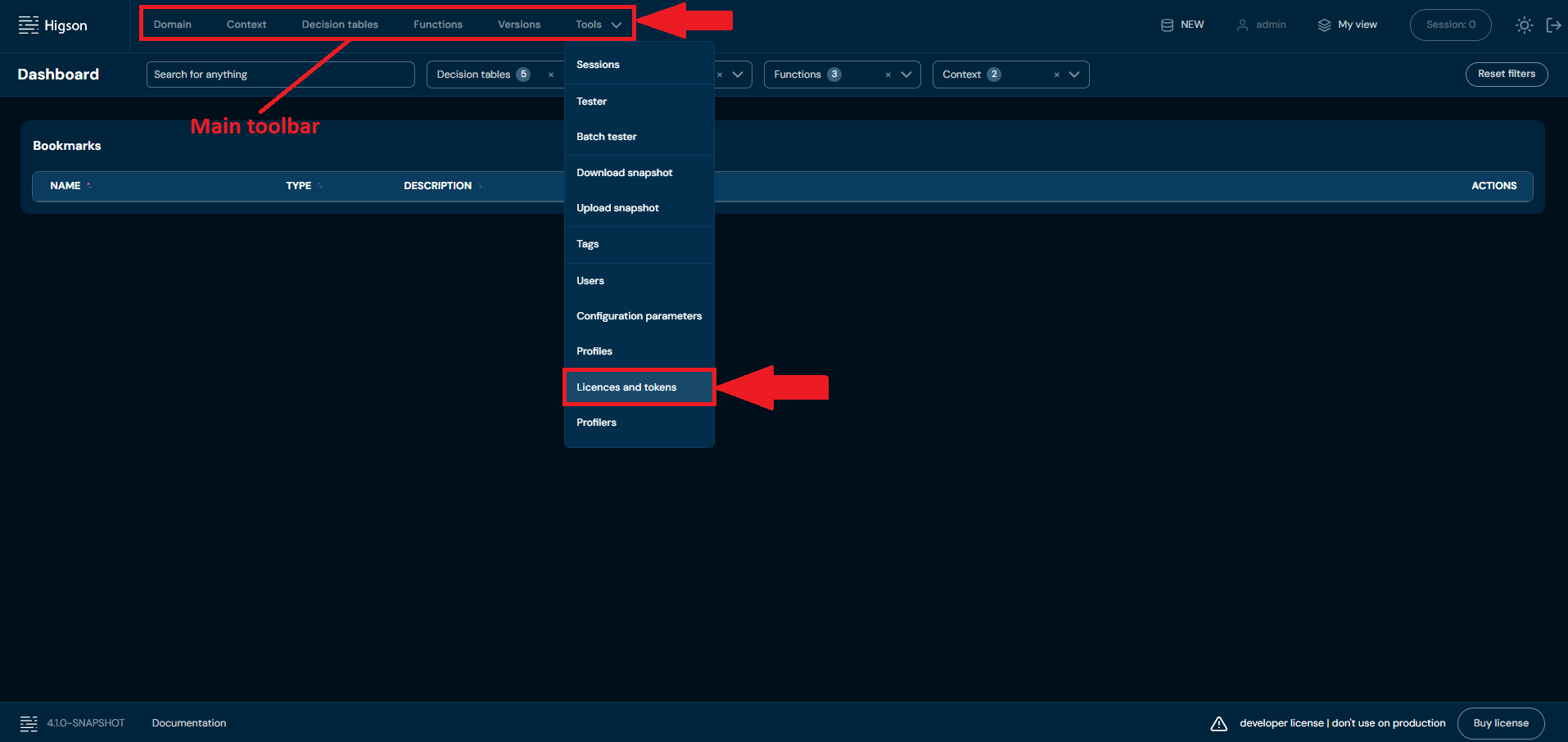
Licenses are a screen that allows you to manage licenses. You can add new licenses and remove old ones. To access the license screen, please select Tools in Main Toolbar and select Licences and tokens
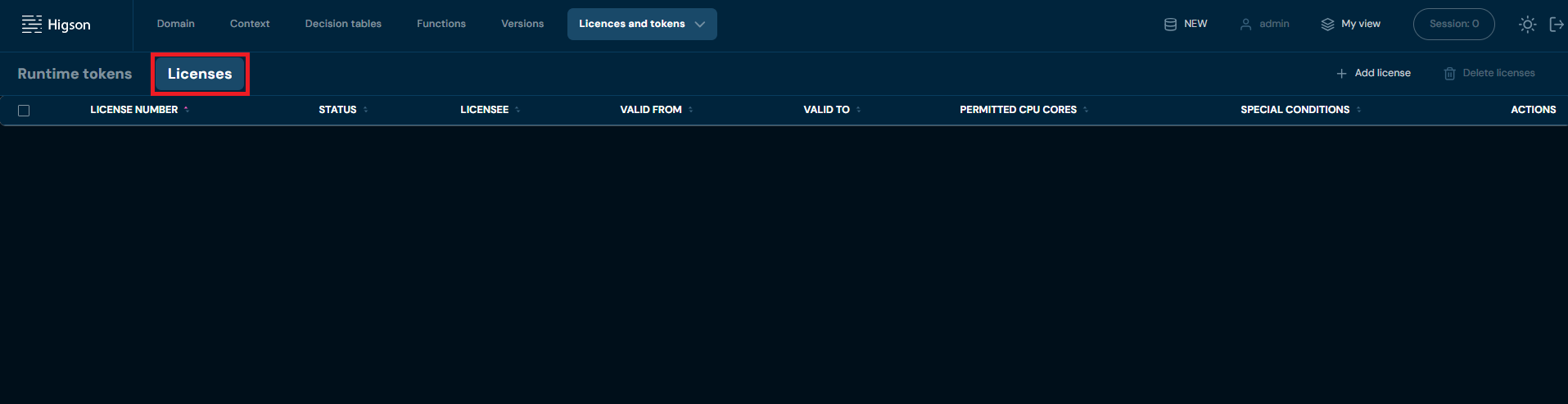
And go to Licenses tab
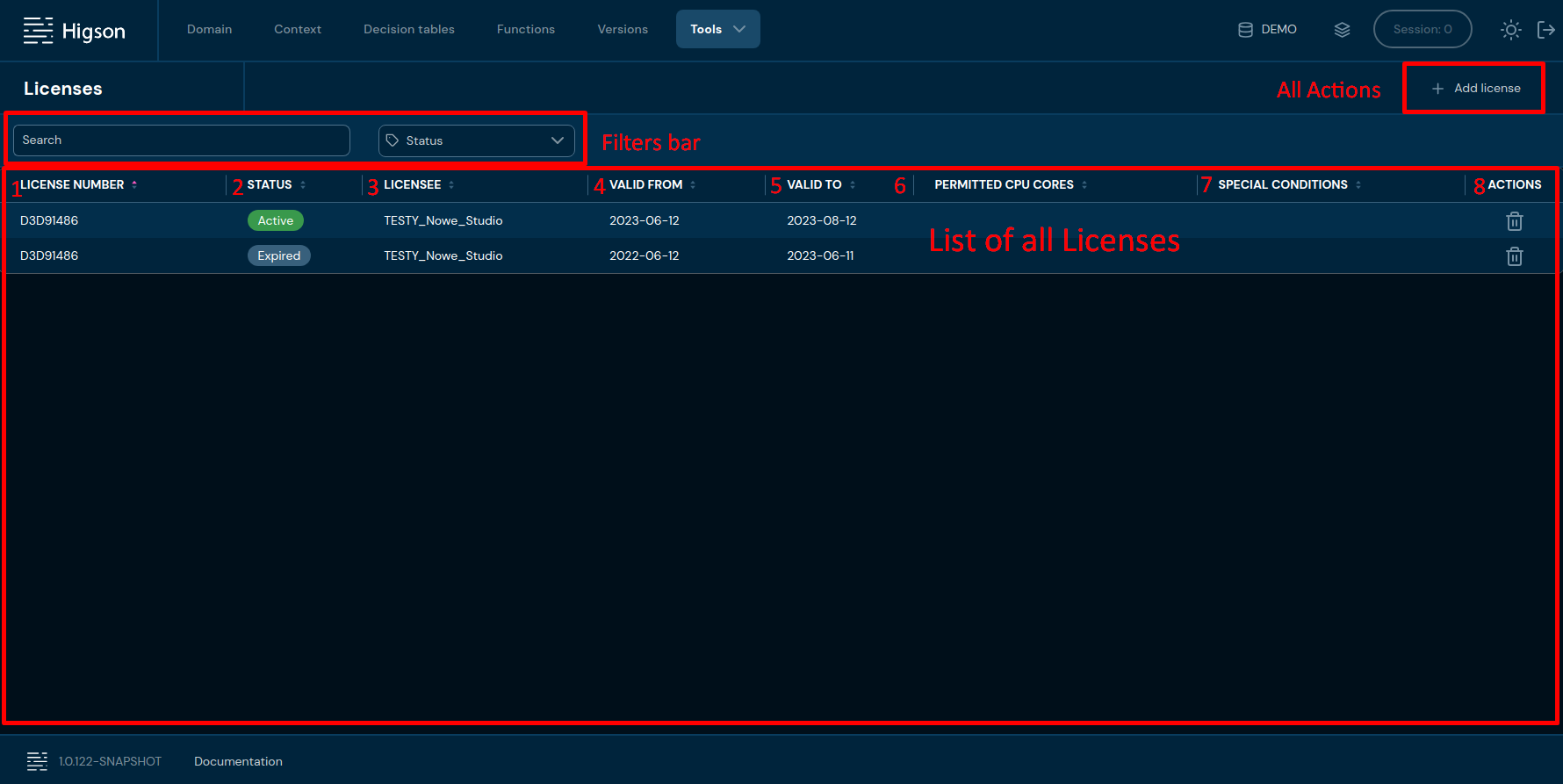
After you enter Licenses you will see screen of all licenses:
| No. | Column name | Description |
|---|---|---|
| 1. | License number | Unique license identification number. You can sort table by License number pressing arrow icon. |
| 2. | Status | This column indicates the current status of the license. It can have several possible labels such as active, expired. The status provides a quick way to determine if the license is currently valid and its scope. You can sort table by Status pressing arrow icon. |
| 3. | Licensee | Title of the License. You can sort table by Licensee pressing arrow icon. |
| 4. | Valid from | Date of the license validity. You can sort table by Valid from date pressing arrow icon. |
| 5. | Valid to | Date of the license expire. You can sort table by Valid to date pressing arrow icon. |
| 6. | Permitted CPU | Information about the maximum number of CPU cores cores which the software or service covered by the license can be used. You can sort table by Permitted CPU cores pressing arrow icon. |
| 7. | special | Additional license conditions. You can sort table conditions by Special conditions pressing arrow icon. |
| 8. | actions | List of quick access actions. Currently only Remove action is available here. Remove action delete desired license |

| No. | Filter name | Description |
|---|---|---|
| 1. | Search text field | Filter by any string provided by the user. |
| 2. | Status | Filter by selected license status |
Add License#
If you want to add a new license follow these steps:
-
Select Tools in Main Toolbar and select Licensee
-
Choose + Add license
-
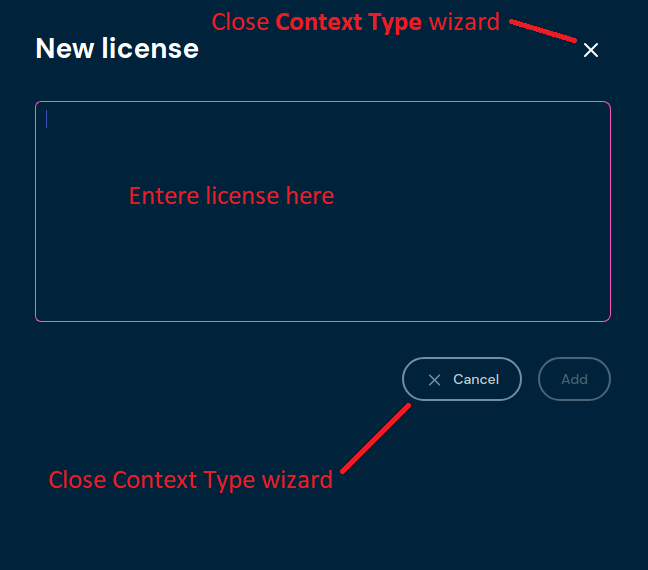
Enter your license code and press Add button
a. If a valid license code is entered, information about the license will appear.
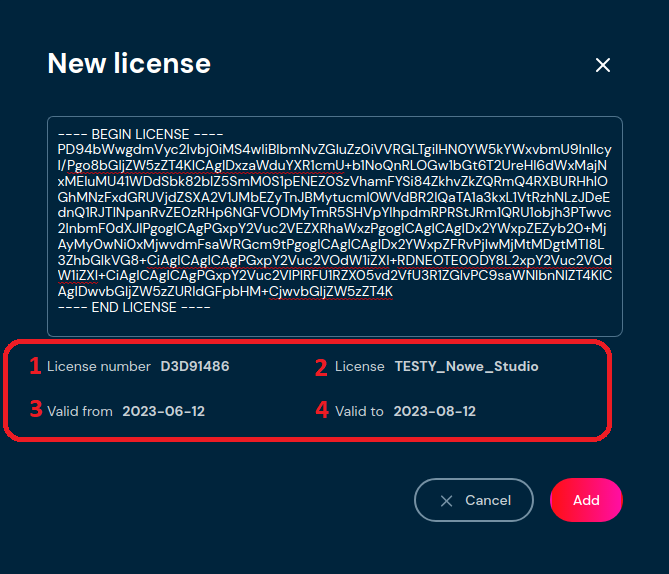
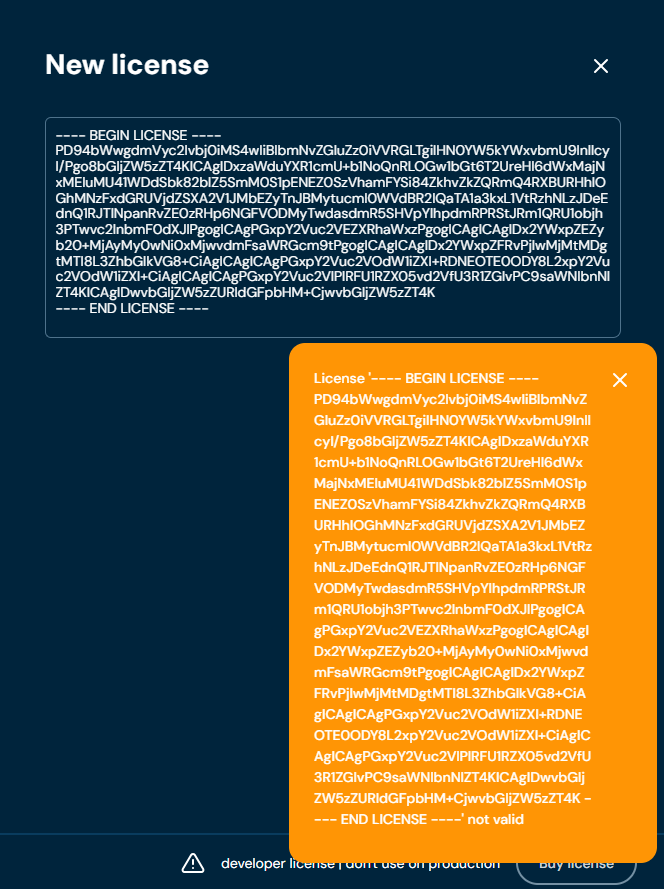
No. Column name Description 1. License number Unique license identification number. 2. License Title of the License 3. Valid from Date of the license validity. 4. Valid to Date of the license expire b. If an invalid license code is entered, an error message about the incorrect license code will appear.
Remove License#
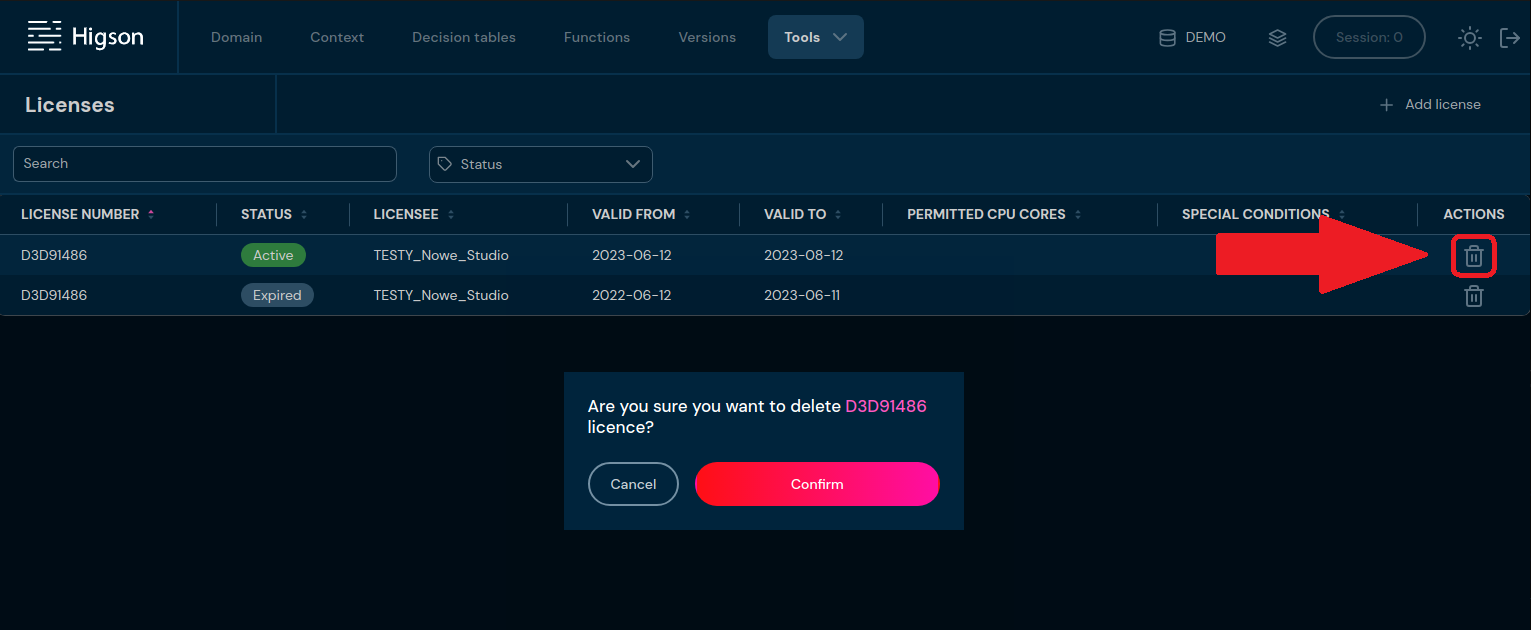
If you want to remove license choose Delete icon and confirm it pressing Confirm button
commit