Bootstrap
Higson Studio is a Java application and can be run at JVM machine equipped with:
- at least Java 17 JRE,
- 4 GB of RAM,
- 2 CPU,
- Linux, Windows or macOS machine.
Docker#
Higson Studio distribution only contains H2 and PostgreSQL drivers, the others have to be added manually. Every image contains description how to configure JDBC driver.
Full docker repository is available here.
Prerequisites:
- Java 17
- Maven 3.x
- Higson Studio
The complete Higson Runtime API reference — covering the public classes and interfaces used to embed Higson in your application, such as HigsonEngineFactory and HigsonEngine — is published as JavaDocs.
We will show how to configure Higson Engine using Spring Boot configuration
Maven Configuration#
Apart from standard spring boot dependencies, you need to include higson-runtime dependency, available in Maven Central.
|
|
Another needed dependency is the JDBC driver to the database of choice, e.g., H2, Oracle, Postgres, MsSQL or MySQL and database connection pool managing library:
|
|
Properties#
Add Higson Runtime data source properties to application.properties file.
|
|
Properties are available here
Spring Configuration#
Add required beans to your java class annotated with @Configuration:
|
|
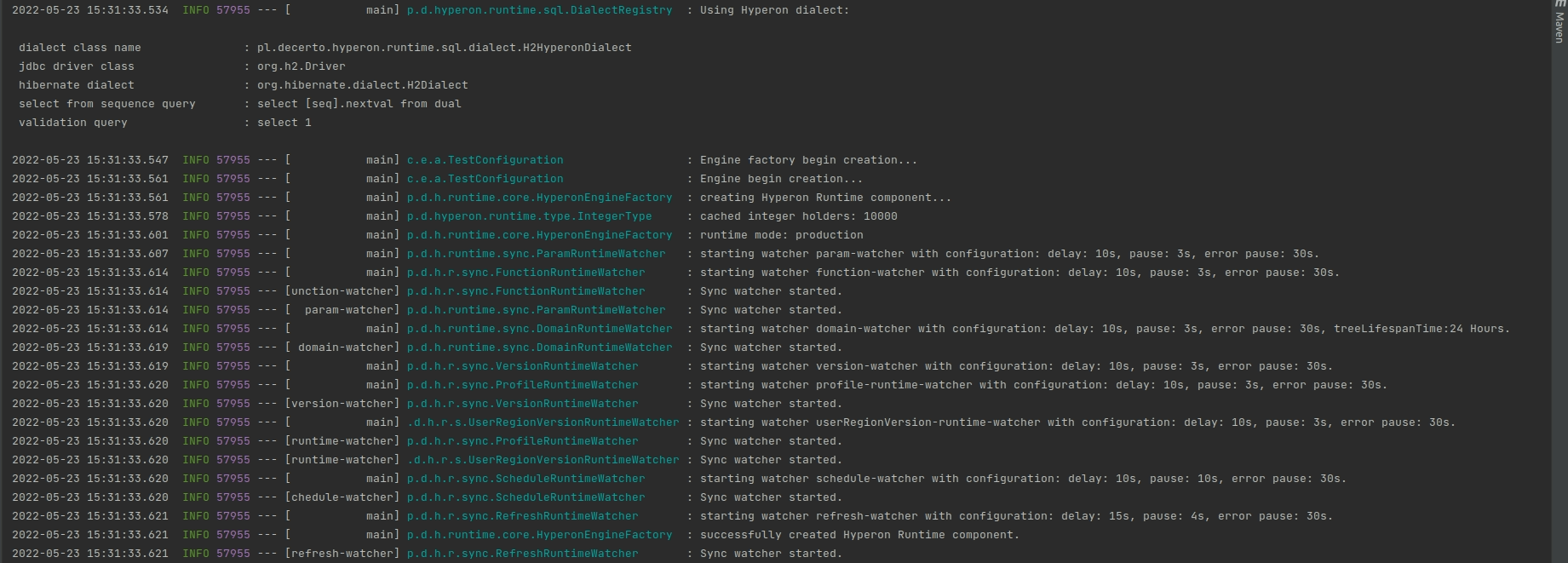
The application is ready to start. After successfully starting the application, you can see similar log output:
Run Higson Runtime REST in Test Mode Using Snapshot-Based Configuration#
It is possible to run the Higson Runtime in test mode using a configuration loaded directly from a snapshot. In this mode:
- The runtime does not require a database connection, as the entire configuration is sourced locally from the snapshot.
- The environment operates in read-only mode.
- Watchers are disabled, as no changes to the configuration are expected.
- Test mode is mutually exclusive with development mode and cannot be used simultaneously.
- This setup does not support tables from external data sources.
To use runtime in test mode, you need the following configuration:
private String pathToSnapshot = "C:\Users\UserName\Downloads\snapshot.zip"

@Bean(destroyMethod = "destroy")
public HigsonEngineFactory getHigsonEngineFactory() {
    log.info("Engine factory begin creation...");
    HigsonEngineFactory higsonEngineFactory = new HigsonEngineFactory();
    higsonEngineFactory.setDataSource(new HigsonSnapshotDataSource(new File(pathToSnapshot)));
    return higsonEngineFactory;
}

@Bean
public HigsonEngine getHigsonEngine(HigsonEngineFactory higsonEngineFactory) {
    log.info("Engine begin creation...");
    return higsonEngineFactory.create();
}
Prerequisites#
- Java 17
- Maven 3.x
- Spring Boot 3
Maven Configuration#
Apart from standard Spring Boot dependencies, you need to include spring-boot-starter-higson-runtime dependency,
available in Maven Central.
Add spring-boot-starter-higson-runtime dependency to pom.xml file:
|
|
Another needed dependency is the JDBC driver to the database of choice, e.g., h2, oracle, mssql, postgresql:
|
|
Properties#
With the above setup, all the configuration that is needed is application.yml file with database properties:
|
|
If required properties are not available, spring-boot-starter-higson-runtime will return an adequate message.
To configure external sources, you have to set comma separated list of external sources names and connection properties for each of them. You can do it by using the properties below.
|
|
Using Auto-Configured HigsonEngine#
After successfully configuring properties while starting the application, spring will create HigsonEngine bean available in the spring application context, then which can be injected anywhere:
|
|
Overriding Default Configuration#
To override default auto-configuration, you need to define HigsonEngine bean in the @Configuration class:
|
|
Existing auto-configured DataSource and HigsonRuntimeProperties can be used simply by injecting them:
|
|
Disabling Higson#
If you want to disable higson temporarily for some reason, you can do it with property higson.runtime.enabled set
to false.
|
|
Higson Runtime REST is a web application that provides REST API for decision table/function/domain access. It is a REST implementation of Java’s Higson Runtime jar. It is available in two forms:
- Spring boot’s executable jar, available here: https://www.higson.io/docs/d-success
- Docker image, available here: https://hub.docker.com/repository/docker/decerto/higson-runtime-rest
Environment#
Higson Runtime REST is a Java application and can run with any Java 8 or higher on Windows, MacOS X and Linux/Unix.
CLI#
To run Runtime-Rest from cli you must pass four properties:
- loader.path - path to jdbc driver
- higson.database.url
- higson.database.username
- higson.database.password
Download latest version of higson runtime rest and database driver (postgresql for example)
|
|
Docker#
To run Higson Runtime REST as a docker image, there is need to build a separate docker image based on decerto/higson-runtime-rest image, add your database driver jar and run Higson Runtime REST jar with additional path.
Example:
|
|
Additionally, you need to pass 3 properties:
- higson.database.url
- higson.database.username
- higson.database.password
An invocation example:
|
|
Using Higson Runtime REST#
This short tutorial will guide you through the process of running Higson Runtime REST as a docker image and invoking decision table/function/domain element.
Prerequisites#
In order to run examples from this article you will need:
- running docker. See https://docs.docker.com/installation/#installation for details on setting Docker up for your machine.
- a favorite REST API Client to send requests such as Postman
- a favorite internet browser
Setting Up Docker Images#
The tutorial will be based on our motor insurance. It consists of the insurance web application, Higson Studio, and Higson Runtime REST modules. There is a docker-compose.yml file that makes the whole application easy to run. Just download a project from GitHub, open terminal in that directory, and run the following command:
|
|
If you look closely inside the docker-compose.yml file, you will see that Higson Runtime REST docker image needs three additional properties to be passed to run properly:
- higson.database.url : JDBC url to Higson’s database
- higson.database.username : Higson’s database username
- higson.database.password : Higson’s database password
If you want to connect to other database types such as Oracle, Postgres, MsSQL or MySQL, then you must build your own docker image and provide your database driver. Here’s a Docker file example that copies custom database driver and runs Runtime REST application:
|
|
- Demo app should be available at
localhost:48080/demo - Higson Studio should be available at
localhost:38080/higson/app - Higson Runtime REST should be available at
localhost:8081
To access higson services use followed credentials: User: admin Password: admin
Getting Decision Table Value#
We will be using a decision table examples from this article. Let’s get the value of a demo.motor.coverage.position decision table for the BI coverage code. Here’s the request we’re going to use:
|
|
It consists of 2 main parts: ctx and elements. The former represents the input values we want to pass to Higson. We can pass there simple as well as complex objects. The latter is a list of Higson elements to invoke.
When we send this request to the localhost:8081/api/execution/invoke url, we should receive the following response:
|
|
We receive a list of executed Higson elements with corresponding values.
Let’s see how the response will look like if more than one row will be returned from the decision table. In this example, we are going to use the demo.motor.dict.vehicle.available decision table. Here’s the request:
|
|
Besides a new decision table (parameter) code and context property, you can see how to invoke more than one Higson element in a single JSON request. Let’s see the response:
|
|
As we see, each element has its own JSON section in returned array. What’s more, each row in the decision table’s matrix corresponds to one complex element in the resultValue array.
Calling Function#
Let’s get the computed value of the demo.insurance.calc.premium function. Here’s the request we’re going to use:
|
|
It’s basically the same request as the one used in the decision tables section. However, we pass here three context key-value pairs instead of one. Here’s the response we should get by calling the localhost:8081/api/execution/invoke endpoint:
|
|
Again, the same response format as in the decision table’s.
Accessing Domain Attributes#
Last but not least, let’s see how to access domain attributes through invoke API. We’ll be using examples from this article. Let’s see how to evaluate a position attribute of a coverage BI domain element:
|
|
The main difference between domain element and decision table/function is the presence of 2 additional attributes: profileCode and attributeCode, which names are self-describing. Let’s look at the response:
|
|
As we see, the response format is the same as in the decision table/function section.
If you want to learn more or discover other available endpoints, there is a Runtime REST swagger online documentation available at: http://localhost:8081/swagger-ui/index.html.
Accessing Swagger UI#
The Swagger UI link is generated automatically based on the installation type (Docker or Bundle). The Swagger UI is accessible at the following address format:
http://[host]:[port]/[appname]/[apiname]/swagger-ui/index.html
For Docker-Based Deployments#
When the application is running in a Docker environment, the URL components are determined as follows:
- host: localhost (or the container’s IP address if accessed externally)
- port: retrieved from the server.port property (e.g., 8080)
- apiname: the value of server.servlet.context-path from the application’s configuration (e.g., /api)
Example: http://localhost:8080/api/swagger-ui/index.html
For Bundle Installations#
In the case of a bundle installation:
-
host: localhost
-
port: retrieved from the conf/server.xml configuration file by locating a line such as:
<Connector port="38080" protocol="HTTP/1.1" ... />In this example, the port is 38080.
-
appname and apiname: determined based on the directory structure within the webapps folder. For version 4.1, the typical folder name is higson#api, which translates to:
- appname = higson
- apiname = api
Example: http://localhost:38080/higson/api/swagger-ui/index.html
By following these rules, you can easily determine the correct Swagger UI URL regardless of the deployment method.
Generating Runtime REST JSON from Tester#
To generate a request to Runtime Rest, navigate to Tools -> Tester. Click “Add Test”, then add the elements for which you want to generate an example request. In the example below, the following elements have been selected:
- Decision Table,
- Function,
- Domain Element,
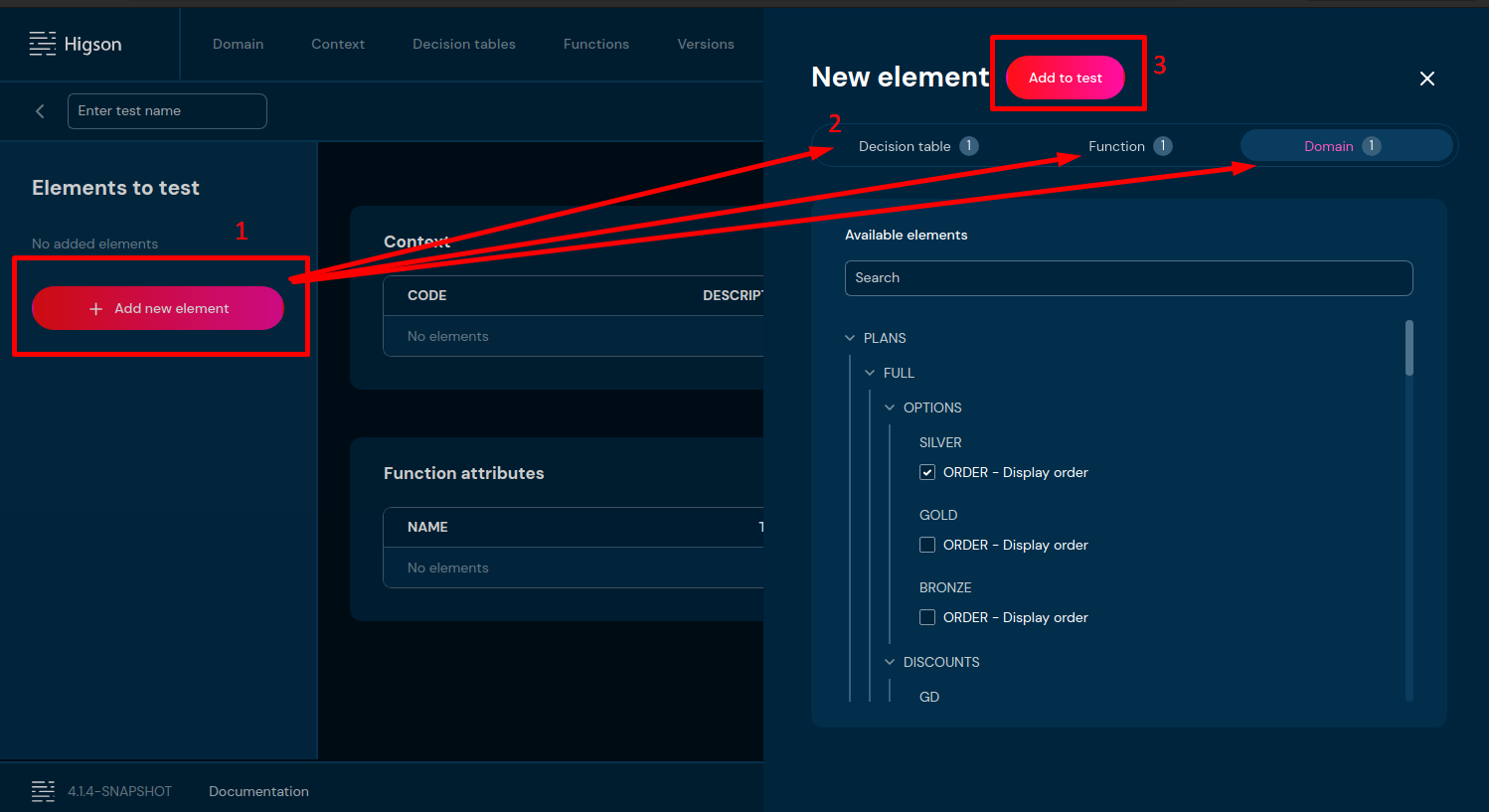
- Click “Add element” on the left side.
- Select the elements for which you want to generate an example request.
- Add the selected elements to the test.
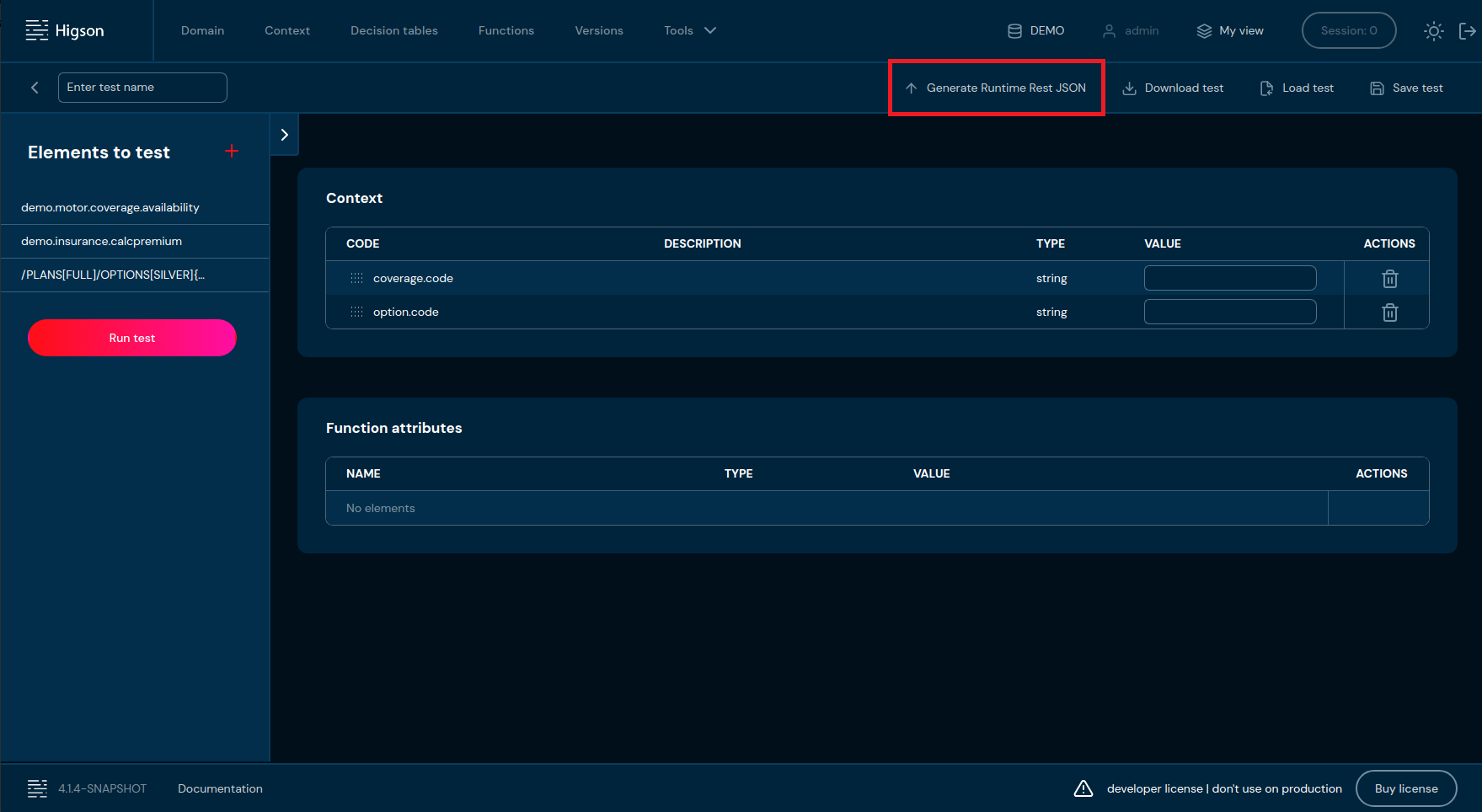
Now you can click the “Generate Runtime Rest JSON” button, which will generate an example request without context values.
|
|
If you need to generate an example request with context values, you must first run the test by clicking “Run Test” button. This will populate the Context table with all available context values.
Next, fill in the desired context values and click “Run Test” again.
Then click “Generate Runtime Rest JSON”.
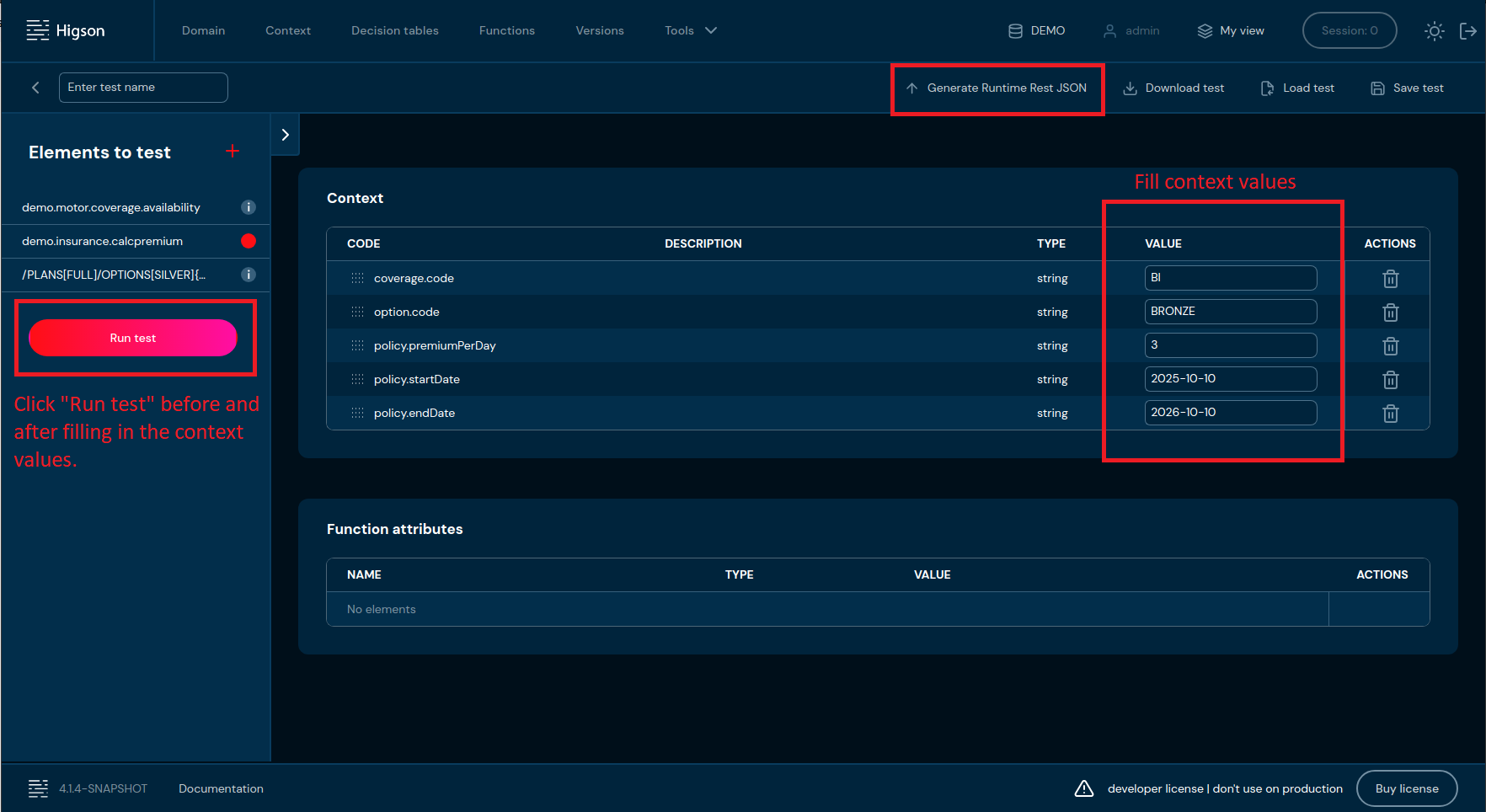
Now the generated example request will include the values from the context.
|
|
Cache Mechanism and the Role of Watchers in Higson Runtime REST#
Higson Runtime REST uses a caching mechanism to store computation logic, which significantly contributes to its high performance. The actual computation logic (e.g., functions or decision tables) is stored in a database managed by Higson Studio.
What happens when a Higson Studio user modifies a business configuration — for example, by editing a decision table? To ensure that Higson Runtime REST always operates on up-to-date data, the system must detect these changes and refresh its cache accordingly.
This is where watchers come in — specialized components within Runtime REST responsible for monitoring the state of business configuration in Higson Studio. By default, every 3 seconds, watchers check the current state of the Higson Studio database. If they detect any change in the configuration (e.g., in decision tables, functions, etc.), they signal the need to reload the cache. In response, Higson Runtime REST refreshes the configuration, ensuring that all computations are performed using the most recent data.
Thanks to this mechanism, Higson Runtime REST:
- Always holds an up-to-date business configuration in cache,
- Eliminates delays caused by accessing the database during computation,
- Ensures consistency between Higson Studio and the runtime environment.
Types of Watchers#
Higson Runtime REST defines nine types of watchers, categorized by the type of business configuration element they monitor:
- Decision tables
- Functions
- Versions
- Profiles
- My view - in dev-mode
- Domain
- Developer mode - unpublished changes in session
- Timeline
- Refresh
Each watcher is responsible for tracking changes in a specific resource type, enabling precise and efficient synchronization. Each watcher operates independently. This means that a change in one type of element (e.g., a decision table) does not trigger unnecessary cache reloads for other unrelated areas. This design significantly improves the system’s operational efficiency.
Watcher Properties#
The table below lists the properties related to each watcher type, along with their default values (expressed in seconds).
| Property | Description | Default value |
|---|---|---|
| Decision tables | ||
| higson.runtime.watcher.param-watcher-config.delay | Time after which the watcher starts following application launch [s]. | 10 |
| higson.runtime.watcher.param-watcher-config.pause | Interval at which the watcher monitors the state of decision tables. | 3 |
| higson.runtime.watcher.param-watcher-config.errorPause | Duration for which the watcher is suspended after a watcher error occurs. | 30 |
| higson.runtime.watcher.param-watcher-config.force | Set the time after which the watcher will force a full cache synchronization of decision tables. Currently only the param-watcher supports this setting. | 60 |
| Functions | ||
| higson.runtime.watcher.function-watcher-config.delay | Time after which the watcher starts following application launch [s]. | 10 |
| higson.runtime.watcher.function-watcher-config.pause | Interval at which the watcher monitors the state of functions. | 3 |
| higson.runtime.watcher.function-watcher-config.errorPause` | Duration for which the watcher is suspended after a watcher error occurs. | 30 |
| Versions | ||
| higson.runtime.watcher.version-watcher-config.delay | Time after which the watcher starts following application launch [s]. | 10 |
| higson.runtime.watcher.version-watcher-config.pause | Interval at which the watcher monitors the state of versions. | 3 |
| higson.runtime.watcher.version-watcher-config.errorPause | Duration for which the watcher is suspended after a watcher error occurs. | 30 |
| Profiles | ||
| higson.runtime.watcher.profile-watcher-config.delay | Time after which the watcher starts following application launch [s]. | 10 |
| higson.runtime.watcher.profile-watcher-config.pause | Interval at which the watcher monitors the state of profiles. | 3 |
| higson.runtime.watcher.profile-watcher-config.errorPause | Duration for which the watcher is suspended after a watcher error occurs. | 30 |
| My view - in dev-mode | ||
| higson.runtime.watcher.user-region-version-watcher-config.delay | Time after which the watcher starts following application launch [s]. | 10 |
| higson.runtime.watcher.user-region-version-watcher-config.pause | Interval at which the watcher monitors the state of users perspective (in Higson Studio set under the My View button). | 3 |
| higson.runtime.watcher.user-region-version-watcher-config.errorPause | Duration for which the watcher is suspended after a watcher error occurs. | 30 |
| Domain | ||
| higson.runtime.watcher.domain-watcher-config.delay | Time after which the watcher starts following application launch [s]. | 10 |
| higson.runtime.watcher.domain-watcher-config.pause | Interval at which the watcher monitors the state of the domain. | 3 |
| higson.runtime.watcher.domain-watcher-config.errorPause | Duration for which the watcher is suspended after a watcher error occurs. | 30 |
| higson.runtime.watcher.domain-watcher-config.invalidate | Works in tandem with higson.runtime.watcher.domain-watcher-config.time-unit — defines how long the domain value may remain unchanged in the cache. |
24 |
| higson.runtime.watcher.domain-watcher-config.time-unit | Works in tandem with higson.runtime.watcher.domain-watcher-config.invalidate — defines how long the domain value may remain unchanged in the cache. |
HOURS |
| Developer mode - unpublished changes in session | ||
| higson.runtime.watcher.dev-mode-watcher-config.delay | Time after which the watcher starts following application launch [s]. | 10 |
| higson.runtime.watcher.dev-mode-watcher-config.pause | Interval at which the watcher monitors the state of objects modified in session. | 1 |
| higson.runtime.watcher.dev-mode-watcher-config.errorPause` | Duration for which the watcher is suspended after a watcher error occurs. | 30 |
| Timeline | ||
| higson.runtime.watcher.schedule-runtime-watcher-config.delay | Time after which the watcher starts following application launch [s]. | 10 |
| higson.runtime.watcher.schedule-runtime-watcher-config.pause | Interval at which the watcher monitors the state of the version timeline. | 10 |
| higson.runtime.watcher.schedule-runtime-watcher-config.errorPause | Duration for which the watcher is suspended after a watcher error occurs. | 30 |
| Refresh | ||
| higson.runtime.watcher.refresh-watcher-config.delay | Time after which the watcher starts following application launch [s]. | 15 |
| higson.runtime.watcher.refresh-watcher-config.pause | Checks each cached decision table (in-memory index). Evicts decision table from cache if: - the decision table’s auto-refresh period has expired - the decision table’s max idle time exceeded |
10 |
| higson.runtime.watcher.refresh-watcher-config.errorPause | Duration for which the watcher is suspended after a watcher error occurs. | 30 |