In Domain definition we can design domain types, their relationships and attributes.
If you are new to Higson Domain, you may want to read the introductory section Introduction to Domain.
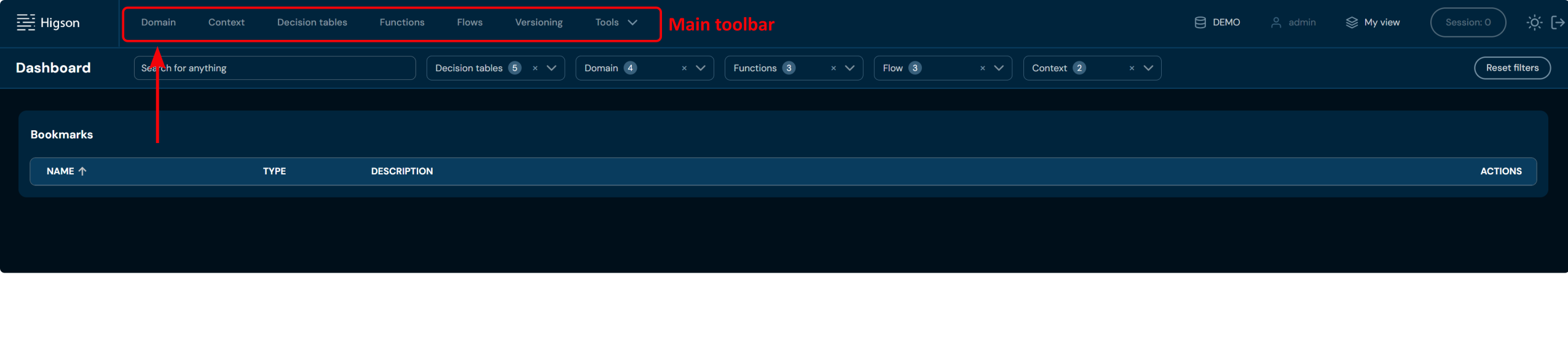
In order to see Domain Definition, select Domain in Main Toolbar.
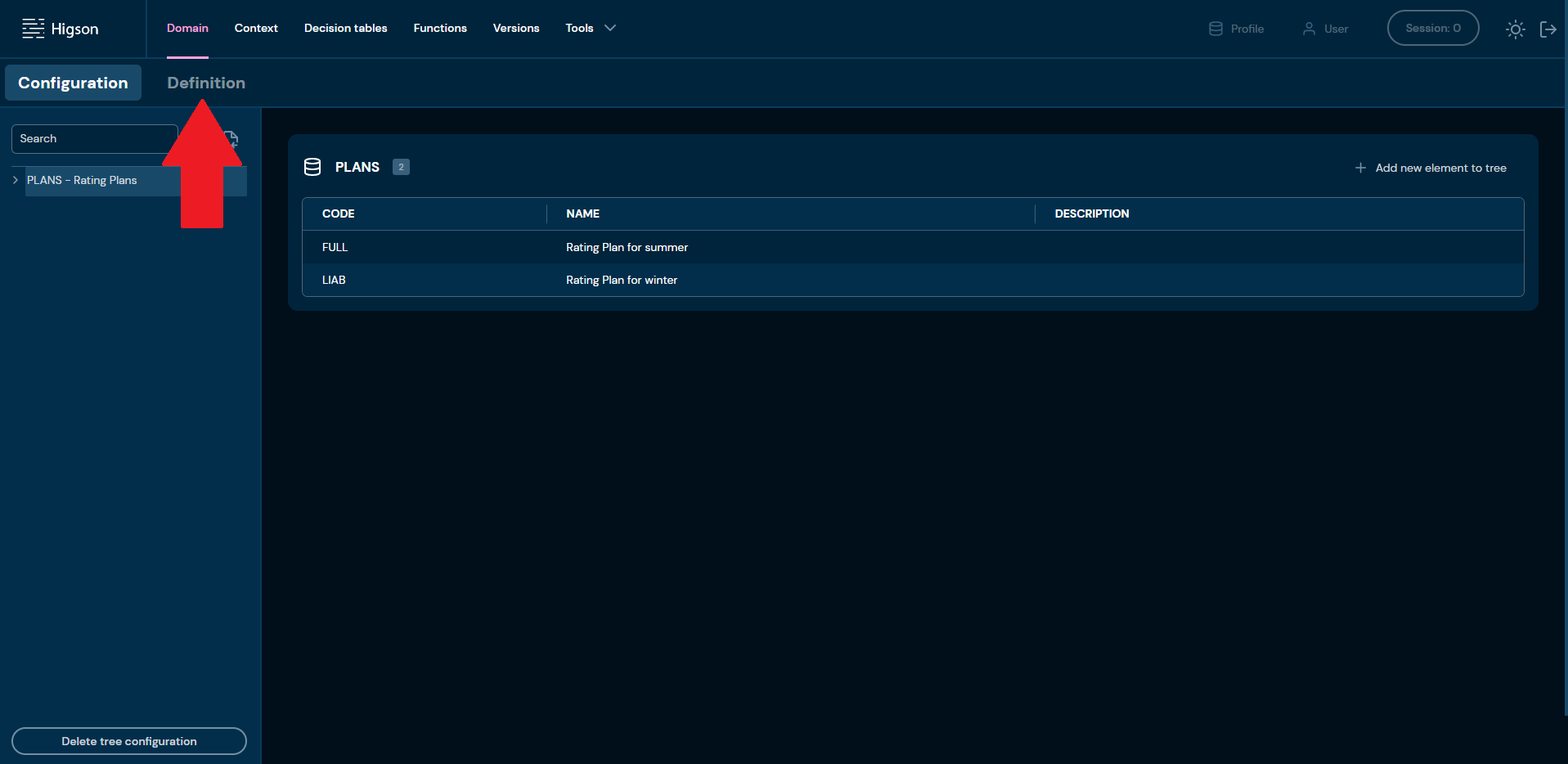
Select Definition tab.
After you enter Definition you will see screen of all definition types:
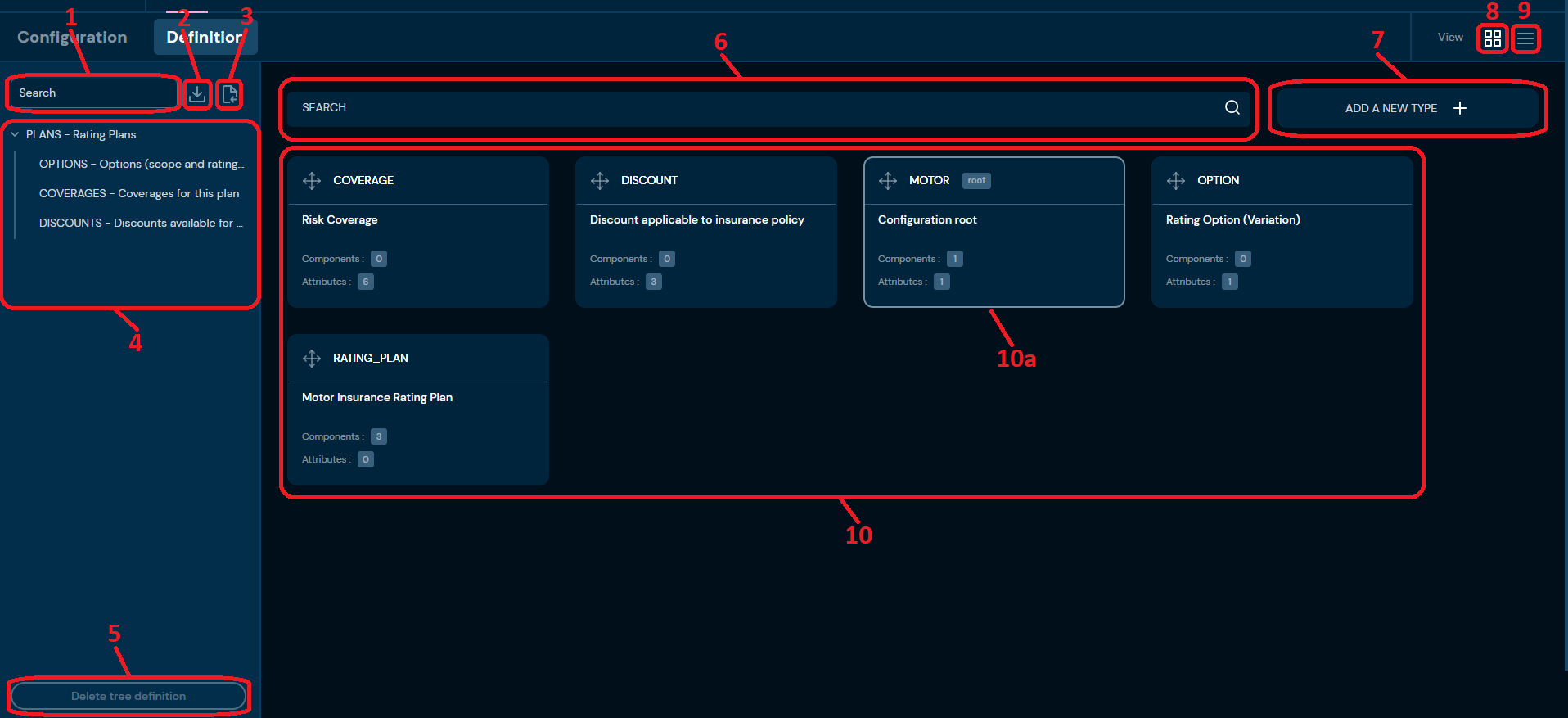
| No. | Name | Description |
|---|---|---|
| 1. | Tree search | Filter by any string provided by the user. Definition tree navigates to all Types matching the provided criteria. |
| 2. | Download | Downloads an XML file that contains the entire Domain Definition. To learn more about downloading the Definition, go here. |
| 3. | Upload Domain | Allows uploading Domain Definition from an XML file. To learn more about uploading the Definition, go here. |
| 4. | Definition tree | A visual representation of dependencies between Definition Types. |
| 5. | Delete tree | Deletes all Definition Types. Action is available only if: - User’s session is closed, - The Domain Configuration section is empty. Otherwise, the action is greyed out. |
| 6. | Types search | Type any phrase to find the right type. |
| 7. | Add a new Type | Allows creating new Definition Types. To learn more about adding Definition Types, go here |
| 8. | Tiles view | Enables viewing Definition Types as tiles. |
| 9. | List view | Enables viewing Definition Types as a list. |
| 10. | All Definition Types | Every Definition Type created is visible here. |
| 10a. | Configuration ROOT | Configuration ROOT is marked more distinctively from other Definition Types. Borders of ROOT are highlighted, and the label “root” is visible. |
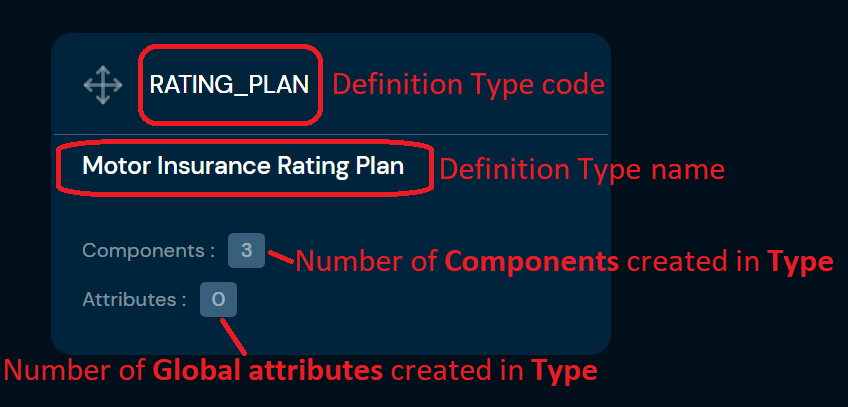
Definition Type Tile#
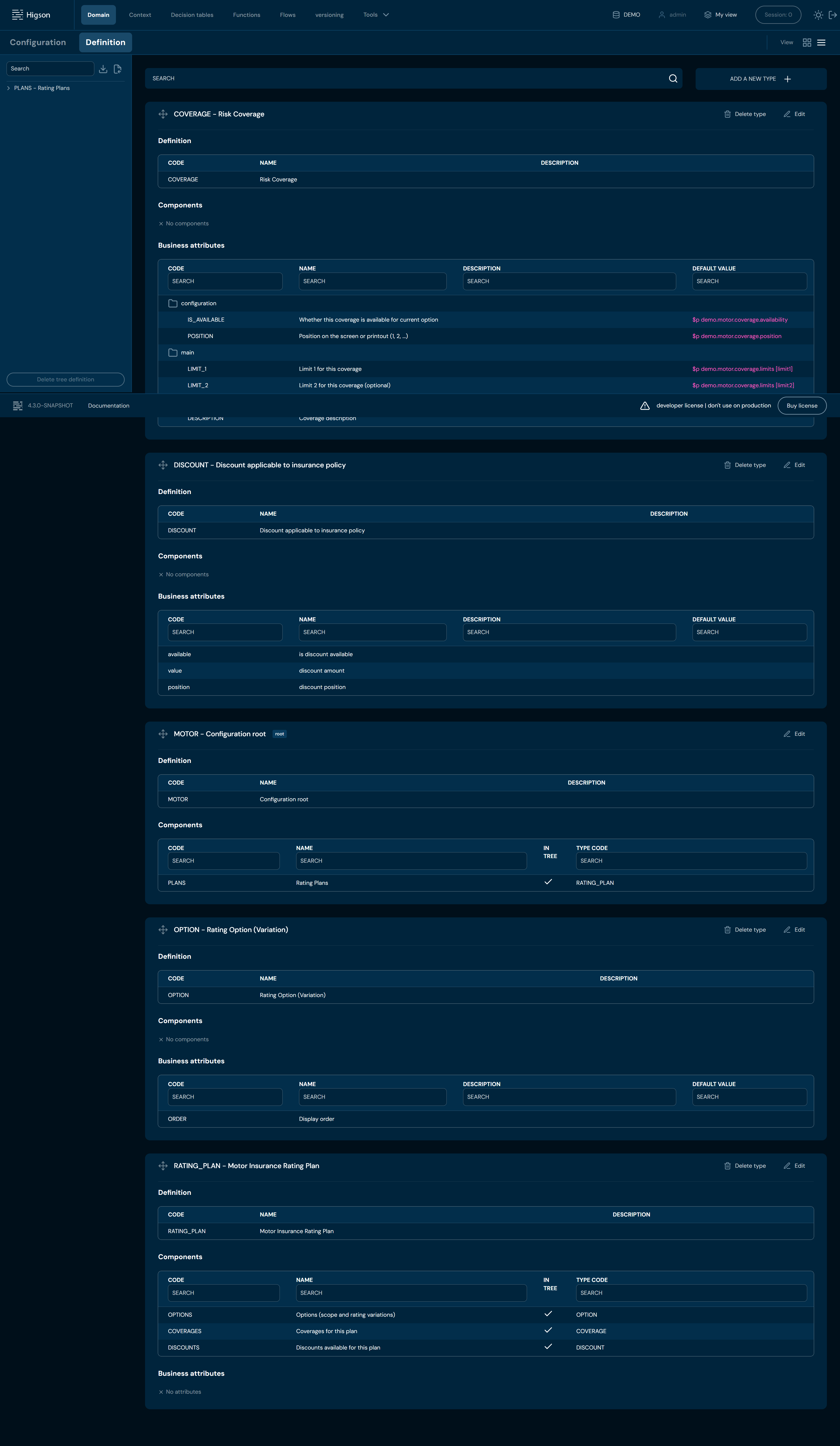
List View of Definition Types#
Add a New Type#
If you want to add a new definition type, follow these steps:
-
Choose Domain in Main toolbar.
-
Choose Definition tab.
-
Choose ADD A NEW TYPE +
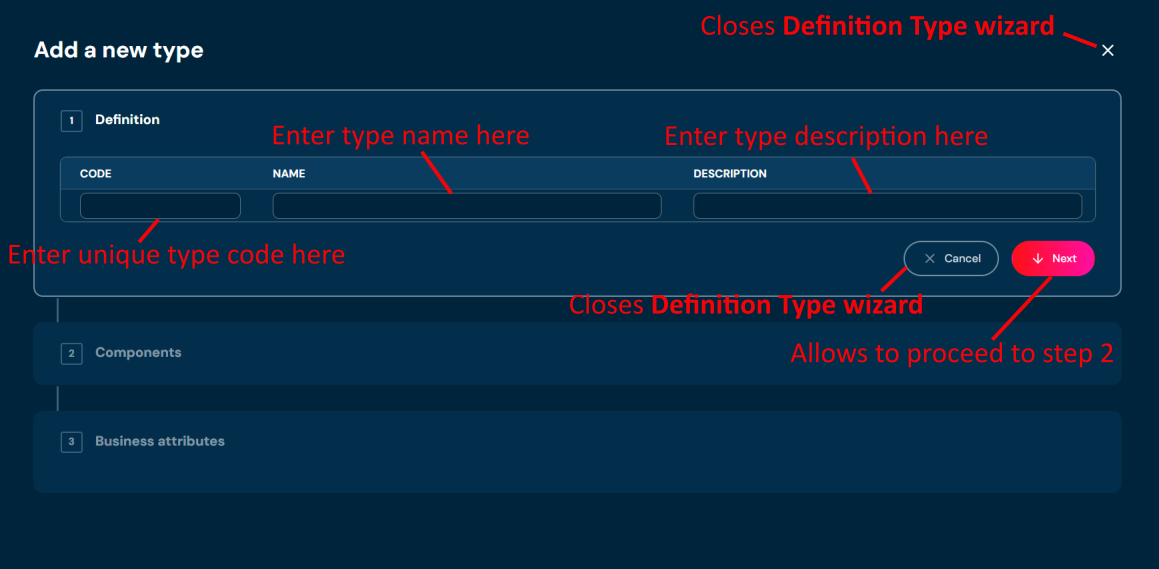
a. Choosing ADD A NEW TYPE + opens a step-by-step Definition Type wizard.
-
In step 1. Definition, you:
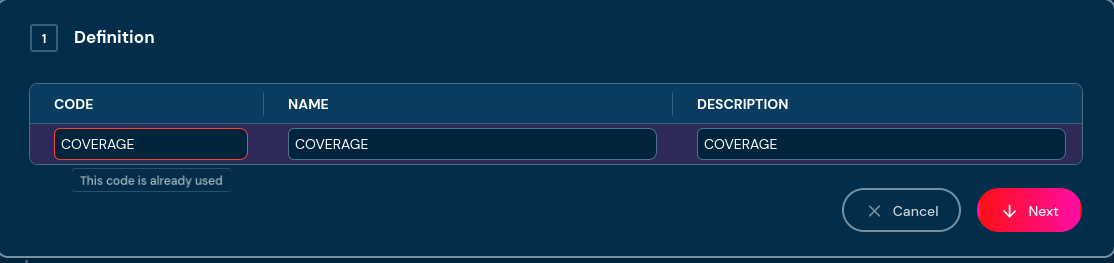
a. need to provide unique Type code. Code can contain only characters from collection a-z; 0-9; “-”; “_” and it can’t start with “-”.
i. If entered code in step 1. Definition is already used by another type, then validation error will appear.
b. need to provide Type name. Name can contain only characters from collection a-z; 0-9; “-”; “_” and it can’t start with “-”.
c. can provide Type description. Description cannot contain characters like “<”; “>”; “@”; “$”; “|” and it * cannot* start with any “special character”, for example “!”
d. If you change your mind and don’t want to create a new type, you can choose Cancel in step 1. Definition.
-
Choose Next.
a. If you enter illegal characters in code, name or description field, then borders will be highlighted with red color, and you will not be able to proceed to the next step. Hover mouse over the field to see tooltip with more details.
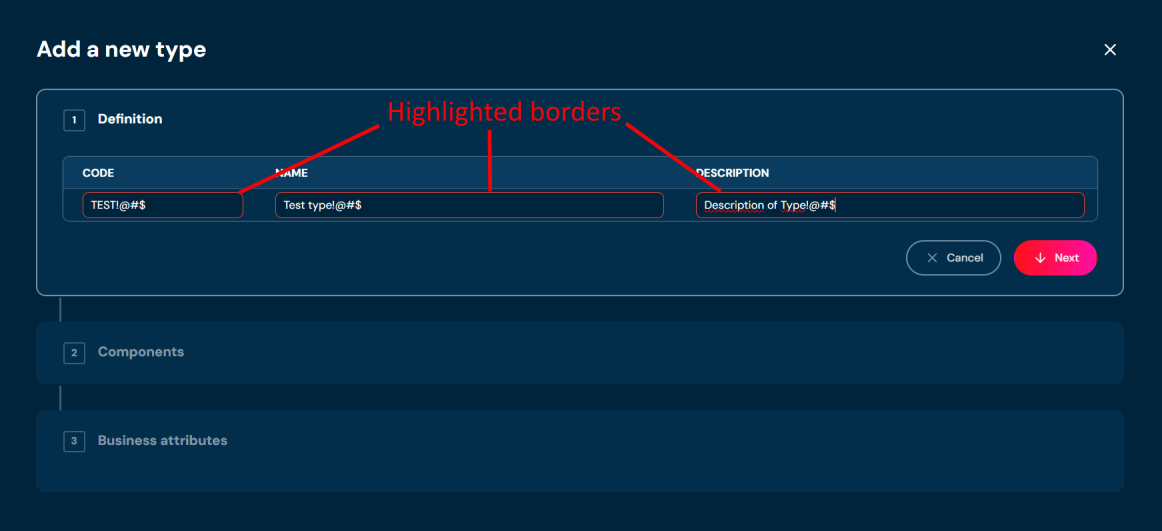
-
In step 2. Components you may add/duplicate/remove components. This data is not necessary to save a type.
a. If you decide to add a component, you must provide code (unique), name and type code.
i. Type code is a drop-down list with codes of all types
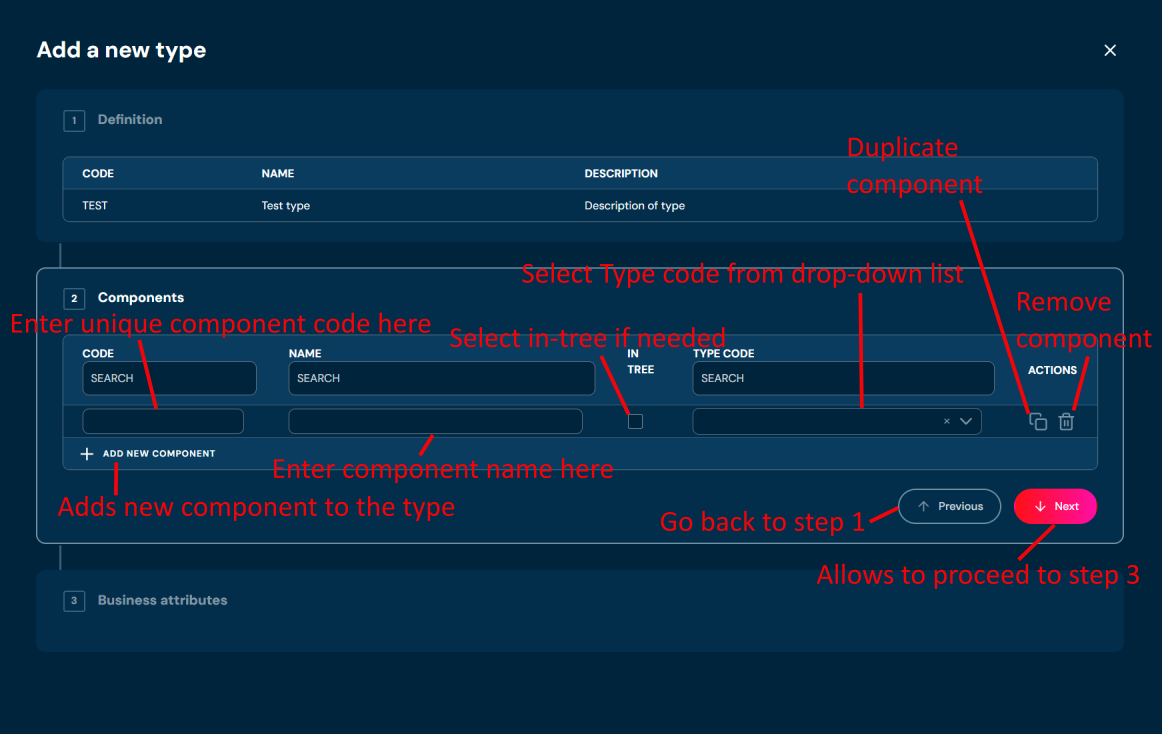
b. If you entered the same code in at least two components, then borders will be highlighted with red color, and you will not be able to proceed to step 3. Business attributes
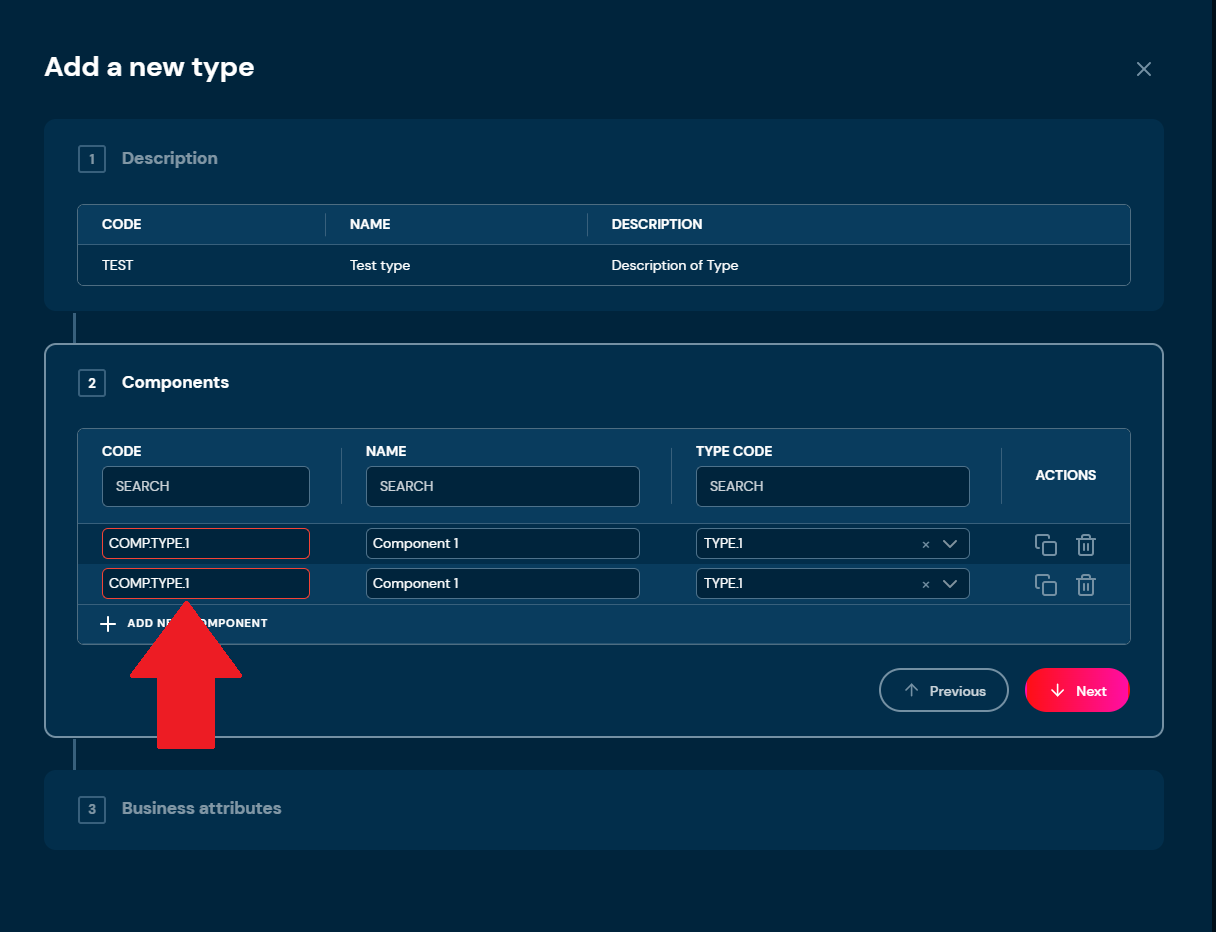
c. If you enter illegal characters in code or name field, then borders will be highlighted with red color, and you will not be able to proceed to the next step. Hover mouse over the field to see tooltip with more details.
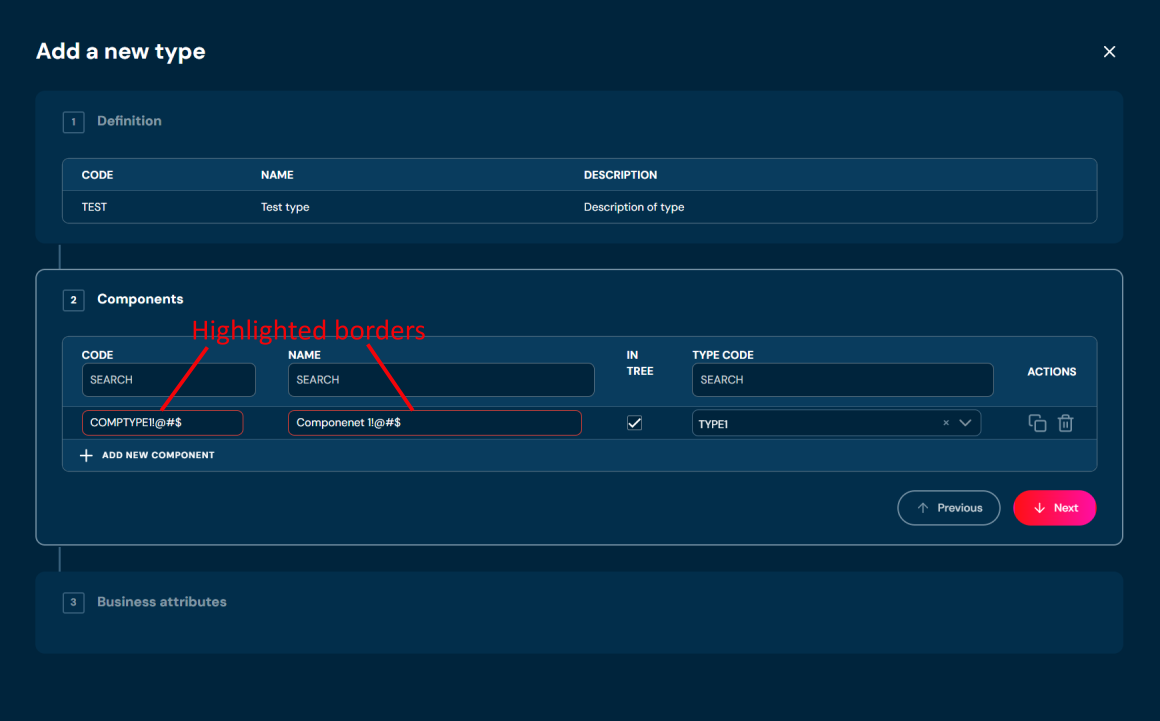
d. If you choose Previous you will go back to step 1. Definition
-
Choose Next.
-
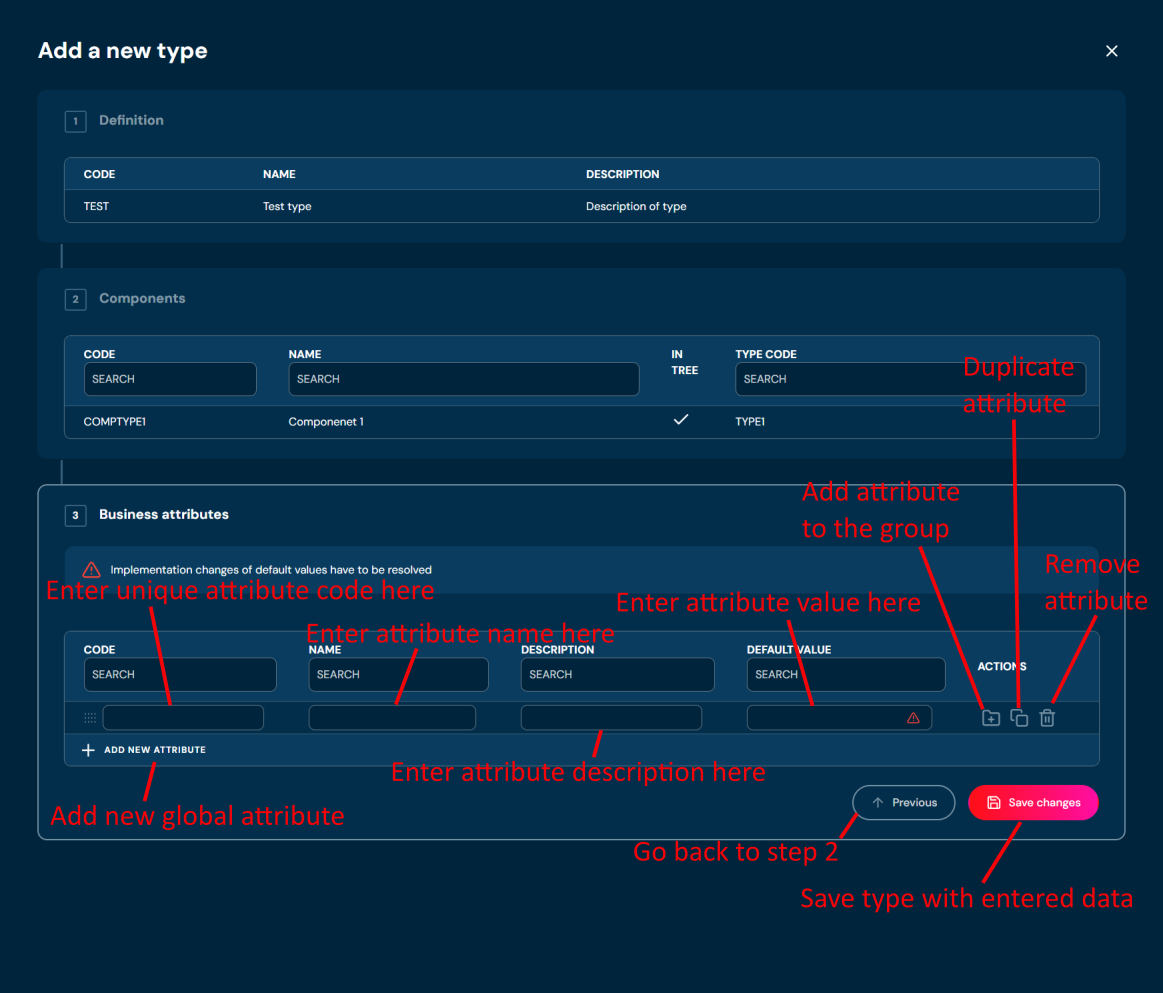
In step 3. Business attributes you may add/duplicate/remove global attributes. This data is not necessary to save a type.
a. If you decide to add business attributes, you must provide code unique name. Providing default value is optional.
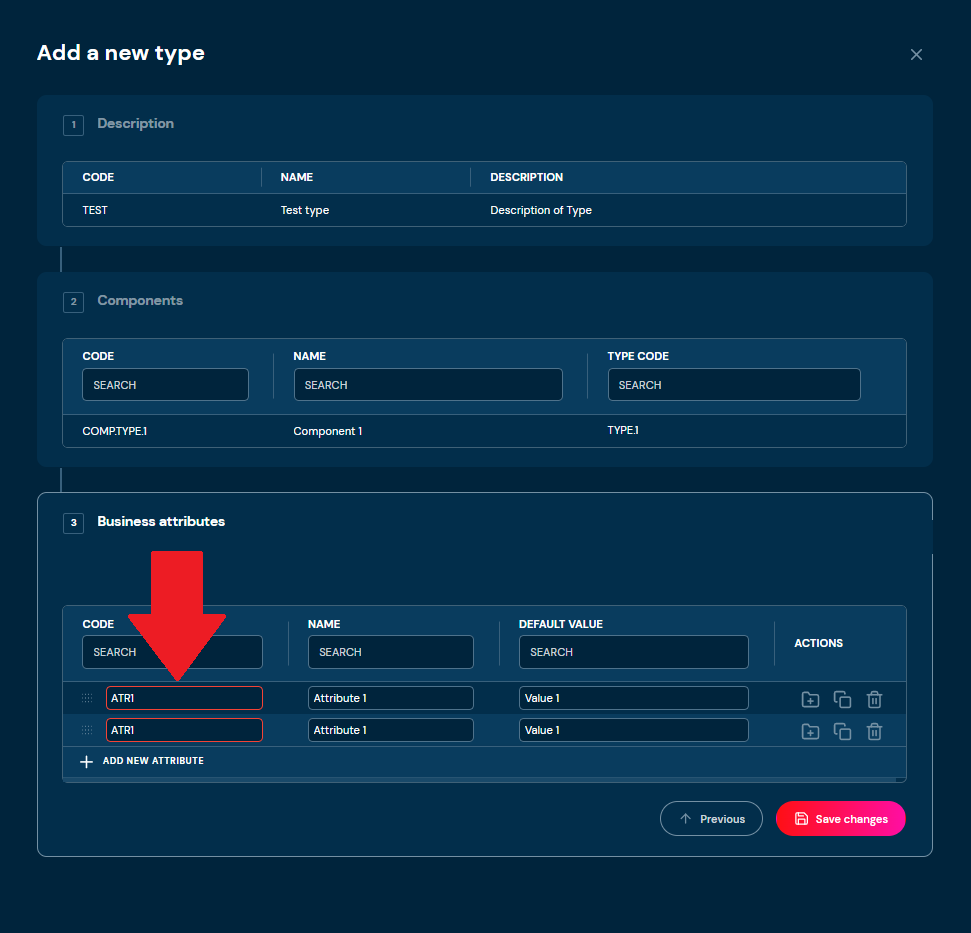
b. If you entered the same code in at least two attributes, then borders will be highlighted with red color, and you will not be able to save a type.
-
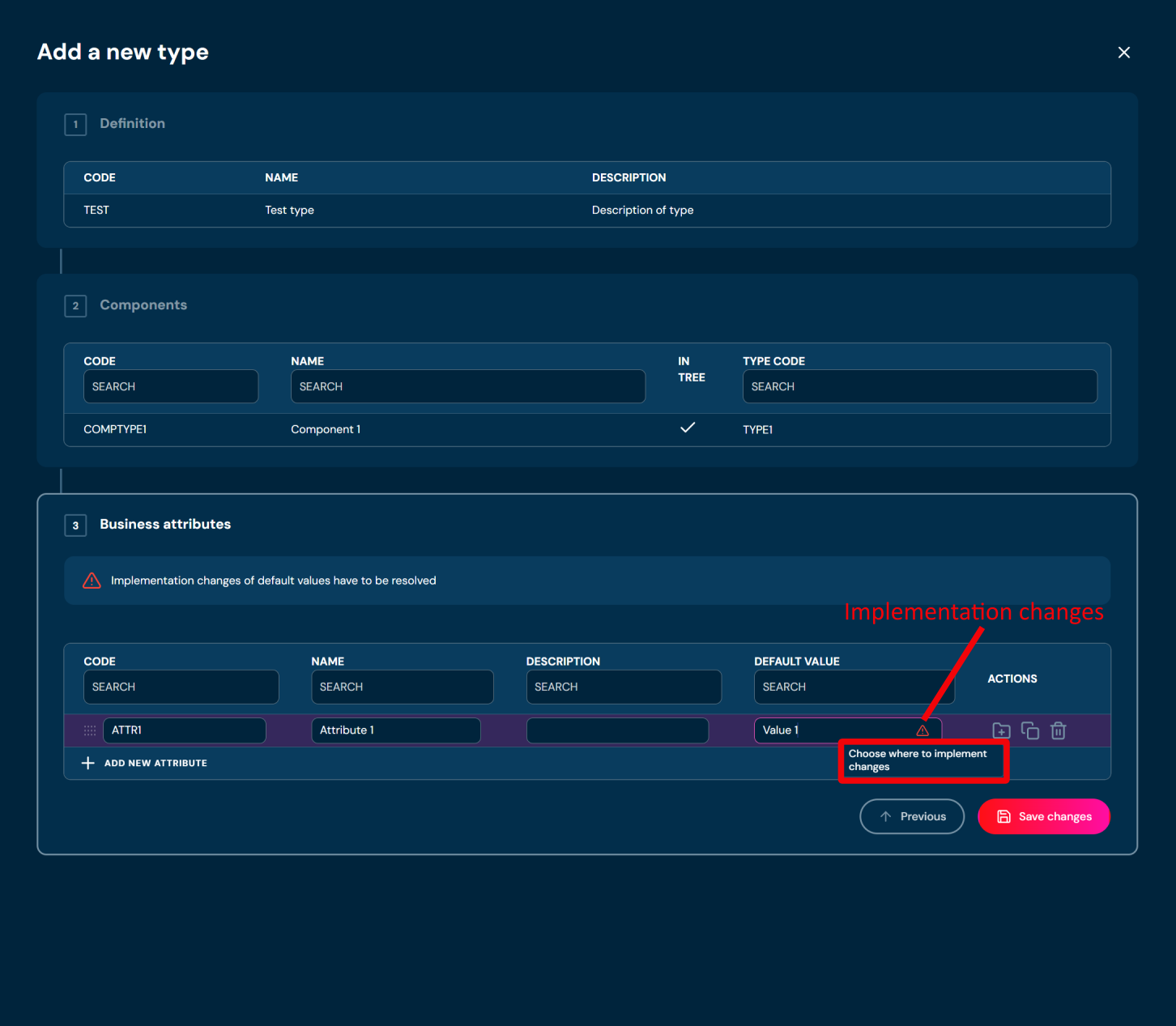
In Default Value field, you must click on red exclamation mark to indicate where do you want to implement changes.
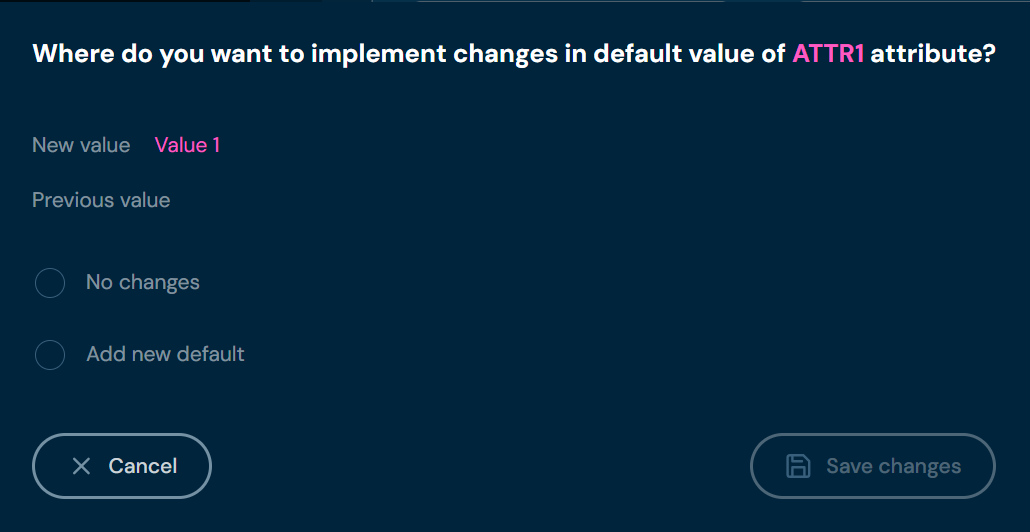
a. The pop up will appear, choose one of the available options and click Save changes
-
Choose Save changes.
Download Domain Definition#
If you want to download Domain Definition, follow these steps:
-
Choose Domain in Main toolbar.
-
Choose Definition tab.
-
Choose Download Domain Definition in Definition tree.
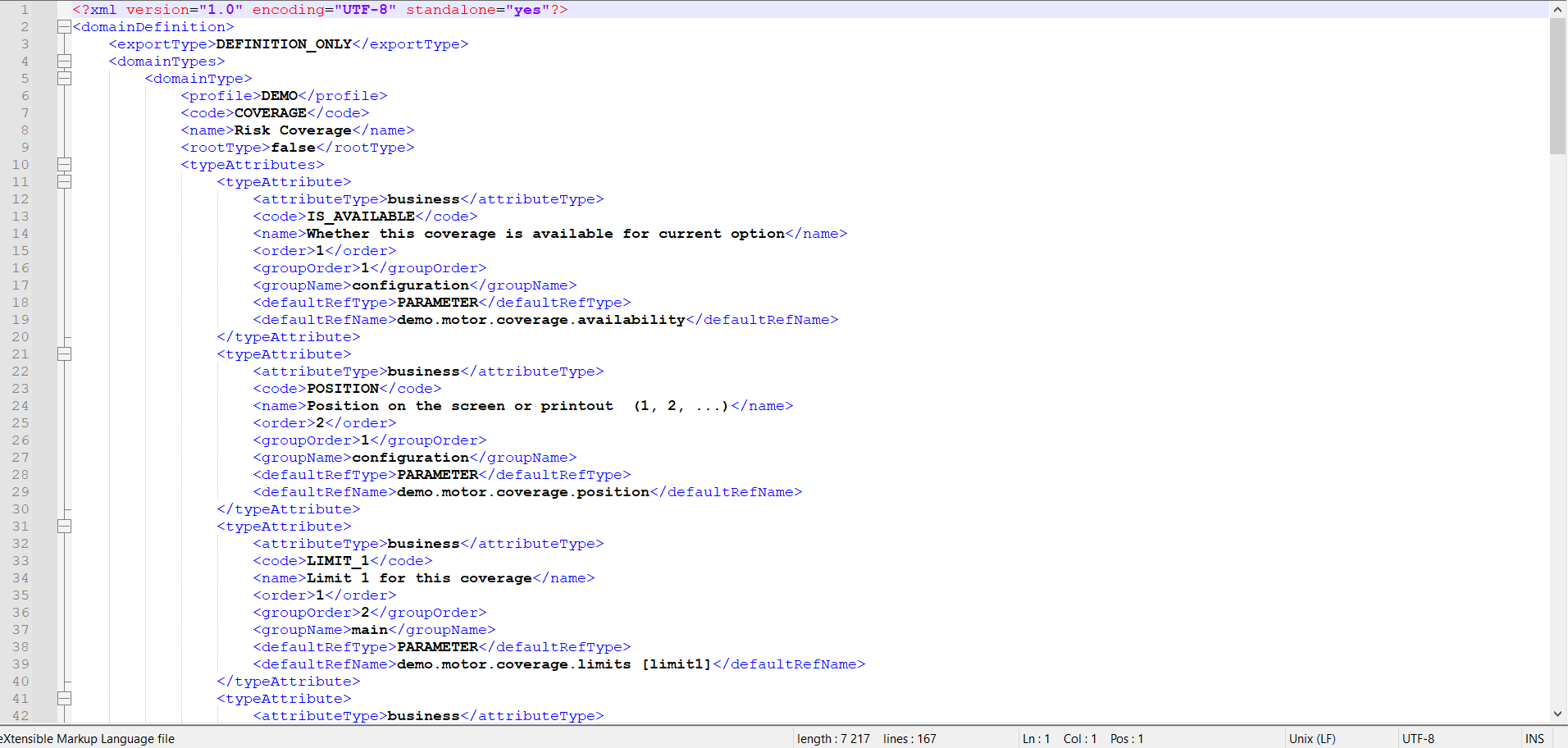
a. Choosing Download Domain Definition downloads an XML file that contains all definition types and all dependencies between definition types. Example file:
Upload Domain Definition#
If you want to upload Domain Definition, follow these steps:
-
Choose Domain in Main toolbar.
-
Choose Definition tab.
-
Choose Upload Domain Definition in Definition tree.
a. Choosing Upload Domain Definition brings up Import from XML screen.
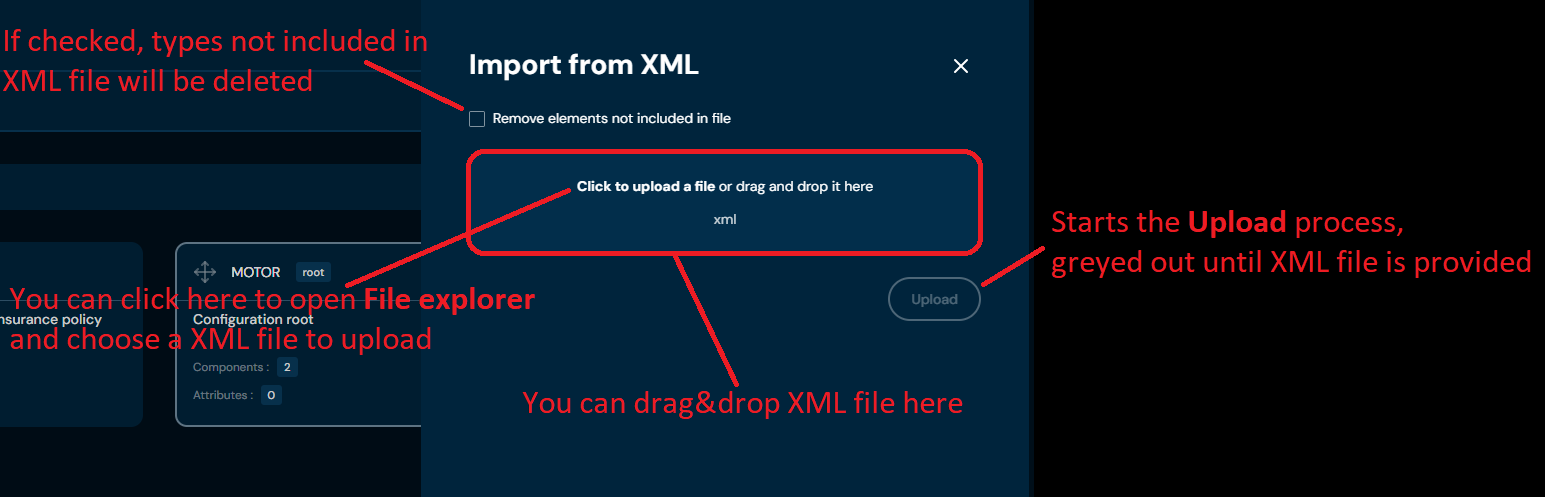
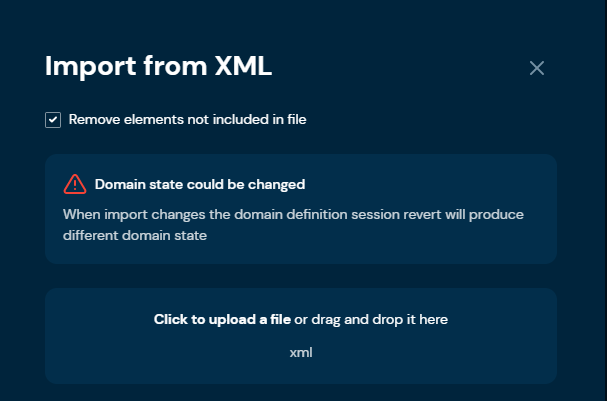
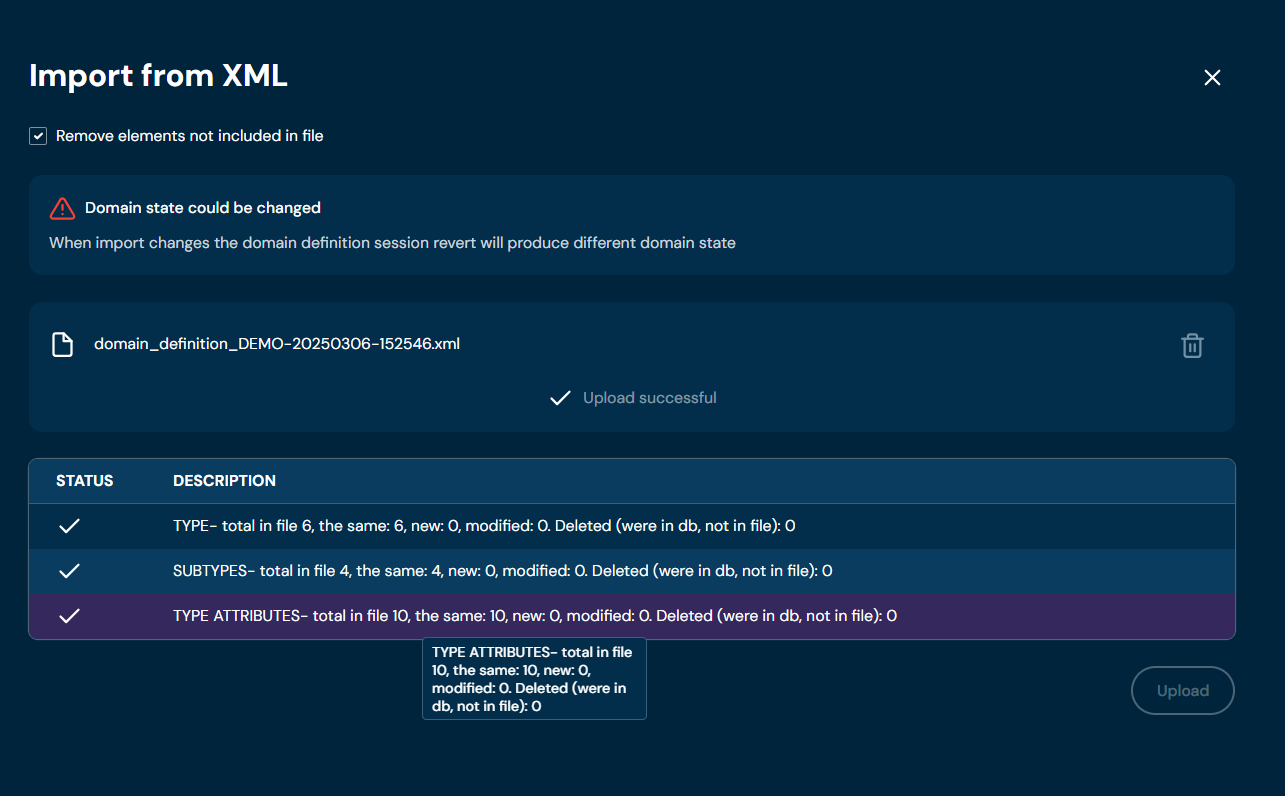
b. If you select checkbox Remove elements not included in file, then warning will appear.
-
Drag&drop desired file or Click to upload a file and choose file in File explorer.
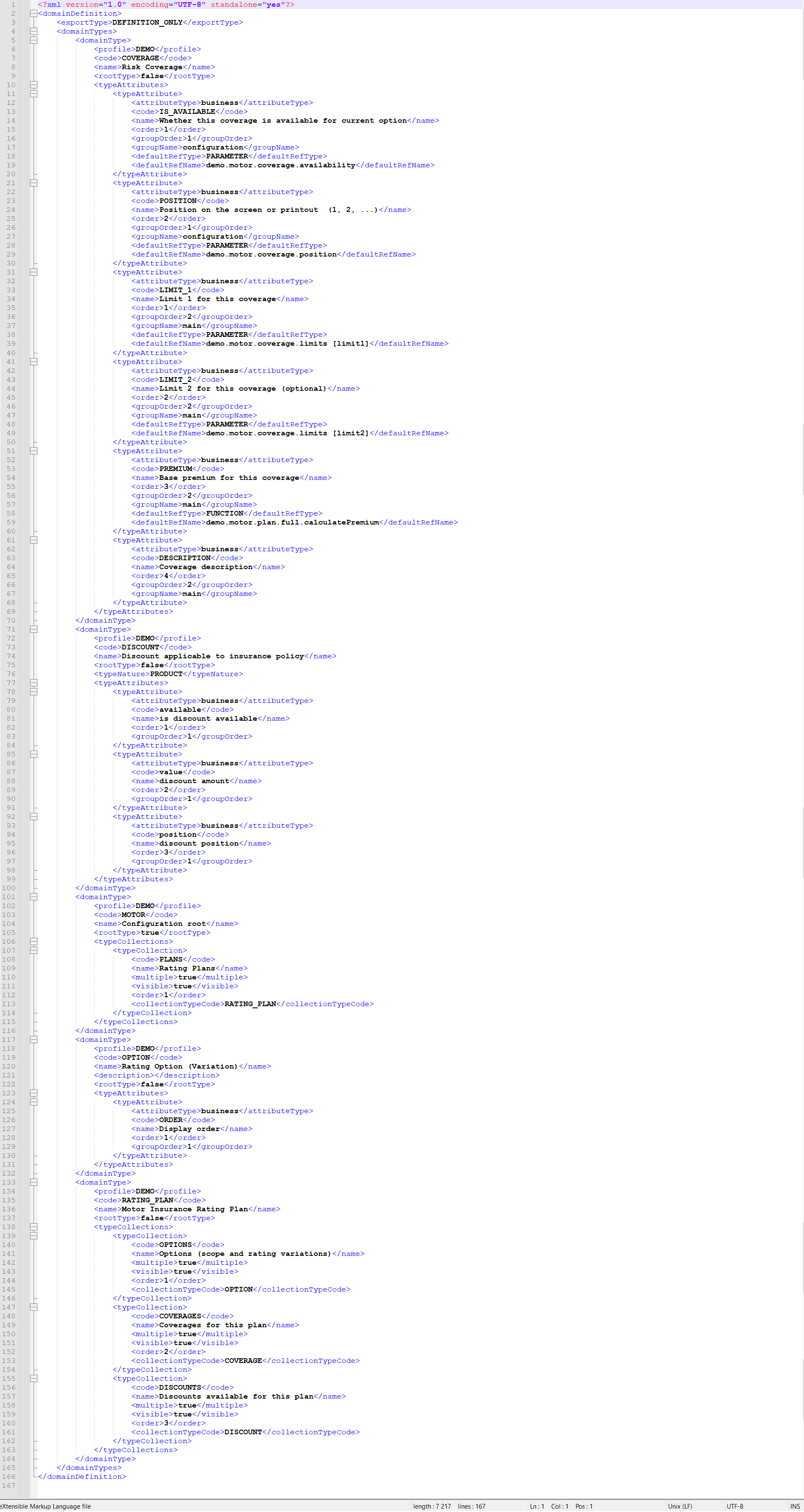
a. Correct XML file should look like this:
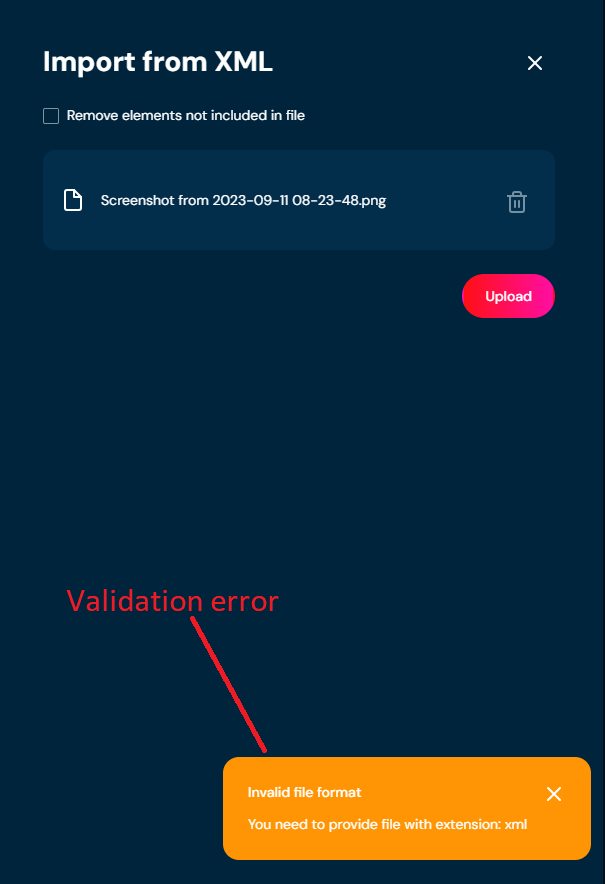
b. If you choose a file with extension other than XML, then validation error will pop up
-
Choose Upload.
-
The domain definition is uploaded correctly when the message Upload successful appears, as well as a report containing import statistics.
a. If validation error occurs (see above), then an upload process is being aborted.
b. If you checked checkbox Remove elements not included in file in step 3, then adequate information about changes will appear after uploading a file.
Delete Definition Tree#
If you want to delete the entire Domain Definition, follow these steps:
-
Choose Domain in Main toolbar.
-
Choose Definition tab.
-
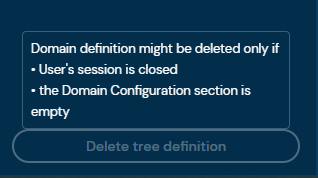
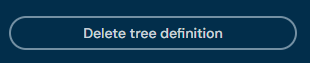
Check the status of Delete definition tree buton:
a. If button is greyed out, continue from step 4. Before deleting entire domain definition, you need to delete entire domain configuration first and publish session.
b. If buton is available, continue from step 11.
-
Choose Configuration tab.
-
Choose Delete tree configuration.
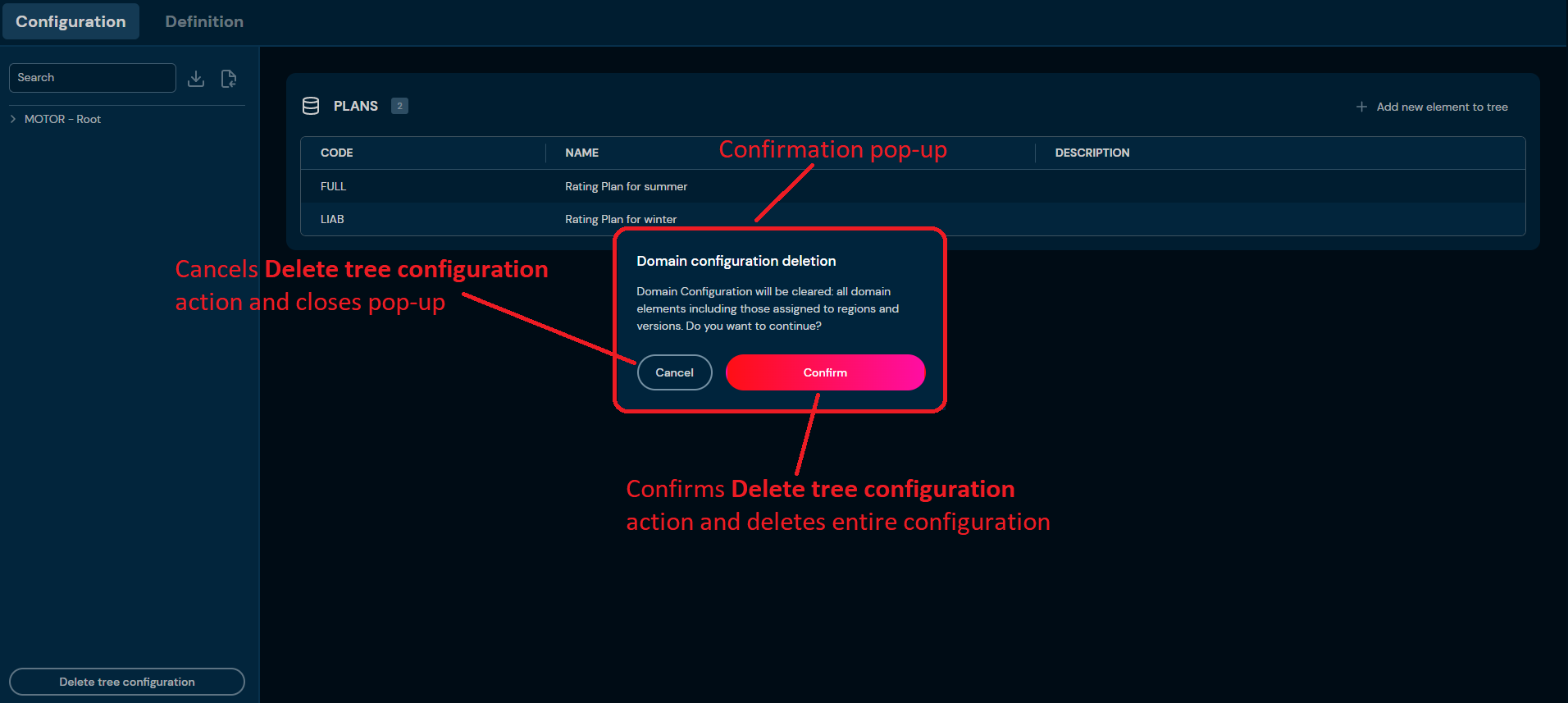
a. After choosing Delete tree configuration button, confirmation pop-up will appear.
-
Choose Confirm.
a. The Entire Domain Configuration is deleted from the environment.
-
Choose Session.
a. After choosing Session button, Session preview screen will appear.
-
Choose Publish changes.
-
Choose Domain in Main toolbar.
-
Choose Definition tab.
-
Choose Delete definition tree button.
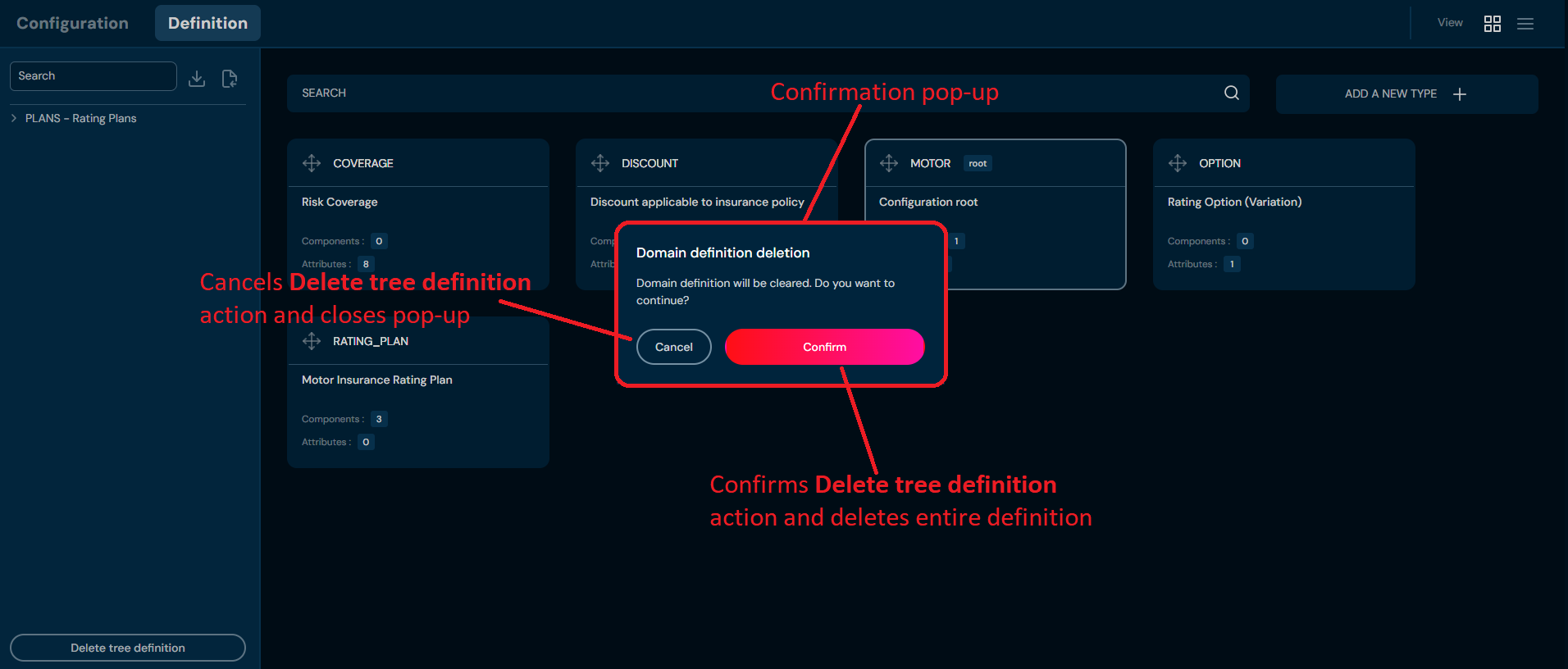
a. After choosing Delete tree configuration button, confirmation pop-up will appear.
-
Choose Confirm.
a. The Entire Domain Definition is deleted from the environment.
Definition Type Details Screen#
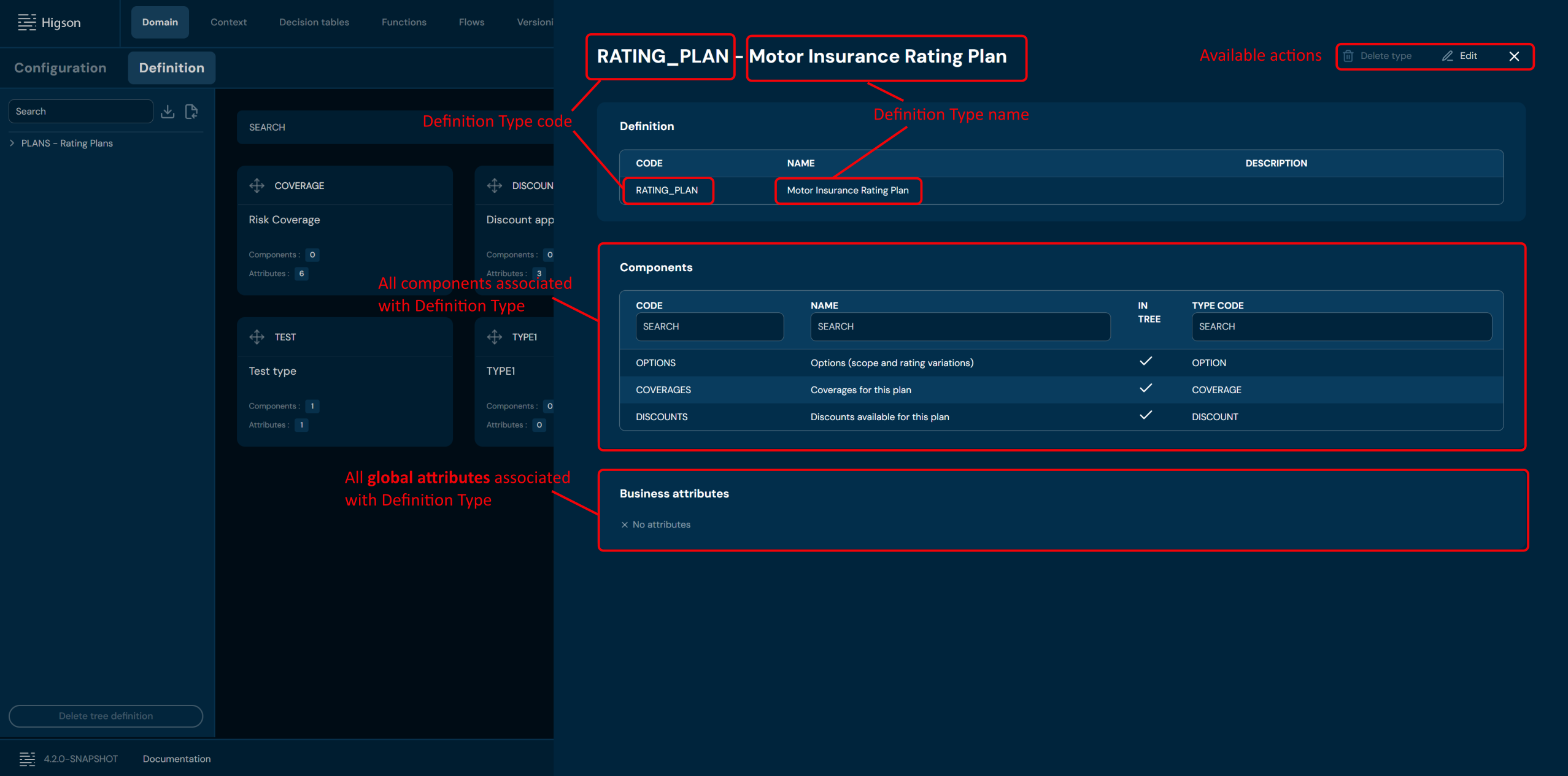
You can access Definition Type details by left-clicking on the specific type tile in the Domain Definition tab. You can also see Definition Type details by changing from Tiles view to List view.
Tiles view:
List view:
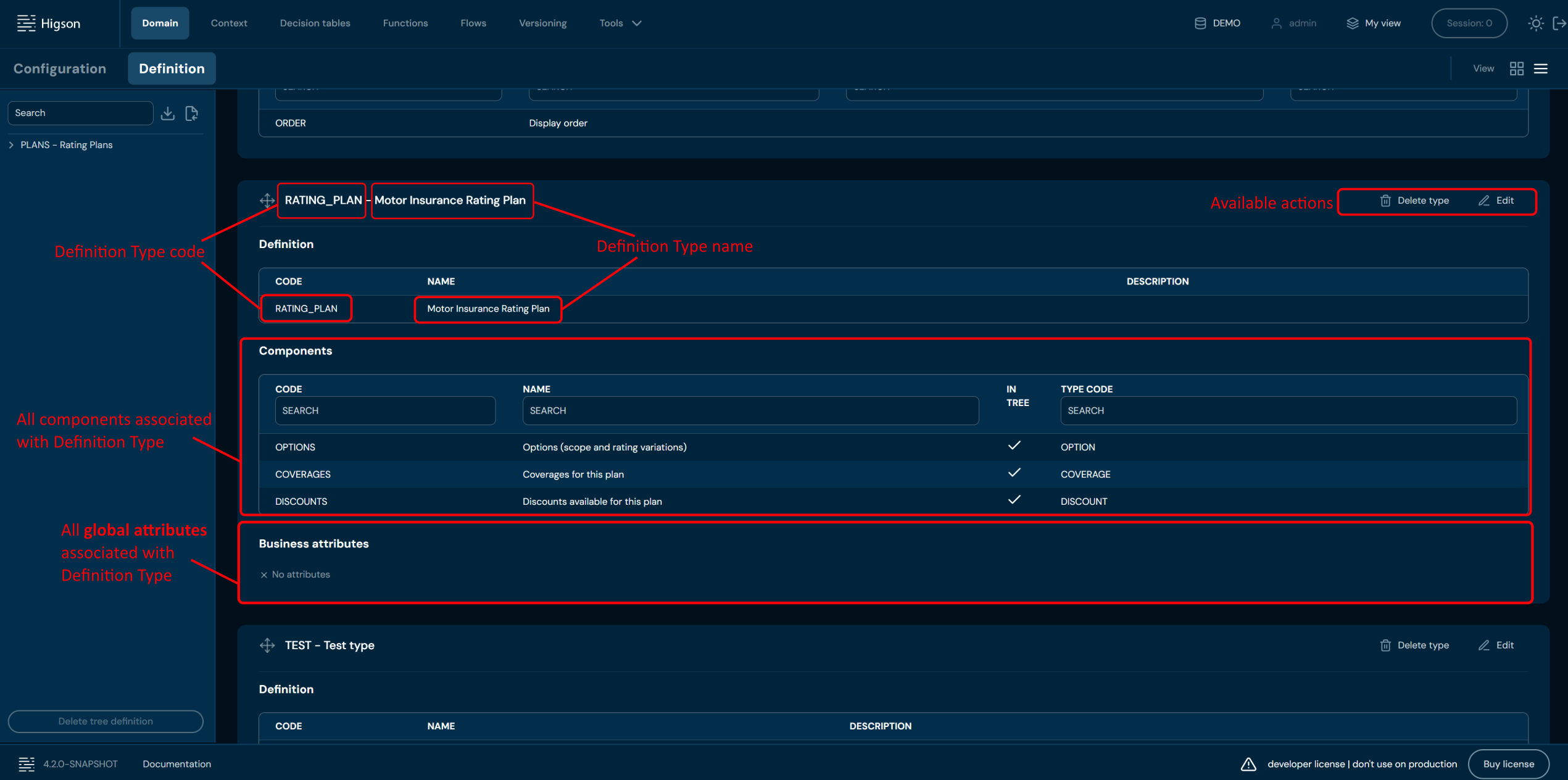
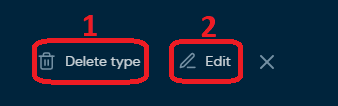
You can see Available actions for the Definition Type below:
| No. | Action | Description |
|---|---|---|
| 1. | Delete type | Deletes definition type. To learn more about deleting definition type, go here. |
| 2. | Edit | Enables definition type edit mode. To learn more about editing definition type, go here |
Delete Type#
If you want to delete a specific Definition Type, follow these steps:
-
Choose Domain in Main toolbar.
-
Choose Definition tab.
-
Left-click on a definition type you wish to delete.
a. Left-clicking on a definition type brings up Definition Type details screen.
-
Choose Delete type.
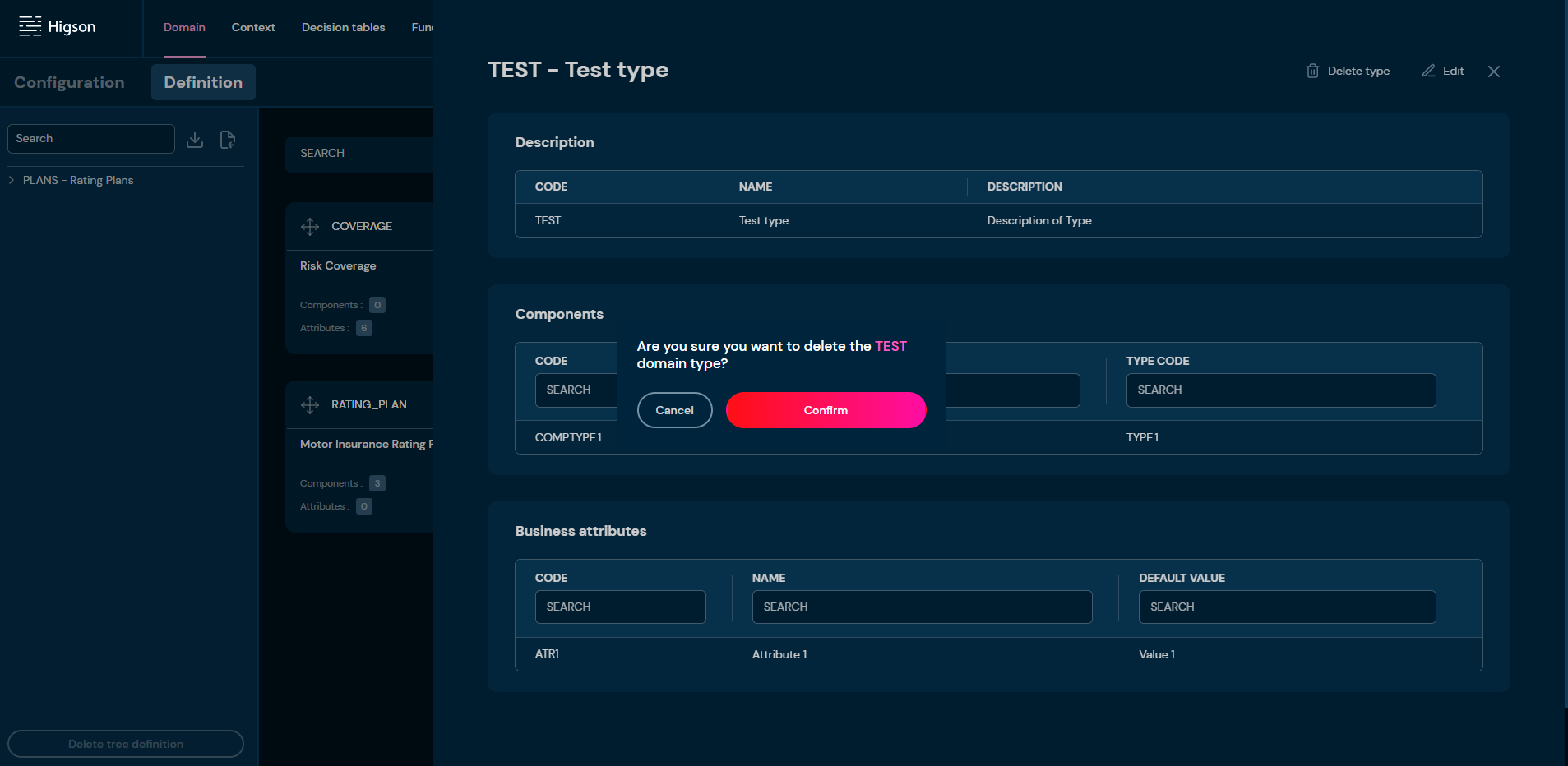
a. After choosing Delete type action, confirmation pop-up will appear.
-
Choose Confirm.
a. Definition type is deleted from the environment.
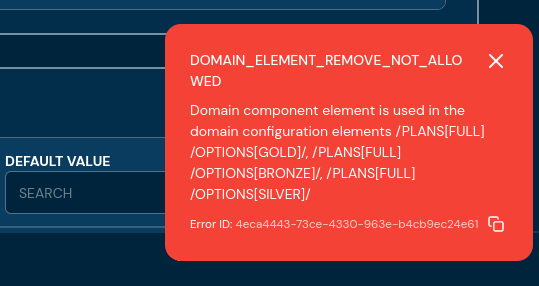
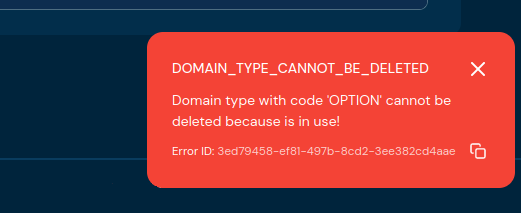
b. If a definition type is used in the Domain Configuration, then validation error will appear.
Edit Type#
If you want to edit data in specific definitione type, follow these steps:
-
Choose Domain in Main toolbar.
-
Choose Definition tab.
-
Left-click on a definition type you wish to edit.
a. Left-clicking on a definition type brings up Definition Type details screen.
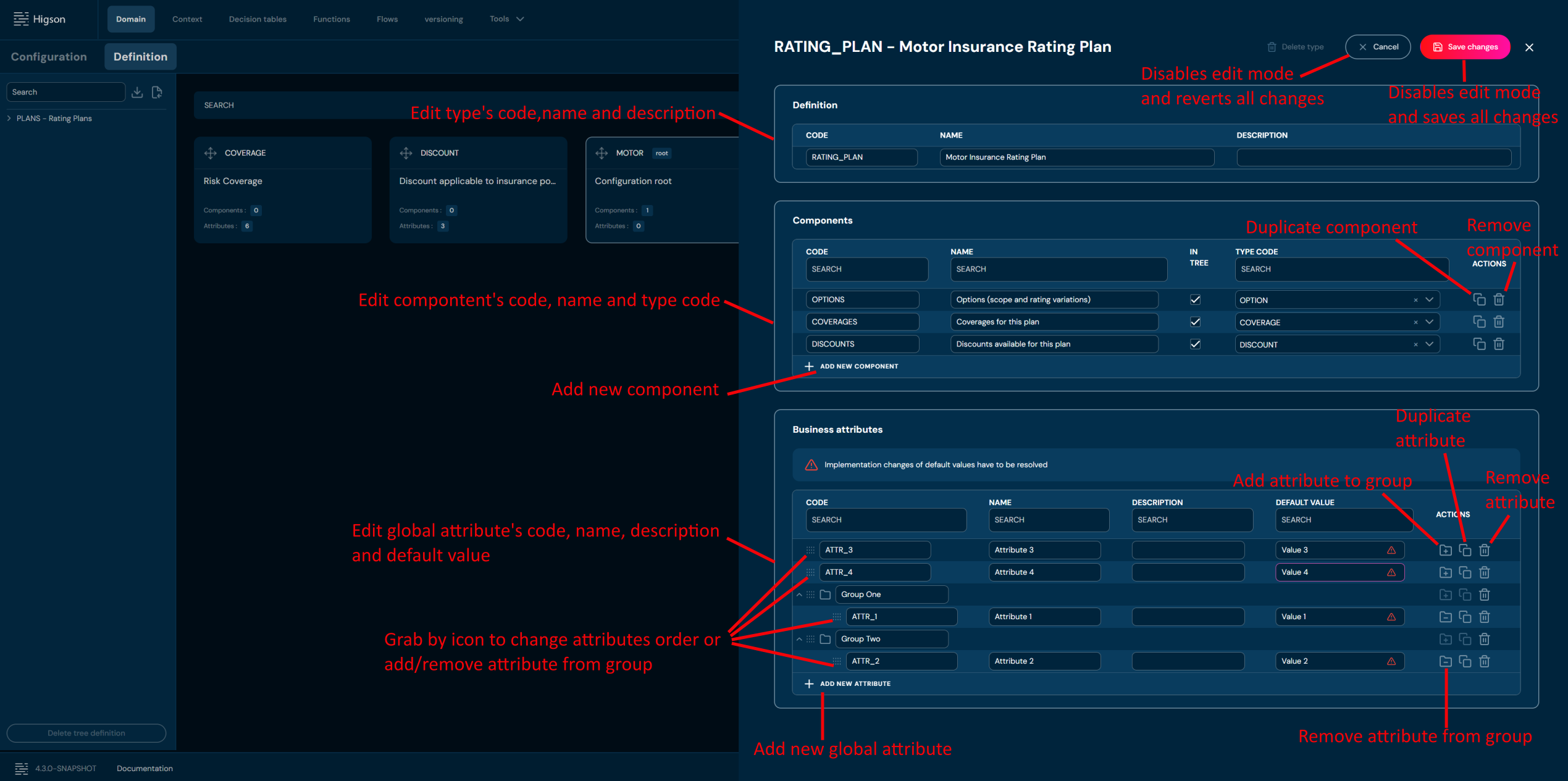
-
Choose Edit.
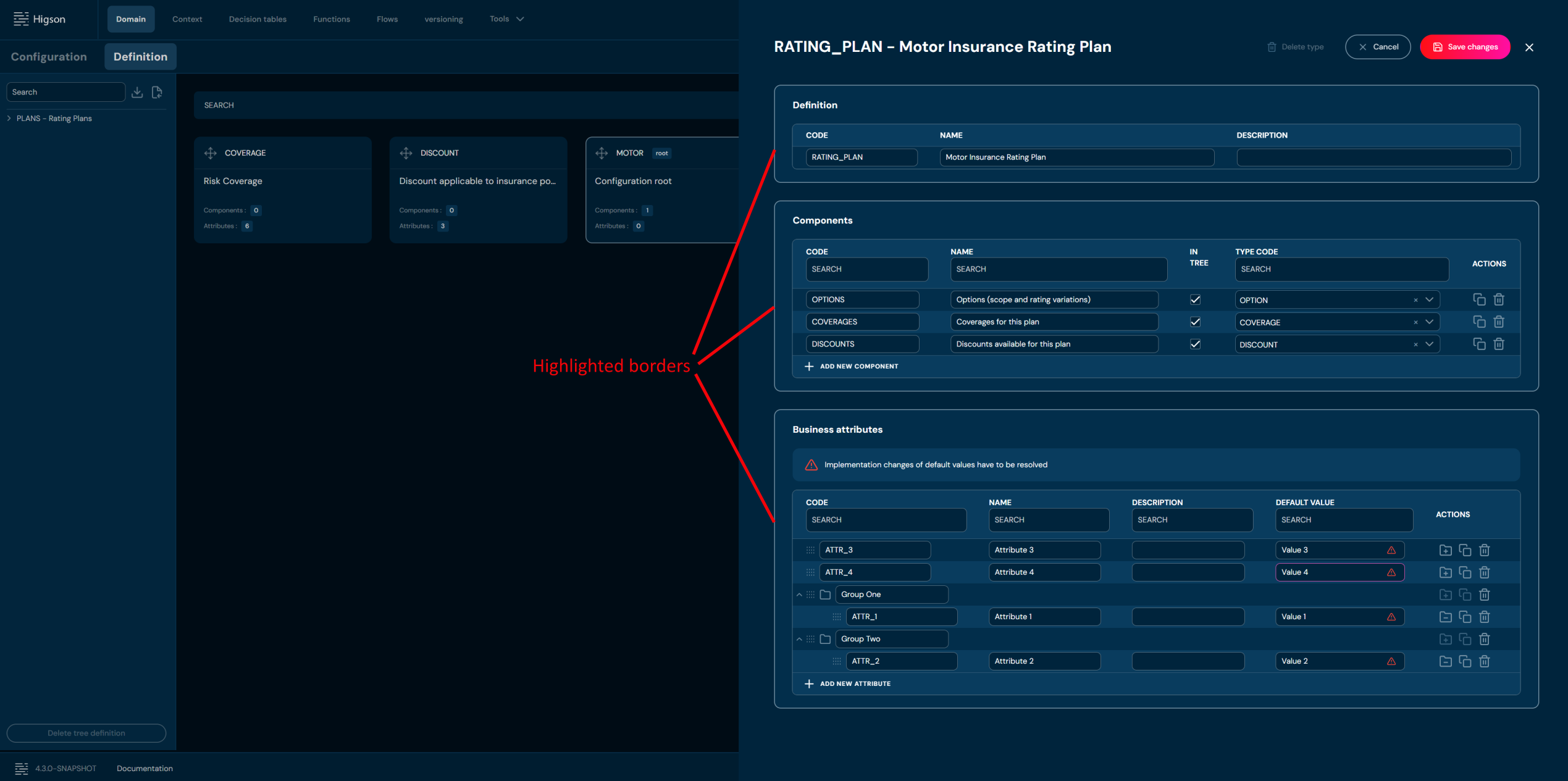
a. Highlighted borders indicate that edit mode is active.
-
Edit any data you need.
-
Choose Save changes to save all changes made in definition type.
a. Cancel reverts all changes made in the definition type.
b. If components you edit are used in Domain Configuration, then validation error will appear.