Tags are helpful tools to search for decision tables and functions. They work as label, which can be assign to different elements in the system. Tags have no influence on work of Higson system, they are there only for our convenience.
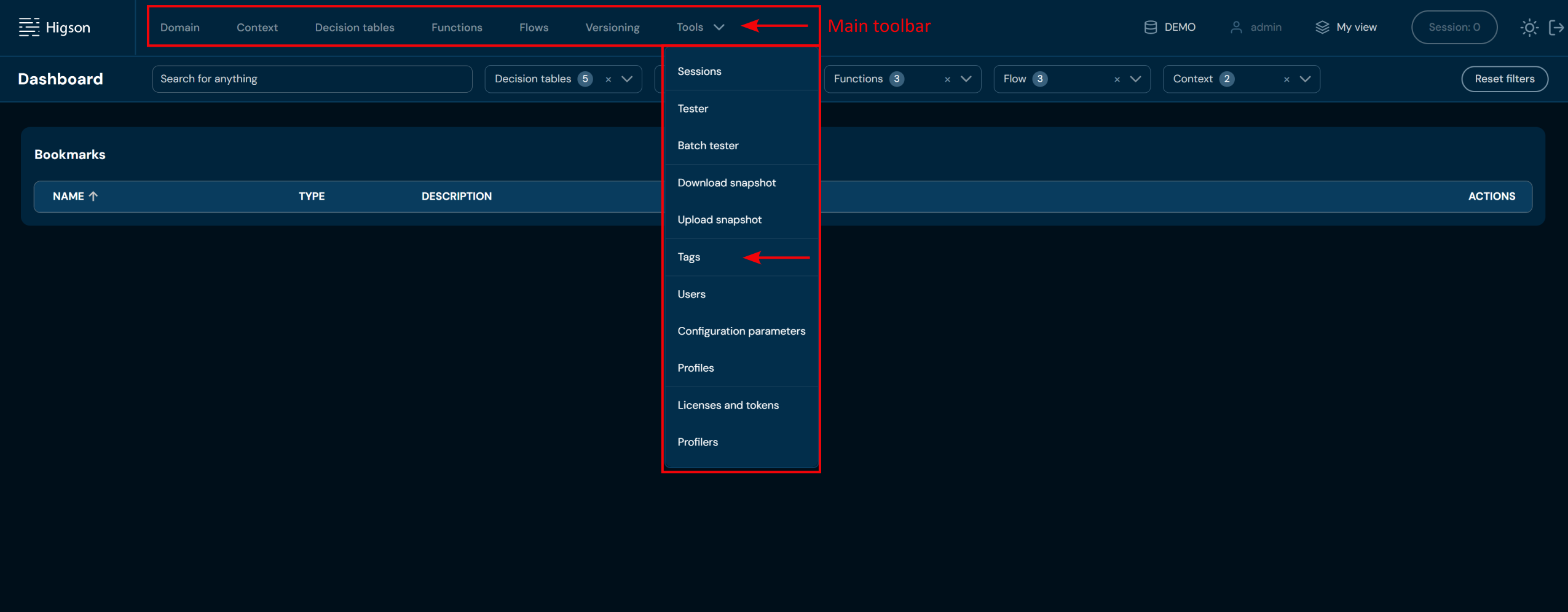
In order to see Tags, select Tools → Tags in Main Toolbar.
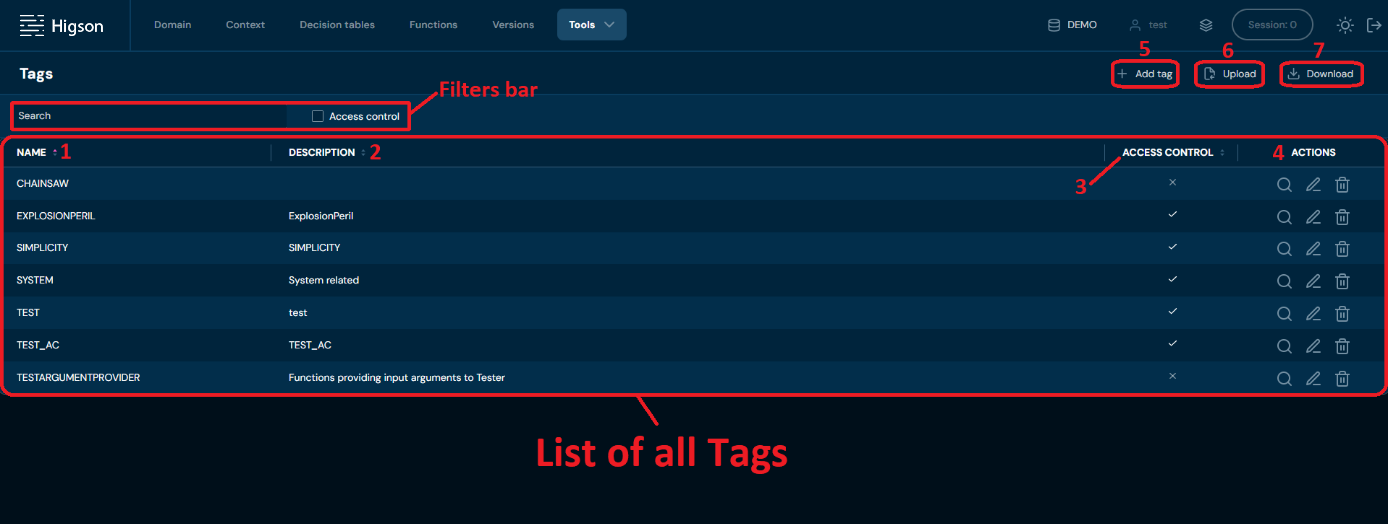
After you enter Tags you will see screen of all Tags:
| No. | Column/Action name | Description |
|---|---|---|
| 1. | Name | Full tag name. You can sort this column by left-clicking on the arrows visible next to the label. |
| 2. | Description | Full tag description. You can sort this column by left-clicking on the arrows visible next to the label. |
| 3. | Access control | Shows which tags have restricted access. You can sort this column by left-clicking on the arrows visible next to the label. |
| 4. | Actions | List of quick access actions available for each user. Available actions are: - Find usages - Edit - Delete |
| 5. | Add tag | Allows to create new Tags. To learn more about adding Tags go here. |
| 6. | Upload tags | Allows to upload Tags from a XLSX file. To learn more about uploading Tags go here. |
| 7. | Download tags | Downloads a XLSX file that contains data of all Tags currently on the environment. To learn more about downloading Tags go here |
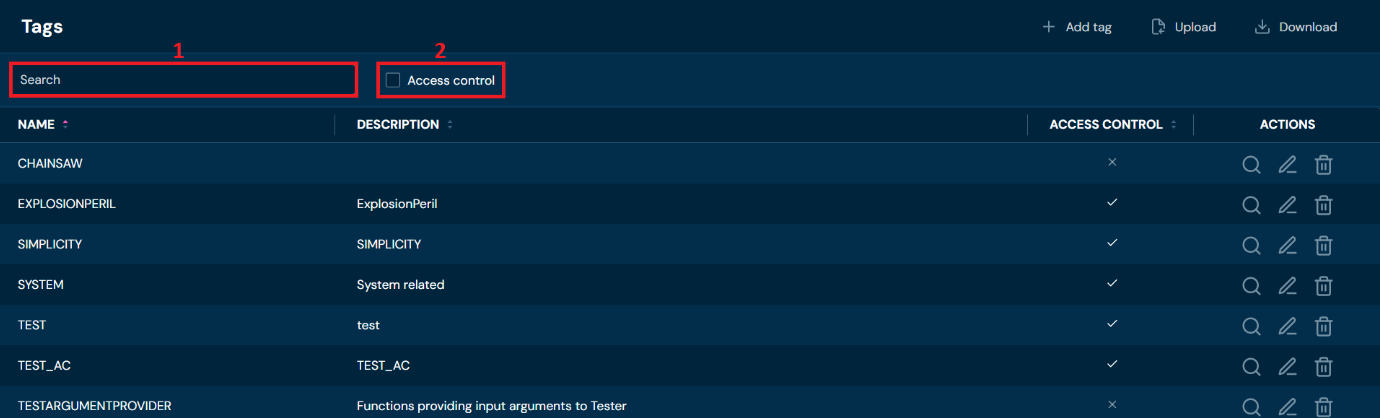
You can see all Filters available in Tags below:
| No. | Filter name | Description |
|---|---|---|
| 1. | Search text field | Filter by any string provided by user. Filtered by Name column. |
| 2. | Access control checkbox | Filter by Access control column. |
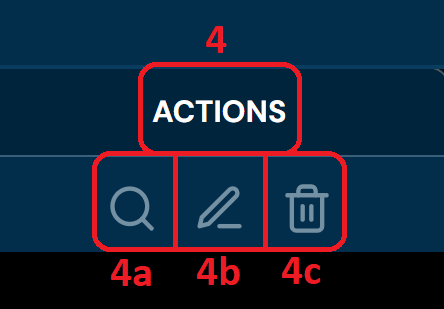
All actions visible in quick access action list are listed below:
| No. | Name | Description |
|---|---|---|
| 4. | Actions | List of quick access actions available for each tag. |
| 4a. | Find usages | Redirects to Global search with the correct filters applied. To learn more about finding usages go here |
| 4b. | Edit | Allows to edit tag’s data. To learn more about editing tag’s data go here. |
| 4c. | Delete | Deletes tag. To learn more about deleting tag go here. |
Add Tag#
If you want to add a new tag, follow these steps:
-
Choose Tools → Tags in Main toolbar.
-
Choose + Add tag.
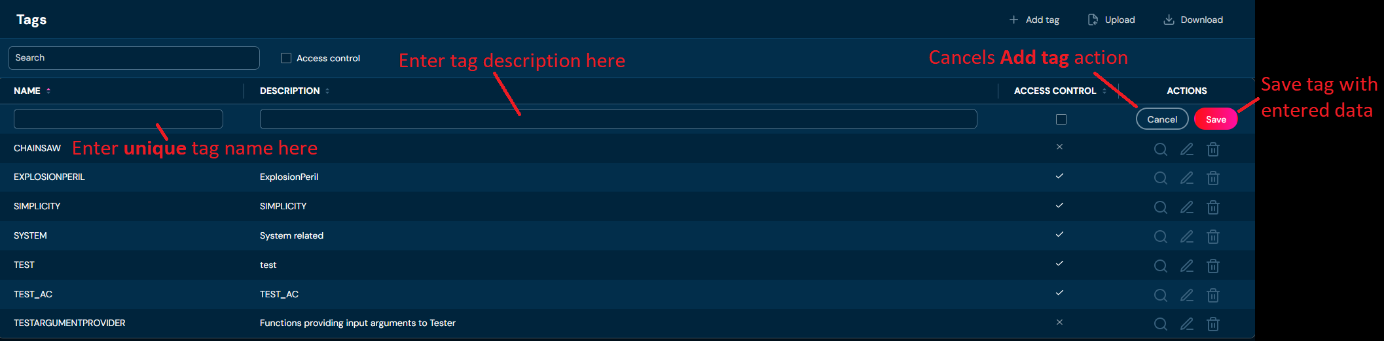
a. Choosing + Add tag adds new empty record to the List of all Tags.
-
You:
a. need to provide unique Tag name. Name can contain only characters from collection a-z; 0-9; “.”; “-”; “_” and it can’t start with “-”. i. If you entered illegal characters in name field, then borders will be highlighted with red color and you will not be able to save tag.
 b. can provide Tag description. Description can contain any characters.
c. can select Access control checkbox to determine if Tag should have restricted access.
b. can provide Tag description. Description can contain any characters.
c. can select Access control checkbox to determine if Tag should have restricted access. -
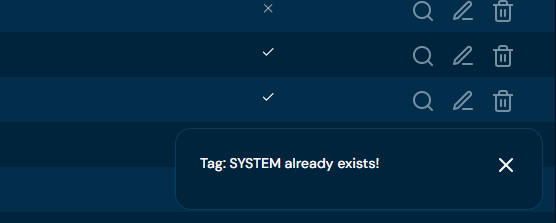
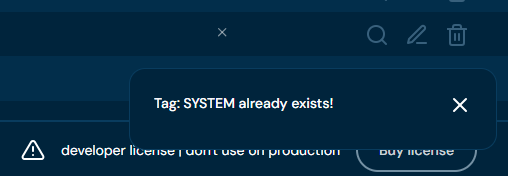
Choose Save. a. Tag with entered data is created. b. If you entered the same name as one of Tags already created, then validation error will appear.
Upload Tags#
If you want to upload tags, follow these steps:
-
Choose Tools → Tags in Main toolbar.
-
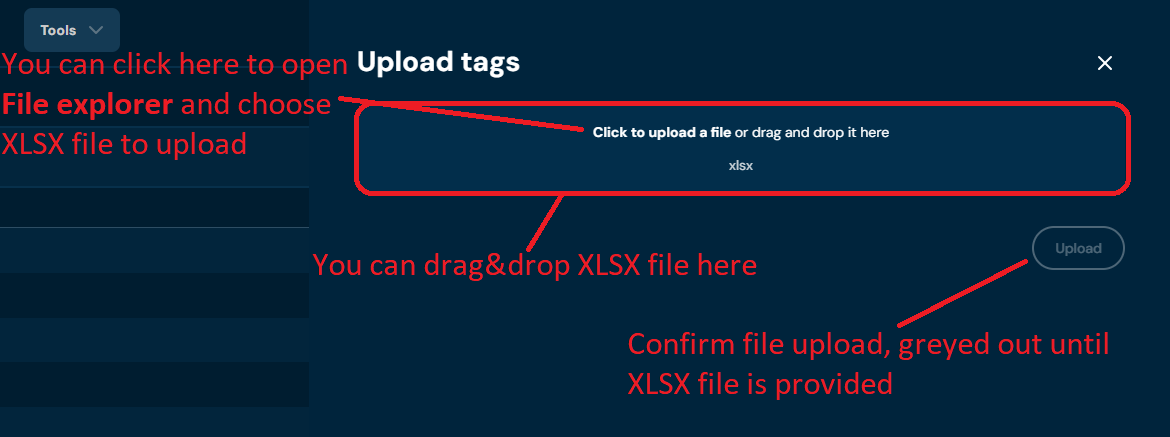
Choose Upload. a. Choosing Upload brings up Upload tags screen.
-
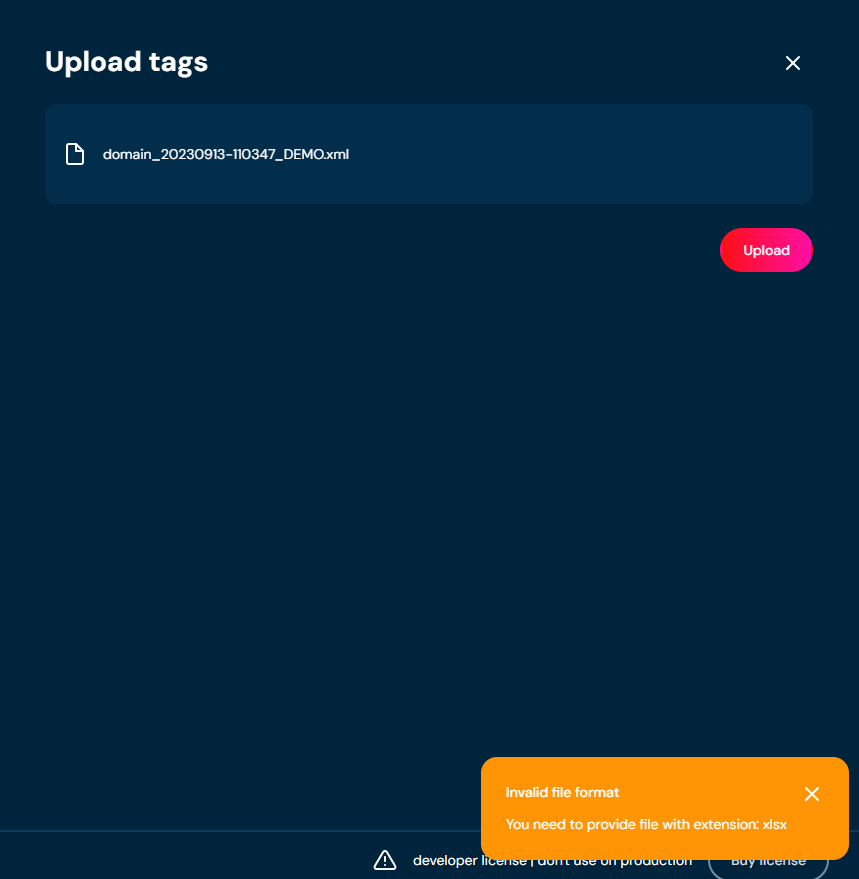
Drag&drop desired file or Click to upload a file and choose file in File explorer. a. If you will choose a file with extension other than XLSX, then validation error will pop-up.
-
Choose Upload.
-
When progress bar reach 100%, it mean that file was uploaded correctly.
a. If validation error will occur (see above), then upload process is being aborted.
Download Tags#
If you want to download all tags currently on the environment, follow these steps:
-
Choose Tools → Tags in Main toolbar.
-
Choose Download.
a. Choosing Download downloads a XLSX file, that contains data of all tags currently on the environment.
Find Usages#
If you want to know which elements use certain tags, follow these steps:
- Choose Tools → Tags in Main toolbar.
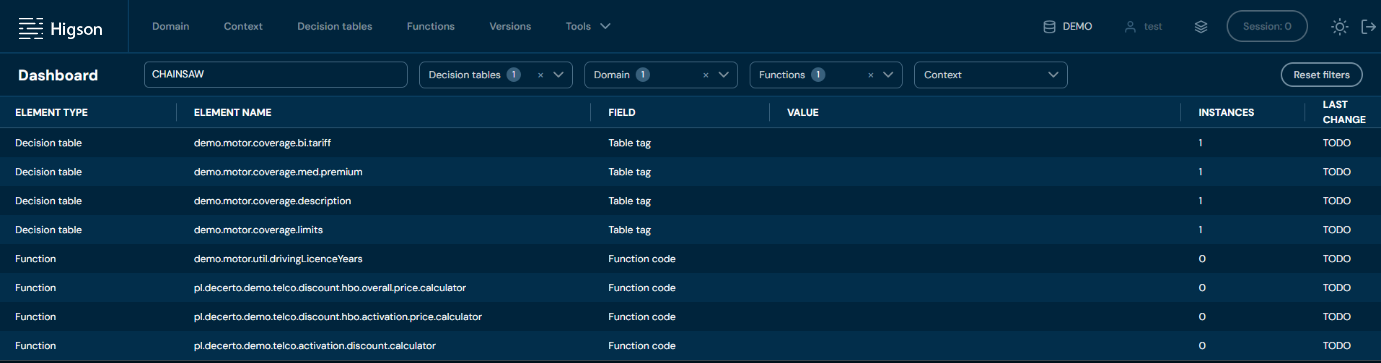
- Choose Find usages actions for desired Tag.
 a. Choosing Find usages redirects to Global search with the correct filters applied.
Edit Tag#
If you want to edit data in specific tag, follow these steps:
-
Choose Tools → Tags in Main toolbar
-
Choose Edit action for desired tag.
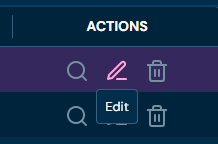
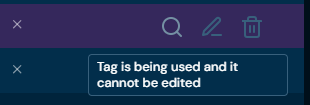
a. If Tag is being used by any Elemetn, then Edit action is greyed out.
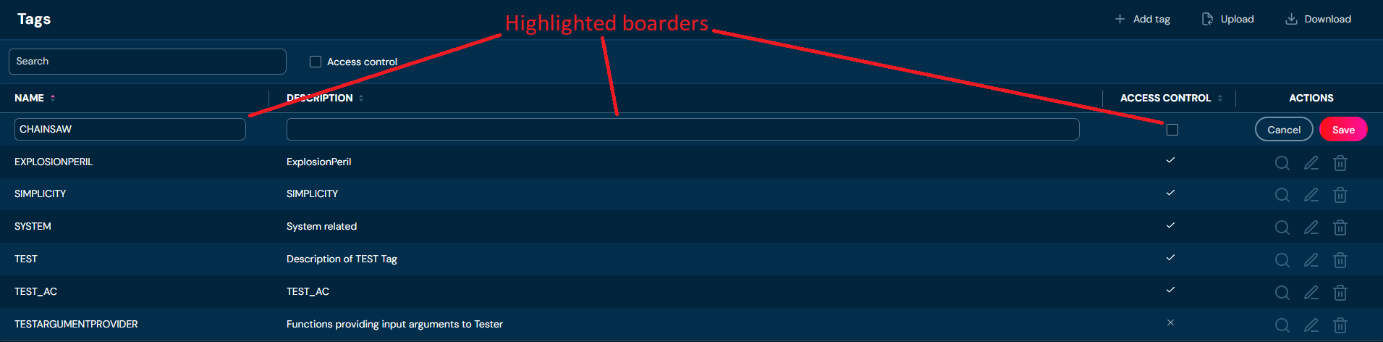
 b. Highlighted borders indicate, that edit mode is active.
-
Edit any data you need.
a. Name can contain only characters from collection a-z; 0-9; “.”; “-”; “_” and it can’t start with „-’’. If you entered illegal characters in name field, then borders will be highlighted with red color and you will not be able to save tag.
-
Choose Save.
a. Tag is being updated. b. If you entered the same name as one of Tags already created, then validation error will appear.

Delete Tag#
If you want to delete specific tag, follow these steps:
-
Choose Tools → Tags in Main toolbar.
-
Choose Delete action for desired tag.
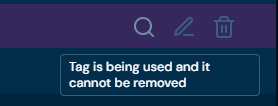
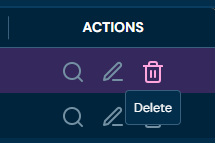 a. If Tag is being used by any Element, then Delete action is greyed out.
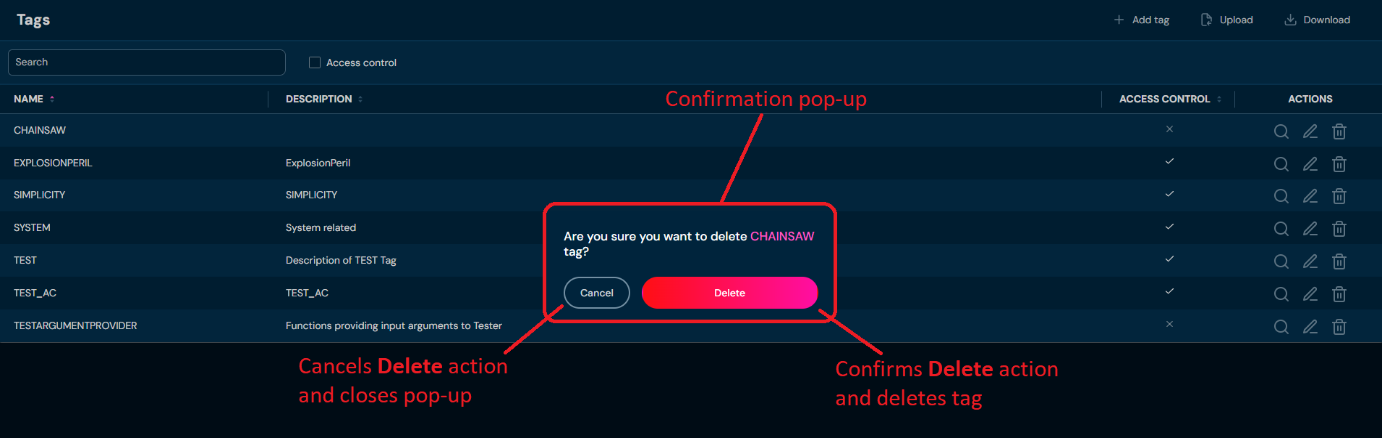
 b. After choosing Delete action, confirmation pop-up will appear
-
Choose Delete.
a. Specific Tag is being deleted from the environment. This action is irreversible.