Functions
Functions enable you to write code snippets in regular programming language, which let you implement any logic you want. You can write functions where Decision Table matrix is not enough.
If you are new to Higson functions, you may want to read the introductory section Introduction to Functions.
Since version 4.3, Higson Studio also includes an AI Assistant that can help you generate and refine functions from a natural-language description. To learn how to enable it, see AI Assistant Configuration, and for usage instructions see AI Features in Functions.
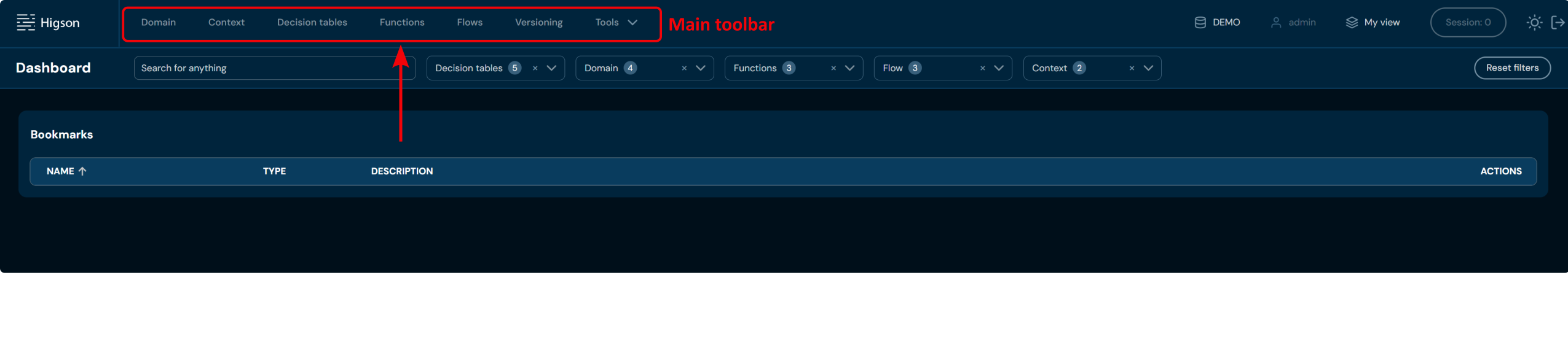
In order to see all functions, select Functions in Main Toolbar.
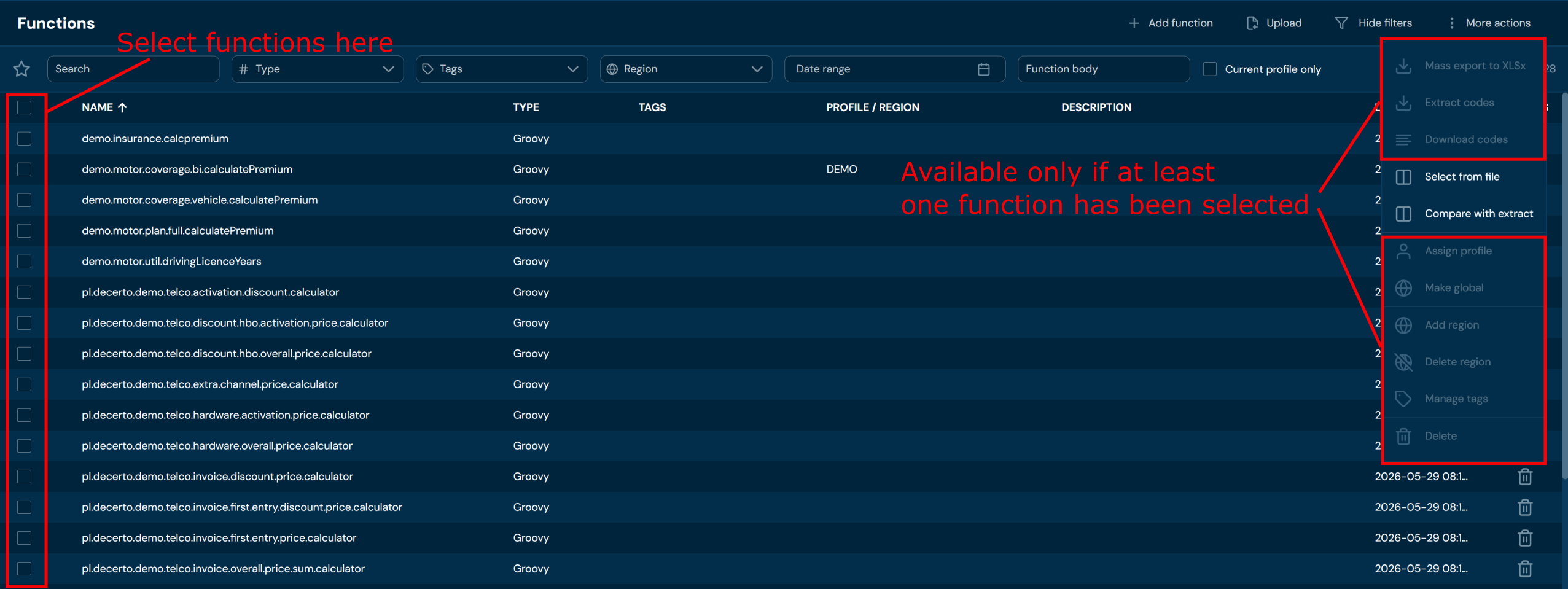
After you enter Functions you will see screen of all functions:
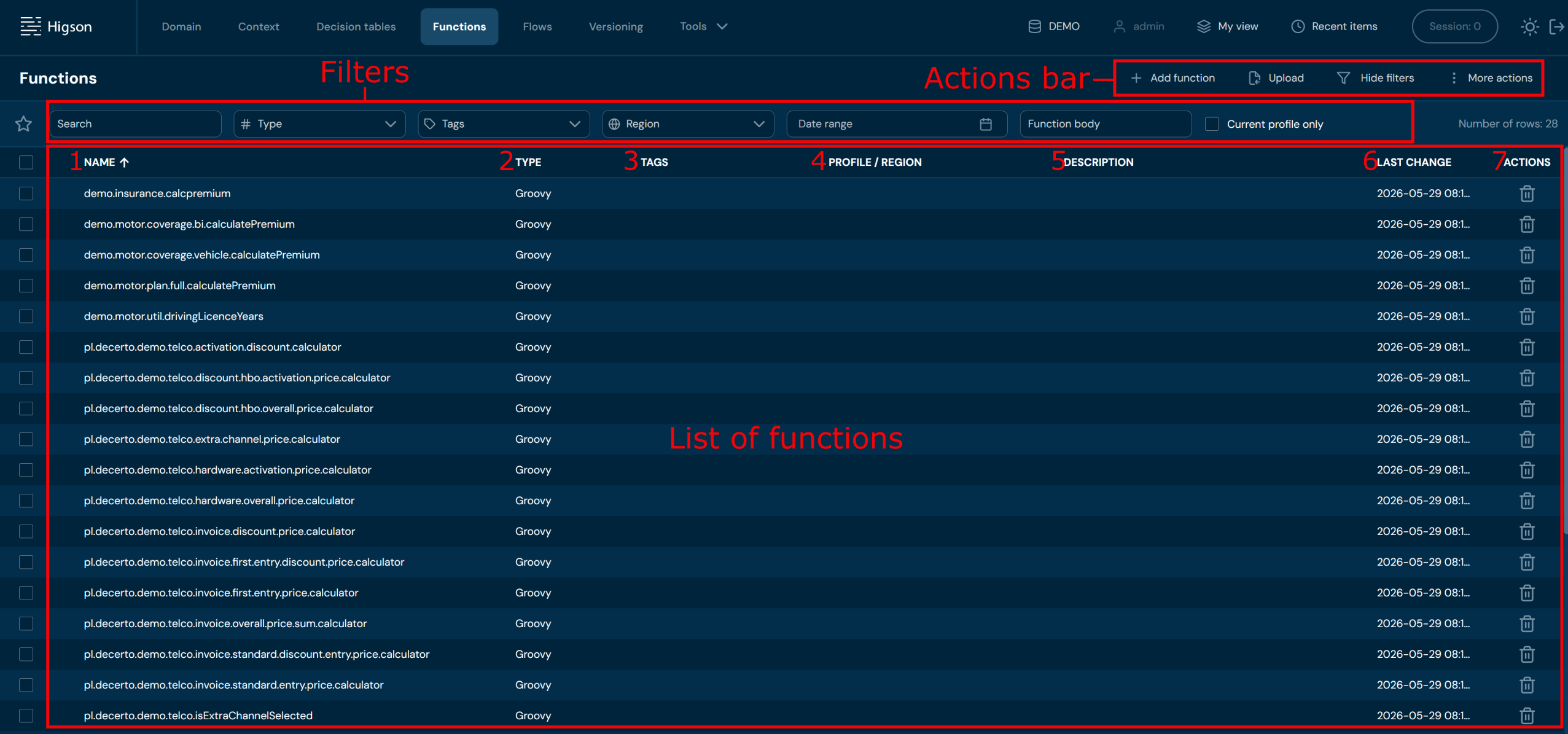
Each function is described by seven attributes:
| No. | Column name | Description |
|---|---|---|
| 1. | Name | Full function name/code. The function name and function code are interchangeable. |
| 2. | Type | Type of programming language used in the Groovy function. |
| 3. | Tags | List of all Tags assigned to the function. To learn more about assigning Tags go here. |
| 4. | Profile/Region | Profile and Region the function is assigned to. |
| 5. | Description | Contains the Description of the function if such was added. |
| 6. | Last change | The last modification date of the function. |
| 7. | Actions | List of quick access actions. Currently only Remove action (bin icon) is available here. Remove action deletes desired function. |
The functions list view depends on the selected profile.
If a profile is selected, both global items and items assigned to the selected profile are displayed.
If no profile is selected (not-chosen), only global items are visible.
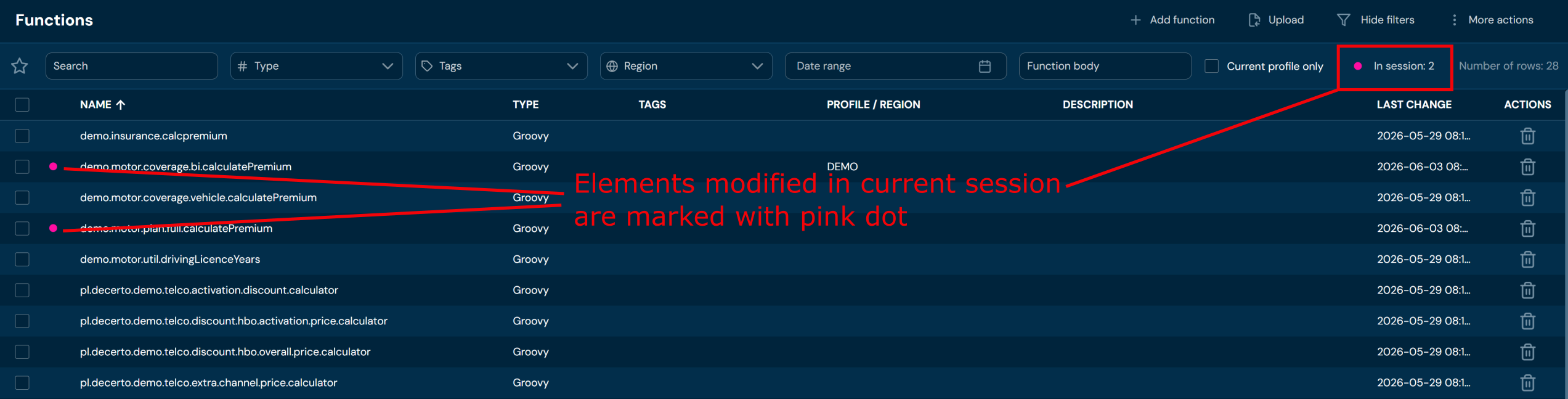
Elements modified in current session are marked with a dot:
On this screen, you can apply Filters to search for specific function or to narrow down the number of displayed functions. You can also perform actions on one or multiple functions.
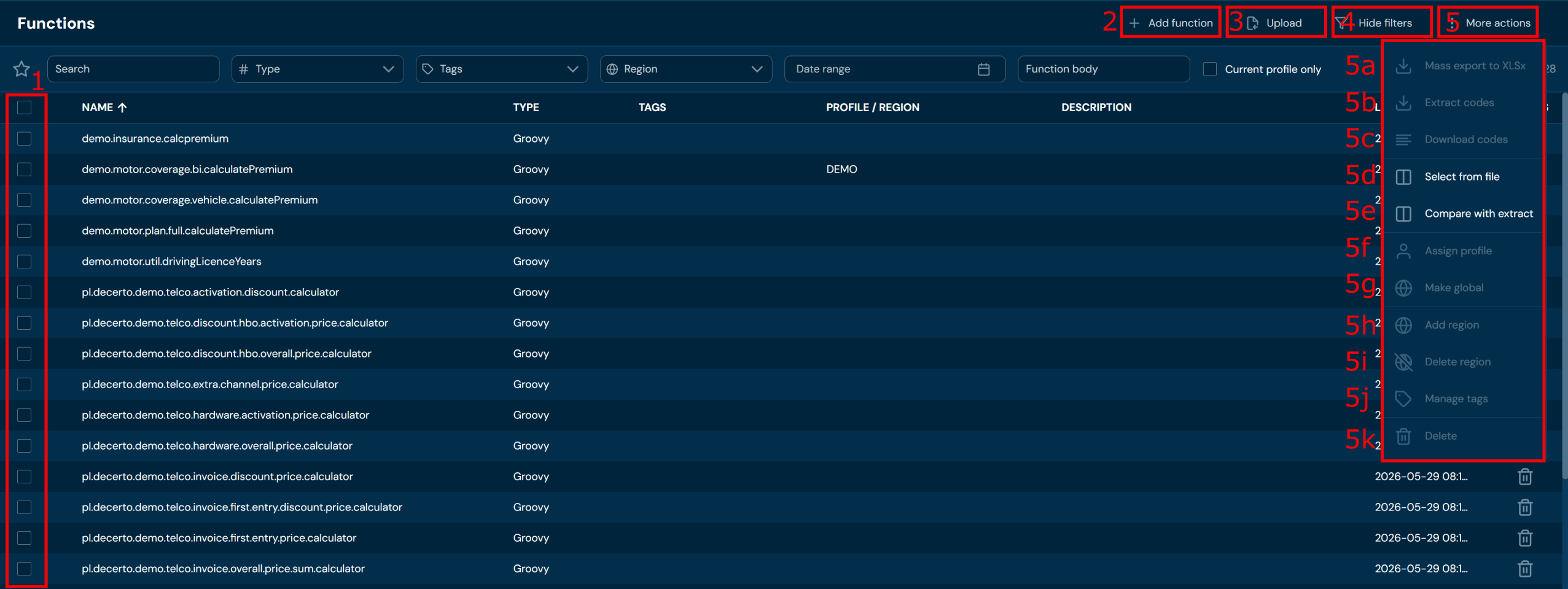
You can see All Actions available for the functions below:
| No. | Action | Description |
|---|---|---|
| 1. | Checkboxes | Select the top checkbox to select all functions in the view, or select individual checkboxes to group functions for actions 5a, 5b, 5c, 5f, 5g, 5h, 5i, 5j, 5k. |
| 2. | + Add function | Opens a step-by-step function wizard. Allows to create new functions. To learn more about adding functions go here. |
| 3. | Upload | Allows to import functions from a ZIP file. To learn more about uploading functions go here. |
| 4. | Hide/Show filters | Hides or reveals Filters bar accordingly. If Filter bar is visible, then action Hide filters is available. If Filter bar is hidden, then action Show filters is available. - is visible, then action Hide filters is available. - is hidden, then action Show filters is available. |
| 5. | More actions | Drop-down list that contains actions 5a-5k. Bear in mind that actions 5a, 5b, 5c, 5f, 5g, 5h, 5i, 5j, 5k are available only if at least one function is selected (at least one checkbox is checked). Otherwise, the mentioned actions will be greyed out (see picture below the table). |
| 5a. | Mass export to XLSx | Downloads a ZIP file that contains XLSX file and files with functions’ body. To learn more about mass export go here |
| 5b. | Extract codes | Downloads a XLSX file that contains functions’ extract. To learn more about extracting codes go here. |
| 5c. | Download codes | Download a TXT file with functions’ names/codes To learn more about extracting codes go here. |
| 5d. | Select from file | Allows to upload a TXT file with function codes, after uploading, all functions present in file will be selected. To learn more about selecting from file go here |
| 5e. | Compare with extract | Allows to upload an XLSX file with functions’ extract. Makes comparison between the provided file and the environment. To learn more about comparing with extract go here |
| 5f. | Assign profile | Assigns a profile to all selected functions. To learn more about assigning profiles go here |
| 5g. | Make global | Makes all selected functions global. To learn more about making functions global go here |
| 5h. | Add region | Adds regions to all selected functions. To learn more about adding regions go here |
| 5i. | Remove region | Removes regions from all selected functions. To learn more about removing regions go here |
| 5j. | Manage tags | Allows to add/remove tags to/from selected functions. To learn more about adding/removing tags go here |
| 5k. | Remove | Deletes all selected functions. To learn more about removing functions go here |
More actions drop-down menu, when no function is selected:
You can see all Filters available for the functions below:

| No. | Filter name | Description |
|---|---|---|
| 1. | Search text field | Filter by any string provided by the user. Searches in the Name field. |
| 2. | Type | Filter by used programming language: Groovy |
| 3. | Tags | Filter by assigned tags. Only tags assigned to at least one function are visible for selection. |
| 4. | Region | Filter by assigned regions. Only regions assigned to at least one function are visible for selection. |
| 5. | Date range | Filter by last change date in the format DD/MM/YYYY-DD/MM/YYYY. |
| 6. | Function body | Filter by any string provided by the user. Searches in a body of a function. |
| 7. | Current profile only | Check this box to limit the view to functions assigned to the currently selected profile. Otherwise, global functions will also be displayed. |
Add Function#
If you want to add a new function, follow these steps:
-
Choose Functions in Main toolbar.
-
Choose + Add function in All actions bar.
a. Choosing + Add function opens a step-by-step Function wizard.
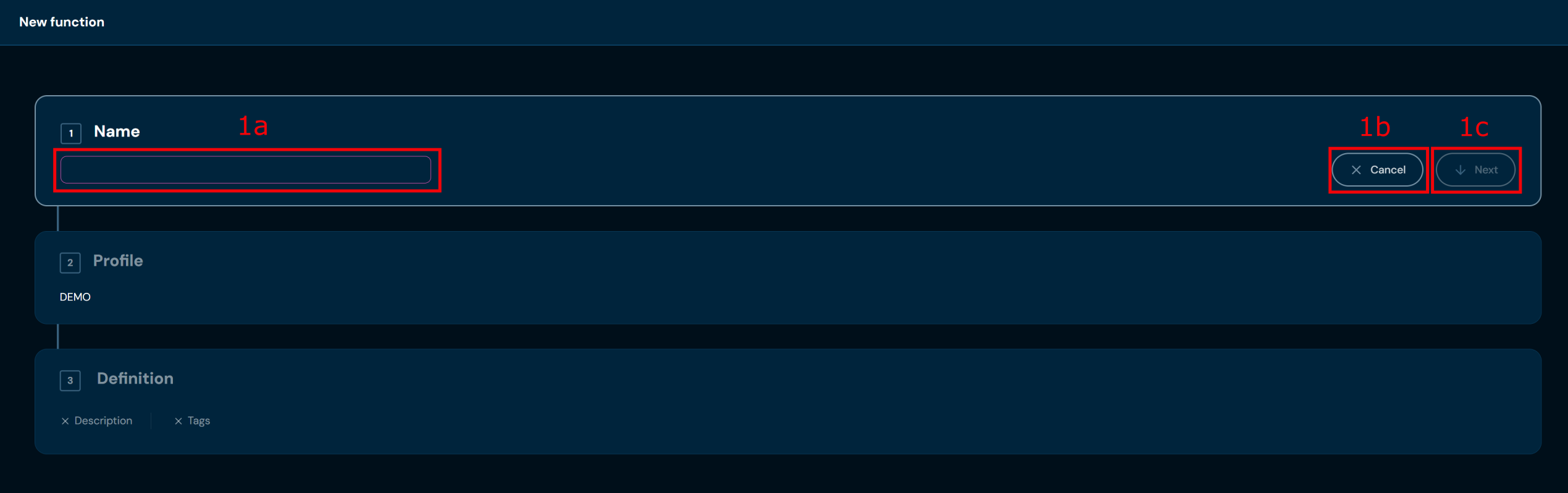
No. Field/Button code Description 1a Name Allows to add function name. 1b Cancel Interrupts the process of creating a new function. Returns the user to the functions list view. 1c Next Proceeds to the next step of the function wizard. -
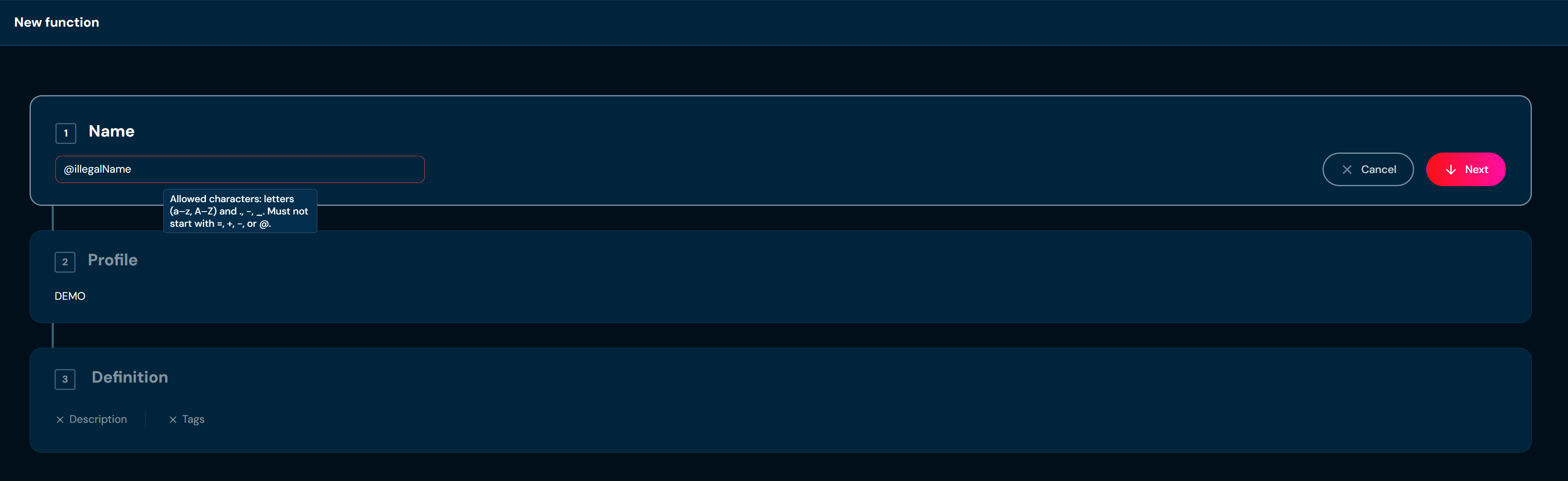
In step 1. Name, you need to provide unique Function code/name. Name can contain only characters from collection a-z; 0-9; “.”; “-”; “_” and it can’t start with “-”, “+”, “=” or “@”.
a. If you change your mind and don’t want to create a new function, you can choose Cancel in step 1. Name.
-
Click Next.
a. If you enter illegal characters, then validation error will make field frame red.
b. If another function already uses the name you provided, then pop-up dialog will appear. You can either close the pop-up by clicking Cancel or you can click View existing function, that will redirect you to the appropriate function and close the Function wizard.

-
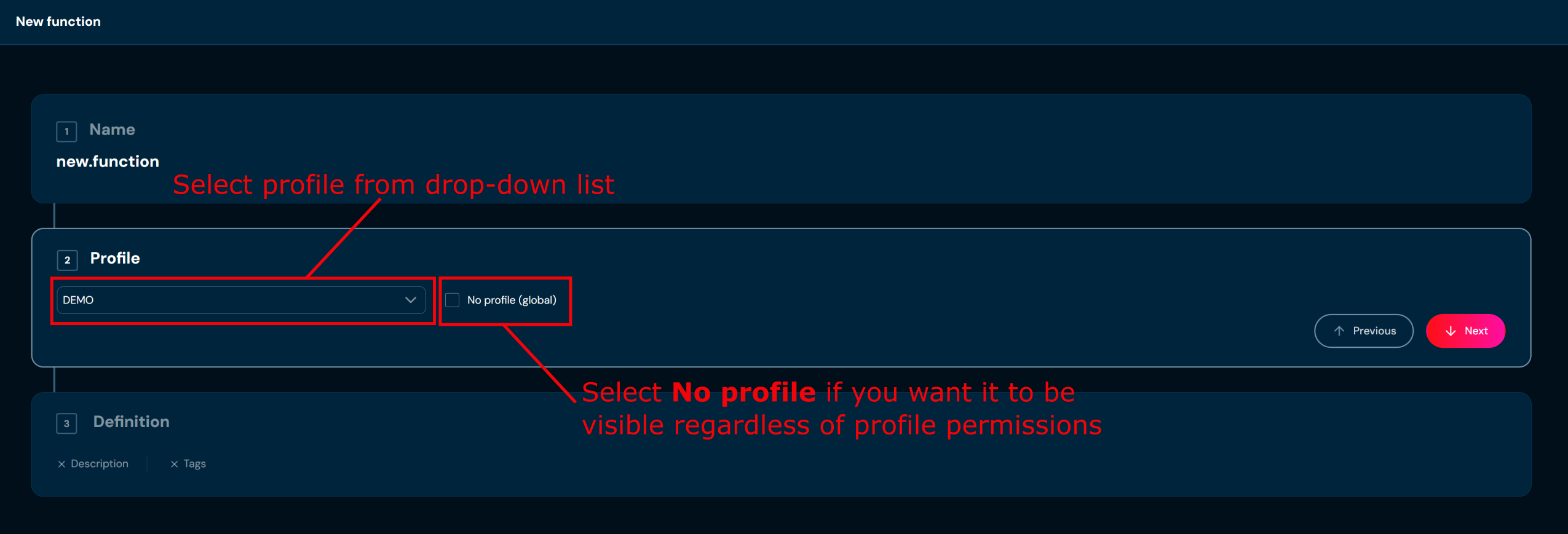
In step 2. Profile you may assign the function to a profile by selecting a profile from the drop-down list, or create a global function by checking No profile (global). Assigning the function to a profile will ensure that only users with permissions for that profile can access it. Global functions are visible regardless of profile permissions.
-
In step 3. Definition you may add description, assign tags and select a type.
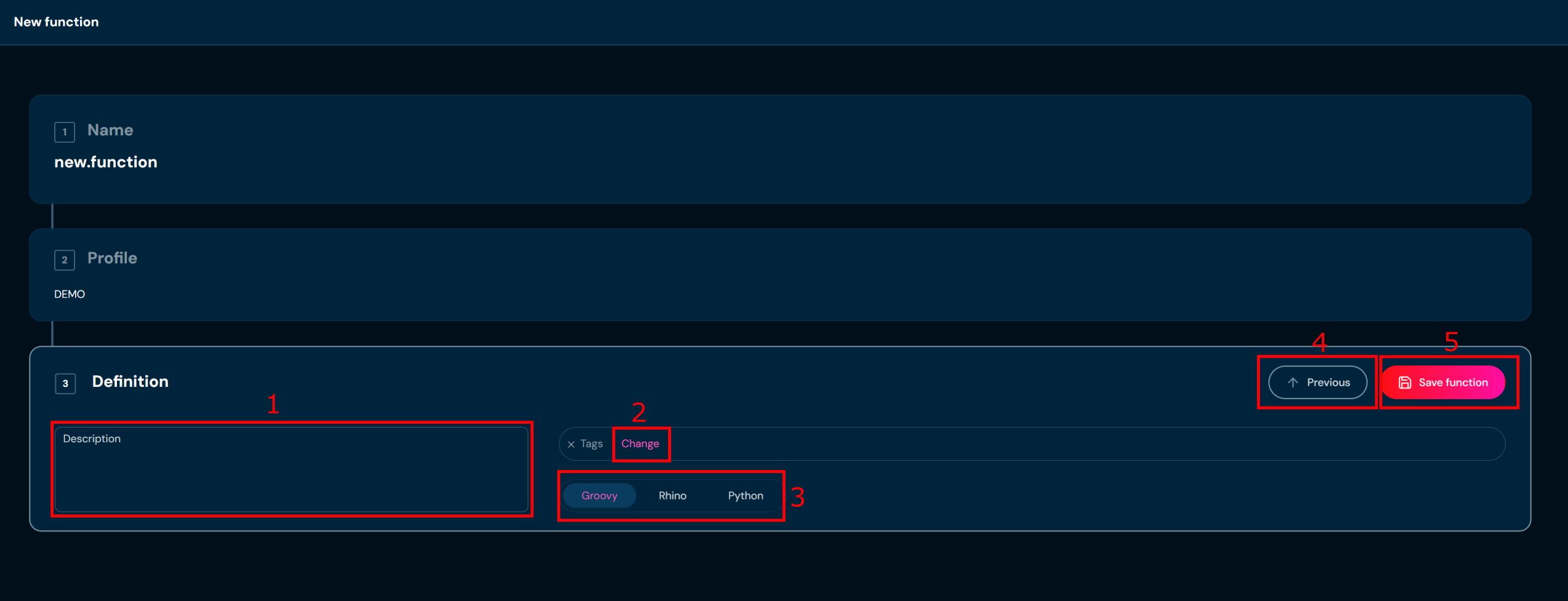
No. Field/Button code Description 1. Description Add or modify element description. Here you can add any additional detailed information about the new function. 2. Change Modify tags attached to the function. 3. Type Function’s type. 4. Previous Go back to the previous step of the function wizard. 5. Save function Completes the process of creating the new function. a. If you choose Previous you will go back to step 2. Profile
-
Choose Save function.
a. Function with data you provided is created. You will be redirected to Function’s details screen.
Upload Function#
If you want to upload functions from ZIP file, follow these steps:
-
Choose Functions in Main toolbar.
-
Choose Upload in All actions bar.
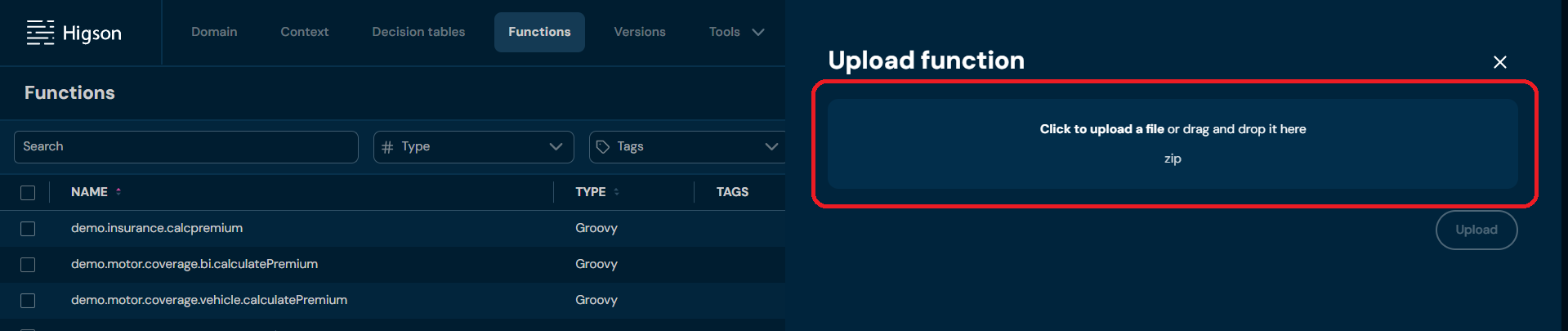
a. Choosing Upload brings up the Upload screen.
-
Drag&drop desired file or Click to upload a file and choose file in File explorer.
a. If you choose a file with extension other than ZIP, then validation error will pop up to learn how the correct file looks like go here.
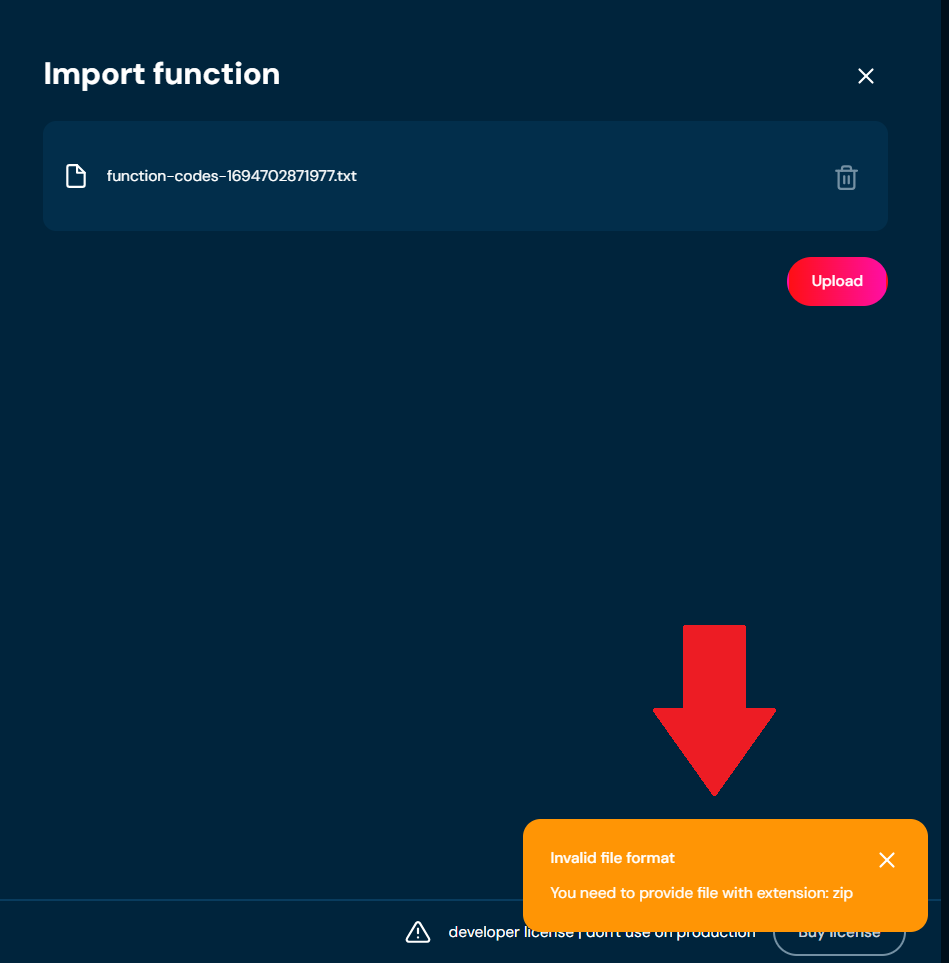
b. If there is some problem with the data in the ZIP file you provided, then validation error will pop up.
-
If the file loads correctly, it may be uploaded to the environment. File will load correctly if there is no file format problem.
a. If validation error occurs (see above), then no function will be uploaded.
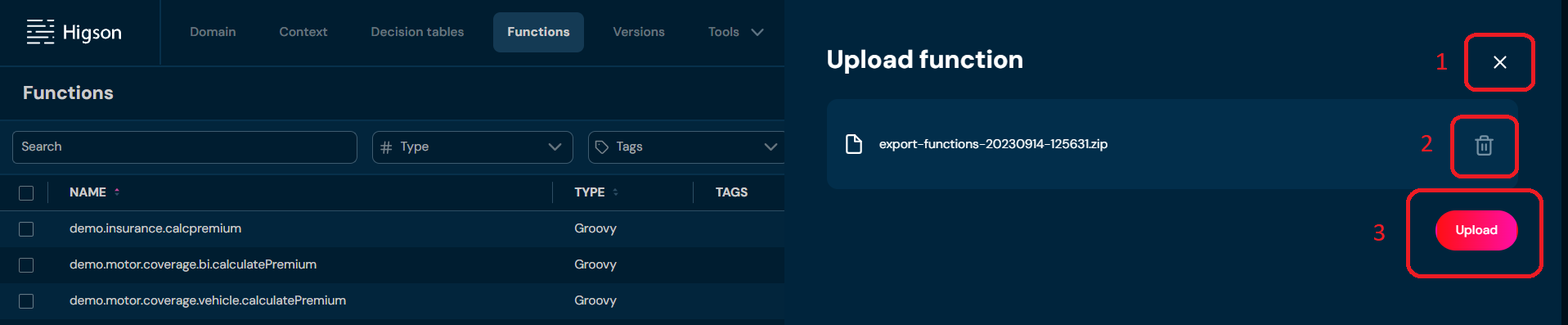
No. Field/Button code Description 1 Close Aborts the upload process. 2 Delete Removes the loaded file. When clicked, you will need to provide the file to load for the upload process to be completed. 3 Upload Uploads the loaded file to the system. The report of the upload will show. -
Click Upload
-
When Upload is completed, the progress bar at 100% shows and the report is visible below.
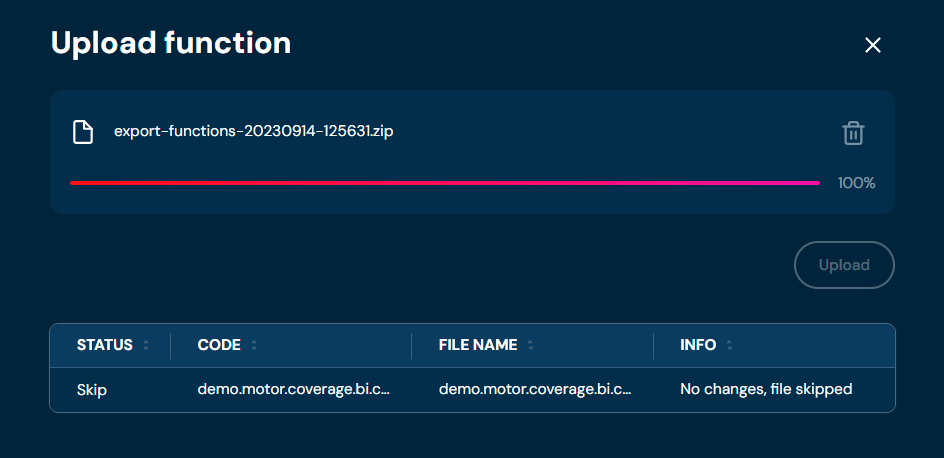
It allows you to check all the imported elements and if any problems during upload occurred.
Mass Export to XLSx#
If you want to download one or more functions, follow these steps:
-
Choose Functions in Main toolbar.
-
Select one or more function.
a. Select the top checkbox to select all functions in the view, or select individual checkboxes to select one or multiple functions
-
From drop-down menu More actions choose Mass export to XLSx
a. If action Mass export to XLSx is greyed out, it means that no function has been selected.
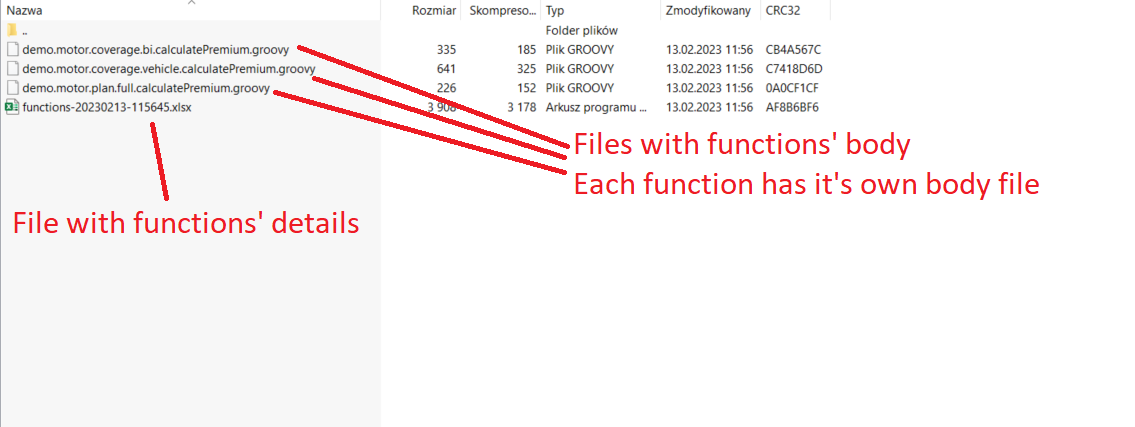
b. Choosing Mass export to XLSx downloads a ZIP file that contains files with functions’ body (one file per function) and XLSX file with functions’ details.

Extract Codes#
If you want to extract one or more functions, follow these steps:
-
Choose Functions in Main toolbar.
-
Select one or more function.
a. Select the top checkbox to select all functions in the view, or select individual checkboxes to select one or multiple functions
-
From drop-down menu More actions choose Extract codes
a. If action Extract codes is greyed out, it means that no function has been selected.
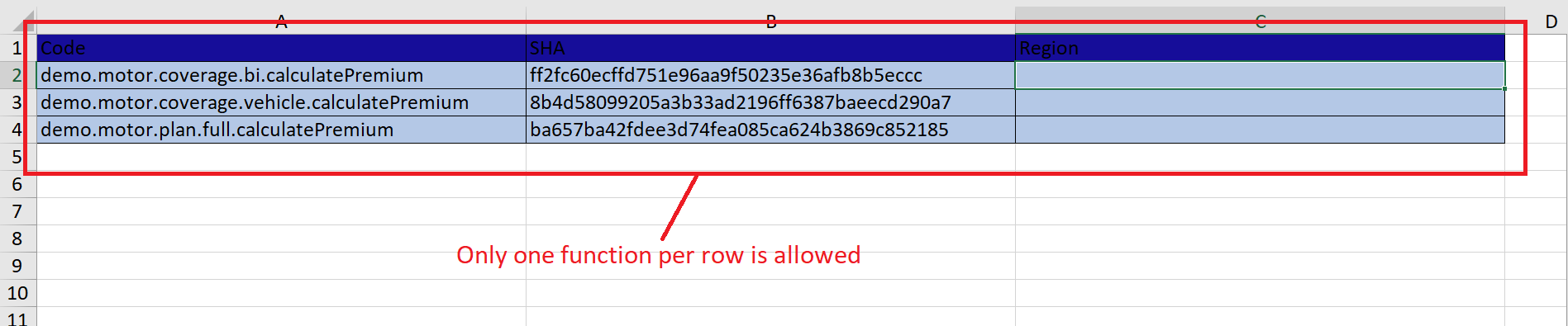
b. Selecting Extract codes downloads a XLSX file that contains Code, SHA and Region columns
Download Codes#
If you want to download one or more function codes, follow these steps:
-
Choose Functions in Main toolbar.
-
Select one or more function.
a. Select the top checkbox to select all functions in the view, or select individual checkboxes to select one or multiple functions
-
From drop-down menu More actions choose Download codes
a. If action Download codes is greyed out, it means that no function has been selected.
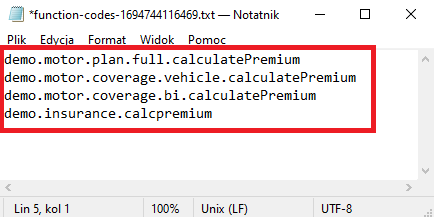
b. Selecting Download codes downloads a TXT file that contains functions’ codes (as in you can see below, one function code per one row)
Select from File#
If you want to select one or more functions from the file, follow these steps:
-
Choose Functions in Main toolbar.
-
From drop-down menu More actions choose Select from file
a. Choosing Select from file brings up the Select from file screen

No. Field / Button code Description 1 Upload a file Drag & drop a txt file from your computer or select a txt file through File Explorer. 2 Upload Uploads the loaded file. When clicked, the file gets uploaded and all elements provided in it are compared with elements on the environment. 3 Select Selects (checks checkboxes) for elements on the list from the provided file. -
Drag&drop desired file or Click to upload a file and choose file in File explorer.
a. Correct TXT file should look like this:
b. If you choose a file with extension other than TXT, then validation error will pop up
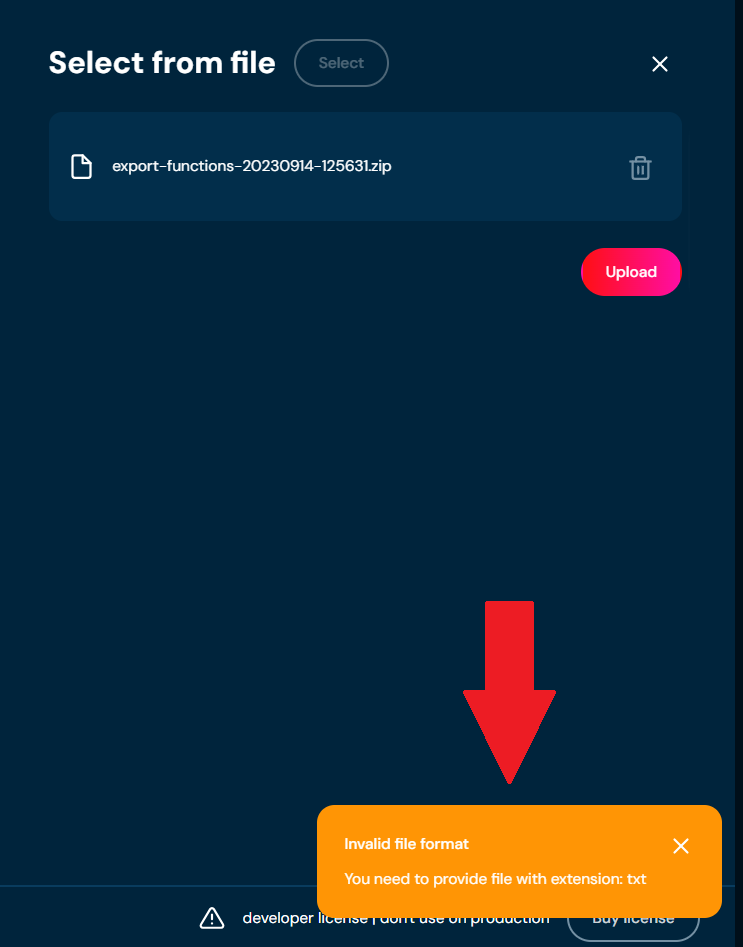
-
When the progress bar reaches 100%, you will be informed which functions will be selected.
a. Functions present in Selected elements table will be selected in step 5. These functions exist both in the TXT file and on the environment.
b. Functions present in Missing from table will not be selected in step 5. These functions exist only in TXT file therefore, they cannot be selected on the environment.
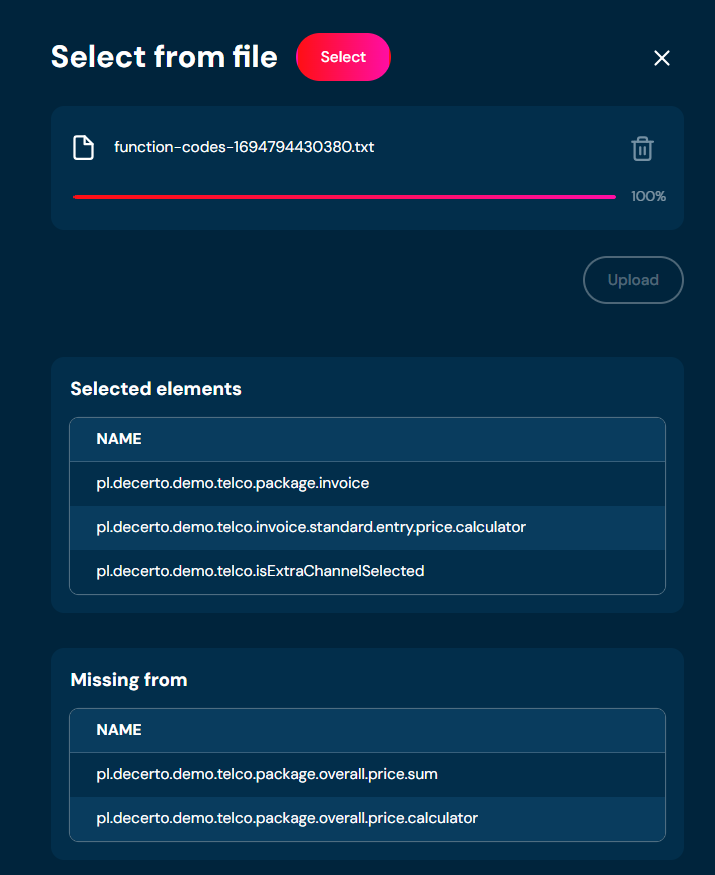
-
Choose Select.
a. All functions that were present in Selected elements table get selected (checkboxes associated with these functions are checked).
Compare with Extract#
Makes a comparison between file and the environment, gives information which element are the same, which changed and which are only in file or only in the environment.
-
Choose Functions in Main toolbar.
-
From drop-down menu More actions choose Compare with extract.
a. Choosing Compare with extract brings up the Compare with extract screen.

-
Drag&drop desired file or Click to upload a file and choose file in File explorer.
a. Correct XLS/XLSX file should look like this:
b. If you choose a file with extension other than XLS/XLSX, then validation error will pop up
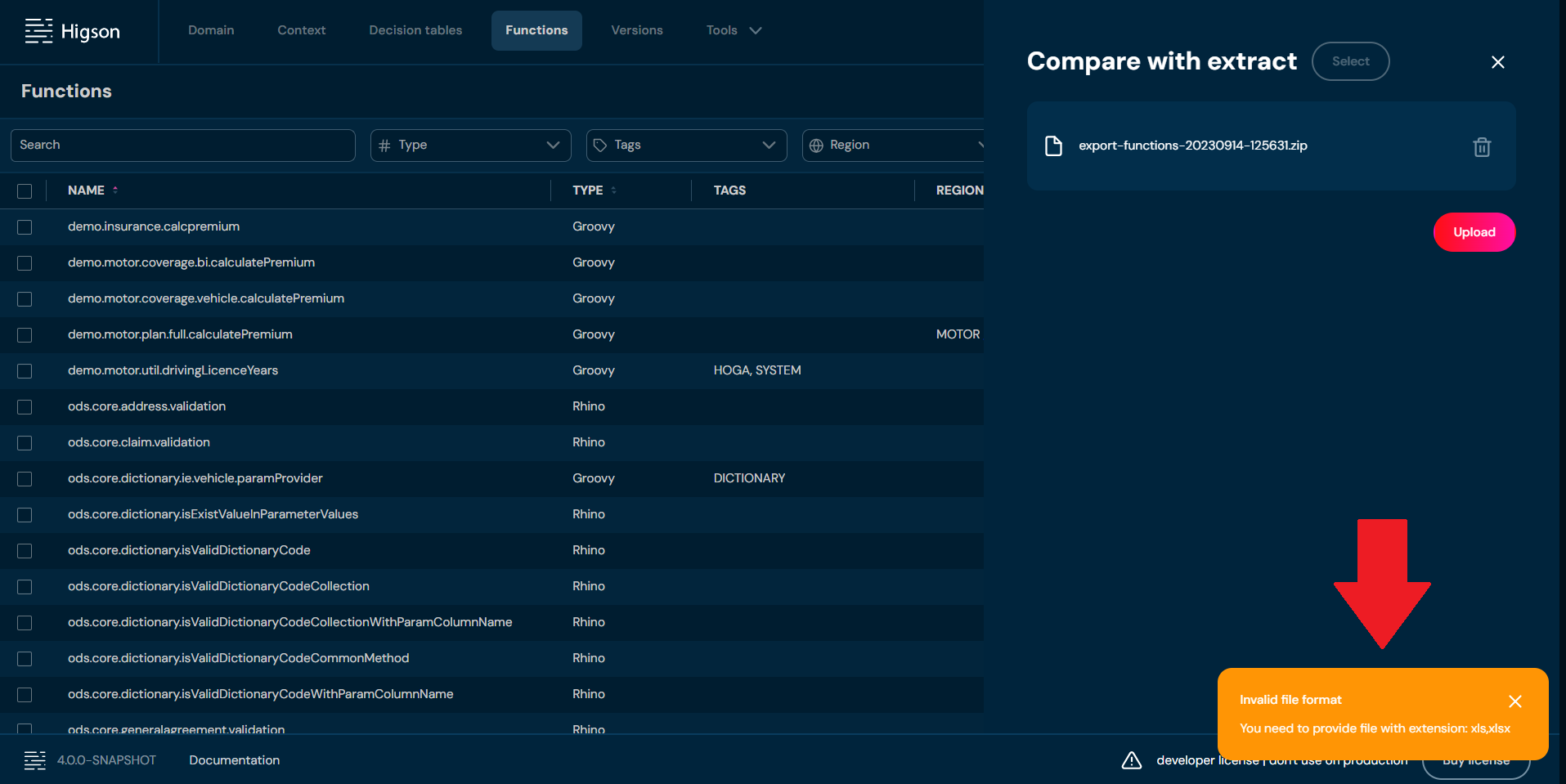
-
When the progress bar reaches 100%, you will be informed about the status of all functions present in the environment and the extract file you provided.
-
In Select section (visible below table with functions’ status) choose which functions will be selected
a. You can select multiple options
b. Matching - functions that are equal between the environment and the extract file will be selected.
c. Different region - functions that are equal but with different regions between the environment and the extract file will be selected.
d. Different name - functions that are equal but with different name between the environment and the extract file will be selected.
e. Missing from extract - functions that are present in the environment but absent from extract file will be selected.
-
Choose Select button.
a. If Select button is greyed out, it means that no checkboxes were selected in step 5.
b. All functions that match the criteria provided in step 5 are selected.
Assign Profile#
If you want to assign a profile to one or more functions, follow these steps:
-
Select Functions from the Main toolbar.
-
Select the functions without an assigned profile by checking the boxes on the left side of the list.
-
From the More Actions drop-down menu, choose Assign Profile.
a. Selecting Assign Profile opens the Assign Profile screen.
-
Select the profile to which you want to assign the function and confirm by clicking Change.
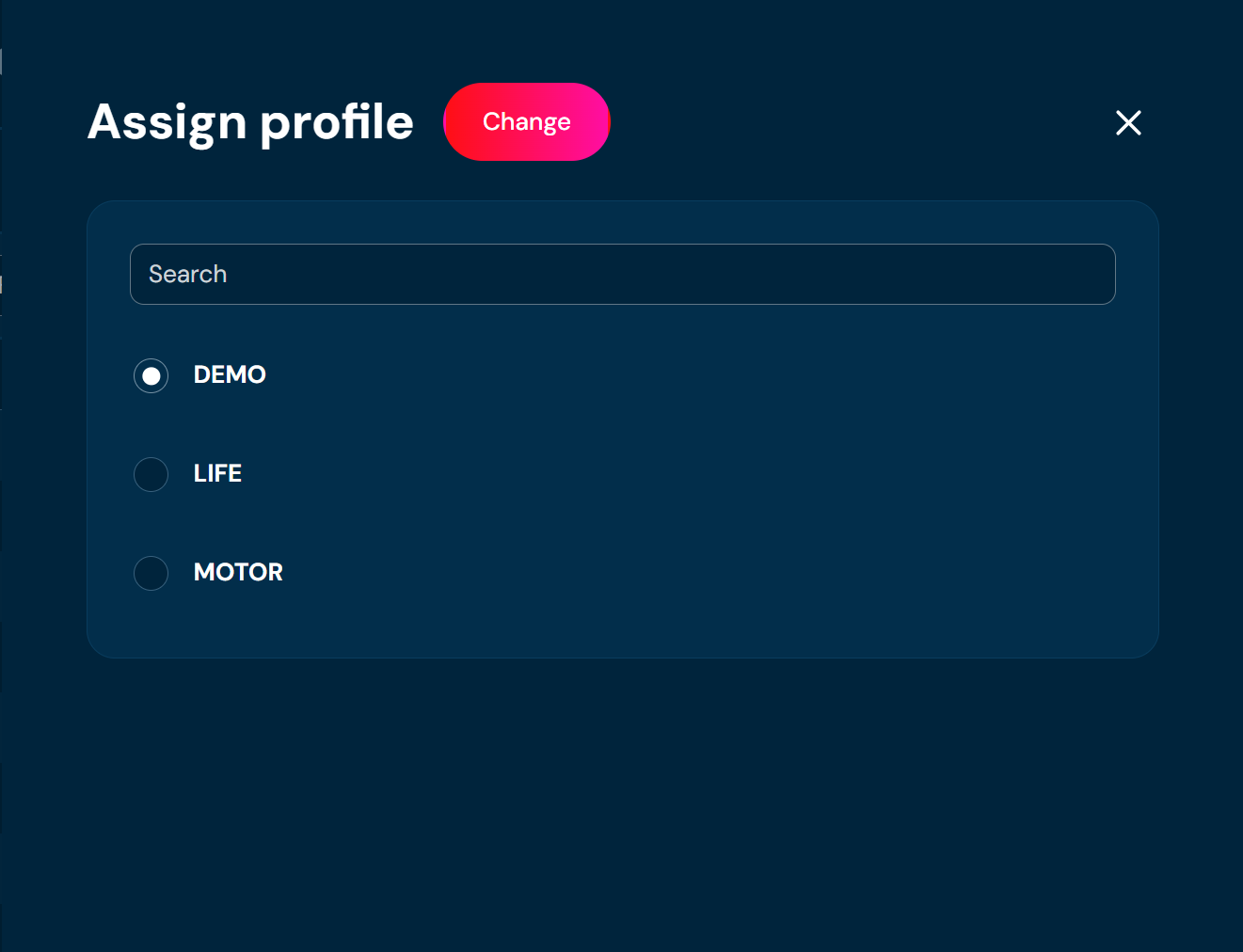
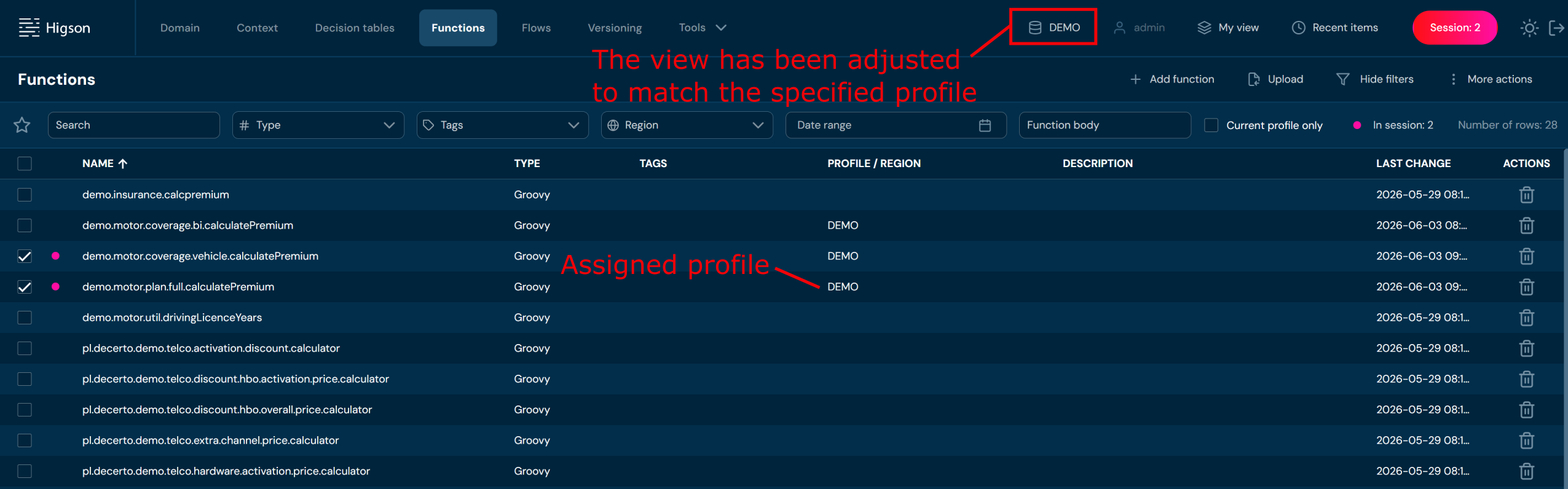
On the functions list view, a profile entry will appear for the assigned functions. The view will also be updated to reflect the selected profile.
Make Global#
If you want to detach one or more functions from a profile, follow these steps:
-
Select Functions from the Main toolbar.
-
Select the functions with an assigned profile by checking the boxes on the left side of the list.
-
From the More Actions drop-down menu, choose Make Global.
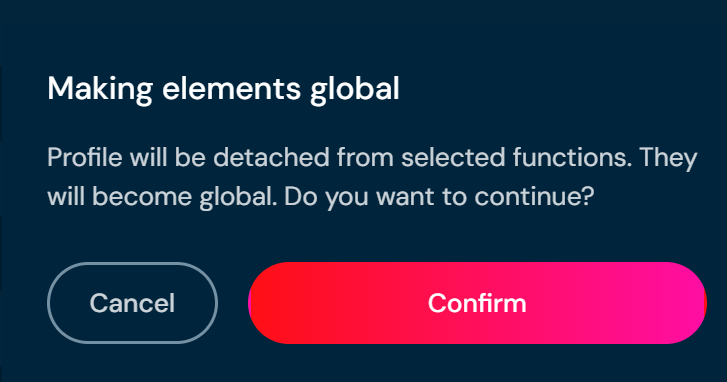
a. A confirmation pop-up will appear.
- Click Confirm.
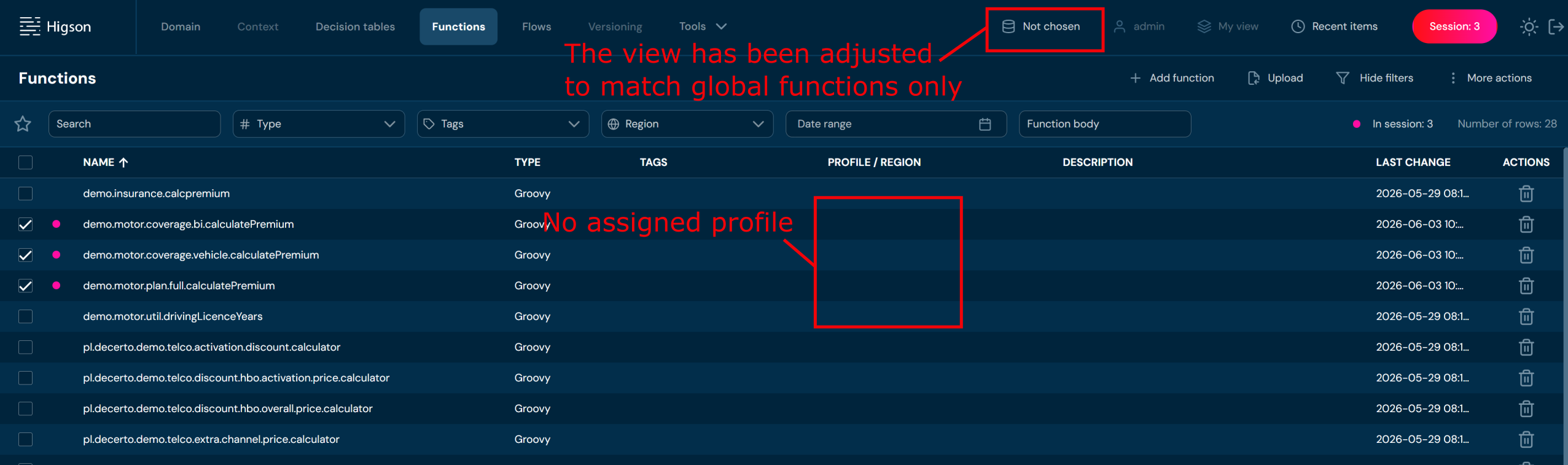
On the functions list view, the profile entry will disappear for the selected functions. The view will also be updated to global.
Add Region#
To attach a function to a region, function must first be assigned to a profile. A region belongs to a profile.
If you want to add a region to one or more functions, follow these steps:
-
Choose Functions in Main toolbar.
-
Select one or more functions without a Region.
a. Select the top checkbox to select all functions in the view, or select individual checkboxes to select one or multiple functions.
-
From drop-down menu More actions choose Add region.
a. If action Add region is greyed out, it means that no function has been selected.
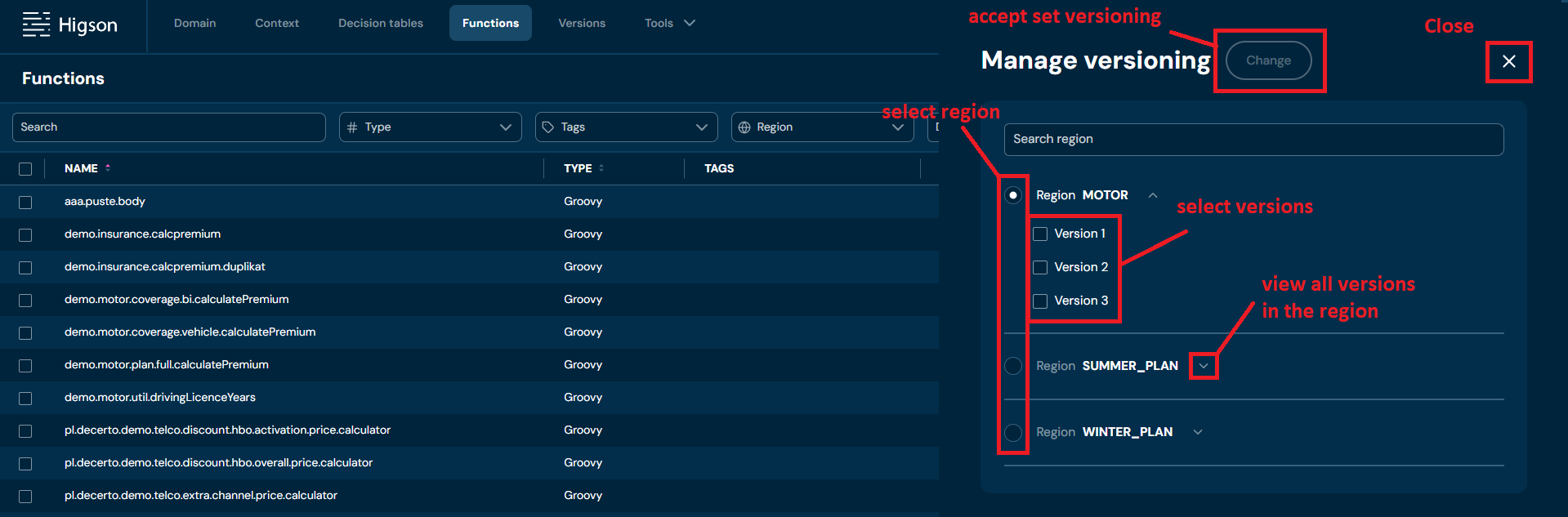
b. Choosing Add region brings up the Manage versioning screen.
-
Select Region and one or more Version.
-
Choose Change.
a. Region is being assigned to all functions selected in Step 2.
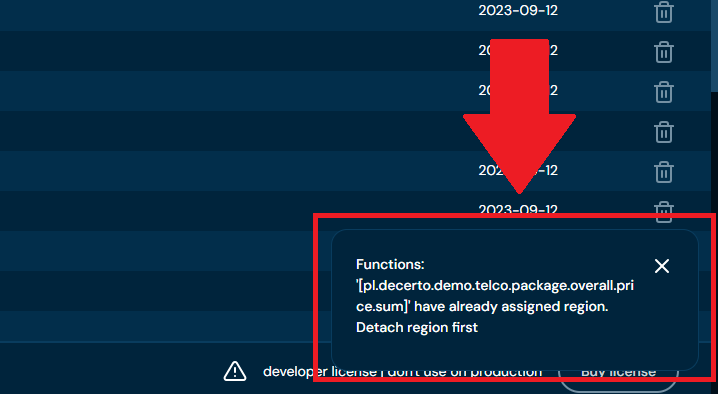
b. If at least one function you selected in Step 2 had assigned Region, then validation error appears and assigning Region process will be aborted.
Remove Region#
If you want to remove region from one or more functions, follow these steps:
-
Choose Functions in Main toolbar.
-
Select one or more functions with a Region.
a. Select the top checkbox to select all functions in the view, or select individual checkboxes to select one or multiple functions.
-
From drop-down menu More actions choose Remove region.
a. If action Remove region is greyed out, it means that no function has been selected.
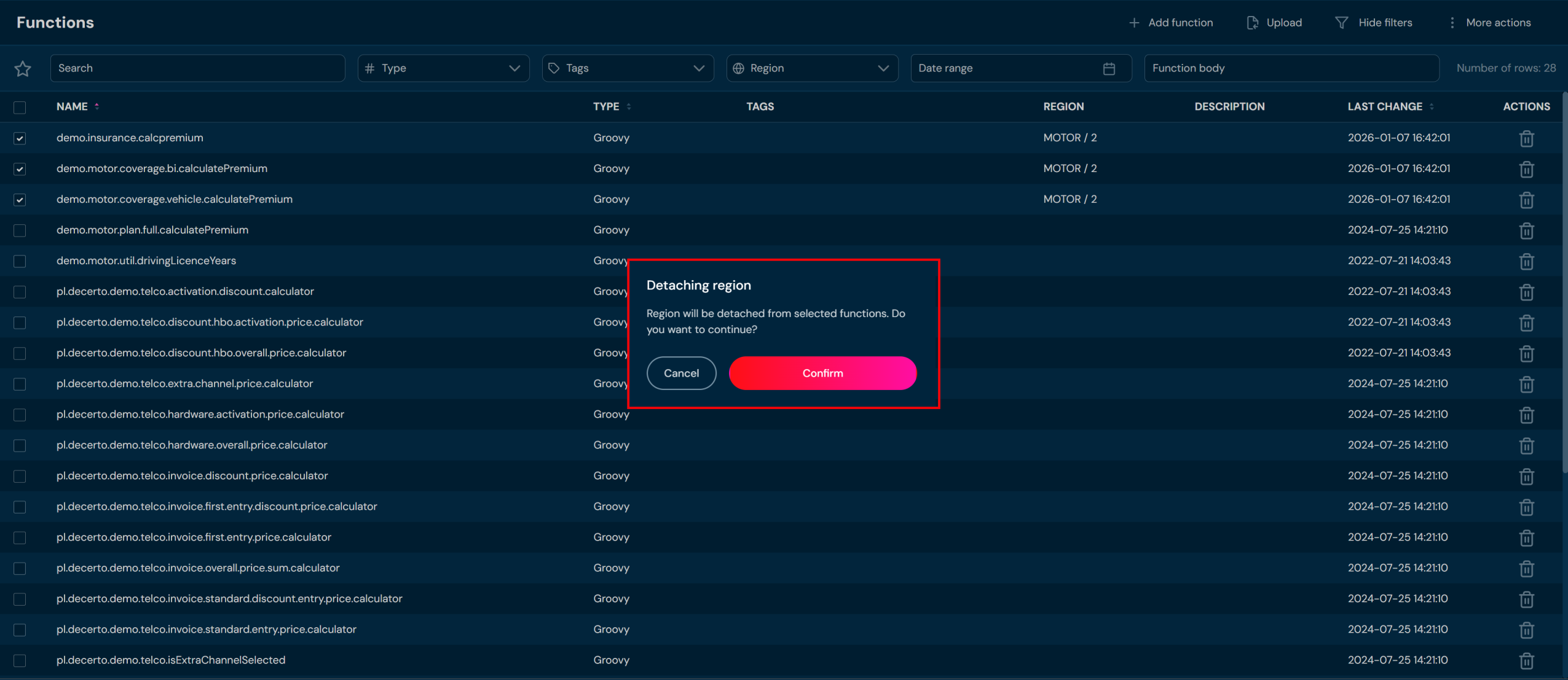
b. After choosing Remove region action, confirmation pop-up will appear.
-
Choose Confirm.
d. Regions are being removed from all selected functions.
Manage Tags#
If you want to manage tags for one or more functions, follow these steps:
-
Select the Functions on the Main toolbar.
-
Select one or more functions.
-
From the More Actions drop-down menu, select Manage Tags.
-
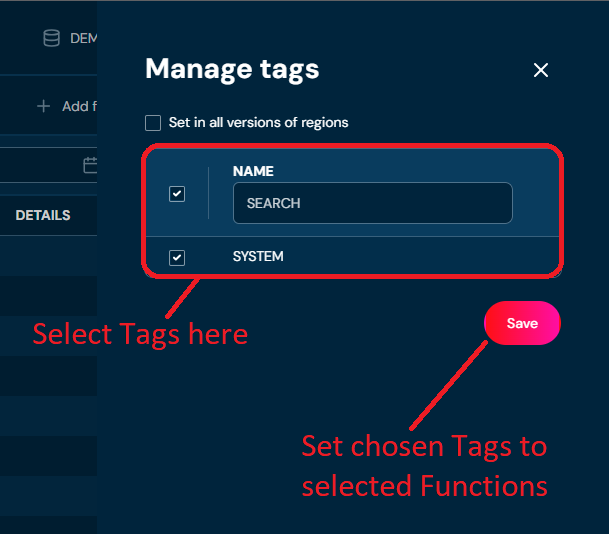
Select the tags you are interested in and click Save.
Remove Function#
If you want to delete one or more functions, follow the steps below:
-
Choose Functions in Main toolbar.
-
Select one or more functions.
a. Select the top checkbox to select all functions in the view, or select individual checkboxes to select one or multiple functions.
-
From the drop-down menu More actions choose Remove
a. If action Remove is greyed out, it means that no function has been selected.
b. After choosing Remove action, confirmation pop-up will appear.

-
Choose Confirm.
a. All functions are deleted from the environment.
Function Details Screen#
You can access Function details by left-clicking on the specific function in the List of all functions. Function details screen contains all information about the function, its Description, assigned Region/Tags, function body and function arguments.
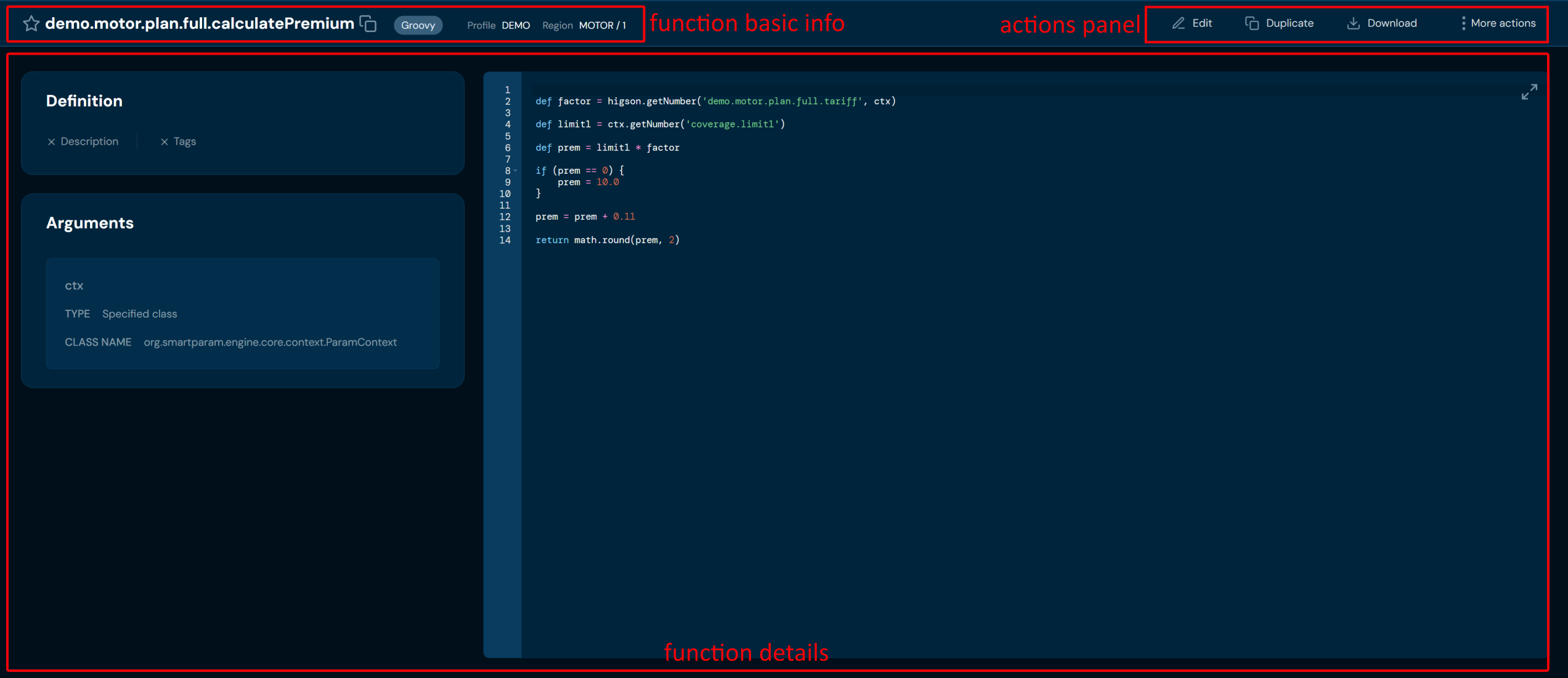
Firstly, function basic info:

| No. | Field/Button code | Description |
|---|---|---|
| 1. | Add to favorites | Adds the element to favorites. |
| 2. | Function code/name | Current function name/code. |
| 3. | Copy name | Copies the function name to clipboard. |
| 4. | Language | Groovy. Defines the programming language in which the function is validated and performed. |
| 5. | Profile | Profile the function is assigned to. |
| 6. | Region | Carries information about region and version attached to the function. |
You can see Available actions for the function below:
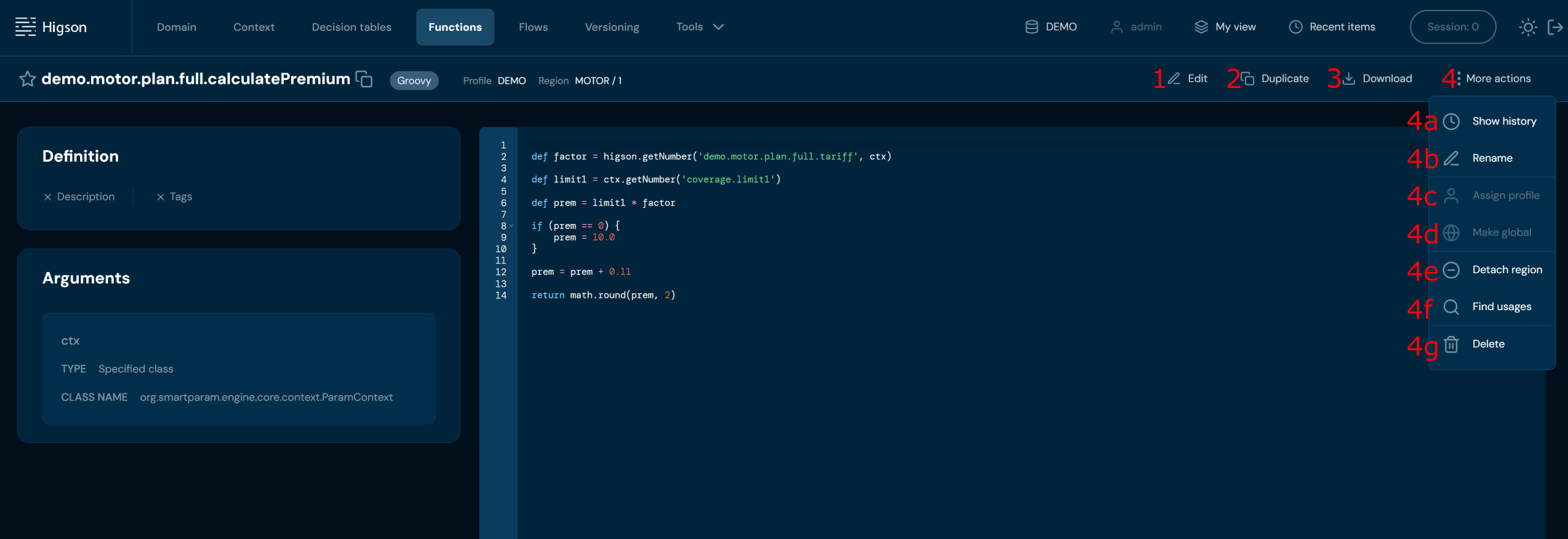
| No. | Action | Description |
|---|---|---|
| 1. | Edit | Enables function edit mode. To learn more about editing function go here. |
| 2. | Duplicate | Allows to duplicate function. Duplicated function has all data the same as the original function. |
| 3. | Download function | Downloads a ZIP file that contains XLSX file and file with function body. |
| 4. | More actions | Drop-down list that contains actions 4a-4g. |
| 4a. | Show history | Opens a new screen with a table of all modifications made on the function. To learn more about function history go here. |
| 4b. | Rename | Allows changing function code/name. To learn more about renaming function go here. |
| 4c. | Assign profile | Assigns the function to a profile. Assigning the function to a profile will ensure that only users with permissions for that profile can access it. |
| 4d. | Make global | Makes the function global. Global functions are visible regardless of profile permissions. |
| 4e. | Detach/Attach | Allows managing region and versions attached to the function. |
| 4f. | Find usages | Redirects you to Find usages search where you may find every reference to that function. |
| 4g. | Remove | Deletes function. To learn more about removing function go here. |
The main part of the function view includes the most important information about the function that makes it work:
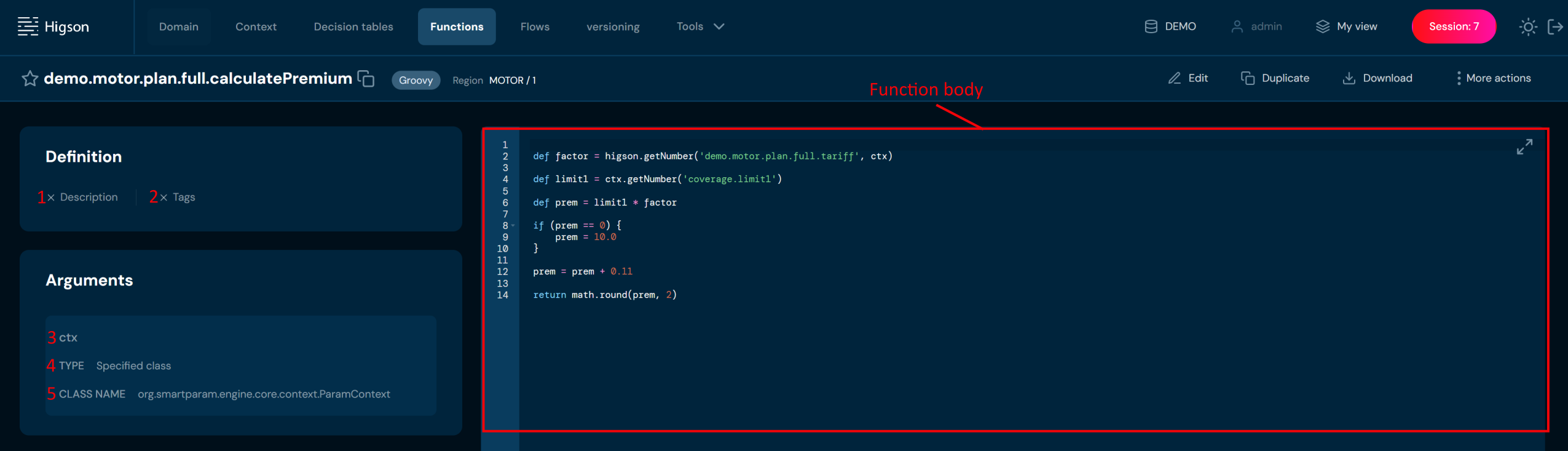
| No. | Action | Description |
|---|---|---|
| 1. | Description | Contains the Description of the function if such was added. |
| 2. | Tags | Contains the tags attached to function. |
| 3. | Argument name | Argument name defined separately for each argument. Must be unique within the function. |
| 4. | Argument type | Argument type selected from the available types list, defined separately for each argument. |
| 5. | Argument class | Argument class name defined separately for each argument. |
Edit Function#
If you want to edit data in a specific function, follow these steps:
-
Choose Functions in Main toolbar.
-
Left-click on the function you wish to edit.
a. Left-clicking on function opens Function details screen.
-
Choose Edit in Available actions.
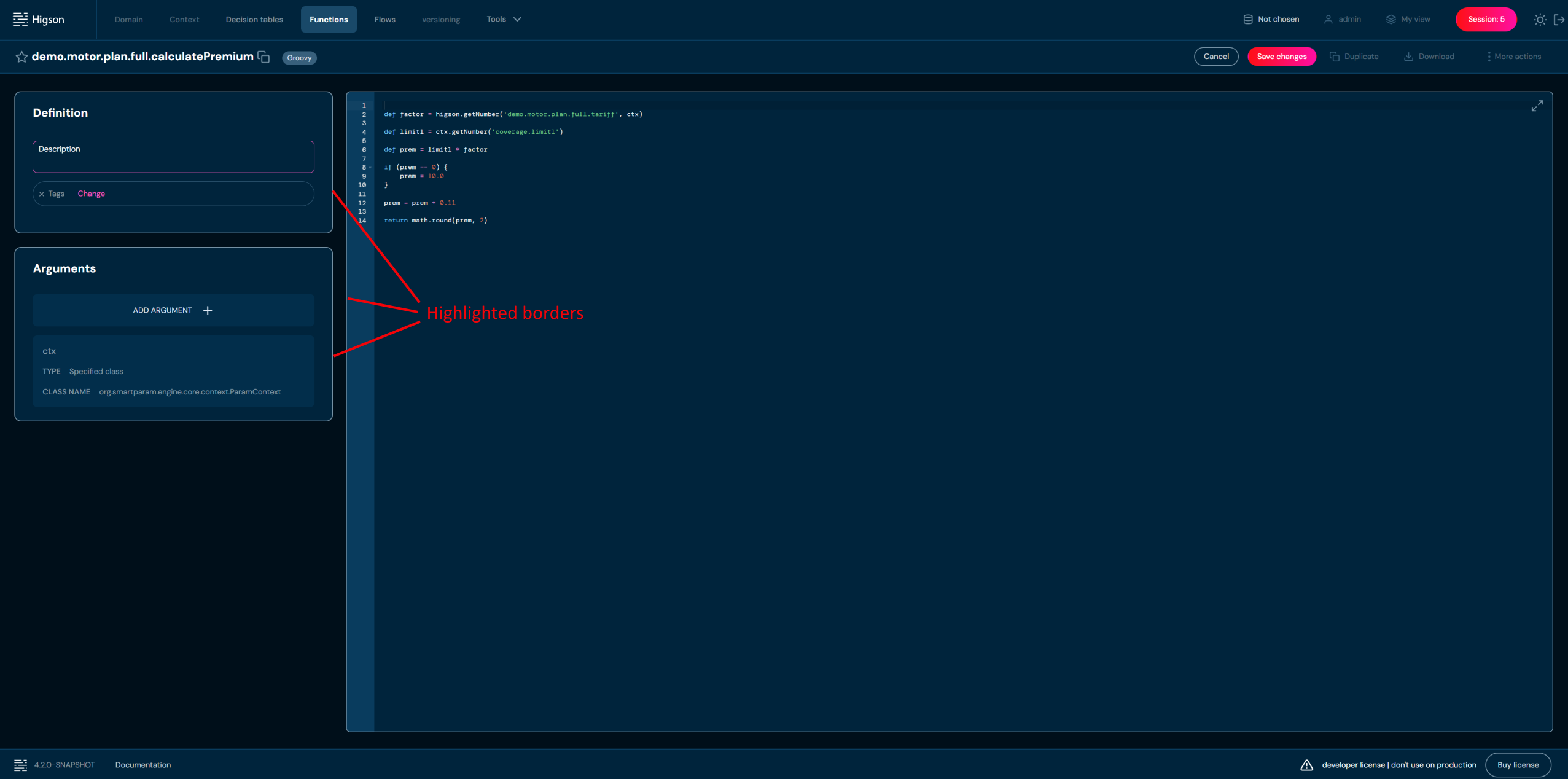
a. Highlighted borders indicate that edit mode is active.
-
Edit any data you need.
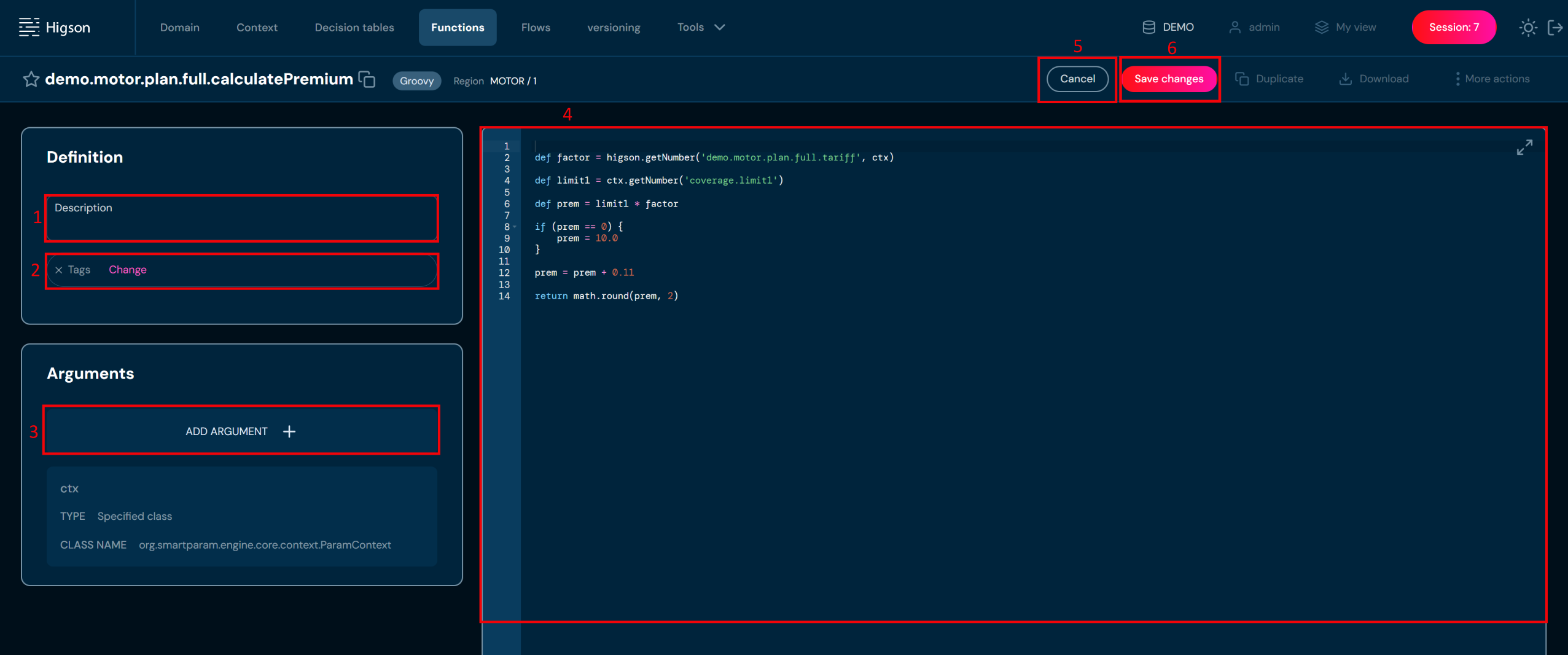
No. Action Description 1 Description Contains the Description of the function if such was added. 2 Change Allows to manage tags. 3 Add argument Adds a new argument for which name, type, and class name will have to be provided. 4 Function body Here you can write a code to create your algorithm. You can define variables and use arguments defined in the Argument section. 5 Cancel Rejects all changes made in the edit mode. 6 Save changes Saves all changes made in the edit mode. a. Bear in mind that function’s name can only be changed with Rename action.
-
Choose Save changes to save all changes made in the function.
a. Cancel reverts all changes made in the function.
Duplicate Function#
If you want to duplicate specific function, follow these steps:
-
Choose Functions in Main toolbar.
-
Left-click on the function you wish to duplicate.
a. Left-clicking on function opens Function details screen.
-
Choose Duplicate in Available actions.
a. Choosing Duplicate brings up the Duplicate function screen.
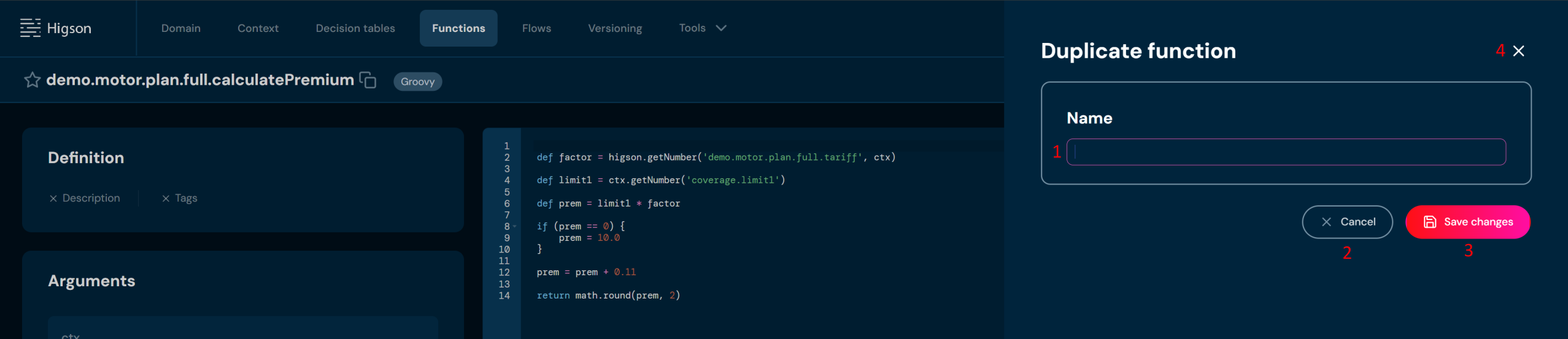
No. Action Description 1 Name Provide the name for the duplicated function. 2 Cancel Abort the process of duplicating the function. 3 Save changes Save the new, duplicated, element. 4 Close Abort the process of duplicating the function. -
Enter unique function name. Name can contain only characters from collection a-z; 0-9; “.”; “-”; “_” and it can’t start with “-”.
-
Choose Save changes.
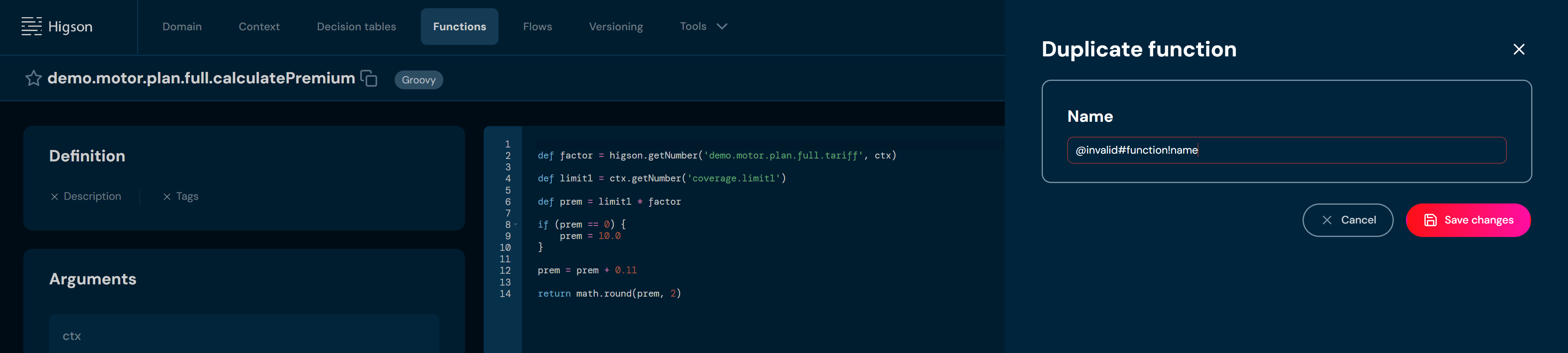
a. If you enter illegal characters, then validation error will make the field frame red.
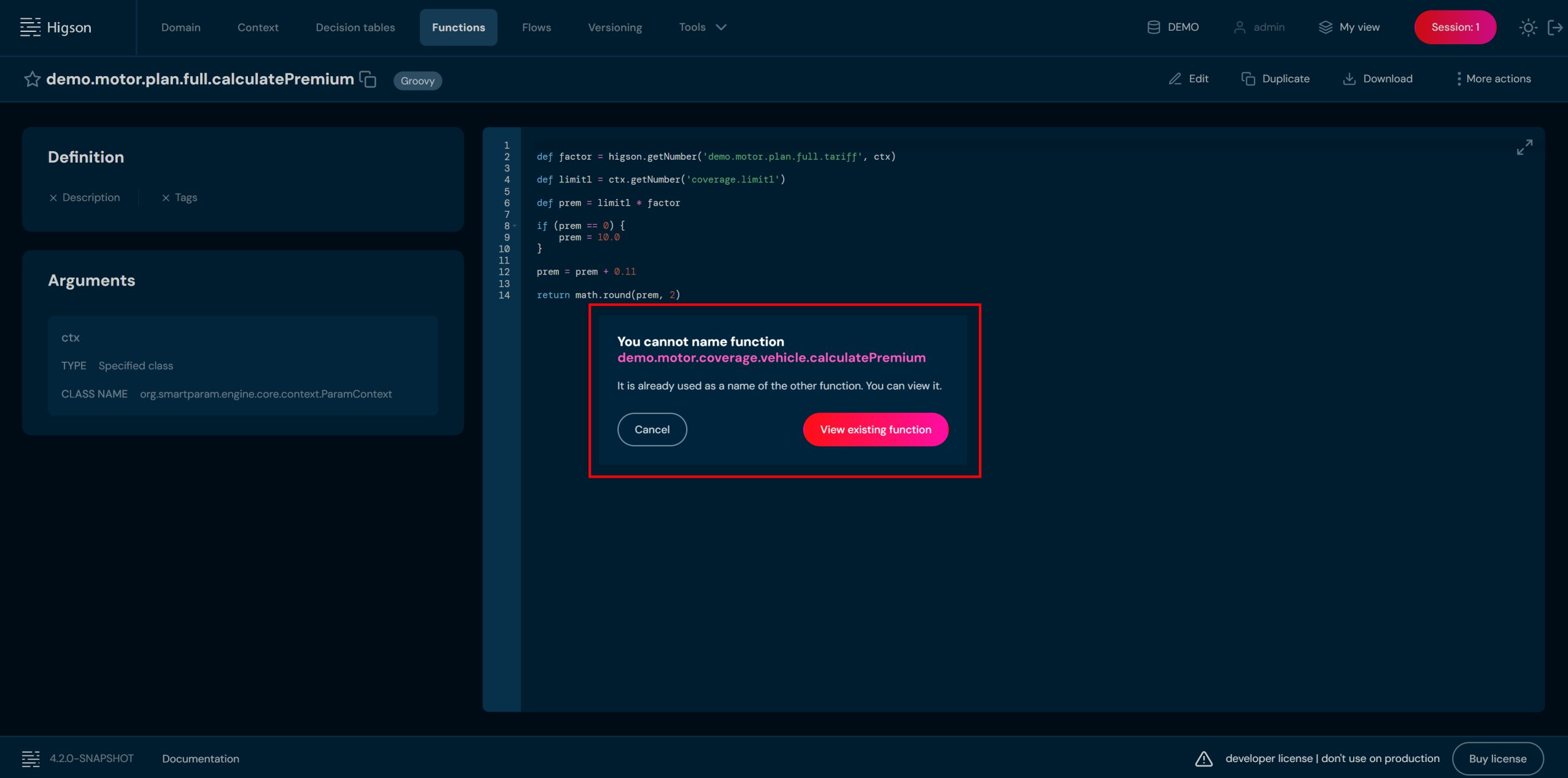
b. If another function already uses the name you provided, then pop-up dialog will appear. You can either close the pop-up by clicking Cancel or you can click View existing function, that will redirect you to the appropriate function.
-
Choose Save changes.
a. The Function will be duplicated with the name provided in step 4. You will be redirected to duplicated Function’s details screen.
Show History#
If you want to check all modifications made on function, follow these steps:
-
Choose Functions in Main toolbar.
-
Left-click on the function you want to check.
a. Left-clicking on function opens Function details screen.
-
From drop-down menu More actions choose Show history.
a. Choosing Show history brings up the Function history screen.

No. Column name Description 1. Operation Type of operation made on function. 2. Message Brief information about the details of the operation. 3. Author User’s login that made an operation. 4. Modification Date Date of the published session that made an operation. 5. Region Region and version assigned to function at the time of modification. 6. Actions View redirects to archived version of Function. In this screen you can choose Restore to restore that version of Function.
Rename#
If you want to rename a function, follow these steps:
-
Choose Functions in Main toolbar.
-
Left-click on the function you wish to duplicate.
a. Left-clicking on function opens Function details screen.
-
From drop-down menu More actions choose Rename.
a. The Highlighted border around the function name indicates that it is editable.

-
Enter unique function name. Name can contain only characters from collection a-z; 0-9; “.”; “-”; “_” and it can’t start with “-”.
-
Choose Save name.
a. If you enter illegal characters, then validation error will appear.

Find Usages#
If you want to check where the function is used, follow these steps:
-
Choose Functions in Main toolbar.
-
Left-click on the function you want to check.
a. Left-clicking on function opens Function details screen.
-
From drop-down menu More actions choose Find usages.
a. Choosing Find usages brings up the Find usages screen. The screen displays a list of objects in which the function has been used
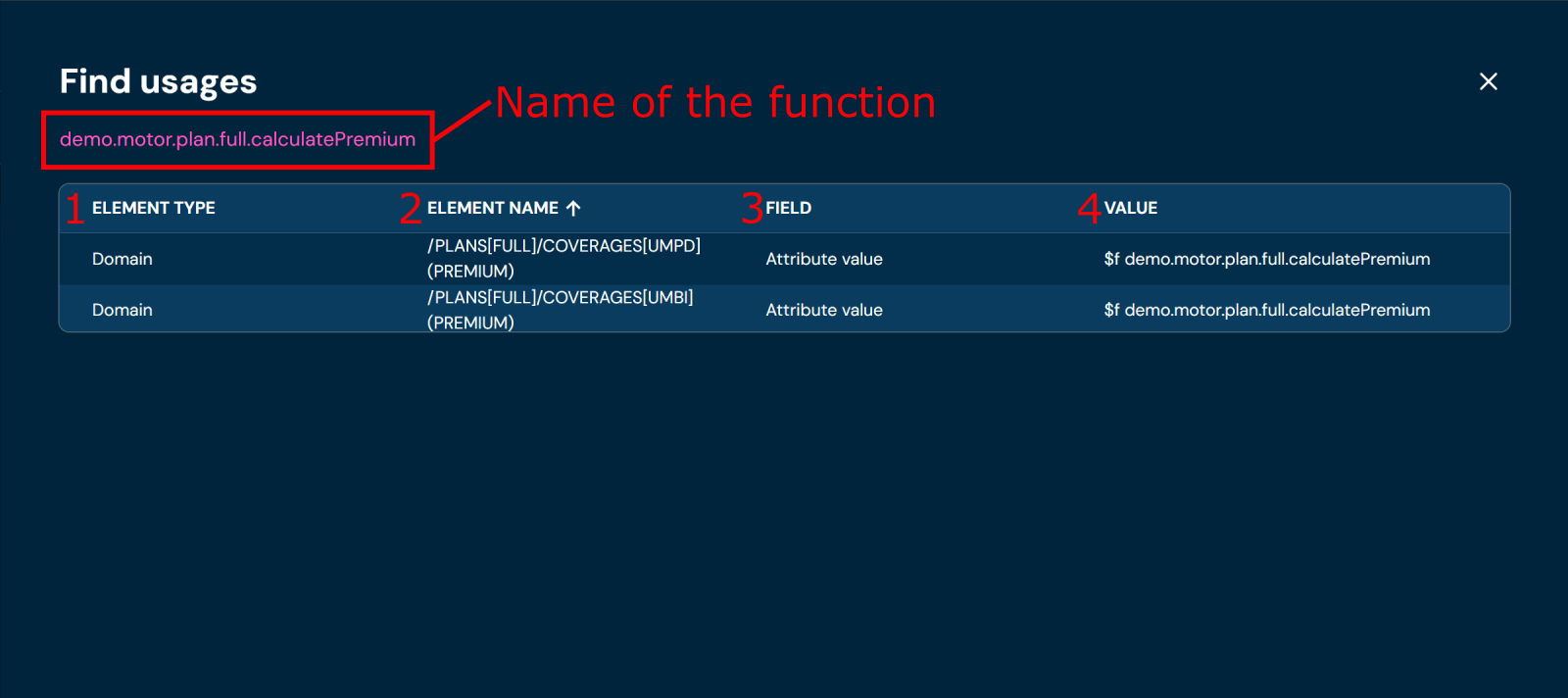
No. Column name Description 1. Element type Type of element that uses this function. 2. Element name Name of the element that uses this function. 3. Field Value of the element that uses this function. This column is filled only for Attribute value element, for other elements this column is empty. 4. Value Informs the user in what value the searched element was used.
Remove (Details View)#
If you want to delete specific function from Function details level, follow these steps:
-
Choose Functions in Main toolbar.
-
Left-click on the function you wish to remove.
a. Left-clicking on function opens Function details screen.
-
From drop-down menu More actions choose Remove.
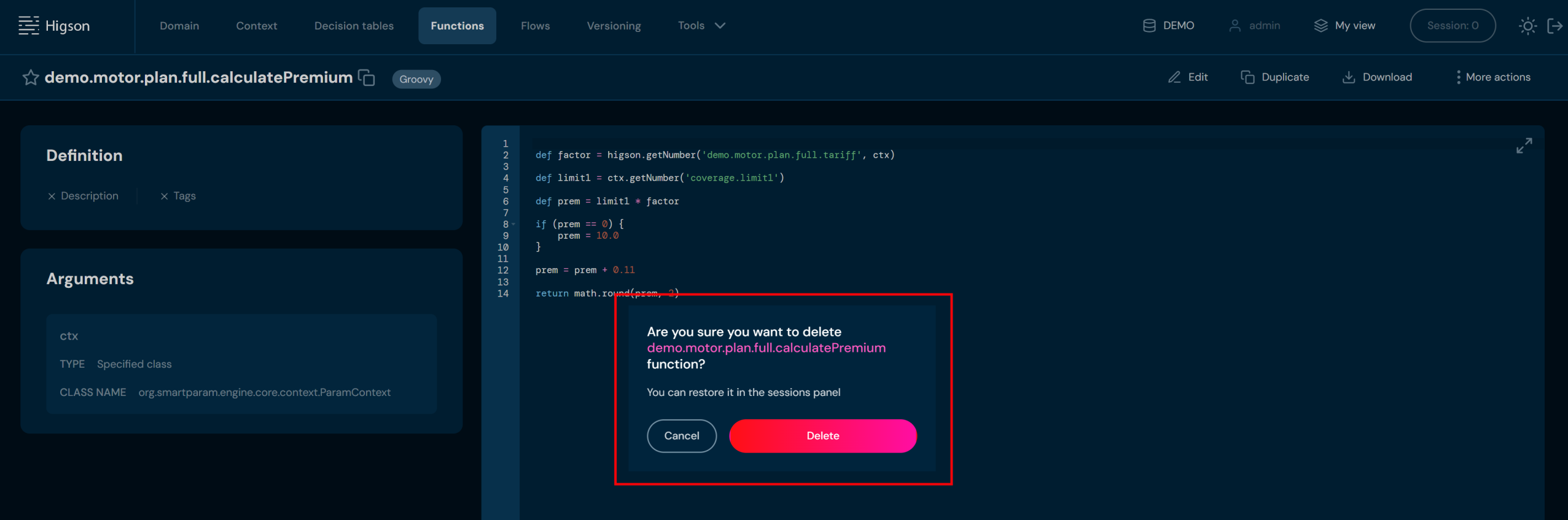
a. After choosing Remove action, confirmation pop-up will appear.
-
Choose Confirm.
a. The Function is deleted from the environment.
Util functions are small, general-purpose functions designed to perform simple, often repetitive tasks. They are generic and can be used in various places in Higson configuration, which helps organize, maintain, and increase the readability of configuration.
Features of Util Functions:
- Clearly defined purpose: Util functions perform a single, specific operation, such as date formatting, string manipulation, data type conversions, validations, etc.
- Independent of specific business logic: They are neutral and can be reused across different projects.
- Reusable: They are created to be used multiple times in different parts of the configuration.
In summary, util functions are tools that make it easier to handle common and repetitive tasks in Higson, improving the structure and organization of configuration.
You can use util functions in Domain Configuration and Decision Tables. To call a util function in Higson configuration, use the notation $u utilFunctionName().
The following util functions are available in Higson:
- Equals
- Add
- Diff
- Exist
- Format
- From
- GreaterThanEquals
- GreaterThan
- IsBlank
- LessThanEquals
- LessThan
- NotBlank
- Size
- To
- Trim
- NotEmpty
- Get
- IsEmpty
Examples#
Equals#
This method checks if a value from the Higson context is equal to another value.
Function arguments (mandatory 2 arguments):
ctx: The HigsonContext object.args: The arguments passed to the method.
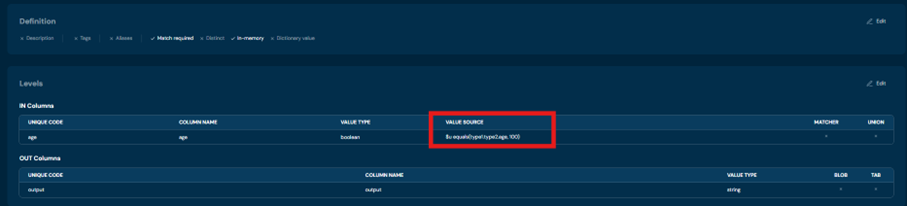
Example 1: $u equals(context.path, 100)
- The first argument should be the path to the target object in the context.
- The second argument should be the value to compare with the target object (it can be a number or date).
Function arguments (optionally 4 arguments):
- First argument: path to the target object.
- Second argument: value to compare with the target object.
- Third argument:
ignoreCasefor case-insensitive comparison. - Fourth argument:
trimto ignore leading and trailing whitespace.
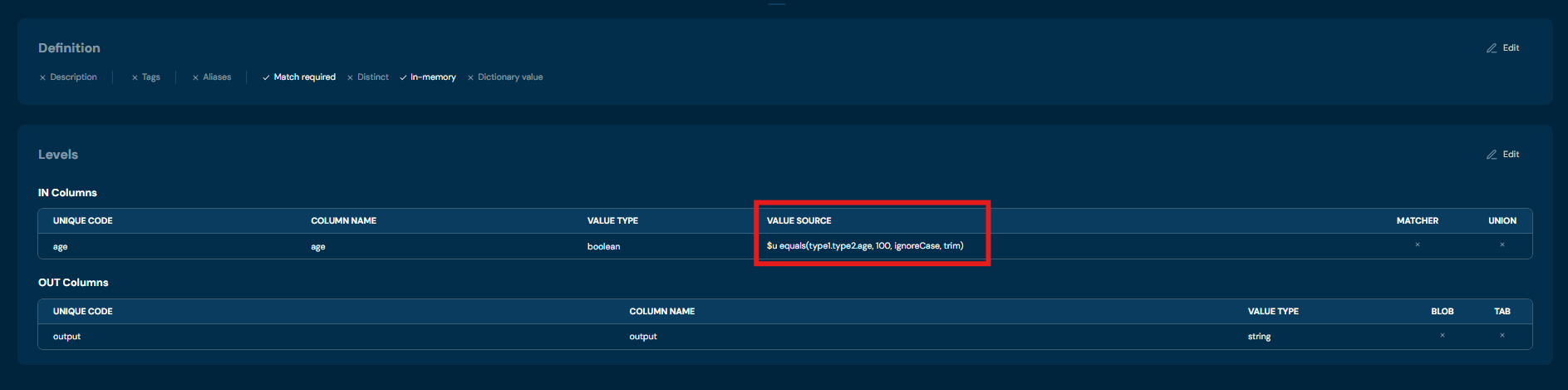
Example 2: $u equals(context.path, 100, ignoreCase, trim)
Return: True or false based on the comparison.
Add#
This method performs an addition operation based on the given arguments. Note: Numbers given as text in the context are interpreted by Higson as numbers
Function arguments:
ctx: The HigsonContext object.args: The arguments passed to the method.
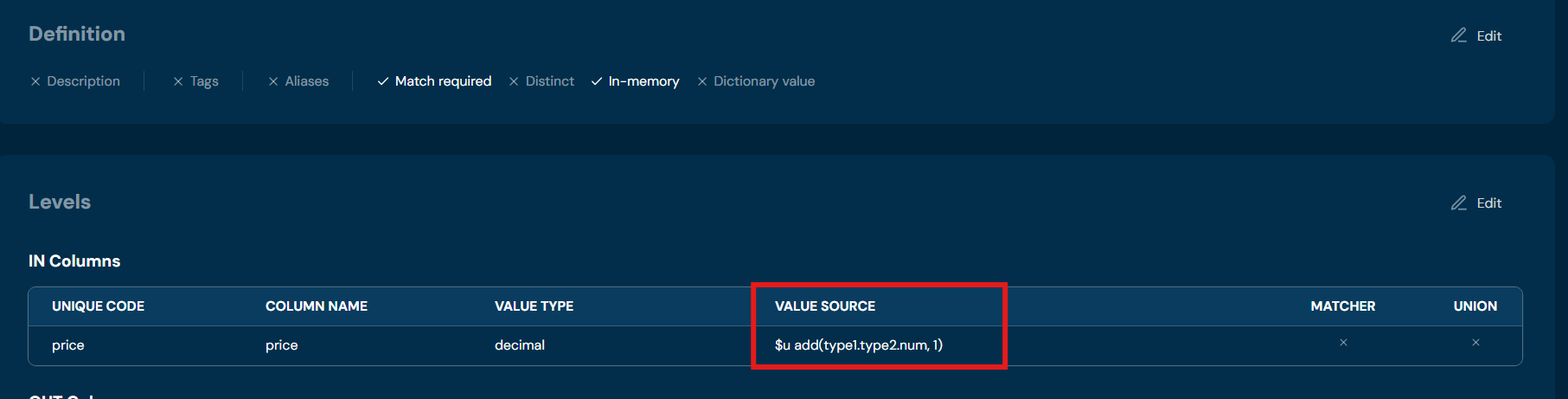
Example 1: $u add(ctx, arg)
For numeric attributes, only two arguments are needed: context path and value to add.
Example 2: $u add(ctx, 10, d)
For date type attributes, three arguments are needed: context path, value to add, and string representation of the time token (e.g., “d” for days).
The following table shows the supported time tokens.
| Argument | Description | Applies to data type |
|---|---|---|
| s | SECOND | Local datetime, Date |
| m | MINUTE | Local datetime, Date |
| h | HOUR | Local datetime, Date |
| d | DAY | Local datetime, Local date, Date |
| M | MONTH | Local datetime, Local date, Date |
| Y | YEAR | Local datetime, Local date, Date |
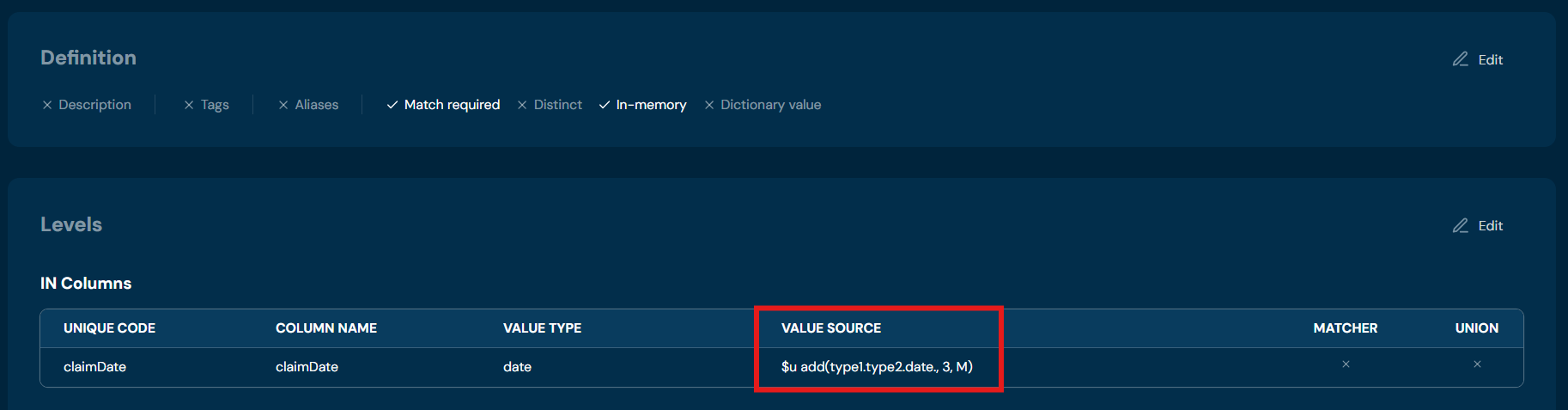
Return: The result of the addition operation, or null if the value is blank.
Example 3: $u add(ctx.path1, ctx.path2) - adds two elements provided by the HigsonContext
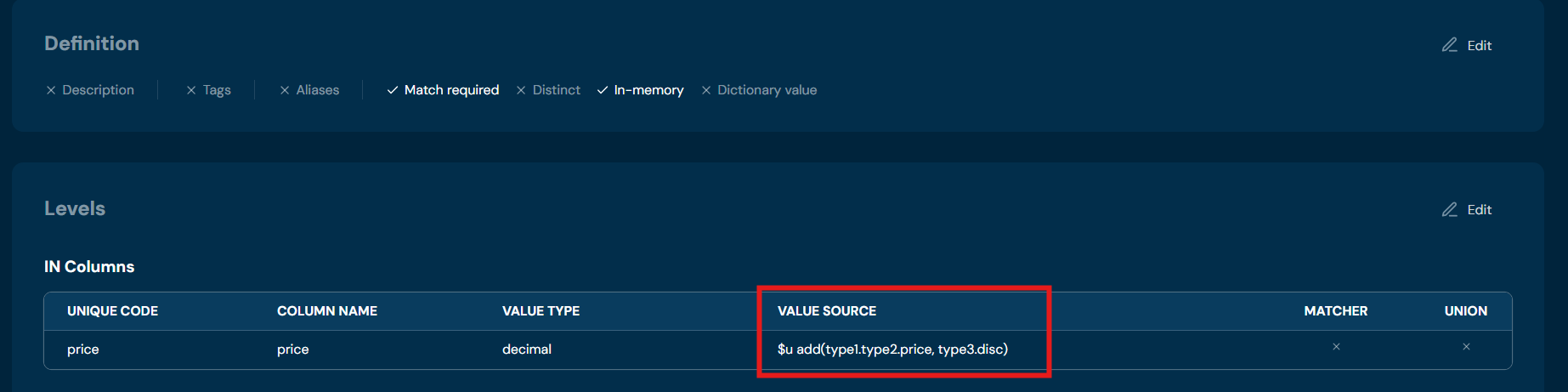
Return: The result of the addition operation, or null if the value is blank.
Diff#
Calculates the difference based on the given arguments and the target object.
Function arguments:
ctx: The HigsonContext object.args: The arguments passed to the method.
Example: $u diff(ctx, arg)
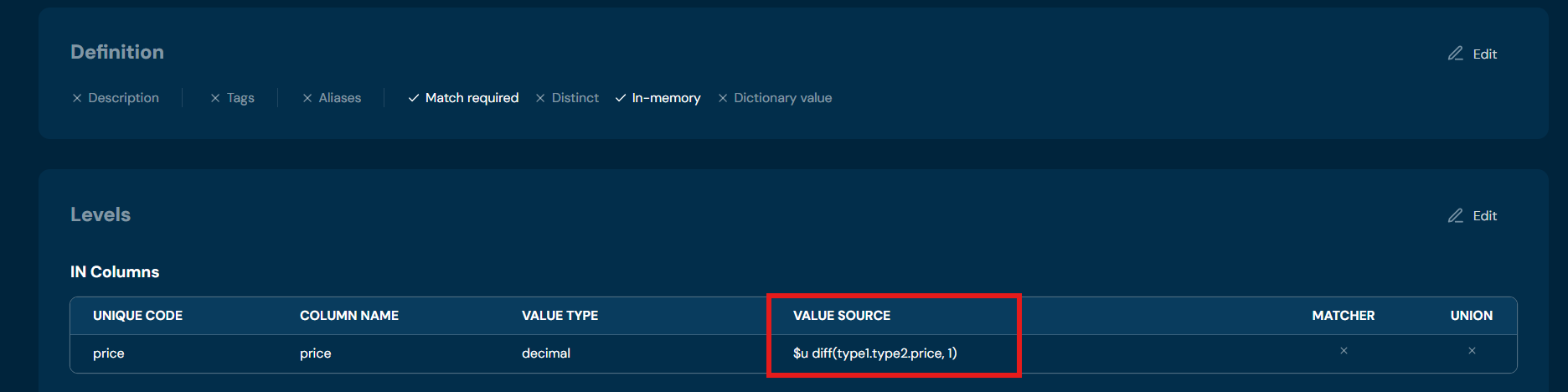
- The first argument is the path to the target object.
- The second argument is the value to subtract from the target object.
- The third argument (optional) is the string representation of the time token (for date formats).
Return: The result of the difference calculation, or:
- If the target object and the diff value are both numbers, the method returns the subtraction of the two values.
- If the target object is a Date or LocalDateTime, and the diff value is a number, the method returns the difference in time based on the provided time token.
- If the target object is a String, the method returns the modified string after applying the difference operation.
- If none of the above conditions match, the method returns the target object as is.
Throws: HigsonRuntimeException if the target object is a number and the diff value is not a number, an exception is thrown.
Exist#
Checks if a value exists in the given context.
Function arguments:
ctx: The HigsonContext object.
Example: $u exist(ctx.path)
Return: True if the context value exists. False if the ctx.path is an empty string.
Format#
Formats data according to a given pattern. Applies to the following data types:
- Number/Integer
- String
- Date
Function arguments:
ctx: The HigsonContext object.args: The arguments passed to the method.
| Argument | Description | Applies to data type |
|---|---|---|
| 2 | Rounding to two decimal places | number/integer |
| lower | Format string to lowercase | string |
| upper | Format string to uppercase | string |
| capitalize | Format string to capitalize | string |
| reverse | Reverse string | string |
| yyyy.MM.dd G ‘at’ HH:mm:ss | Format date according to pattern: 2001.07.04 AD at 12:08:56 | date |
| EEE, MMM d, ‘‘yy | Format date according to pattern: Wed, Jul 4, ‘01 | date |
| h:mm a | Format date according to pattern: 12:08 PM | date |
| hh ‘o’‘clock’ a | Format date according to pattern: 12 o’clock PM | date |
| K:mm a | Format date according to pattern: 0:08 PM | date |
| yyyyy.MMMMM.dd GGG hh:mm aaa | Format date according to pattern: 02001.July.04 AD 12:08 PM | date |
| EEE, d MMM yyyy HH:mm:ss | Format date according to pattern: Wed, 4 Jul 2001 12:08:56 | date |
| yyMMddHHmmss | Format date according to pattern: 010704120856 | date |
| yyyy-MM-dd’T’HH:mm:ss.SSS | Format date according to pattern: 2001-07-04T12:08:56.235 | date |
| yyyy-MM-dd’T’HH:mm:ss.SSSXXX | Format date according to pattern: 2001-07-04T12:08:56.235-07:00 | date |
| YYYY-‘W’ww-u" 2001-W27-3 | Format date according to pattern: 2001-W27-3 | date |
Example: $u format(ctx, arg)
$u format(1.2345, 2) → 1.23
Return: The formatted output based on the type of the object retrieved from the context.
Throws: HigsonRuntimeException if the format utility function is missing the format argument or if the type is unsupported.
From#
This function is used to extract a substring from a string or extract some elements from a list.
- if object is String then function will return part of string after indexed passed in the second argument
- if object is List then function will return part of list after indexed passed in the second argument
- in other cases function will throw exception with unsupported type
Function arguments:
ctx: The HigsonContext object.args: The arguments passed to the ‘from’ util function.
Example: $u from(ctx, arg)
$u from(abcdef, 5) → f

Return: The result of the ‘from’ util function or null if the target is null or of an unsupported type.
Throws: HigsonRuntimeException if a required argument is missing, or if the target is of an unsupported type.
Greater Than Equals#
Checks if a value from the Higson context is greater than or equal to another value.
Function arguments:
ctx: The HigsonContext object.args: The arguments passed to the method.
Example: $u gte(ctx, arg)
The method supports comparing various types, including:
- Strings: Compares lexicographically.
- Numbers: Compares numerically.
- Dates (java.util.Date, LocalDate, LocalDateTime): Compares chronologically.
Return: True if the target object is greater than or equal to the given value, otherwise false.
Throws: HigsonRuntimeException if fewer than two arguments are provided.
Greater Than#
Checks if a value from the Higson context is greater than another value.
Function arguments:
ctx: The HigsonContext object.args: The arguments passed to the method.
Example: $u gt(ctx, arg)
- The first argument should be the path to the target object in the context.
- The second argument should be the value to compare with the target object.
The method supports comparing various types, including:
- Strings: Compares lexicographically.
- Numbers: Compares numerically.
- Dates (java.util.Date, LocalDate, LocalDateTime): Compares chronologically.
Return: True if the target object is greater than the given value, otherwise false.
Is Blank#
Checks if a value from the Higson context is blank.
This method considers an object blank if it meets one of the following conditions:
- It is null
- It is the string “undefined”
- It is an instance of ParamValue and its isBlank method returns true
- It is an instance of MultiValue and its isBlank method returns true
- It is an instance of ValueHolder and its isBlank method returns true
- It is an instance of Collection and it is empty or all its elements are blank
- It is an array and all its elements are blank
- It is an instance of Map and all its values are blank
- It is a CharSequence (like String, StringBuffer, etc.) and is blank, that is when text has no characters or there is no other character than whitespace.
- It is an instance of Iterable and it is empty or all its elements are blank
Function arguments:
ctx: The HigsonContext object.
Example: $u isBlank(ctx.path)
Return: True if the object is blank, false otherwise.
Is Empty#
Checks if a value from the Higson context is empty.
Function arguments:
ctx: The HigsonContext object.
Example: $u isEmpty(ctx)
Return: It retrieves the value from the context using the given path and returns:
- false: if value is not string, collection, map, array, ParamValue
- false: if value is not empty string
- false: if value is collection or map, array but it is not empty
- true: if value is empty string or is null
- true: if value is collection, map or array but it is empty
- true: if value is null
- true: if value is ParamValue but it is empty, meaning does not contains any value inside of it
Less Than Equals#
Checks if a value from the Higson context is less than or equal to another value.
Function arguments:
ctx: The HigsonContext object.args: The arguments passed to the method.
Example: $u lte(ctx, arg)
- The first argument should be the path to the target object in the context.
- The second argument should be the value to compare with the target object.
The method supports comparing various types, including:
- Strings: Compares lexicographically.
- Numbers: Compares numerically.
- Dates (java.util.Date, LocalDate, LocalDateTime): Compares chronologically.
Return: True if the target object is less than or equal to the given value, otherwise false.
Throws: HigsonRuntimeException if fewer than two arguments are provided.
Less Than#
Checks if a value from the Higson context is less than another value.
Function arguments:
ctx: The HigsonContext object.args: The arguments passed to the method.
Example: $u lt(ctx, arg)
- The first argument should be the path to the target object in the context.
- The second argument should be the value to compare with the target object.
The method supports comparing various types, including:
- Strings: Compares lexicographically.
- Numbers: Compares numerically.
- Dates (java.util.Date, LocalDate, LocalDateTime): Compares chronologically.
Return: True if the target object is less than the given value, otherwise false.
Throws: HigsonRuntimeException if fewer than two arguments are provided.
Not Blank#
Checks if a value from the Higson context is not blank.
Function arguments:
ctx: The HigsonContext object.
Example: $u notBlank(ctx)
Return: It retrieves the value from the context using the given path and returns:
- false: if value is null
- false: if value is not string, collection or map , array, ParamValue
- false: if value is string, collection or map , array, ParamValue but it is blank
- true: if value is blank string
- true: if value is collection or map but it is empty
Size#
Retrieves the length of a string attribute from context.
Function arguments:
ctx: The HigsonContext object.
Example: $u size(ctx)
Return: The length of the string or collection, or null if the object is null or of an unsupported type.
Throws: HigsonRuntimeException If the object is of unsupported type.
To#
Calls the ’to’ util function with the given context and arguments.
- if object is String then function will return part of string to indexed passed in the second argument
- if object is collection then function will return part of list to indexed passed in the second argument
- in other cases function will throw exception with unsupported type
- if object is a null then returned value is a null
Function arguments:
ctx: The HigsonContext object.args: The arguments passed to the method.
Example: $u to(ctx, arg)
$u to(abcdef, 5) → abcde
Return: Part of the string or collection up to the indexed position passed in the second argument or null if the target is null or of an unsupported type.
Throws: HigsonRuntimeException if a required argument is missing, or if the target is of an unsupported type.
Trim#
Trims values in a given context, removing leading and trailing whitespaces.
Function arguments:
ctx: The HigsonContext object.
Example: $u trim(ctx)
- If the value is null, returns null.
- If the value is a Number, returns its decimal representation.
- If the value is a Boolean, returns its boolean representation If the value is a Number, returns its decimal representation.
- If the value is a Date, returns its Date representation.
- If the value is a LocalDate, returns its LocalDate representation.
- If the value is a LocalDateTime, returns its LocalDateTime representation.
- If the value is a collection, filters out null values and returns the filtered array.
- If the value is a CharSequence, trims it and returns the trimmed String.
Return: The trimmed value, or the original value if no trimming is possible.
Not Empty#
Checks if a given object is not empty.
Function arguments:
ctx: The HigsonContext object.
Example: $u notEmpty(ctx)
Return: True if the context object is not empty, false if it is empty.
Get#
Retrieves a value from the Higson context.
Function arguments:
ctx: The HigsonContext object.
Example: $u get(ctx, arg)
Return: The value from the context using the provided path.
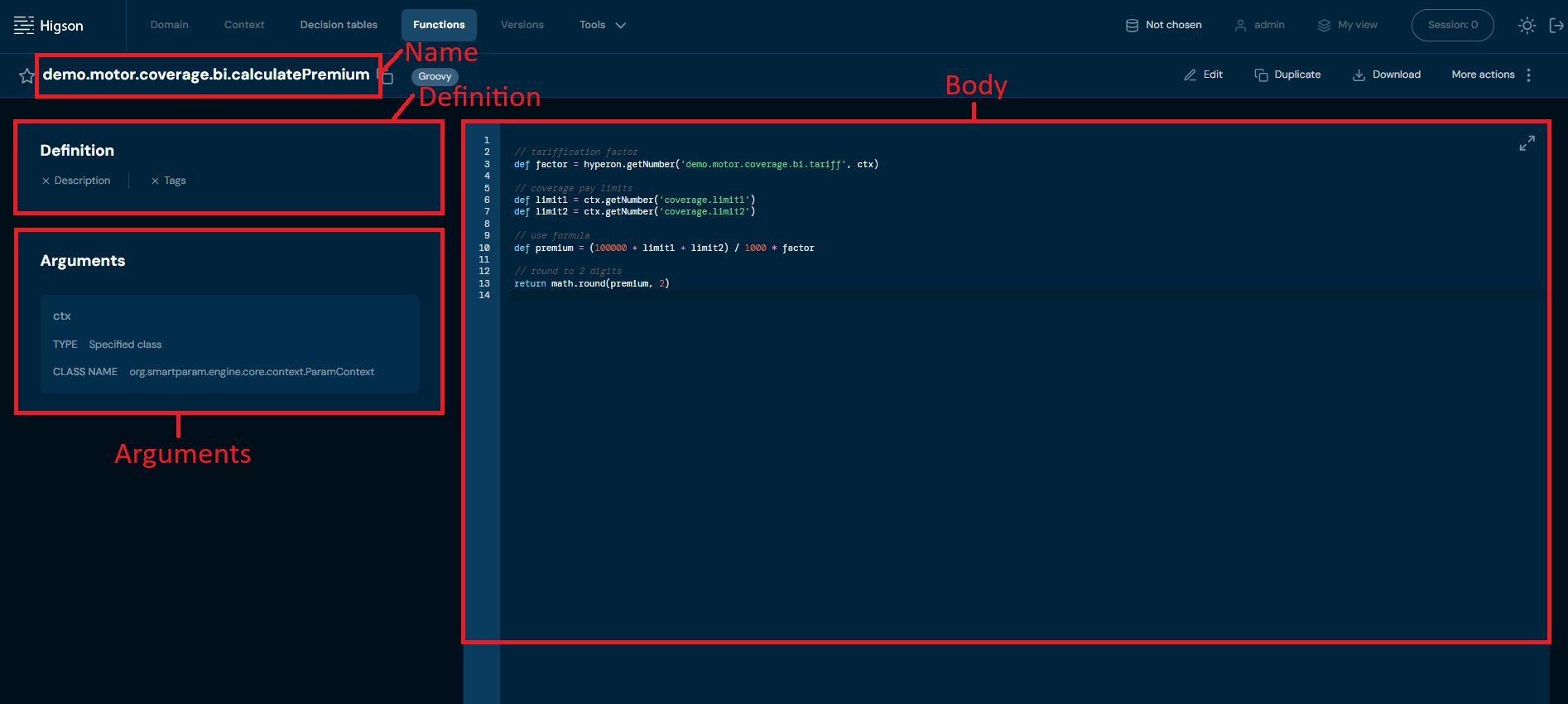
The Higson function is a Groovy code snippet stored in the Higson application database. Its primary purpose is to perform business logic computations. Higson functions can be executed in multiple ways: programmatically via the Higson engine object, through the Higson Runtime REST API, or within the Tester module. In addition to being directly invoked via the engine or REST, functions can also be used as part of other functions, within a decision table, or as an output values for Domain attributes.
Higson functions consists of the following components:
- Name: The function’s unique identifier.
- Body: The core Groovy code snippet that implements the function’s logic.
- Definition: This section contains the function’s description and any assigned tags.
- Arguments: A list of arguments defined by the user. Each argument consists of a name and type. Supported argument types include:
- Boolean (similar to Java’s
boolean) - Integer (similar to Java’s
int) - Decimal (similar to Java’s
BigDecimal) - Date (similar to Java’s
Date) - Local Date (similar to Java’s
LocalDate) - Local DateTime (similar to Java’s
LocalDateTime) - String (similar to Java’s
String) - Object (similar to Java’s
Object)
- Boolean (similar to Java’s
By default, each Higson function has a special argument called ctx, which references the context object. This context object is accessible within the function body. For further details on this topic, refer to the documentation below.
Available Objects in the Function Body#
Several objects are accessible within the function body, including:
- ctx: The context object, representing the default argument of the function.
- higson: An object providing access to decision tables and function calls.
- log: A reference to the logger utility class.
- date: A utility class for working with dates supported by Higson.
- math: A utility class that provides mathematical functions for use within Higson functions.
- str: A utility class for working with strings.
- util: A reference to a common utility class.
- type: A reference to a utility class for programming types.
- domain: A reference to a utility class for domain types.
Each of these is documented with its methods and pitfalls in Built-in Objects in a Function.
Reading from and writing to the context is covered separately in Reading and Writing the Context.
Built-in Type Converters#
Higson also includes a set of built-in type converters, which help convert values between different data types. These converters are:
| Type Converter | Type | Example |
|---|---|---|
| _dec(x) | BigDecimal | def value = _dec(x) |
| _dec(x, n) | BigDecimal rounded to n places | def value = _dec(x, n) |
| _num(x) | double | def value = _num(x) |
| _num(x, n) | double rounded | def value = _num(x, n) |
| _int(x) | Integer | def value = _int(x) |
| _str(x) | String | def value = _str(x) |
| _bool(x) | boolean | def value = _bool(x) |
| _date(x) | java.util.Date | def value = _date(x) |
Retrieving Values from a Decision Table#
The following table outlines the structure of decision table calls, detailing the type of data returned and the default values in case of missing data:
| Method | Type Returned | In Case of Missing Data |
|---|---|---|
higson.getValue('decisionTableName', ctx) |
entire matrix | empty matrix if not found |
higson.getString('decisionTableName', ctx) |
String | null |
higson.getDecimal('decisionTableName', ctx) |
BigDecimal | null |
higson.getInteger('decisionTableName', ctx) |
Integer | null |
higson.getNumber('decisionTableName', ctx) |
double | 0 if not found |
higson.getBoolean('decisionTableName', ctx) |
boolean | false if not found |
higson.getDate('decisionTableName', ctx) |
java.util.Date | null |
higson.getLocalDate('decisionTableName', ctx) |
java.time.LocalDate | null |
higson.getLocalDateTime('decisionTableName', ctx) |
java.time.LocalDateTime | null |
Every method in the table also accepts key/value tokens instead of — or in addition to — ctx, which lets one function query the same table for several scenarios:
higson.getDecimal('demo.motor.price', ctx, 'car.model.year', '2020')   // ctx with one path overridden
higson.getDecimal('demo.motor.price', 'car.model.type', 'BMW')         // context built on the fly
higson.createContext(ctx, 'car.model.year', '2020')                    // reusable context object
EXAMPLE: Retrieving Value from a Decision Table
In this example, we will demonstrate how to retrieve a value from the decision table demo.motor.coverage.bi.tariff. This decision table has two IN levels defined by gender and age, with the values for these levels being sourced from the context data (see picture below). The result of the decision table lookup will be the tariff’s factor from the output level.
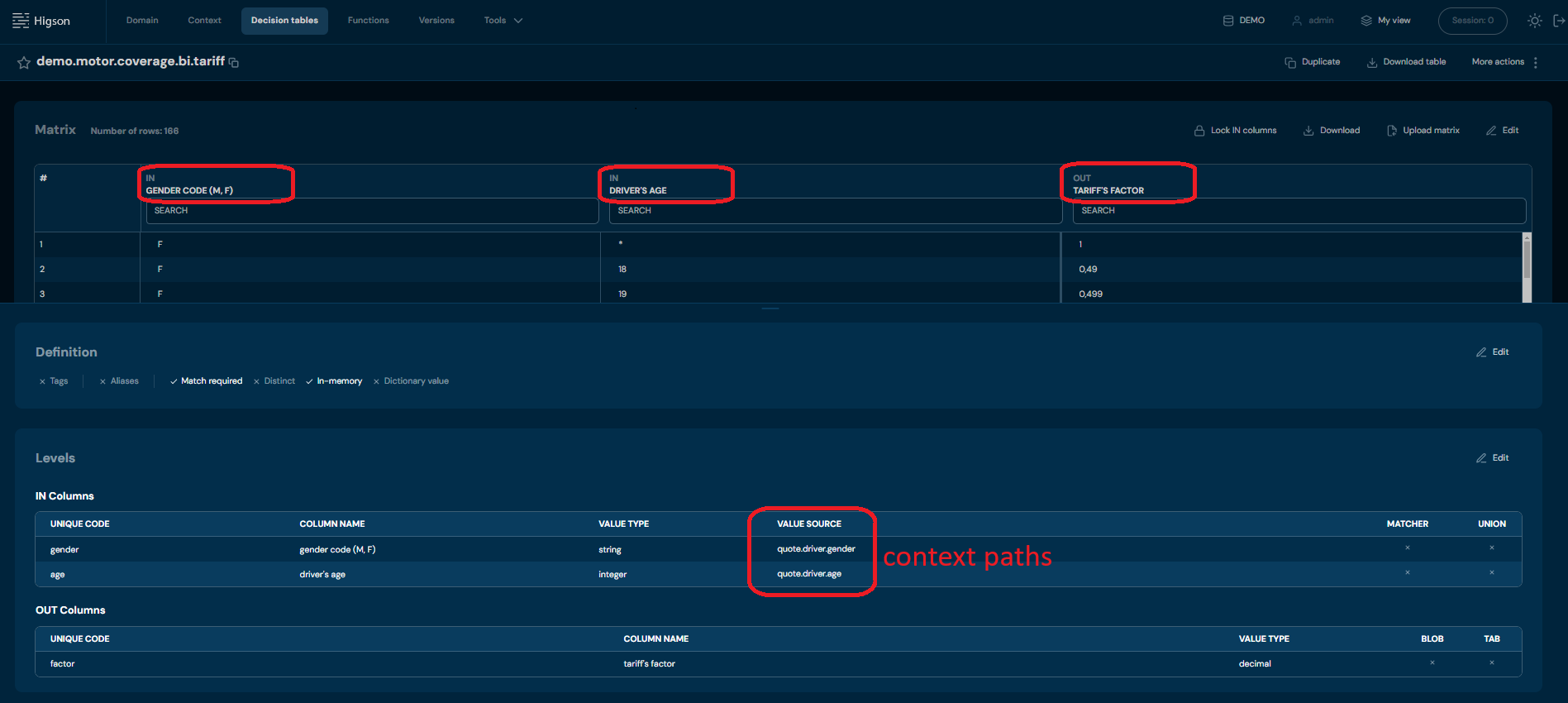
To retrieve the output from the decision table demo.motor.coverage.bi.tariff use the following code:
def factor = higson.getNumber('demo.motor.coverage.bi.tariff', ctx)
Code breakdown:
higson.getNumberis used to query the decision tabledemo.motor.coverage.bi.tariff.- The argument,
ctx, allows reaching into the object context. - The decision table reads the levels (gender and age) from the context and identifies the corresponding row.
- Based on this input, the appropriate output row is returned, containing the tariff’s factor.
Working with a Matrix#
When a table has several OUT columns, or when the context matches more than one row, use getValue to get the whole matrix:
def matrix = higson.getValue('decisionTableName', ctx)

if (matrix == null || matrix.isEmpty()) {
    return null
}

for (def row in matrix) {
    def price = row.getDecimal('price')
}
The isEmpty() guard is not optional: when nothing matches, getValue returns an empty matrix whose row() yields null rather than throwing, so the failure would otherwise surface later as a NullPointerException.
Reading rows by index, addressing columns by name or position, converting types, multi-value columns and treating the matrix as a Groovy collection are covered in Working with Decision Table Results.
Calling Other Functions#
To call another function from within the body of your function, use the following syntax:
higson.call(‘functionName’, ctx)
If the function you are calling requires arguments, you can pass them as follows:
higson.call(‘functionName’, ctx, arg1, arg2, ..)
where arg1, arg2, etc., are optional arguments for the function.
When calling another function, make sure to consider the data type it returns. The table below outlines various function calls and the types of data they return:
| Method | Returned Type |
|---|---|
higson.call('functionName', ctx, ...) |
returns any object from function |
higson.callString('functionName', ctx, ...) |
String |
higson.callDecimal('functionName', ctx, ...) |
BigDecimal |
higson.callInteger('functionName', ctx, ...) |
Integer |
higson.callNumber('functionName', ctx, ...) |
double |
higson.callBoolean('functionName', ctx, ...) |
boolean |
higson.callDate('functionName', ctx, ...) |
java.util.Date |
higson.callLocalDate('functionName', ctx, ...) |
java.time.LocalDate |
higson.callLocalDateTime('functionName', ctx, ...) |
java.time.LocalDateTime |
higson.callValue('functionName', ctx, ...) |
entire matrix — see Working with Decision Table Results |
EXAMPLE:
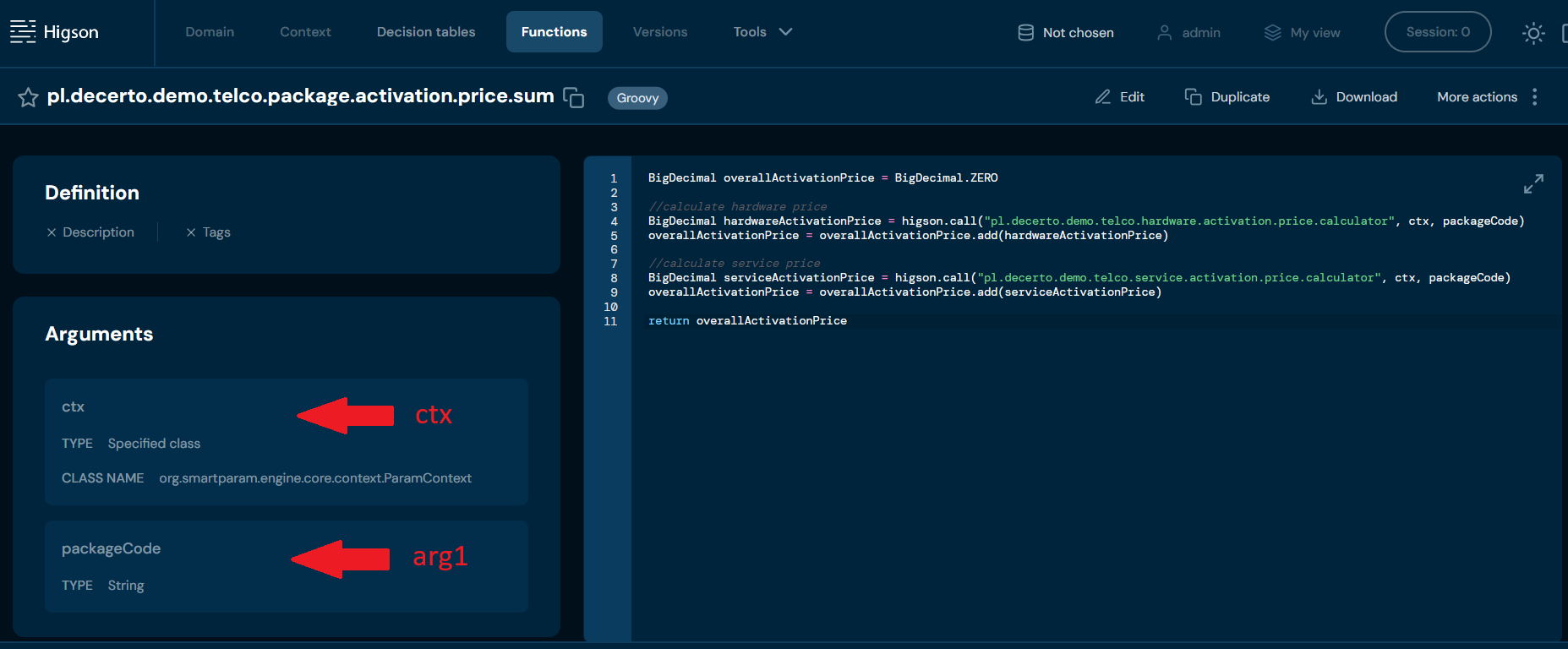
def result = higson.callDecimal(‘pl.decerto.demo.telco.hardware.activation.price.calculator’, ctx, packageCode)
Keep in mind that the order of the arguments must match the order in which they were defined in the function. The ctx argument is always the first one, as it is automatically included when the function is created
Accessing Domain Elements#
The table below lists methods for accessing domain elements, along with the results returned by each method.
| Method | Result |
|---|---|
domain.get('profile', 'path') |
Returns DomainElement for specified path. |
domain.get('profile') |
Returns DomainElement for root. |
domainObj.get('path') |
Returns DomainElement for path relative to domainObj. Throws an exception if the path is unknown. |
domainObj.getSafe('path') |
Returns DomainElement for path relative to domainObj. Does not throw an exception if the path is unknown. |
domainObj.get('path', 'elementCode') |
Returns a DomainElement with the specified elementCode for the collection path. |
domainObj.getSafe('path', 'elementCode') |
Returns a DomainElement with the specified elementCode for the collection path. Does not throw an exception if the path is unknown. |
domainObj.getAll('path') |
Returns all elements for the collection at the specified path. |
Domain paths should be written according to this pattern:
/Collection1[Collection1_Element]/Collection[Collection2_Element]
EXAMPLE 1:
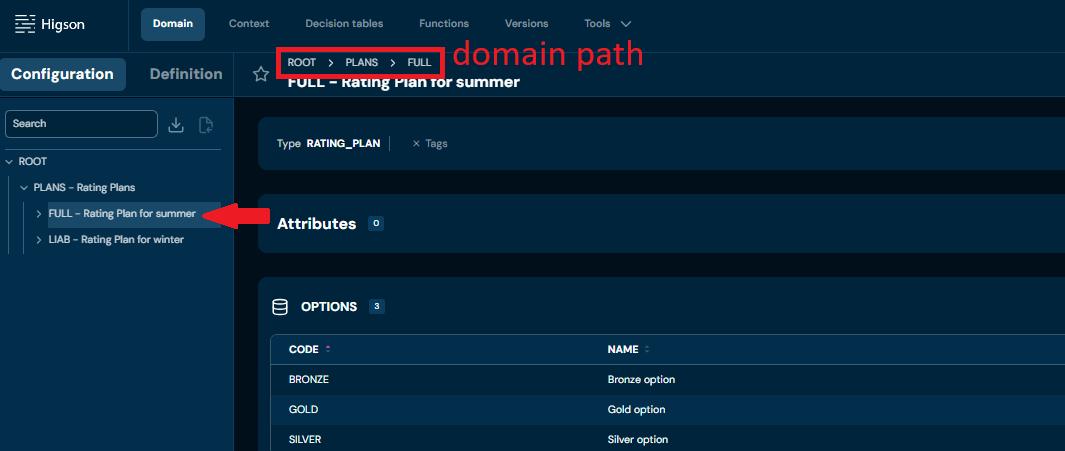
def domainObj = domain.get(‘DEMO’, ‘/PLANS[FULL]’)
In this example, we access the FULL element in the PLANS - Rating Plan collection in the Domain Configuration of profile DEMO, as shown in the screen below.
EXAMPLE 2:
def rootObj = domain.get(‘DEMO’)
In this example, we access directly to the ROOT of the profile DEMO.
Reading Domain Attributes#
The table below outlines methods for accessing domain attributes and the corresponding data types returned by each method.
| Method | Returned type |
|---|---|
domainObj.getAttrString(attributeName, ctx) |
String |
domainObj.getAttrDecimal(attributeName, ctx) |
BigDecimal |
domainObj.getAttrInteger(attributeName, ctx) |
Integer |
domainObj.getAttrNumber(attributeName, ctx) |
double |
domainObj.getAttrBoolean(attributeName, ctx) |
boolean |
domainObj.getAttrDate(attributeName, ctx) |
java.util.Date |
domainObj.getAttrValue(attributeName, ctx) |
ParamValue |
EXAMPLE:
In this example, we’ll demonstrate how to retrieve the Position attribute from a domain configuration, similar to the one shown in the screenshot below.
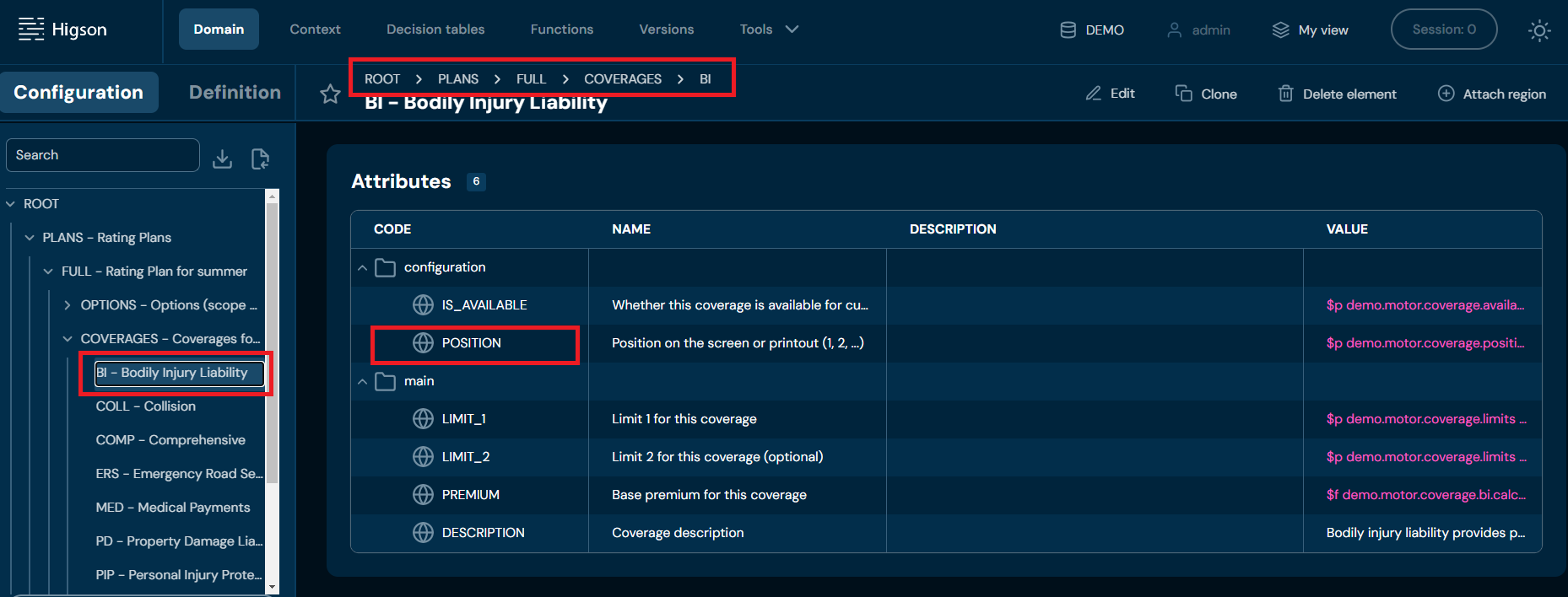
Steps to Retrieve the Position Attribute
- Access the Domain Configuration: First, we access the relevant domain configuration element.
- Retrieve the Position Attribute: Once we have the element, we retrieve the Position attribute using the getAttrInteger method.
Code:
def coverage = domain.get('DEMO', '/PLANS[FULL]/COVERAGES[BI]')
def position = coverage.getAttrInteger('POSITION', ctx)
return position
Reading Code and Name#
Dedicated functions are available to retrieve the code and name of a domain element. Below are examples demonstrating how to call these functions.
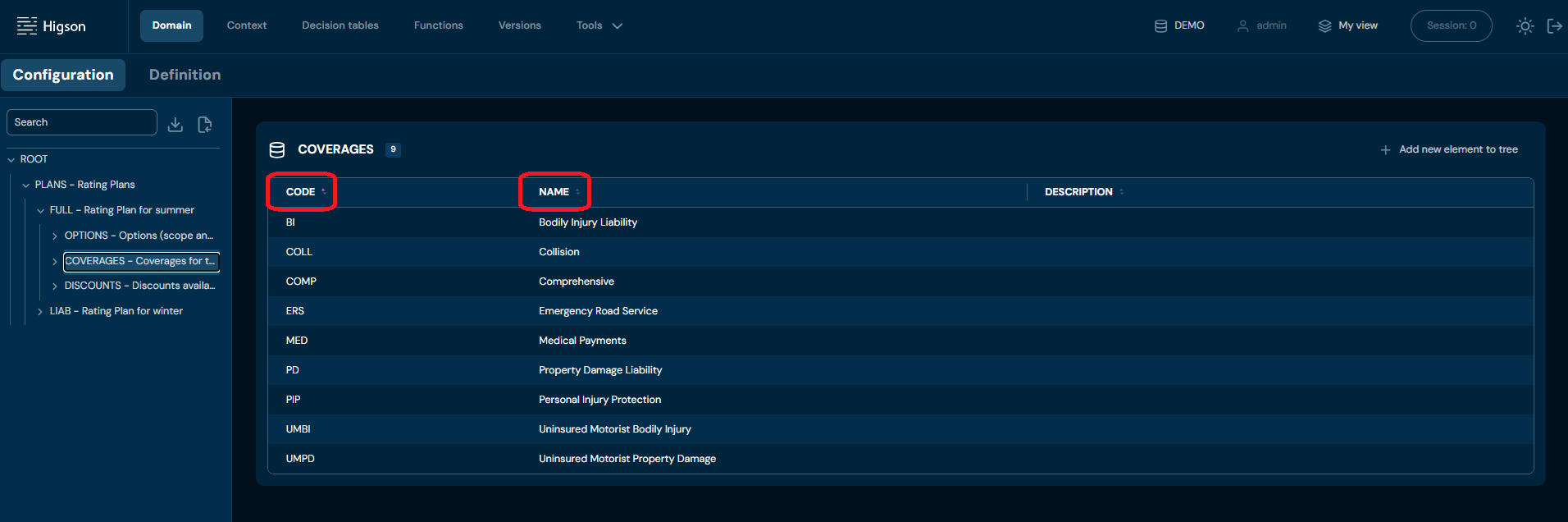
EXAMPLE: Reading the BI element code
def coverage = domain.get('DEMO', '/PLANS[FULL]/COVERAGES[BI]')
def coverageCode = coverage.code
EXAMPLE: Reading the BI element name
def coverage = domain.get('DEMO', '/PLANS[FULL]/COVERAGES[BI]')
def coverageName = coverage.name
Reading Values from Context#
The table below lists methods for accessing context elements, along with the data types they return.
| Method | Returned type |
|---|---|
ctx.getString('path') |
String |
ctx.getDecimal('path') |
BigDecimal |
ctx.getInteger('path') |
Integer |
ctx.getNumber('path') |
double |
ctx.getBoolean('path') |
boolean |
ctx.getDate('path') |
java.util.Date |
ctx.getLocalDate('path') |
LocalDate |
Context Path Format#
Context paths should follow this pattern:
Type1.Type2.Type2_Attribute
EXAMPLE:
def value = ctx.getInteger(‘quote.driver.age’)
In this simple example, age is an attribute of the Driver type, which is a subtype of the Quote type. Note that the ROOT is omitted in context paths.
Getting Collection#
To retrieve a collection, use the following method:
def collection = ctx.get(collectionPath)
You can iterate over the collection elements as shown below:
for (elementCtx in collection) {

    def x = elementCtx.getNumber(relativePath)
}
Getting Sub-Context or Intermediate Node#
To retrieve a sub-context or an intermediate node, use the following methods:
def node = ctx.get(nodePath)
def value = node.getString(relativePath)
EXAMPLE:
def risks = ctx.get('policy.risks')
for (def risk in risks) {
    def premium = risk.getDecimal('premium')
    def sumInsured = risk.getDecimal('sumInsured')
}
In example above, we navigate to the risks context node, then retrieve the values of the premium and sumInsured attributes (both of type number) into the corresponding variables.
Using Functions in Cascade Expressions#
In complex business configurations, operations on objects or data often need to be performed sequentially, where one operation triggers another. In Higson, cascade expressions allow this kind of functionality and can be used in the following configuration elements:
- Value source field of decision tables
- Cells in the matrix of the output levels of decision tables
- Domain attributes
| Expression | Description |
|---|---|
$f fun |
Executes the function fun. |
$f fun (1, 5, active) |
Executes the function fun with the arguments: 1, 5, and active. |
$f fun (1; 5; active) |
Executes the function fun with the arguments: 1, 5, and active. If a semicolon is used, it acts as the argument separator. |
$f fun (ctx:path, 5) |
Executes the function fun where the first argument is the value from the context path and the second is 5. |
$f fun [idx] |
If the function fun returns a complex object (e.g., ParamValue, MultiValue, array, Collection, or Iterable), it retrieves the element at the specified index idx. |
$f fun [code] |
If the function fun returns a complex object (e.g., ParamValue, MultiValue, or Map), it retrieves the value associated with the specified code. |
EXAMPLE:
$f fun (1, ctx:risk.code) [factor]
In this example, the function fun is executed with the value of ctx:risk.code as an argument, and the result is filtered by the factor element if the return type is a complex object.
Higson Function Example#
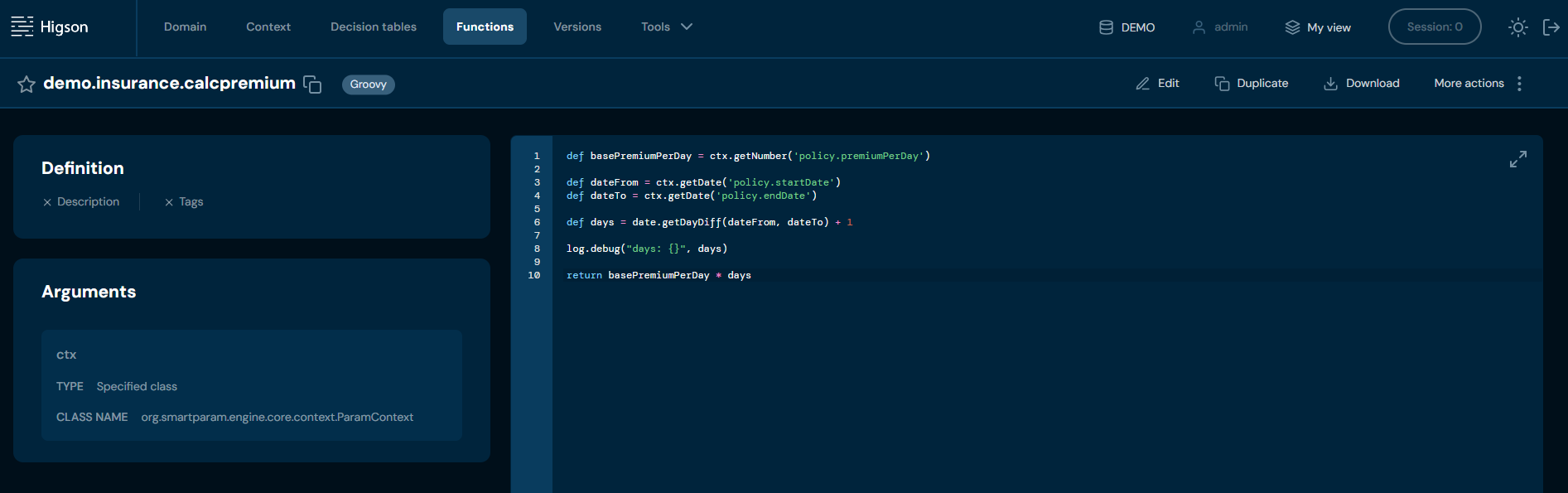
Above function calculates the total premium for a policy based on the premium per day and the number of days the policy is active.
Using Flows in Cascade Expressions#
To call a flow use $w notation.
EXAMPLE:
$w flow (1,active)
A decision table lookup rarely returns a single number. When a table has several OUT columns, or when the
context matches more than one row, higson.getValue(...) returns a matrix — a sub-matrix of the table
containing every row that matched the context.
This page is a complete reference for reading that matrix inside a function body. For the basics of writing functions — available objects, type converters, calling other functions — see Best Practices for Writing Function Code.
Objects#
Everything you do with a decision table result involves three objects. Knowing which one you are holding tells you which methods are available:
| Object | You get it from | Represents | Key methods |
|---|---|---|---|
higson |
always available in the function body | access point to the engine | getValue, getString/getNumber/…, call/callValue |
| matrix | higson.getValue(table, ctx) |
all rows matching the context | size, isEmpty, isBlank, row(i), rows(), get(...) |
| row | matrix.row(i) or an element of matrix.rows() |
one row and its OUT columns | size, get(...), typed getters, array/list getters, getEnum |
The distinction matters in practice: array and list getters, getEnum and getDatetime exist only on a row,
not on the matrix. To read a multi-value column you must go through row(i) first.
Retrieving the Matrix#
The context supplies the values for the table’s IN columns. There are four ways to build it, all returning the same matrix object:
// 1. the function's own context
higson.getValue('demo.motor.price', ctx)

// 2. the function's context with selected paths overridden by the passed tokens
higson.getValue('demo.motor.price', ctx, 'car.model.year', '2020')

// 3. a context built on the fly from key/value pairs, without ctx
higson.getValue('demo.motor.price', 'car.model.type', 'BMW', 'car.model.year', '2020')

// 4. a reusable context object
def standalone = higson.createContext('car.model.type', 'BMW', 'car.model.year', '2020')
def inherited  = higson.createContext(ctx, 'car.model.year', '2020')  // inherits ctx, overrides one path
def matrix     = higson.getValue('demo.motor.price', inherited)
Variants 2–4 are the ones to reach for when a single function queries the same table for several scenarios — for example pricing the same risk for three different coverage variants — instead of building a fresh context each time.
Guarding Against No Match#
When no row matches the context, getValue does not throw. It returns an empty matrix, and an empty matrix
behaves differently from a populated one:
def matrix = higson.getValue('demo.motor.price', ctx)

if (matrix == null || matrix.isEmpty()) {
    return null    // or a business default
}
Why this check is not optional:
- On an empty matrix,
row()androw(i)returnnullinstead of throwing. Without the guard, the failure surfaces later as aNullPointerExceptionon the nextget(...)— several lines away from the real cause. - On a populated matrix, an out-of-range index behaves the other way round:
row(99)throwsINVALID_ROW_INDEXand names the available range in the message.
Three methods describe the state of a matrix:
| Method | Returns |
|---|---|
matrix.size() |
number of matched rows |
matrix.isEmpty() |
true when no row matched |
matrix.isBlank() |
true when rows exist but every cell in them is empty |
isEmpty() and isBlank() are not opposites and not mutually exclusive: a row of nulls is
blank but not empty, and an empty matrix is also blank (there is no non-blank row in
it). Test isEmpty() first when you need to tell the two apart.
Matrix Dimensions#
size() means something different on each object:
int rowCount = matrix.size()          // number of rows
int colCount = matrix.row(0).size()   // number of OUT columns in that row
Reading a Single Cell#
Columns can be addressed by index (0-based, in OUT column order) or by name (the OUT column name from the table definition).
Methods without a row number always operate on row 0:
matrix.get()              // row 0, column 0
matrix.get(5)             // row 0, column 5
matrix.get('model')       // row 0, column named 'model'
Methods with a row number take it as the first argument:
matrix.get(0, 5)          // row 0, column 5
matrix.get(1, 5)          // row 1, column 5
matrix.get(1, 'model')    // row 1, column named 'model'
Both forms are valid, but get('model') and get(1, 'model') are different methods, and in a long function it
is easy to misread which argument is the row and which is the column. Prefer the explicit form, which cannot be
misread:
matrix.row(0).get('model')
matrix.row(1).get('model')
To have Higson cast the value for you, pass the target class:
matrix.get(0, 'model', String.class)
matrix.row(1).get('model', String.class)
Type Conversion#
get(...) returns the raw value. The typed getters convert it. They are available on both the matrix (acting on
row 0) and on any row, each accepting a column index, a column name, or nothing at all (column 0):
| Method | Returns | Note |
|---|---|---|
getString(...) |
String |
|
getNumber(...) |
double |
primitive — an empty cell silently becomes 0.0 |
getDecimal(...) |
BigDecimal |
preferred for monetary values |
getBigDecimal(...) |
BigDecimal |
alias of getDecimal |
getInteger(...) |
Integer |
|
getLong(...) |
Long |
|
getDate(...) |
java.util.Date |
|
getBoolean(...) |
boolean |
primitive — an empty cell silently becomes false |
def brand  = matrix.getString('brand')        // row 0
def price  = matrix.getDecimal('price')       // row 0
def power  = matrix.row(1).getInteger('power')
def valid  = matrix.row(1).getDate('validFrom')
For nullable columns choose getDecimal, getInteger or getLong — they return objects and preserve null.
getNumber and getBoolean return primitives and cannot represent a missing value, so they substitute a
default instead: an empty cell reads as 0.0 and false respectively, with no error. A missing rate therefore
prices as zero rather than failing, which is why a nullable column is safer read through getDecimal and
checked explicitly.
Row-Only Getters#
def row = matrix.row(0)

row.getDatetime('createdAt')            // java.util.Date including time
row.getEnum('status', MyStatus.class)   // enum constant
Multi-Value Columns#
A column declared as an array holds several values in one cell. These getters exist only on a row:
| Array form | List form | Element type |
|---|---|---|
getStringArray(...) |
getStringList(...) |
String |
getIntegerArray(...) |
getIntegerList(...) |
Integer |
getLongArray(...) |
— | Long |
getNumberArray(...) |
getNumberList(...) |
double / Double |
getDecimalArray(...) / getBigDecimalArray(...) |
getDecimalList(...) |
BigDecimal |
getDateArray(...) |
getDateList(...) |
java.util.Date |
getArray(...) |
— | ValueHolder (unconverted) |
def tags = matrix.row(0).getStringList('tags')
if ('PREMIUM' in tags) {
    premium = premium * 1.1
}
Value Holders#
A holder is the cell before conversion — it carries the Higson type assigned to the column in the table definition, and unlike the typed getters it keeps “the cell was empty” and “the cell was zero” apart:
def holder = matrix.getHolder('model')
holder.getValue()                  // the underlying value
holder.getClass().simpleName       // StringHolder, IntegerHolder, DateHolder, ...
def holder = matrix.getHolder('premium')

if (holder.isNull()) {
    return null                     // the cell really was empty
}
holder.getBigDecimal()              // null-preserving
holder.doubleValue()                // 0.0 for an empty cell
getHolder accepts the same addressing forms as get: getHolder(), getHolder(col),
getHolder('name'), getHolder(row, col), getHolder(row, 'name'). The full holder
surface is described in
Built-in Objects in a Function.
Iterating Over Rows#
// 1. index loop — toStringInline() prints a whole row on one line, useful when logging
for (int i = 0; i < matrix.size(); i++) {
    log.info("row {}: {}", i, matrix.row(i).toStringInline())
}

// 2. for-in, backed by the matrix iterator
for (def row in matrix) {
    def price = row.getDecimal('price')
}

// 3. rows() with the index
matrix.rows().eachWithIndex { row, i ->
    log.info("row {}: {}", i, row.getString('brand'))
}

// 4. columns of one row — reads a table whose column names you do not know yet
def row = matrix.row(0)
for (int c = 0; c < row.size(); c++) {
    log.info("column[{}] = {} ({})", c, row.get(c), row.getHolder(c)?.getClass()?.simpleName)
}
The last loop is the fastest way to inspect an unfamiliar table from the Tester: it prints every column with its index, value and declared type.
The Matrix as a Collection#
matrix.rows() returns a java.util.List, so the full Groovy collection API applies to a decision table result.
This is usually shorter and clearer than an index loop:
def matrix = higson.getValue('demo.motor.price', ctx)

// one column across all rows
def allPrices = matrix.rows().collect { it.getDecimal('price') }

// filter rows on a business condition
def available = matrix.rows().findAll { it.getBoolean('isAvailable') }

// first row satisfying a condition, null when there is none
def cheapest = matrix.rows().find { it.getDecimal('price') < 50000 }

// aggregate — the elvis operator protects against a null cell
def total = matrix.rows().sum { it.getDecimal('price') ?: BigDecimal.ZERO }

// extreme row
def topRow = matrix.rows().max { it.getDecimal('price') }

// sort — ALWAYS pass false; see the warning below
def sorted = matrix.rows().sort(false) { it.getDecimal('price') }   // false = work on a copy

// group rows into buckets
def byBrand = matrix.rows().groupBy { it.getString('brand') }

// rebuild rows as maps — the usual return shape for a function exposed over Runtime REST
def result = matrix.rows().collect { row ->
    [ brand: row.getString('brand'), price: row.getDecimal('price') ]
}
rows() is a live view of the matrix, not a copy. Sorting it in place — rows().sort { }
without the false argument — permanently reorders the matrix, so every later row(i) and
get(rowNo, ...) sees the new order. Pass sort(false) { } unless you mean to reorder it.
Raw Access#
When a result has to be handed to Java code that expects the engine’s own types, unwrap it:
matrix.row(0).unwrap()   // Object[] — raw values of one row, no holders
matrix.row(0).raw()      // MultiValue — the engine's row object
matrix.unwrap()          // ParamValue — the engine's matrix object
Reading a Cell Without Choosing a Type#
higson.get(table, ctx) reads the first cell and hands back whatever the column holds —
a numeric column arrives as double, an integer column as long, anything else as the
raw object. Prefer the typed getters unless you genuinely do not know the column type.
Functions Returning a Matrix#
A function can return a matrix just like a table does. Retrieve it with callValue:
def matrix = higson.callValue('demo.motor.price.variants', ctx)
def variants = matrix.rows().collect { it.getString('code') }
A matrix from callValue guards differently from one from getValue. callValue
always wraps the result in an ordinary matrix, never the empty one, so on a zero-row result
row(0) throws INVALID_ROW_INDEX rather than returning null. Check size() or
isEmpty() before addressing a row — the row() == null idiom does not apply here.
The other call* methods are listed in
Calling Other Functions.
Calling a Flow#
A flow can be invoked from a function body too. It returns a map of the variables the flow marks for return:
def result = higson.flow('demo.pricing.flow', ctx)
def premium = result.premium

def withArgs = higson.flow('demo.pricing.flow', ctx, 'FULL', 3)
This is the function-body route. The $w notation described in
Using Functions in Cascade Expressions
is the configuration-level one — same flows, different call site.
Quick Reference#
def m = higson.getValue('table.code', ctx)     // matrix
if (m == null || m.isEmpty()) return null      // always guard

m.size()                                       // row count
m.row(0).size()                                // column count

m.get('col')                                   // row 0, by name
m.get(1, 'col')                                // row 1, by name
m.row(1).get('col')                            // same, preferred form
m.row(1).getDecimal('col')                     // converted

m.row(0).getStringList('tags')                 // multi-value column (row only)
m.rows().findAll { it.getBoolean('active') }   // matrix as a collection
Every function body is given a set of ready-made objects. You do not import or declare them — they are injected before the code runs, and the set is the same in Groovy, Python and JavaScript functions.
| Object | Purpose |
|---|---|
ctx |
the context — input data, addressed by dotted paths |
higson |
decision tables and other functions |
log |
logger, scoped to this function |
str |
string helpers |
util |
comparisons, collections, hashes, null checks |
math |
mathematical helpers |
date |
date arithmetic, parsing and formatting |
type |
conversions between Higson types and Java types |
domain |
domain elements and their attributes |
higson is covered in Working with Decision Table Results.
This page covers the rest.
util is not the same as Util Functions. The util object described here is a Java
helper available inside a function body. Util Functions
are configuration-level functions called with $u notation from Domain Configuration and
Decision Tables. The names overlap; the two have nothing to do with each other.
Logging - log#
The logger is created per function, so its name identifies which function produced a line, and its level can be controlled per function at runtime.
log.info("Premium {} for driver aged {}", premium, age)
log.debug("Factor: {}", factor)
log.warn("No tariff row matched")
log.error("Cannot price: {}", reason)
log.trace("Intermediate: {}", value)
It follows slf4j conventions: {} placeholders substituted from the trailing arguments,
not string interpolation. Level guards are available for expensive messages:
if (log.isDebug()) {
    log.debug("Full matrix: {}", matrix)
}
Methods: trace · debug · info · warn · error, each with the matching
isTrace() / isDebug() / isInfo() / isWarn() / isError() guard, plus getName().
Strings — str#
str extends Apache Commons Lang3 StringUtils, so the whole of that class is reachable
through it as well — str.isNotBlank, str.substringBefore, str.substringBetween,
str.leftPad, str.equalsIgnoreCase and the rest. The methods below are the Higson
additions on top of it.
Most are null-tolerant, but not all: str.trunc, both str.split overloads and
str.contains throw a NullPointerException on a null argument. str.trunc also throws
when maxlen is below 3 and the input is longer than maxlen.
Padding and trimming. padLeft and padRight are named after the alignment of the
original text, not the side the padding lands on — padLeft appends, padRight prepends.
For a zero-padded number you want padRight.
str.padLeft('7', '0' as char, 3)   // '700' — left-ALIGNED, padding added at the END
str.padRight('AB', 5)              // '   AB' — right-ALIGNED, padding added at the FRONT
str.trunc(description, 40)    // cut to at most 40 characters
str.trim(value)               // null-safe trim
str.compactSpaces(text)       // collapse runs of whitespace
Joining and splitting
str.concat(['A', 'B', 'C'], ', ')          // 'A, B, C'
str.concat(arr, ', ', '-')                  // '-' substituted for null elements
str.split('a;b;c', ';' as char)             // ['a', 'b', 'c']
str.split(line, ';' as char, 3)             // at most 3 parts
Filtering characters
str.filterDigits(pesel)             // keep digits only
str.filterChars(code, 'A', 'Z')     // keep characters in a range
str.filterChars(code, 'ABC123')     // keep characters from a set
str.rejectChars(iban, ' -')         // drop the listed characters
Null handling and formatting
str.nvl(value)              // '' when null
str.notNull(value)          // '' when null — same behaviour
str.format('{}: {}', label, amount)     // slf4j-style {} anchors, NOT %s
str.capitalizeFirst(name)
str.capitalizeAll(name)
Inspection
str.len(value)                    // length, null-safe
str.count(text, 'x' as char)
str.contains(list, 'FULL')        // works on a Collection or a String[]
str.getCommonStart(a, b)          // longest shared prefix
str.repeat('-' as char, 20)
str.print(rows, 'Matched rows')       // multi-line dump, handy in log messages
str.print(rows, 'Matched rows', 20)   // capped at 20 lines — prefer this for a big matrix
Comparisons, Collections, Hashes — util#
Comparisons that survive mixed types and nulls. util.eq is not ==. It compares
numerically whenever both sides parse as numbers — including two strings, so
util.eq('10', '10.0') is true and util.gt('9', '10') is false. Only when the parse
fails does it fall back to lexical order. Two dates compare chronologically. null sorts
below any value, and two nulls are equal.
util.eq(a, b)     util.gt(a, b)     util.ge(a, b)
util.lt(a, b)     util.le(a, b)
util.in(code, ['FULL', 'MINI'])
Emptiness
util.isEmpty(value)     util.notEmpty(value)
util.isBlank(value)     util.notBlank(value)
util.nvl(value, fallback)
Collections and arrays — useful when a function has to build a structure to return:
util.list('A', 'B')
util.stringList('A', 'B')
util.integerList(1, 2)
util.map('k1', 'v1', 'k2', 'v2')
util.linkedHashMap('k1', 'v1')      // also: hashMap, treeMap
util.set('A', 'B')                  // also: hashSet, treeSet
util.arrayList('A', 'B')            // explicitly an ArrayList, when the result gets mutated
util.stringArray('A', 'B')
util.stringArray(5)                 // sized: empty String[5]; same for integerArray, longArray
util.integerArray(1, 2)
util.matrix(3, 4)                   // empty 3x4 Object[][]
Sorting
util.sort(list)                        // natural order
util.sort(list, comparator)
util.sortReversed(list)
Conversions
util.getInt(o)      util.getInteger(o)
util.getString(o)   util.getBigDecimal(o)
util.toUpperCase(o) util.toLowerCase(o)   util.length(o)
util.trim(o)        // null-safe toString().trim() on ANY object, not only a String
Hashes — for building stable keys or anonymising identifiers:
util.sha256(pesel)
util.sha256('|', [firstName, lastName, birthDate])
util.sha1(pesel)
util.md5(pesel)
util.hash('SHA-512', '|', [firstName, lastName])
Geo
util.calculateHaversineDistance(lat1, lon1, lat2, lon2)                  // METERS
util.calculateHaversineDistance(lat1, lon1, elev1, lat2, lon2, elev2)   // with elevation
Numbers — math#
math mirrors java.lang.Math and adds scaled rounding:
math.round(value, 2)     // double, 2 decimal places — see the note below
math.trunc(value, 2)     // double, truncated
math.round(value)        // long
math.abs(v)   math.min(a, b)   math.max(a, b)   math.signum(v)
math.pow(a, b)   math.sqrt(v)  math.cbrt(v)   math.exp(v)
math.log(v)   math.log10(v)   math.log(base, v)
math.ceil(v)  math.floor(v)
math.sin(v)   math.cos(v)   math.tan(v)   math.asin(v)  math.acos(v)  math.atan(v)
math.sinh(v)  math.cosh(v)
math.toRadians(deg)   math.toDegrees(rad)   math.random()
math.PI   math.E
math.round(v, scale) is not BigDecimal.HALF_UP: it always rounds a halfway value
toward positive infinity and adds a small epsilon before rounding, so -1.005 and 1.005
move the same direction. That plus the double return makes it the wrong tool for money —
prefer _dec(value, 2) or read the figure as BigDecimal in the first place — see Best Practices.
Dates — date#
Parsing. date.parse recognises yyyy-MM-dd and dd-MM-yyyy with -, . or /
separators, so most input formats need no pattern:
date.parse('2026-03-15')
date.parse('15.03.2026')
date.parse(value, 'yyyyMMdd')      // explicit pattern
date.parseNoEx(value)              // null instead of an exception on bad input
date.parseNoEx(value, 'yyyyMMdd')  // same, with an explicit pattern
date.parseYMD(s)   date.parseDMY(s)
date.parseLong(s)                  // the LONG FORMAT 'yyyy-MM-dd HH:mm:ss', not epoch millis
Formatting. date.format(d) produces yyyy-MM-dd:
date.format(d)                  // '2026-03-15'
date.formatDMY(d)               // '15-03-2026'
date.format(d, 'MM/yyyy')
date.formatTimestamp(d)         // also accepts epoch millis: formatTimestamp(1773500000000)
Building a date from components
date.getDate(2026, 3, 15)                  // year, month (1-based), day
date.getDate(2026, 3, 15, 14, 30)          // + hour, minute
date.getDate(2026, 3, 15, 14, 30, 0)       // + second
date.copy(d)                               // defensive copy — java.util.Date is mutable
Current moment
date.currentDate()       // today, time part cleared
date.currentDatetime()   // now, including the time
date.current() still exists but is deprecated — use one of the two above.
Arithmetic. add* shifts, set* replaces the field, roll* changes the field
without carrying into the next one:
date.addYear(d, 1)     date.addMonth(d, -3)    date.addDay(d, 30)
date.addHour(d, 2)     date.addMinute(d, 15)   date.addSecond(d, 30)
date.setYear(d, 2027)  date.setMonth(d, 6)     date.setDay(d, 1)
date.setHour(d, 12)    date.setMinute(d, 0)    date.setSecond(d, 0)
date.rollYear(d, 1)    date.rollMonth(d, 1)    date.rollDay(d, 1)
date.rollHour(d, 1)    date.rollMinute(d, 1)   date.rollSecond(d, 1)
date.addMonthOracle(d, 1)   // Oracle ADD_MONTHS semantics for end-of-month dates
Differences
date.getYearDiff(from, to)        date.getFullYearDiff(from, to)
date.getMonthDiff(from, to)       date.getDayDiff(from, to)
date.getDayDiff(from, to, 'yyyyMMdd')   // both operands as strings in that pattern
date.getYearsBetween(a, b)        date.getMonthsBetween(a, b)   date.getDaysBetween(a, b)
date.getAbsoluteYearDiff(a, b)
Field access
date.getYear(d)   date.getMonth(d)   date.getDay(d)
date.getHour(d)   date.getMinute(d)  date.getSecond(d)
A field getter returns 0 when the date cannot be parsed. date.getMonth is
one-based, so a real month is 1–12 and 0 is not a valid answer — it is the signal
that the input was not understood. date.getMonth('29-10-2018') returns 0, because a
field getter accepts yyyy-MM-dd and yyyy-MM-dd HH:mm:ss only. Parse with
date.parse first when the format is anything else.
Period boundaries and business days
date.getFirstDayOfMonth(d)    date.getLastDayOfMonth(d)
date.getFirstDayOfYear(d)     date.getLastDayOfYear(d)
date.getFirstDayOfYear(2026)  date.getFirstWorkingDayOfYear(2026)
date.isWorkDay(d)             date.isLastDayOfMonth(d)   date.isFirstWorkDayOfMonth(d)
date.getNextWorkDay(d)        date.getNearestWorkDay(d)
date.getPolishHolidays(2026)  date.getNearestWorkDayExcludingPolishHolidays(d)
Comparisons
date.isInPeriod(d, from, toExclusive)
date.isInPeriodInclusive(d, from, toInclusive)
date.compareYMD(a, b)         // ignores the time part
date.max(a, b)   date.min(a, b)        // three-argument forms exist too
date.trim(d)                  // drop the time part
date.isLeapYear(2026)   date.getDaysInYear(2026)
date.toInt(d)   date.fromInt(20260315)     // yyyyMMdd as an int
date.julianDay(d)   date.julianDayDiff(a, b)
Conversions — type#
type converts any value to a Higson type, regardless of what it started as — a cell
from a decision table, a context value, or a plain Java object.
type.getString(o)     type.getBoolean(o)
type.getInteger(o)    type.getDecimal(o)     type.getDecimal(o, 2)
type.getNumber(o)     type.getNumber(o, 2)
type.getDate(o)       type.getDatetime(o)
type.getLocalDate(o)  type.getLocalDateTime(o)
type.getNumber(null) returns 0.0 and type.getBoolean(null) returns false — the
same substitution the primitive getters make elsewhere. Use type.getDecimal when a
missing value must stay missing.
Value Holders#
A holder is a value together with its Higson type, before conversion. It is what the engine passes around internally, and it is the one place where “the value is missing” and “the value is zero” stay distinguishable.
type.toNumberHolder(o)      type.toIntegerHolder(o)
type.toStringHolder(o)      type.toBooleanHolder(o)
type.toDateHolder(o)        type.toDatetimeHolder(o)
type.toLocalDateHolder(o)   type.toLocalDateTimeHolder(o)
Every holder answers the same questions:
| Group | Methods | On a missing value |
|---|---|---|
| presence | isNull(), isNotNull(), isBlank(), isComparable() |
— |
| raw | getValue(), getString() |
null |
| object getters | getInteger(), getLong(), getDouble(), getBoolean(), getBigDecimal(), getDate(), getDatetime(), getLocalDate(), getLocalDateTime() |
null |
| primitive getters | intValue(), longValue(), doubleValue(), booleanValue() |
0 / false |
That last pair of rows is the whole point:
def holder = type.toIntegerHolder(cell)

holder.intValue()      // 0    — cannot tell "absent" from "zero"
holder.getInteger()    // null — absent stays absent
holder.isNull()        // true
Holders appear at three entry points, all with the same surface: type.to*Holder(value)
here, ctx.get*Holder(path) in
Reading and Writing the Context, and
matrix.getHolder(...) in
Working with Decision Table Results.
Building a result matrix. A function can return a matrix of its own, which the caller then reads exactly like a decision table result:
return type.paramValue()
    .withCodes('code', 'premium')
    .withTypes('string', 'number')      // required, one per column
    .addValues('BI', 1200,
               'AC', 800)
    .create()
withCodes names the columns. addValues appends cells; withValues replaces
everything accumulated so far — reach for addValues when building in a loop, or the
earlier rows vanish. Either way the cell count must be a whole multiple of the column
count, otherwise the build fails with an incomplete-matrix error. withMatrix(grid)
supplies the whole Object[][] in one call, which pairs with util.matrix(rows, cols).
withTypes(...) is required, not optional: it pins each column’s Higson type and must
have exactly as many entries as withCodes. Without it, addValues throws. Close with
create() for a matrix in the form functions read, or build() for the engine-level value.
For a single row there is type.multiValue(), with the same shape:
def row = type.multiValue()
    .withCodes('code', 'premium')
    .withTypes('string', 'number')
    .withValues('BI', 1200)
    .build()
Lower-level equivalents: type.toMultiValue(row, codes), type.toParamValue(rows), and
type.wrap(paramValue) to put an engine-level value back into the form functions work
with.
Domain Elements — domain#
domain reaches into Domain Configuration: the tree of elements (products, plans,
coverages) and their attributes.
def root     = domain.get('MOTOR', ctx)   // profile root; drop ctx for static attributes only
def element  = domain.get('MOTOR', '/PLANS[FULL]/COVERAGES[BI]/', ctx)
def profiles = domain.getProfiles()
Navigating from an element
element.get('/COVERAGES[BI]/')          // throws when the path does not exist
element.getSafe('/COVERAGES[BI]/')      // null instead of throwing
element.get('COVERAGES', 'BI')          // by child type and code
element.getSafe('COVERAGES', 'BI')
element.getAll('COVERAGES')             // every child of that type
element.parent()
Reading attributes
element.getAttrString('name')
element.getAttrDecimal('basePremium', ctx)
element.getAttrNumber('factor')
element.getAttrInteger('maxAge')
element.getAttrDate('validFrom')
element.getAttrBoolean('active')
element.getAttrValue('tariff', ctx)     // a matrix, when the attribute is backed by a table
Pass ctx whenever the attribute is dynamic — that is, sourced from a decision table, a
function or a flow. Without a context those attributes cannot be resolved.
Attribute handles. getAttrX resolves the attribute afresh on every call. When the
same attribute is read more than once, or read in two different types, take a handle:
def premium = element.attr('basePremium')        // null when the attribute is undefined
premium.getDecimal(ctx)
premium.getString(ctx)
premium.getValue(ctx)                            // a matrix, when backed by a table

element.staticAttr('code')      // resolve against the static set only
element.dynamicAttr('premium')  // resolve against the dynamic set only
attr checks the static set first and falls back to the dynamic one, so it is the right
default; the explicit forms matter when a name exists in both.
Checking before reading
element.hasAttr('discount')        element.isAttrDefined('discount')
element.hasStaticAttr('discount')  element.isAttrSet('discount')
element.hasDynamicAttr('discount')
Identity
element.code()      element.name()       element.getPath()
element.getTypeCode()   element.getTypeName()   element.isRoot()
domain is registered only when the domain cache is enabled. On a runtime configured
without it the object is absent and any reference fails. If a function needs domain data,
confirm the runtime is configured for it.
A misspelled attribute code fails silently. Reading an attribute that does not exist
returns null / 0.0 / false rather than raising — the element substitutes an empty
attribute. Guard with hasAttr(code) when the code comes from data rather than from a
literal.
Traps#
- A
datefield getter answers0for an unparseable input.getMonthis one-based (1–12), so0means “could not read the date”, not January. Field getters acceptyyyy-MM-ddandyyyy-MM-dd HH:mm:ssonly. domain.get(path)throws when the path is missing;getSafe(path)returnsnull. Pick deliberately — the throwing form is right when a missing element is a configuration error, the safe form when it is an expected case.- Dynamic domain attributes need
ctx. Reading them without a context cannot resolve the table, function or flow behind the attribute. util.eqis not==. It coerces types and treatsnullas a value that is below everything else. That is usually what you want when comparing table cells, and rarely what you want when comparing object identity.math.roundandtype.getNumberreturn doubles. For money, stay inBigDecimalvia_dec(x, n)orgetDecimal.type.getNumber(null)is0.0,type.getBoolean(null)isfalse. No error is raised, so a missing value quietly becomes a real one.- A misspelled domain attribute code returns
null/0.0/false, not an error. str.formatuses slf4j{}anchors, not%s. A%-pattern comes back unchanged.str.trunc,str.splitandstr.containsare not null-safe, unlike the rest ofstr.padLeftappends andpadRightprepends — they name the alignment, not the pad side.util.eqcompares two numeric-looking strings numerically, so'10'equals'10.0'.calculateHaversineDistancereturns meters.math.round(v, scale)is notHALF_UPand returns adouble— not for money.date.parseLongparsesyyyy-MM-dd HH:mm:ss, it does not read epoch millis.type.paramValue()requireswithTypesas well aswithCodes.utilhere is not the$uUtil Functions of Domain Configuration.- Some
datemethods are deprecated:current(),getHourDiff,getMinuteDiff,getTime(Calendar),subtractYear, and anything named*Deprecated.
Example#
// renewalPremium — recalculates a premium for a renewal date

def policyEnd = date.parse(ctx.getString('policy.endDate'))
def renewalOn = date.addDay(policyEnd, 1)

if (!date.isWorkDay(renewalOn)) {
    renewalOn = date.getNearestWorkDayExcludingPolishHolidays(renewalOn)
}

def age = date.getYearDiff(ctx.getDate('policy.holder.birthDate'), renewalOn)

def coverage = domain.get('MOTOR', '/PLANS[FULL]/COVERAGES[BI]/', ctx)
def base = coverage.getAttrDecimal('basePremium', ctx)

if (base == null) {
    log.warn("No basePremium on {} — cannot renew", coverage.getPath())
    return null
}

def loading = util.gt(age, 70) ? _dec('1.25') : _dec('1.00')
def premium = base * loading

log.info("Renewal {} on {} (age {}, loading {})",
    premium, date.format(renewalOn), age, loading)

return util.map(
    'renewalDate', date.format(renewalOn),
    'premium', _dec(premium, 2)
)
ctx is the function’s input: a tree of values addressed by dotted paths such as
quote.driver.age. It is always available — it is the default argument of every function
— and it is also what you pass on to decision tables, other functions and flows.
Reading a Value#
def name    = ctx.getString('quote.driver.firstname')
def age     = ctx.getInteger('quote.driver.age')
def premium = ctx.getDecimal('quote.premium')
def factor  = ctx.getNumber('quote.factor')
def active  = ctx.getBoolean('quote.active')
def born    = ctx.getDate('quote.driver.birthDate')
def bornOn  = ctx.getLocalDate('quote.driver.birthDate')
def created = ctx.getDatetime('quote.createdAt')        // Date including the time part
def createdOn = ctx.getLocalDatetime('quote.createdAt') // LocalDateTime
def raw     = ctx.get('quote.driver')                   // whatever sits at that path
On ctx the method is getLocalDatetime — lowercase t. On higson and type the
same conversion is spelled getLocalDateTime, with a capital T. Using the wrong
spelling fails at runtime with a missing-method error.
getNumber returns 0.0 and getBoolean returns false when the path holds nothing —
the same silent substitution the primitive getters make everywhere else in Higson. Use
getDecimal or getInteger when a missing value has to stay missing.
Reading a Collection#
getFirst returns the first element of a collection, or null when the path is absent or
does not hold something iterable:
def firstRisk = ctx.getFirst('quote.risks')
For the whole collection, read the path and iterate it:
def risks = ctx.get('quote.risks')
def total = risks.sum { it.getDecimal('premium') ?: BigDecimal.ZERO }
Checking Before Reading#
if (ctx.has('quote.discountCode')) {
    discount = higson.getDecimal('motor.discount', ctx)
}
has does not walk sub-contexts. Unlike get, it is a flat key check, so
ctx.has('quote.driver.age') is false when quote is a sub-context that holds
driver.age. For a nested path, read it and test the result for null instead.
Writing a Value#
set stores a value and returns the context, so calls chain:
ctx.set('quote.calculatedPremium', premium)
   .set('quote.calculatedAt', date.currentDatetime())
set throws when the path already exists. A second set on the same path raises a
duplicate-item error rather than overwriting. To replace a value deliberately, use the
three-argument with:
ctx.with('quote.premium', premium, true) // true = allow overwrite
with(path, value) is the two-argument form and behaves like set — it also refuses to
overwrite.
Writing to the context is how you hand a computed value down to a nested lookup:
ctx.set('quote.riskClass', riskClass)
def rate = higson.getDecimal('motor.rate.by.riskclass', ctx)
When you only need the override for one lookup and do not want it to persist, prefer the
token form instead — it leaves ctx untouched:
def rate = higson.getDecimal('motor.rate.by.riskclass', ctx, 'quote.riskClass', riskClass)
How Paths Resolve#
- Paths are case-insensitive. Keys are lowercased on both write and read, so
quote.driverAgeandquote.driverageaddress the same value. - Resolution is recursive.
ctx.get('a.b.c')tries the whole key first, then splits on the first dot and looks forb.cinside the sub-context ata, and so on. Deeply nested paths therefore cost more to resolve than flat ones — worth knowing in a function that reads the same deep path inside a loop. Read it once into a local variable.
Value Holders#
getNumber and getBoolean substitute 0.0 and false for a missing path, which makes
“absent” and “zero” indistinguishable. The holder getters are the way out — they return the
value together with its Higson type, and preserve absence:
def holder = ctx.getIntegerHolder('quote.driver.age')

if (holder.isNull()) {
    return null                 // the path really was not supplied
}
def age = holder.getInteger()   // null-preserving; intValue() would give 0
One per type:
ctx.getStringHolder(path)      ctx.getNumberHolder(path)
ctx.getIntegerHolder(path)     ctx.getBooleanHolder(path)
ctx.getDateHolder(path)        ctx.getDatetimeHolder(path)
ctx.getLocalDateHolder(path)   ctx.getLocalDatetimeHolder(path)
ctx.getLocalDatetimeHolder follows the same lowercase-t spelling as
ctx.getLocalDatetime, while the equivalent on type is toLocalDateTimeHolder with a
capital T.
The full holder surface — isNull / isNotNull / isBlank, the null-preserving object
getters and the defaulting primitive ones — is described in
Built-in Objects in a Function.
Traps#
ctx.seton an existing path throws. Usectx.with(path, value, true)to overwrite.ctx.hasis flat, so it answersfalsefor nested paths thatgetresolves fine.getNumberis0.0andgetBooleanisfalsefor a missing path, with no error. Usectx.getIntegerHolder(path).isNull()when you must tell absent from zero.getLocalDatetimeonctxversusgetLocalDateTimeelsewhere — the capitalisation differs.- Avoid
ctx.get(key, SomeClass). It casts without converting, so it throws aClassCastExceptionat the call site rather than converting the value. Use the typed getters, ortype.getX(...).