External Source is a feature that allows you to retrieve data from an external database (using an SQL query) and treat this data as if it were defined in a decision table matrix.
With this option you can create decision tables that are fully dependent on data coming from an external source, managed by an external application, etc. For example, you could create a database table with daily updated prices of investment fund units and then have Higson treat these prices as a decision table matrix.
Let’s see how External Source feature fits into the bigger picture.
Ordinary Decision Table#
Every ordinary decision table consists of two main parts:
- input/output columns configuration (types, matchers, matching mode etc.)
- matrix with data
The ordinary decision table is the owner of the matrix data. The matrix data is managed by Higson and is stored in the Higson DB. It can be exported or imported from excel or snapshot files.
Ordinary decision tables can work in 2 modes:
- in-memory mode (default)
- non-memory mode
In-memory mode means that during the first use the matrix is converted into fast index kept in memory for fast decision table lookups.
Non-memory mode means that every time, the decision table is used, Higson executes an SQL query to fetch the result from the Higson DB.
Now we are ready to see what change the external-source brings.
External-Source Decision Table#
The matrix data is stored in an external database and can be fetched when needed. Once the data is downloaded, the decision table behaves like an ordinary decision table.
So, in case of external-source decision table, instead of creating a matrix, we need to create an SQL query.
Higson provides 2 modes that need to be described in more detail.
In-Memory External-Source Decision Table#
To configure decision table to use in-memory external source, we need to:
- check the
External Sourcetoggle button - check the
In-memorycheckbox.
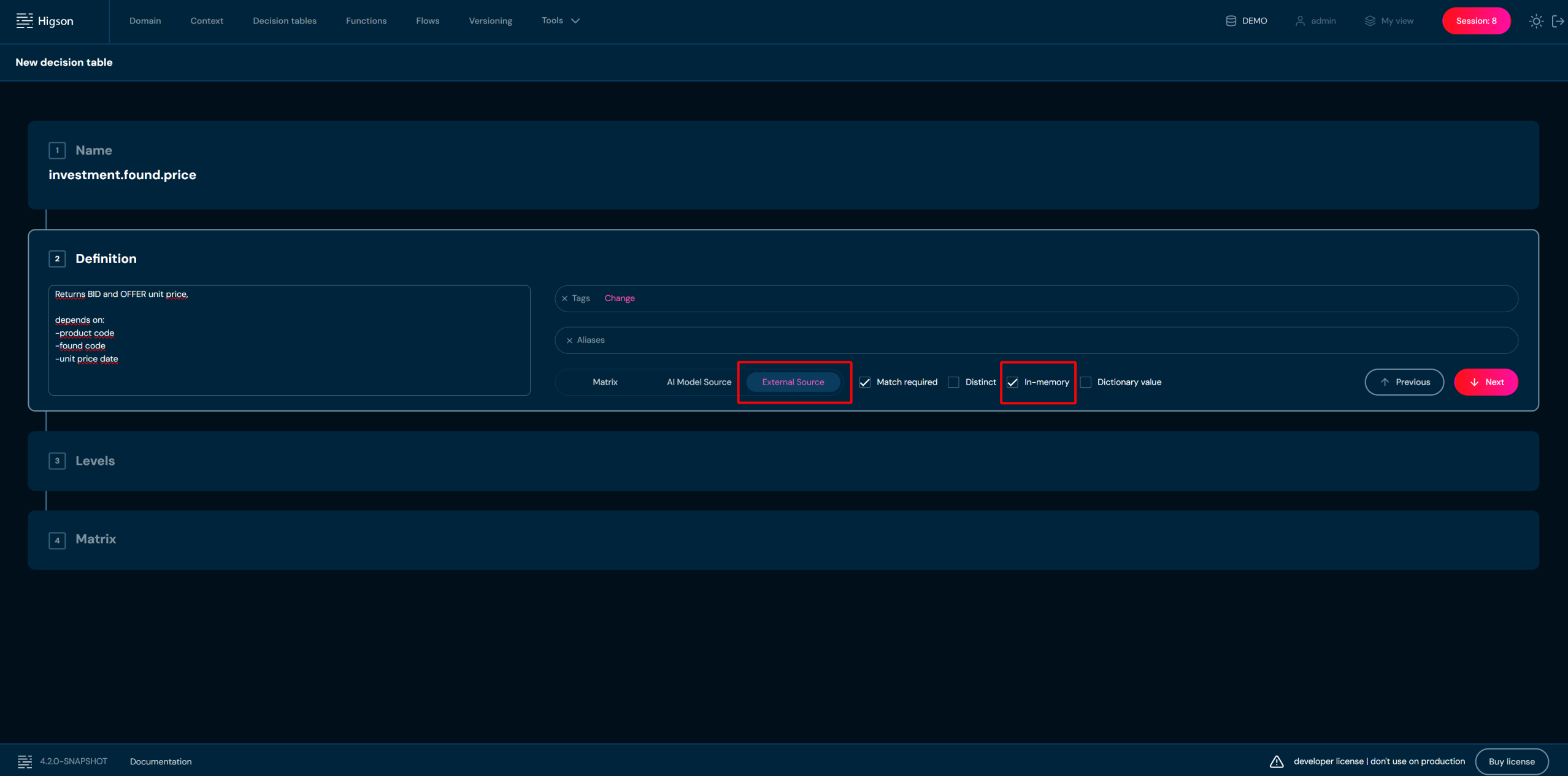
Then we need to define input/output columns like in an ordinary decision table.
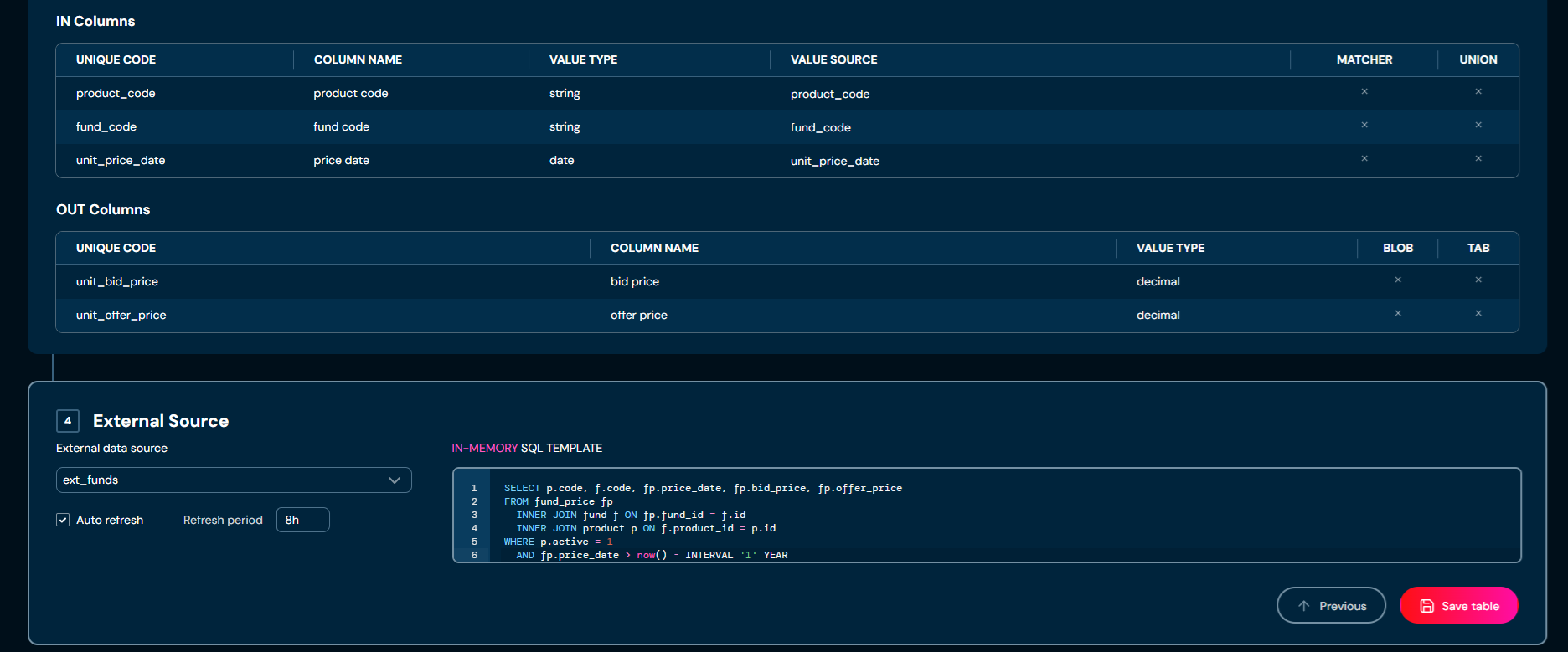
Finally, we can configure External Source panel by:
- selecting datasource from
External data sourcedropdown, - writing SQL query in
In-memory SQL Templatetext area, - setting
auto refreshandrefresh periodif needed.
Writing SQL Query for In-Memory Mode#
As mentioned earlier, in-memory decision table takes the entire matrix (input and output columns) and converts it into fast search index. So, the SQL query must also return the entire matrix, both input and output columns.
Consider a decision table with 3 input columns and 2 output columns:
- input column:
product_code - input column:
fund_code - input column:
unit_price_date - output column:
unit_bid_price - output column:
unit_offer_price
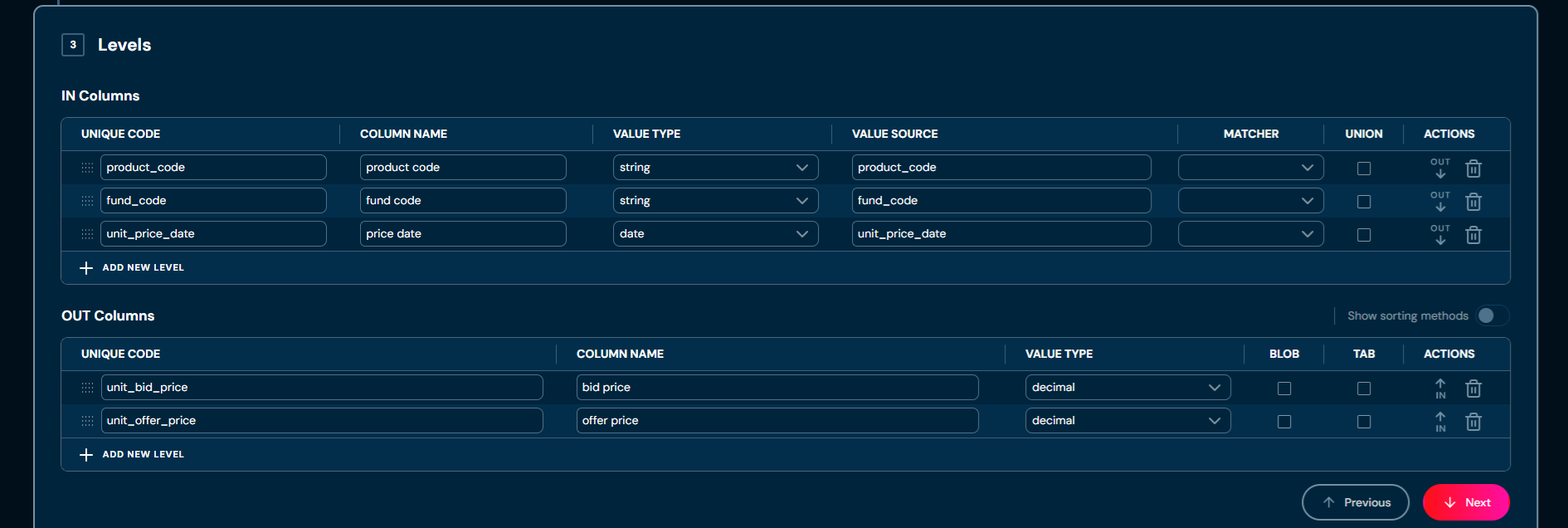
So, the SQL query must return dataset with 5 columns that will match 5 columns from decision table definition.
For example:
SELECT p.code, f.code, fp.price_date, fp.bid_price, fp.offer_price
FROM fund_price fp
  INNER JOIN fund f ON fp.fund_id = f.id
  INNER JOIN product p ON f.product_id = p.id
WHERE p.active = 1
  AND fp.price_date > now() - INTERVAL '1' YEAR
When this decision table is used for the first time, Higson executes this SQL query to obtain full data set (matrix). This matrix will be converted to in-memory index like in ordinary decision table.
Auto Refresh#
The SQL query is executed only once, when decision table is used for the first time. All subsequent lookups will be extremely fast, because they will be handled by in-memory index. What if the underlying database table changes in the meantime?
We can force Higson to periodically refresh the index in memory.
Just check the Auto refresh checkbox and provide Refresh period expression.
Refresh period consist of a number followed by a duration unit, for example:
| Refresh period | Meaning |
|---|---|
90s |
90 seconds |
15m |
15 minutes |
3h |
3 hours |
An empty Refresh period means 1h by default.
The image below shows the sample configuration:
Non-Memory External-Source Decision Table#
To configure decision table to use non-memory external source, we need to:
- check the
External Sourcetoggle button - uncheck the
In-memorycheckbox.
Then we need to define input/output columns like in an every decision table.
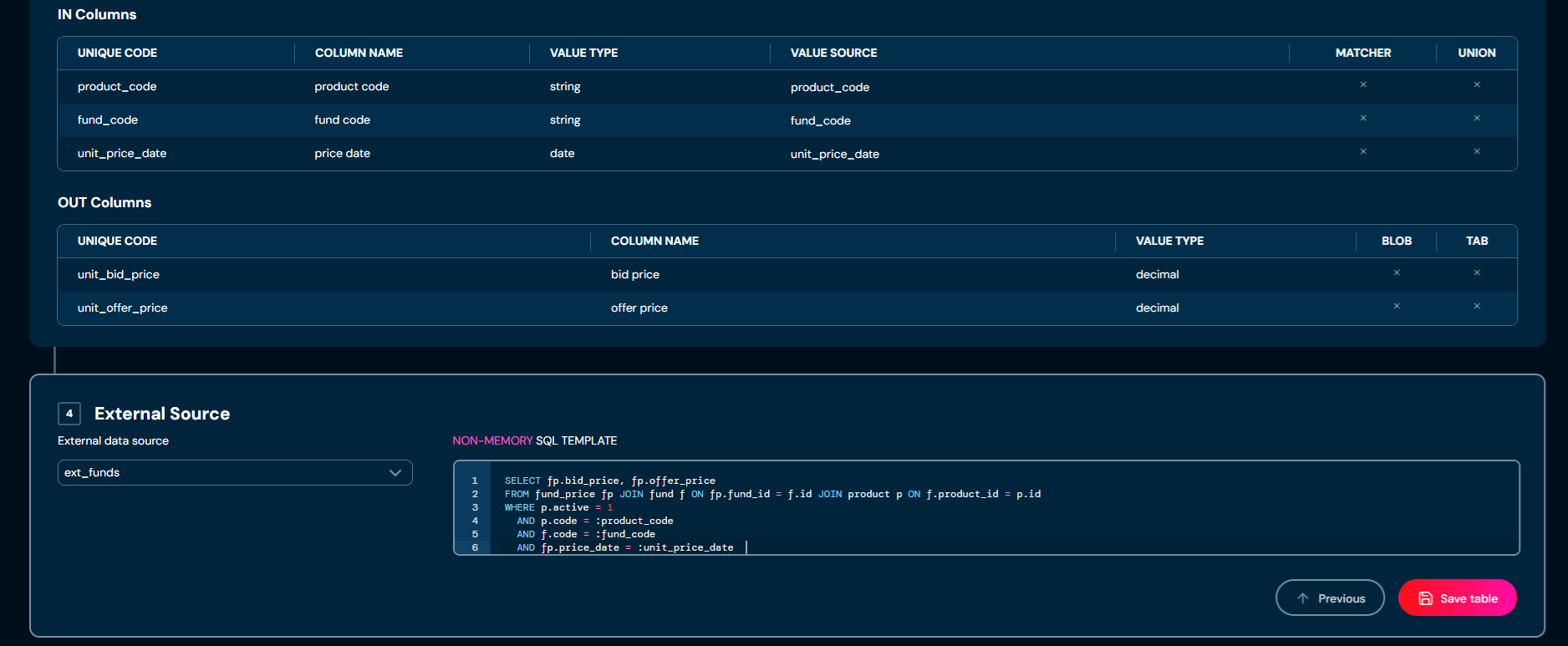
Finally, we can configure External Source panel by:
- selecting datasource from
External data sourcedropdown, - writing SQL query in
Non-memory SQL Templatetext area.
Writing SQL Query for Non-Memory Mode#
As mentioned earlier, non-memory decision table does not cache anything. It executes SQL query for every evaluation request.
So, the SQL query:
- must return only output column
- may use input values to make conditions in SQL (
whereclause)
Consider a decision table with 3 input columns and 2 output columns:
- input column:
product_code - input column:
fund_code - input column:
unit_price_date - output column:
unit_bid_price - output column:
unit_offer_price
So, the SQL query must return dataset with only 2 columns,
for unit_bid_price and unit_offer_price.
It may use 3 inputs (product_code, fund_code, unit_price_date) to narrow the result.
For example:
SELECT fp.bid_price, fp.offer_price
FROM fund_price fp
  INNER JOIN fund f ON fp.fund_id = f.id
  INNER JOIN product p ON f.product_id = p.id
WHERE p.active = 1
  AND p.code = :product_code
  AND f.code = :fund_code
  AND fp.price_date = :unit_price_date
The above query will use input values in where clause.
If we evaluate decision table with such context:
ctx = new HigsonContext('product_code', 'AUL1', 'fund_code', 'FCB', 'unit_price_date', '2025-01-01');
result = engine.get(decisionTable, ctx);
Higson executes SQL query (PreparedStatement) with where clause:
select fp.bid_price, fp.offer_price
...
where p.active = 1
and p.code = 'AUL1'
and f.code = 'FCB'
and fp.price_date = '2025-01-01'
Configuring Datasources in Higson Studio#
For an datasource to be available on the External data source dropdown
it must be configured in Higson Studio configuration file.
The following is the part of the conf/application.properties file
with sample external source configuration:
higson.runtime.external-datasource.sql.names=ext_data, ext_funds, analytics

higson.runtime.external-datasource.sql.ext_data.url=jdbc:postgresql://...:5432/db1
higson.runtime.external-datasource.sql.ext_data.username=...
higson.runtime.external-datasource.sql.ext_data.password=...

higson.runtime.external-datasource.sql.ext_funds.url=jdbc:postgresql://...:5432/funds_history
higson.runtime.external-datasource.sql.ext_funds.username=...
higson.runtime.external-datasource.sql.ext_funds.password=...

higson.runtime.external-datasource.sql.analytics.url=jdbc:postgresql://...:5432/analytics
higson.runtime.external-datasource.sql.analytics.username=...
higson.runtime.external-datasource.sql.analytics.password=...
The above file configures 3 datasources that can be used by External Source decision tables:
ext_dataext_fundsanalytics
Higson Studio creates simple javax.sql.DataSource for every defined external datasource.
The configuration uses following properties:
| property | meaning |
|---|---|
higson.runtime.external-datasource.sql.names |
comma separated names of external datasources (logical names) |
higson.runtime.external-datasource.sql.[name].url |
JDBC url for external datasource using this [name] |
higson.runtime.external-datasource.sql.[name].username |
user name to establish jdbc connection |
higson.runtime.external-datasource.sql.[name].password |
password to establish jdbc connection |
Configuring Datasources in Higson Runtime#
If the application uses the Higson Runtime (embedded engine), it is necessary to provide external data sources and add them to the engine runtime:
HyperonEngineFactory factory = new HyperonEngineFactory(higsonDataSource);
...
DataSource dataDs = createDataSource(...)
DataSource fundsDs = createDataSource(...)
DataSource analyticsDs = createDataSource(...)
...
factory.addExternalDataSource( "ext_data",      dataDs );
factory.addExternalDataSource( "ext_funds",     fundsDs );
factory.addExternalDataSource( "ext_analytics", analyticsDs );
...
HigsonEngine engine = factory.create();