A profile is a self-contained data module. The domain and context are directly assigned to a profile and cannot exist without one. All profiles available in the environment are listed in the dropdown on the right side of the toolbar.

Profile-Scoped and Global Elements#
Decision tables, functions, and flows can either be assigned to a specific profile or be global.
- Profile-scoped elements are tied to a single profile. When a profile is selected, the list views display both global elements and elements assigned to that profile.
- Global elements are not assigned to any profile and are always visible, regardless of which profile is currently selected.
When no profile is selected (not-chosen), only global elements are visible.
When creating a new decision table, function, or flow, you choose whether to assign it to a profile or make it global. You can also change this assignment at any time using the Assign Profile or Make Global actions available in the list view and on the details screen.
Access Control#
Assigning an element to a profile restricts its visibility: only users with permissions for that profile can see and modify it. Global elements are accessible to all users regardless of their profile permissions.
Use profile assignment to isolate business logic that belongs to a specific product, line of business, or team. Use global elements for shared utilities that need to be reusable across multiple profiles.
Regions and Profiles#
A region can only be attached to an element that is already assigned to a profile, because a region belongs to a profile. If you intend to use versioning on a decision table, function, or flow, assign it to a profile first.
Selecting Profile#
-
Open the dropdown menu on the right side of the toolbar.
-
Choose a profile from the list.

Profiles Screen#
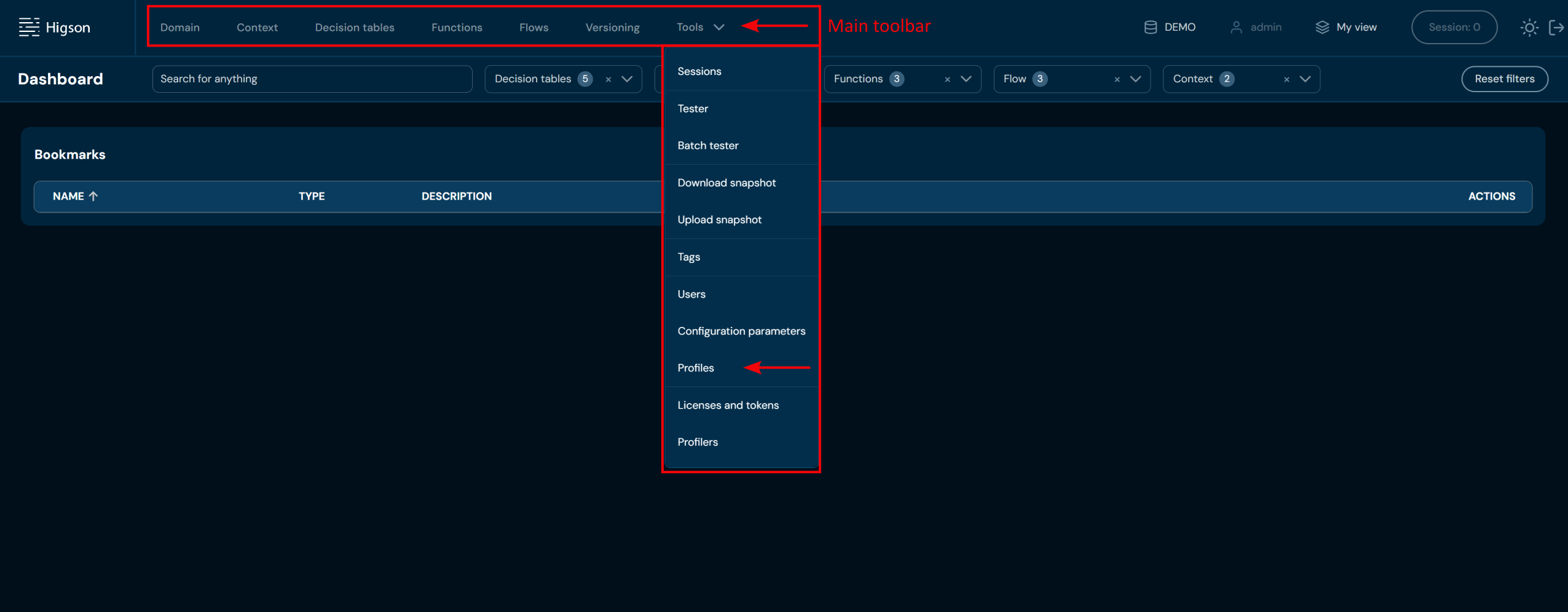
In order to access profiles screen open Tools in Main Toolbar and select profiles.
After you enter Profiles you will see screen of all profiles:
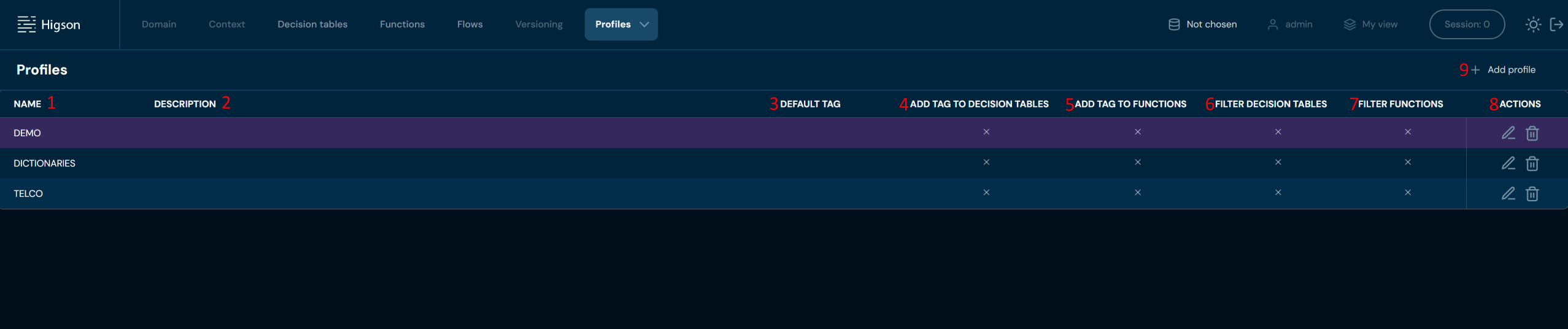
| No. | Column name | Description |
|---|---|---|
| 1. | Name | Full profile name. |
| 2. | Description | Optional profile description. |
| 3. | Default tag | Tag assigned to the profile. To learn more about tags, go to Tags. |
| 4. | Add tag to decision table | Flag that automatically adds the selected tag to each new decision table created within the given profile. |
| 5. | Add tag to functions | Flag that automatically adds the selected tag to each new function created within the given profile. |
| 6. | Filter decision tables | Flag that filters the decision tables list to show only tables containing the selected tag. |
| 7. | Filter functions | Flag that filters the functions list to show only functions containing the selected tag. |
| 8. | Actions | List of quick access actions. Edit action (pencil) allows changing other columns within a profile. After it’s selected, two buttons will emerge in its place: click Save to save changes or Cancel to reject them. Remove action (bin icon) deletes the desired profile. |
| 9. | Add profile | Adds a new profile. Enter its name and optionally other data to save it. You can click Cancel to remove it. |
Adding New Profile#
In order to add a new profile, you need to:
-
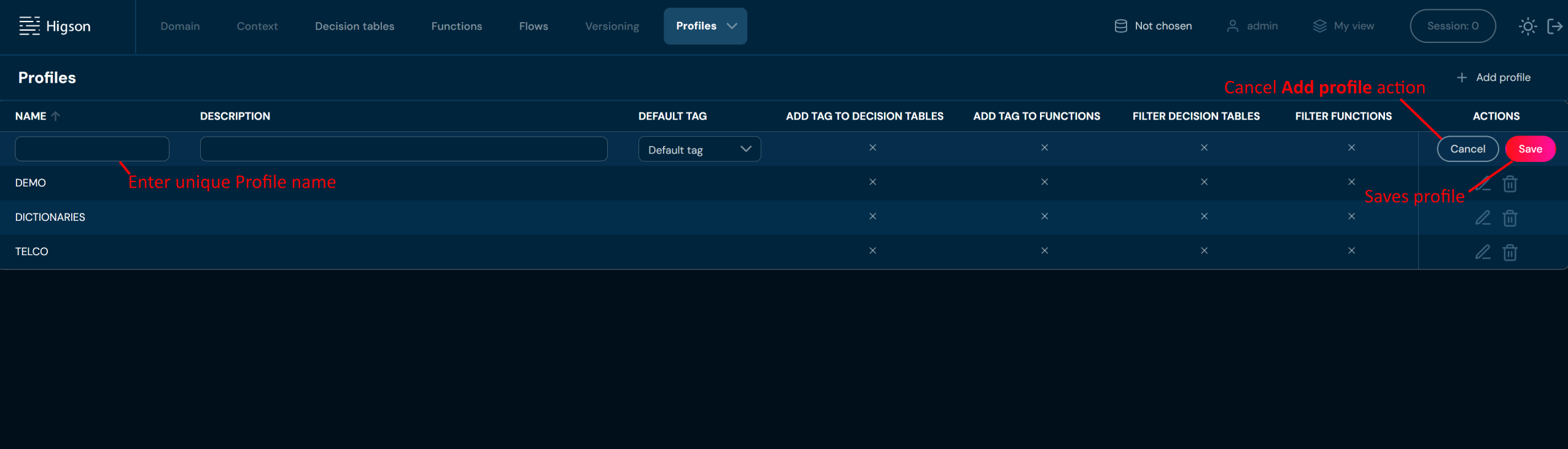
Choose + Add profile
-
Provide unique Profile name. Name can contain only characters from collection a-z; 0-9; “.”; “-”; “_” and it can’t start with “-”.
a. If you enter illegal characters in name field, then borders will be highlighted with red color, and you will not be able to save tag.
-
Optional: add description and the rest of profile properties
-
Choose Save
a. Profile with entered data is created.
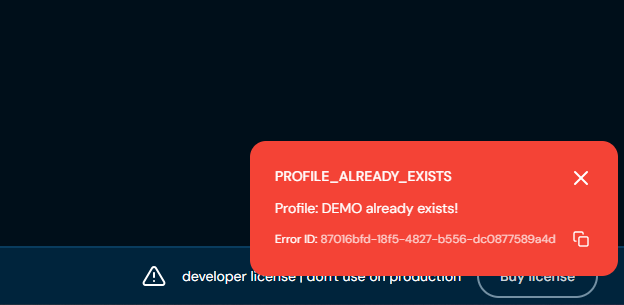
b. If you enter the same name as one of the Profiles already created, then validation error will appear.