Configuration of the product in Higson is composed of:
- Domain configuration
- Decision tables
- Functions
Operators make changes in configuration in work session. Open session (by this we understand every change made in range of configuration) is visible only to operator, who is making changes. In the moment of publication that session changes are seen by all the users and are applied to structure.
There are two basic ways to publish your session: by Main toolbar > Tools > Sessions or shortcut session button in the top right corner of the application Higson.
-
When a user chooses to go through the main toolbar (A):

the screen will show with a list of all sessions:
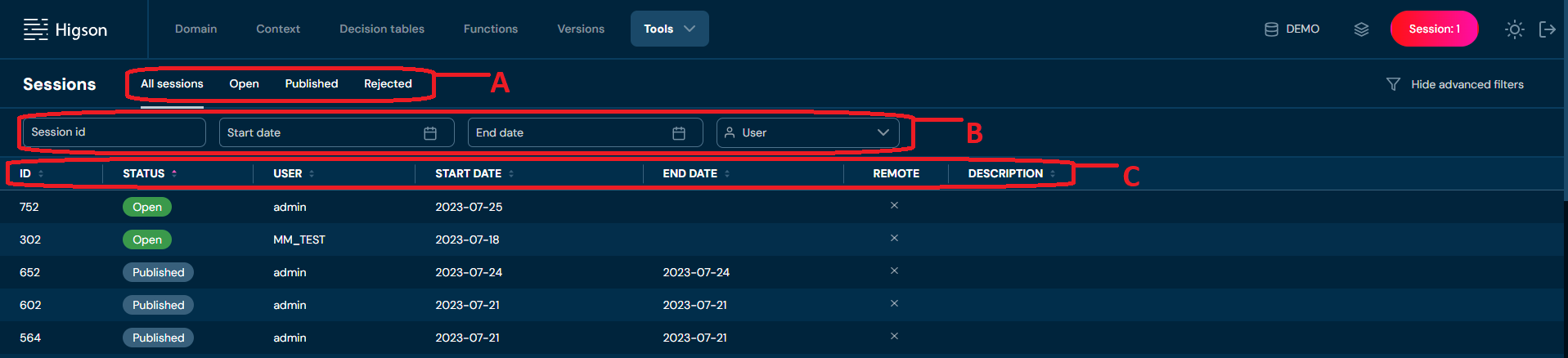
While looking for specified session may filter possible matches by:
-
All sessions, Open, Published, Rejected (A)
-
Session id, Start date, End date, User (B)
Your guidelines will be applied automatically. There is no need to fill all search cells or filter decision tables at once. Input only those which you find necessary. Sessions view is in the form of a table with columns (C):
Id. Column name Description 1. Status Status of session: Published, Open, Rejected 2. User The user who owns the session 3. Start date Date of creation of session 4. End date Date of publishing or rejecting session 5. Remote Flag informing if the session created by higson runtime rest 6. Description Description of a session after publishing or rejecting When a session from the list is selected (by clicking on it) detail information will show:
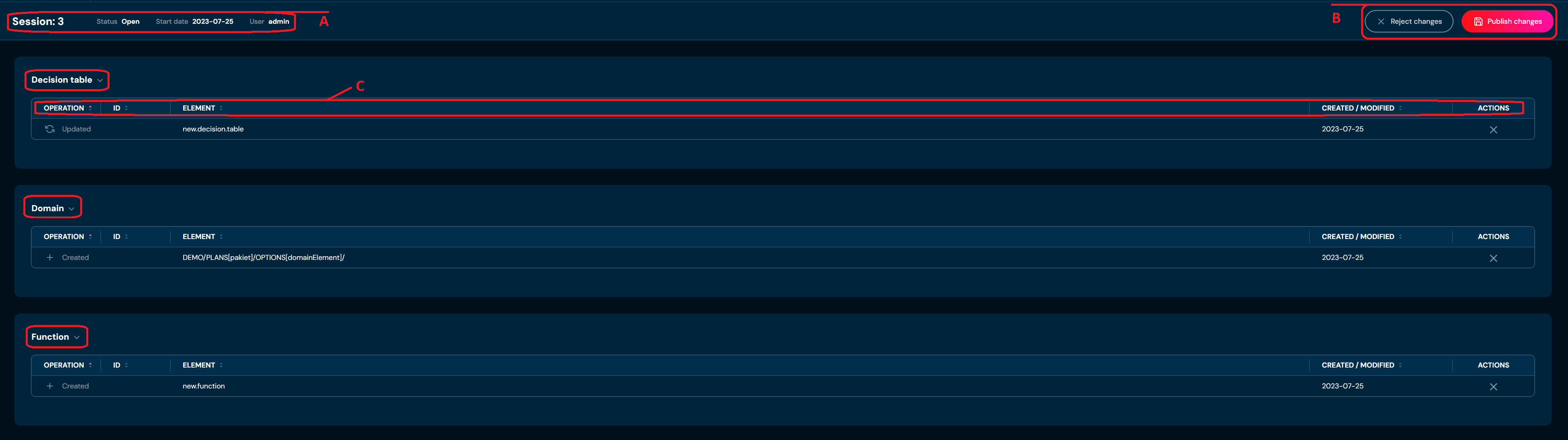
In this view, we can see a summary of the selected session: elements number, the start date of the session, and user owner (A).We can publish or reject changes in (B) (only if the Session in (A) is marked as Open). This view also contains three sections: Decision table, Domain, and Function with assigned table containing columns (C):
Id. Column name Description 1. Operation Operation on the element: Create, Update, or Delete 2. ID ID number of element 3. Element Element name 4. Created/Modified Date of operation executed at the element 5. Actions Column for reverting changes on one separate element on this session -
-
When the user chooses to go through the shortcut session button (B) in the top right corner of the application Higson**:**

very similar session details to the previous one view will appear:
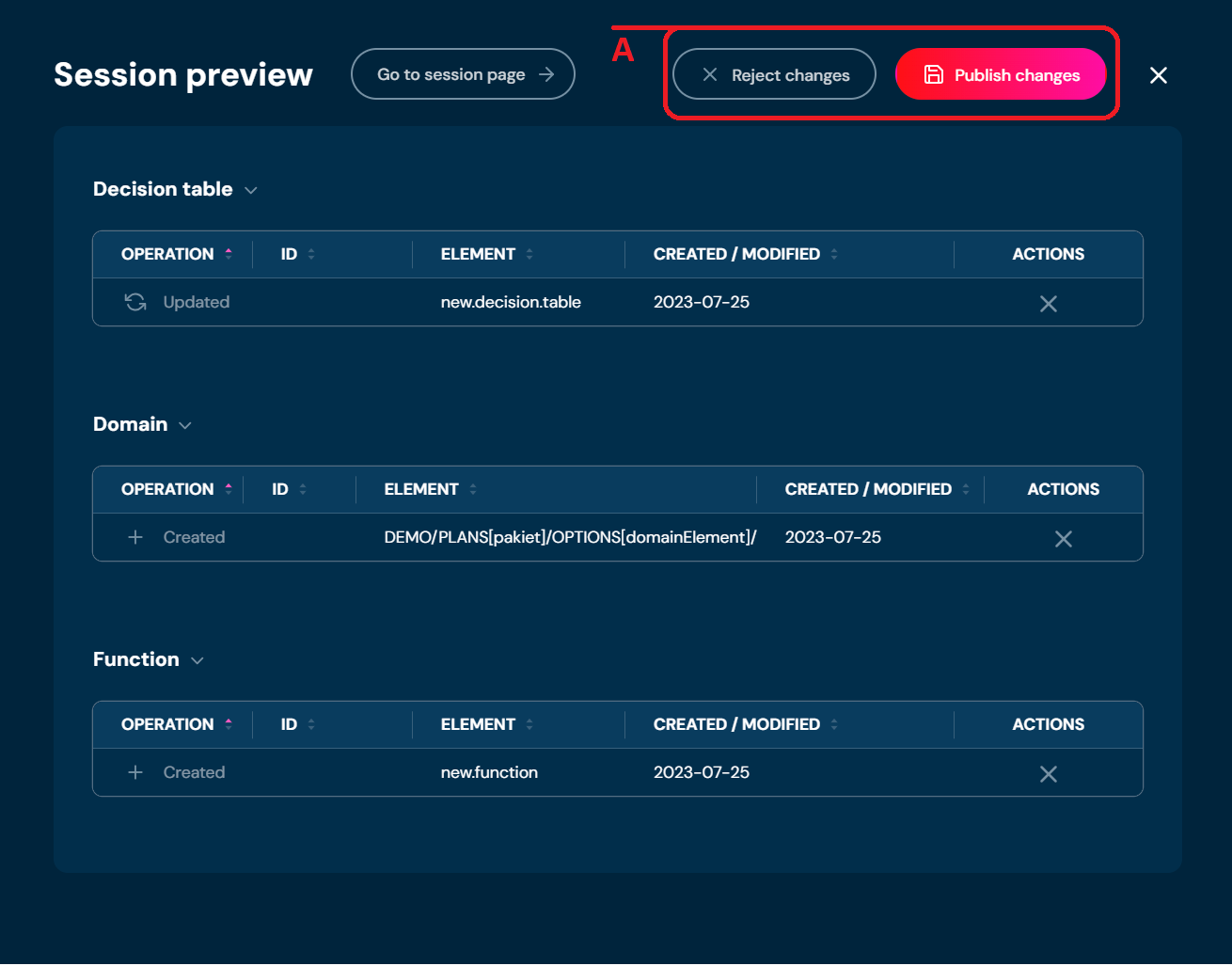
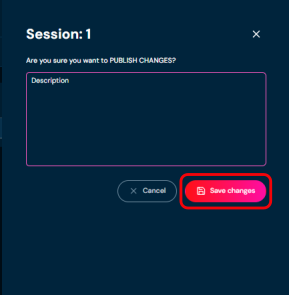
After clicking on (A) Reject or Publish changes view will pop up:
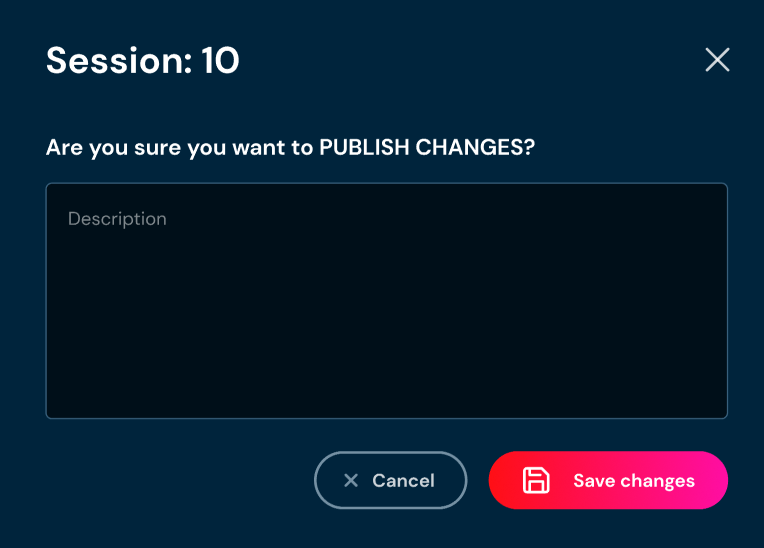
After confirmation, changes will be PUBLISH or REJECT with no message or a message in the description field filled.
Session conflicts#
A conflict may occur when two users modify the same element. In such cases, the session that is published first will be successfully applied. The publication of the second session will be blocked, and a report will be displayed listing the elements that are preventing the session from being published. The session publishing mechanism prioritizes the user who publishes their session first.
EXAMPLE
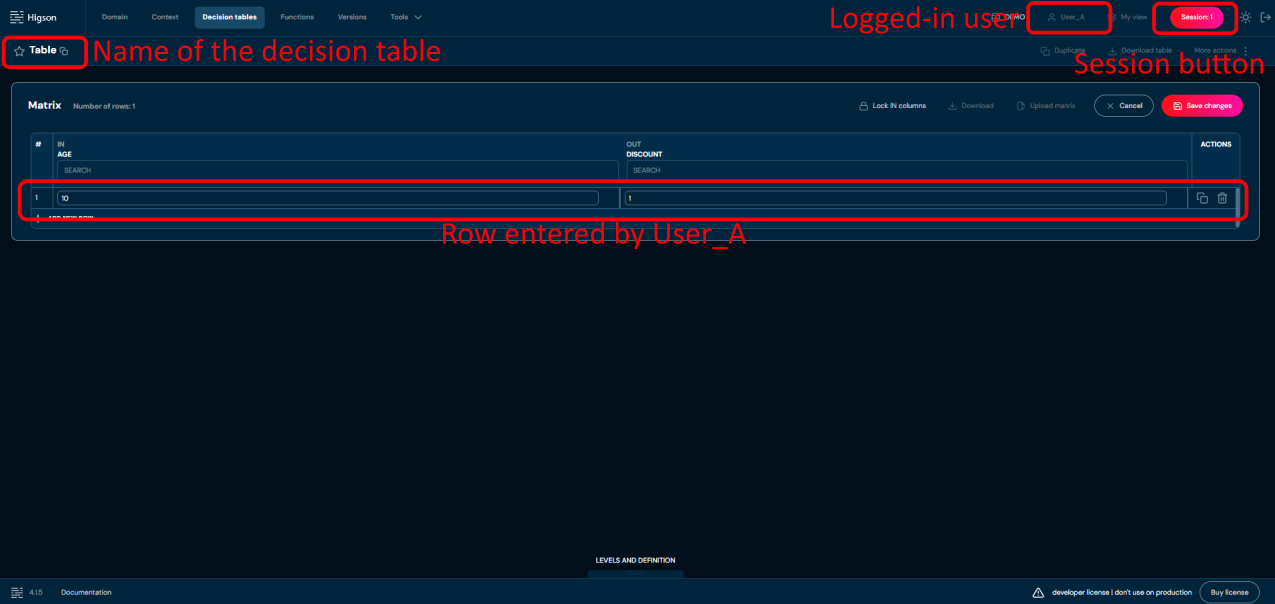
User_A begins editing the decision table named Table. The matrix of the decision table is initially empty. They add a new row with the values 10 and 1 to the matrix and save the changes. This modification is stored in a session of User_A. The session remains open — User_A has not yet published the changes.
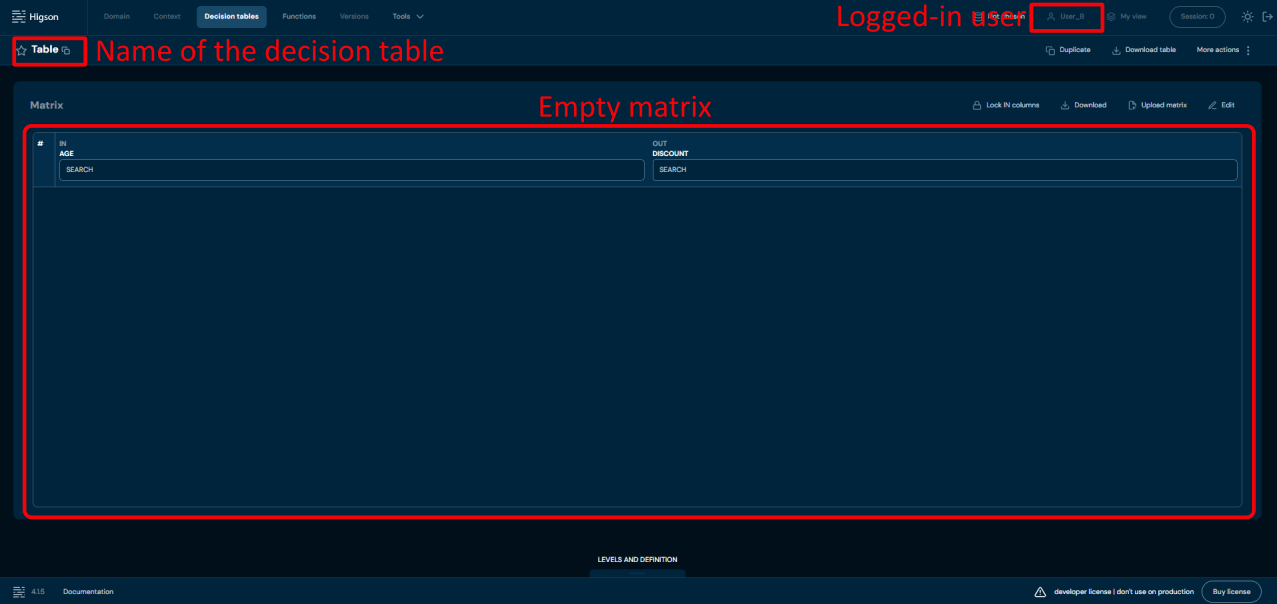
Meanwhile, User_B also begins editing the same decision table named Table. At the time of opening the edit session, the matrix appears empty because User_A’s changes have not yet been published.
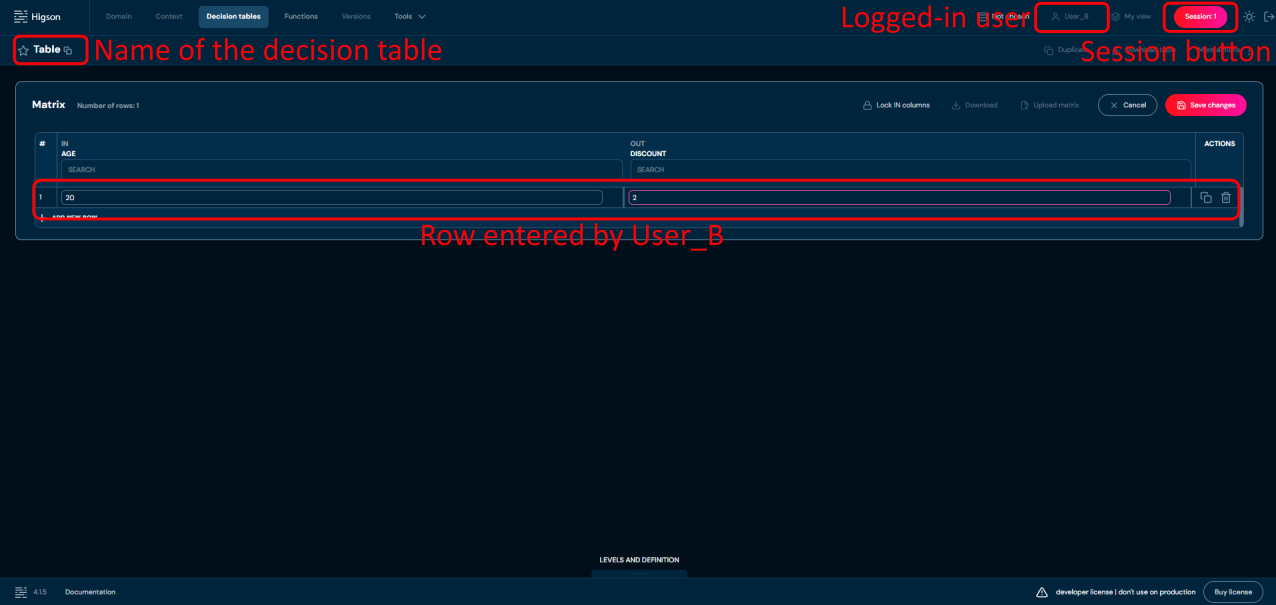
User_B adds a row with the values 20 and 2 and saves the changes. This modification is stored in a session of User_B.
User_A then proceeds to publish their session. The publication completes successfully since there are no conflicts.
Next, User_B attempts to publish their session. However, the operation is blocked. At this point, the table already contains a row with the values 10 and 1, which were added by User_A. User_B’s edits were made based on an outdated (empty) version of the table, which no longer matches the current state. As a result, the system blocks the publication of User_B’s session due to a version conflict. An appropriate message is displayed to inform the user.
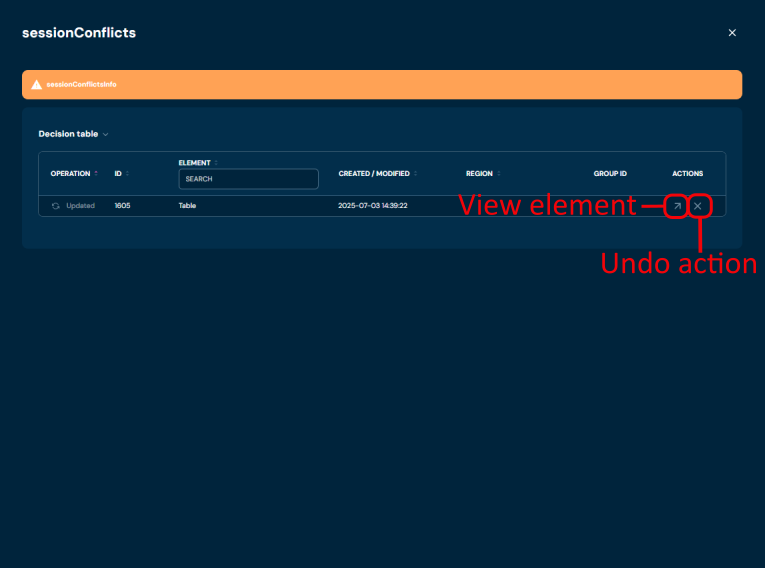
In the event of a collision during session publication, users are required to discard their changes by clickig Undo action. The pop-up will apear to confirm action.

However, to avoid losing valuable work — as some of the modifications might still be needed — the decision table can be exported to Excel. Before discarding the session go to the decsion table view and click Download table to get xlsx file.
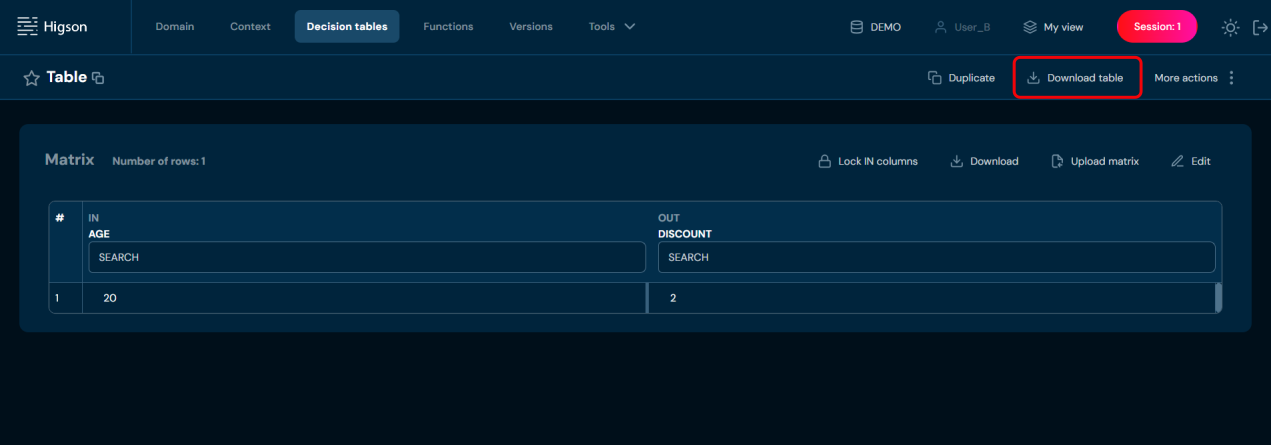
This allows users to preserve their changes. Once the session is discarded, the table will reflect the changes published by the other user, and the exported modifications can then be reapplied to this updated state.
After downloading the table, the user can return to the session preview and discard changes by clicking Undo Action and confirming the prompt. As a result, the session publication is canceled, and a message indicating that the conflict has been resolved will appear.
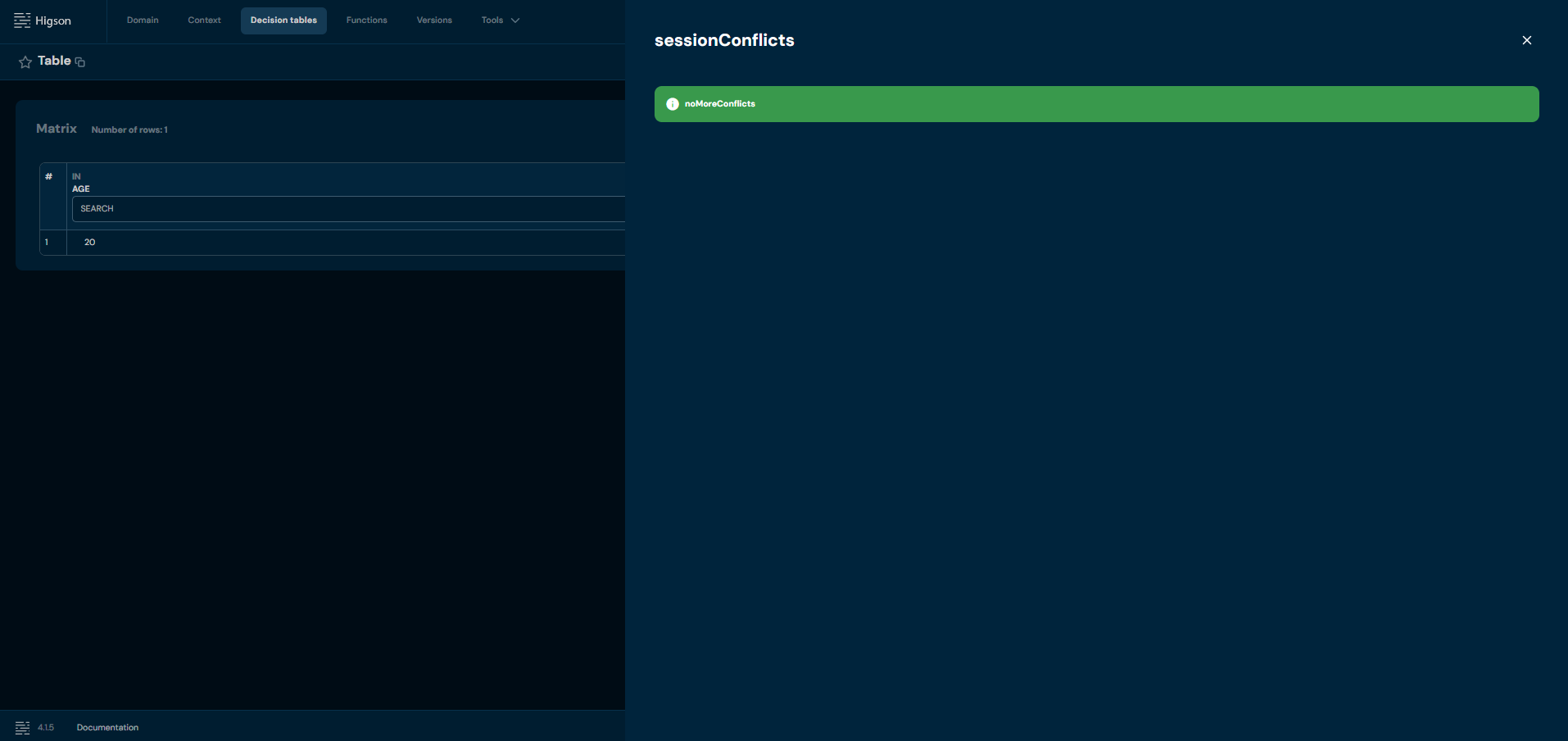
The session publishing mechanism ensures conflict-free collaboration and maintains configuration consistency. Since the mechanism prioritizes the user who publishes their session first, it is recommended to organize configuration work in a way that prevents overlapping edits between different users.
The session mechanism in Higson Studio is the foundation of safe and structured configuration management in a shared environment. It enables users to independently introduce, test, and modify changes without risking interference with others’ work. Awareness of which actions are session-based and which are applied immediately in the environment helps maintain consistency and reduces the risk of configuration errors. By properly managing sessions — for example, by establishing standards for session descriptions or dividing work to avoid unnecessary conflicts — teams can retain full control over ongoing modifications and ensure high-quality collaboration within Higson Studio.