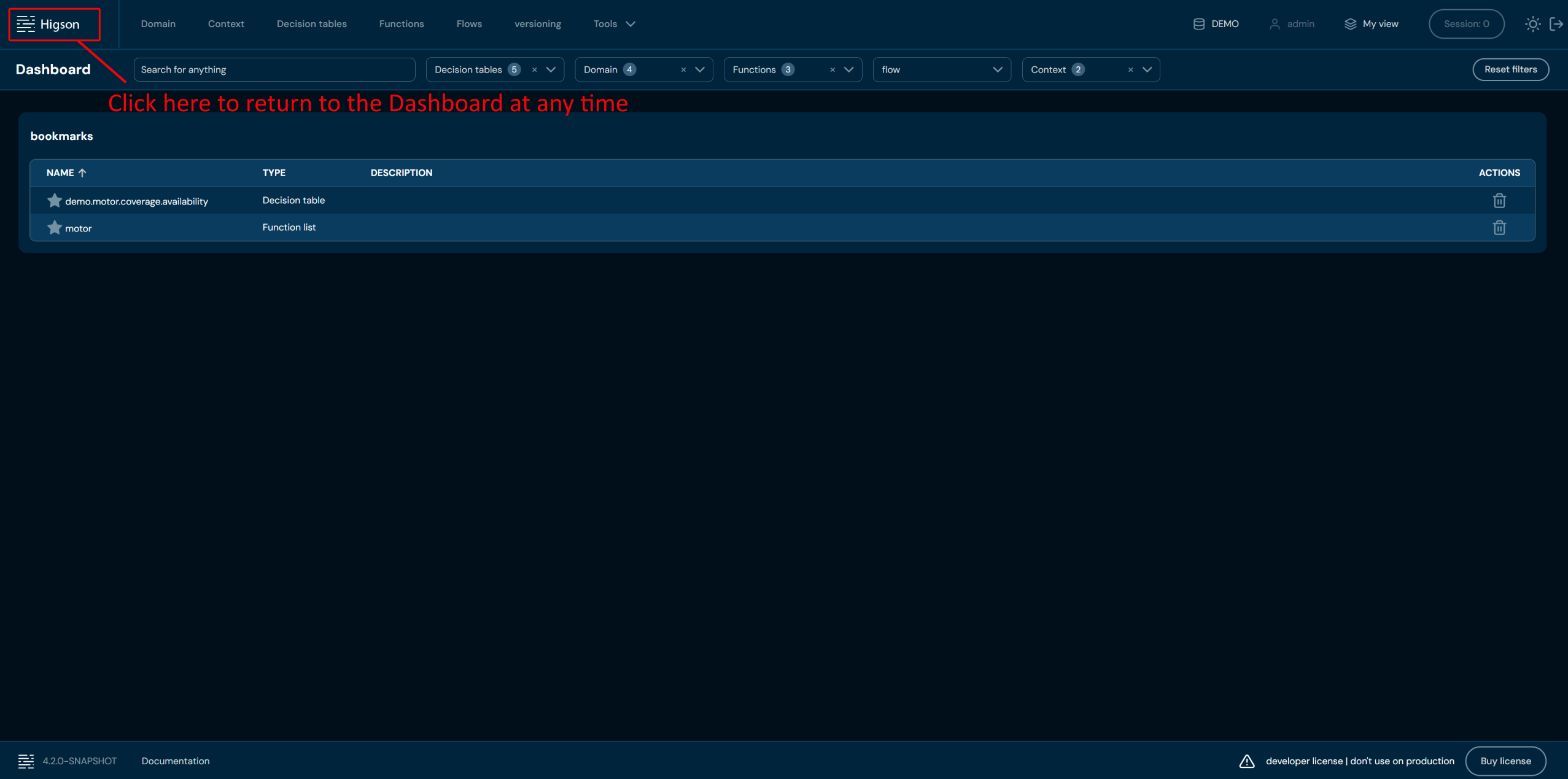
After logging in to Higson Studio, you are automatically redirected to the Dashboard screen. This is the central place where you can start your work and quickly access the key features of the system.
On a dashboard screen you have access to:
- Main toolbar – provides access to the system’s basic functions and settings.
- Global search with advanced filters – by default, the search covers the widest possible range of data. The only exception is searching through decision table matrix cells – for performance reasons, this filter must be enabled manually when needed.
- Bookmarks – provide quick access to selected items or item lists, making navigation within the project easier.
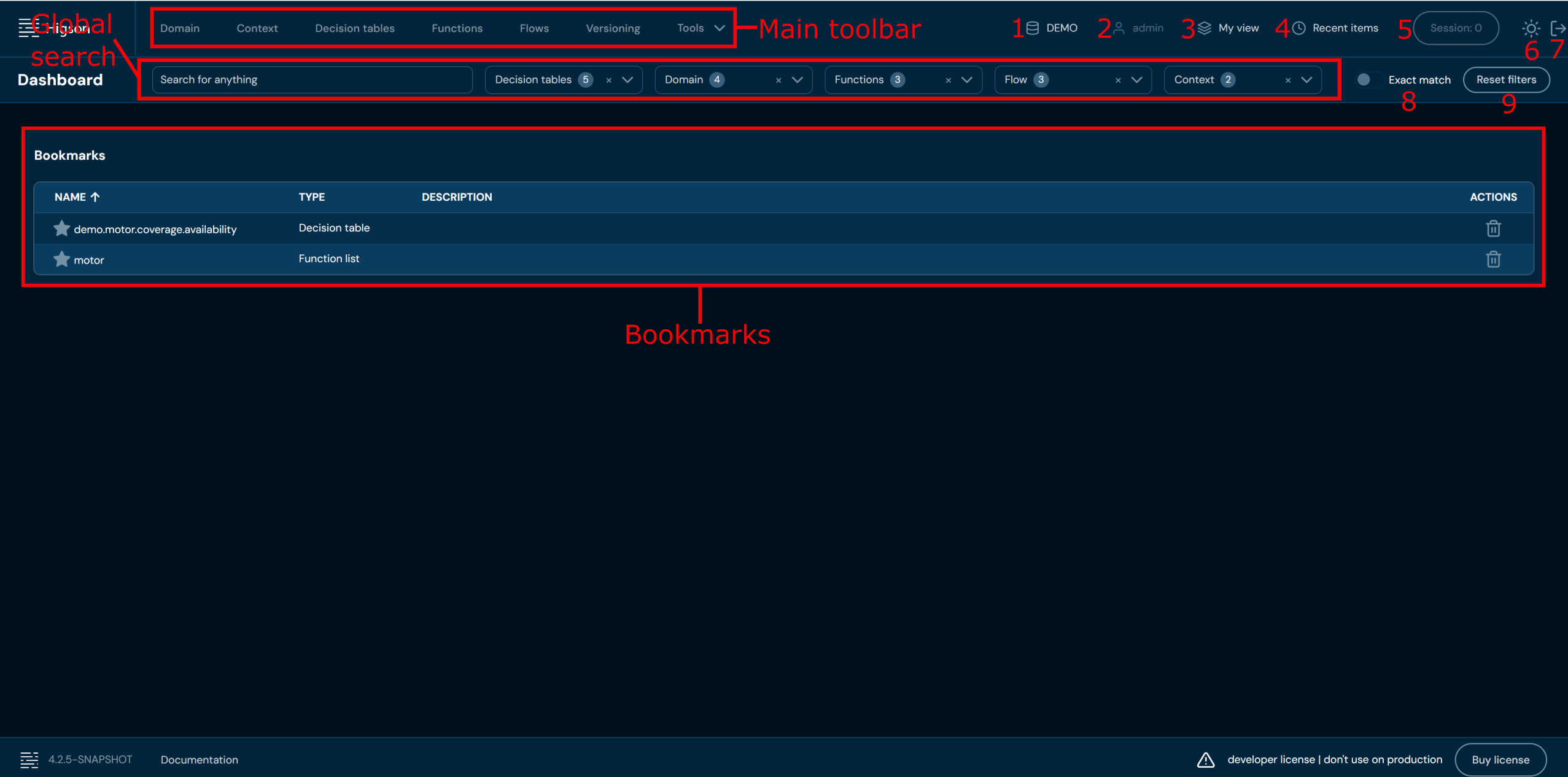
| No. | Name | Description |
|---|---|---|
| 1 | Profile | Allows to select a profile. |
| 2 | User | Shows the login of the logged in user. |
| 3 | My view | Allows to switch between regions and versions visible for user. |
| 4 | Recent items | Drop-down list with recently modified objects. |
| 5 | Session | Current session. |
| 6 | Dark/light mode | Allows to switch between dark and light mode. |
| 7 | Log out | Allows to log out. |
| 8 | Exact match | Limits results to exact phrase matches only. |
| 9 | Reset filters | Brings back the default settings of global search filters. |
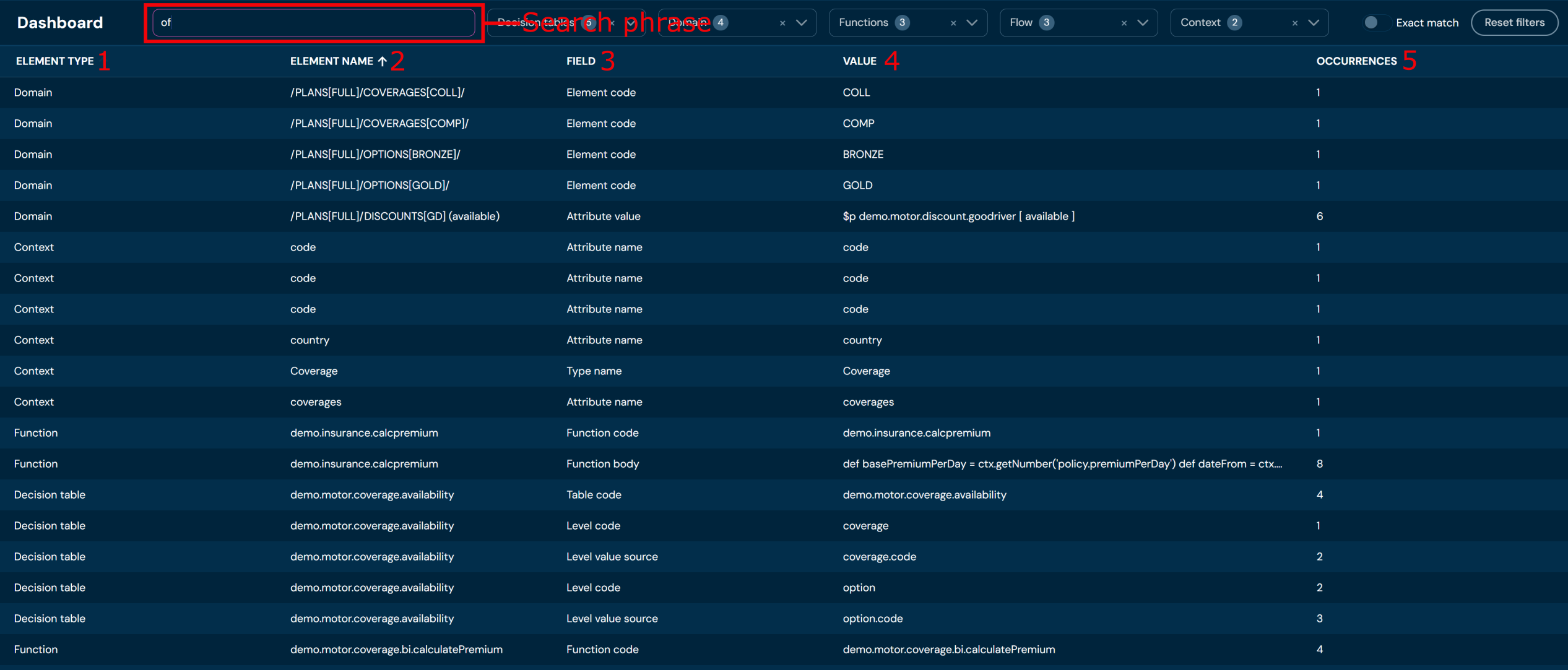
When you enter a phrase in the search box, a list of results appears on the main screen:
| No. | Name | Description |
|---|---|---|
| 1 | Element type | Type of the element in which the phrase was found. |
| 2 | Element Name | Name of the element in which the phrase was found. |
| 3 | Field | Field of the element in which the phrase was found. |
| 4 | Value | Value of the field in which the phrase was found. |
| 5 | Occurence | Number of occurrences of the searched phrase. |
The Dashboard serves as a starting point – from here, you can browse data as well as quickly move to detailed views, configurations, or analyses. ClikYou can return to the Dashboard screen at any time by clicking on the Higson logo in the upper left corner.