Higson 4.3 introduces an AI Assistant as a beta feature. It integrates a large language model (LLM) directly into Higson Studio, providing three categories of AI-powered support:
- Documentation Assistant — a persistent chat panel for asking questions about Higson documentation
- AI actions in Functions — explain (with a follow-up chat) or generate Groovy and Python function bodies
- AI actions in Decision Tables — explain (with a follow-up chat) or generate decision tables
Higson does not supply or host an LLM model itself. Instead, it connects to an existing LLM provider.
Beta notice: The AI Assistant requires enabling a feature flag and configuring at least one LLM provider. See AI Assistant Configuration for setup instructions.
Documentation Assistant#
The Documentation Assistant is a persistent chat panel available on every screen in Higson Studio. It allows users to ask questions about Higson features, decision tables, flows, and configuration without leaving the application.
Opening the Documentation Assistant#
The Documentation Assistant panel is available on every screen in Higson Studio. To open it, click the > arrow button on the left edge of the screen.
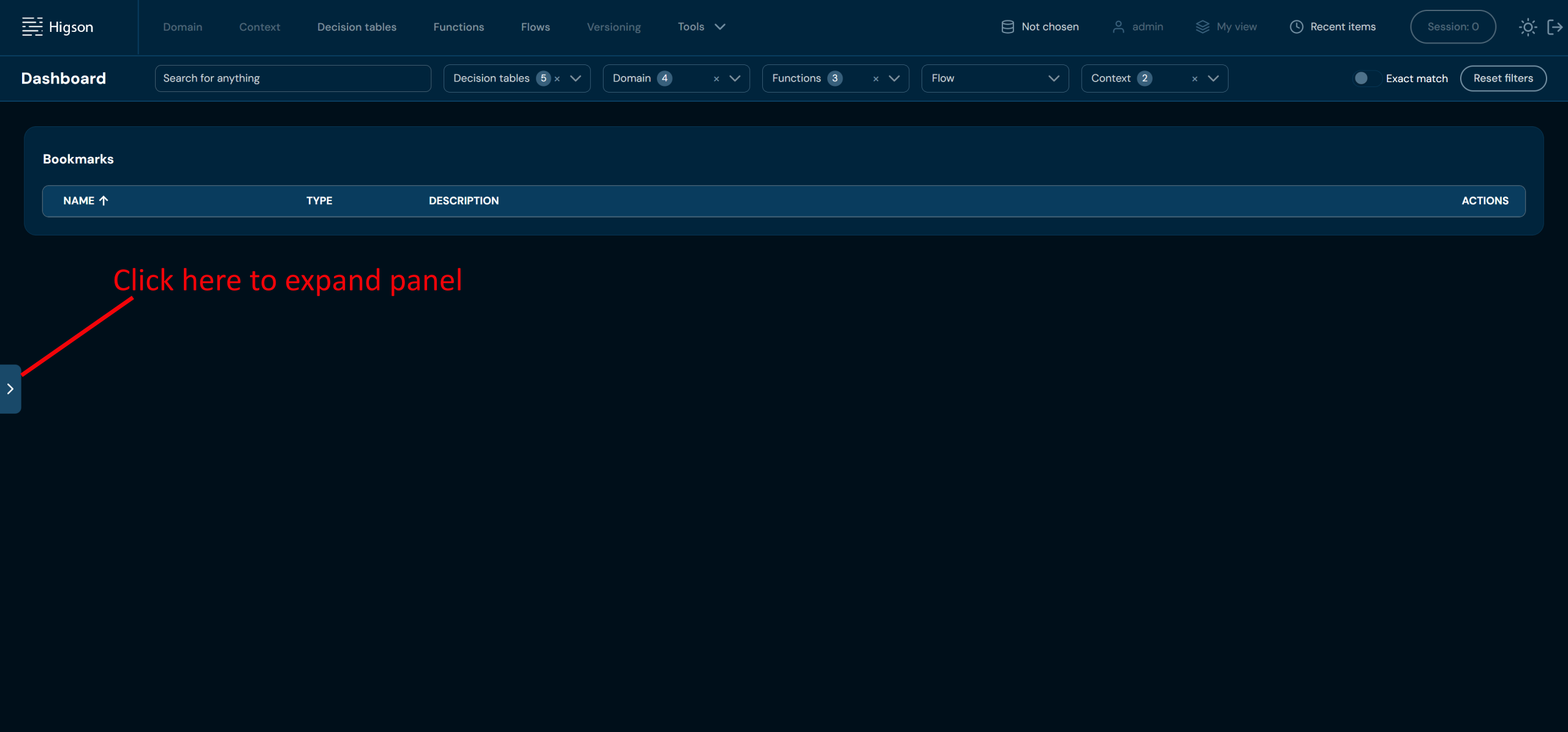
The panel expands to reveal the chat interface.
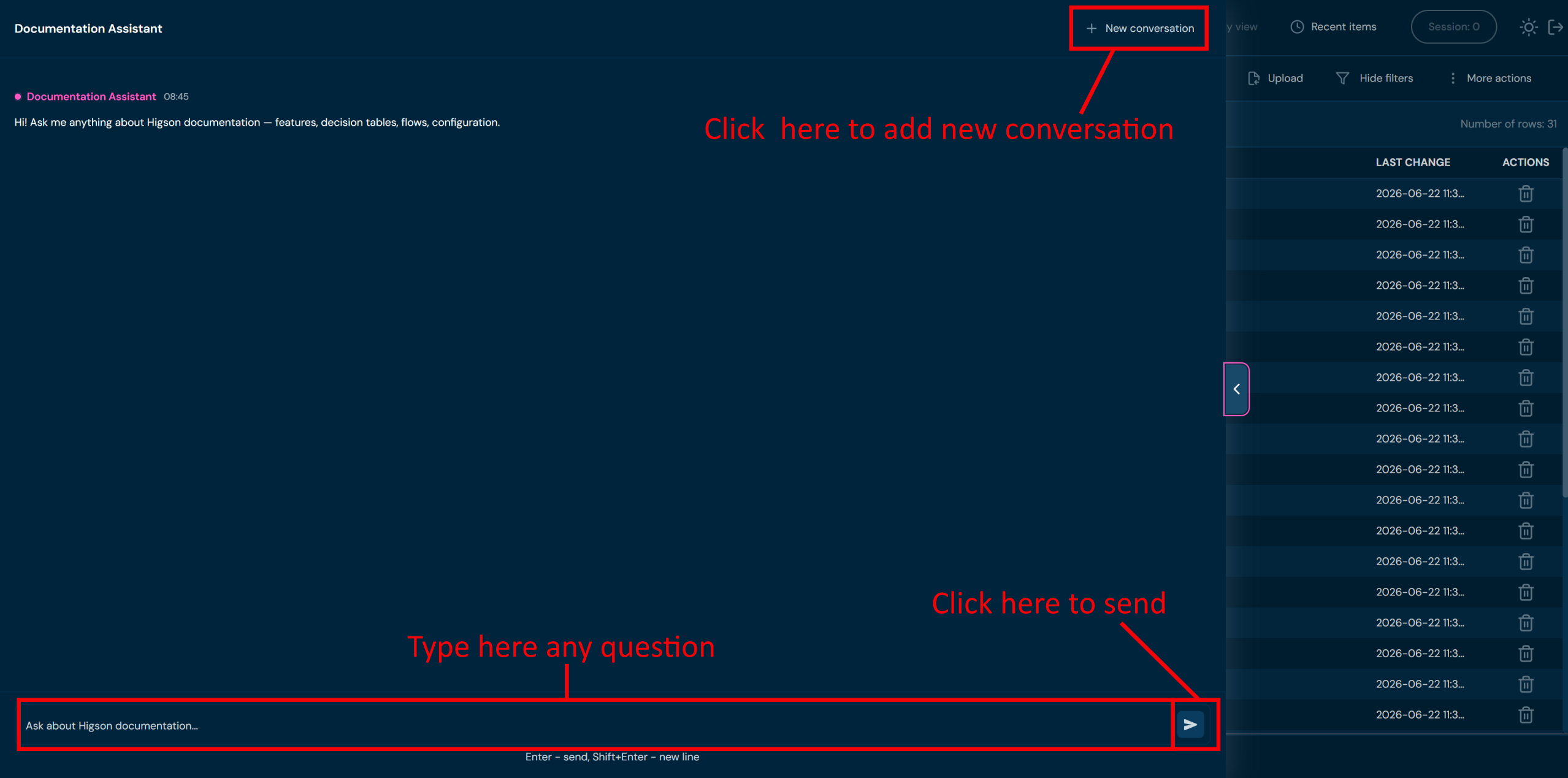
Use Shift+Enter to add a line break in your message without sending it.
Closing the Documentation Assistant#
To close the panel, click the < arrow button on the right edge of the open panel.
AI Features in Functions#
On the Function details screen, the AI button (✦ AI) is available in the actions bar. Clicking it opens a dropdown menu with two AI actions.
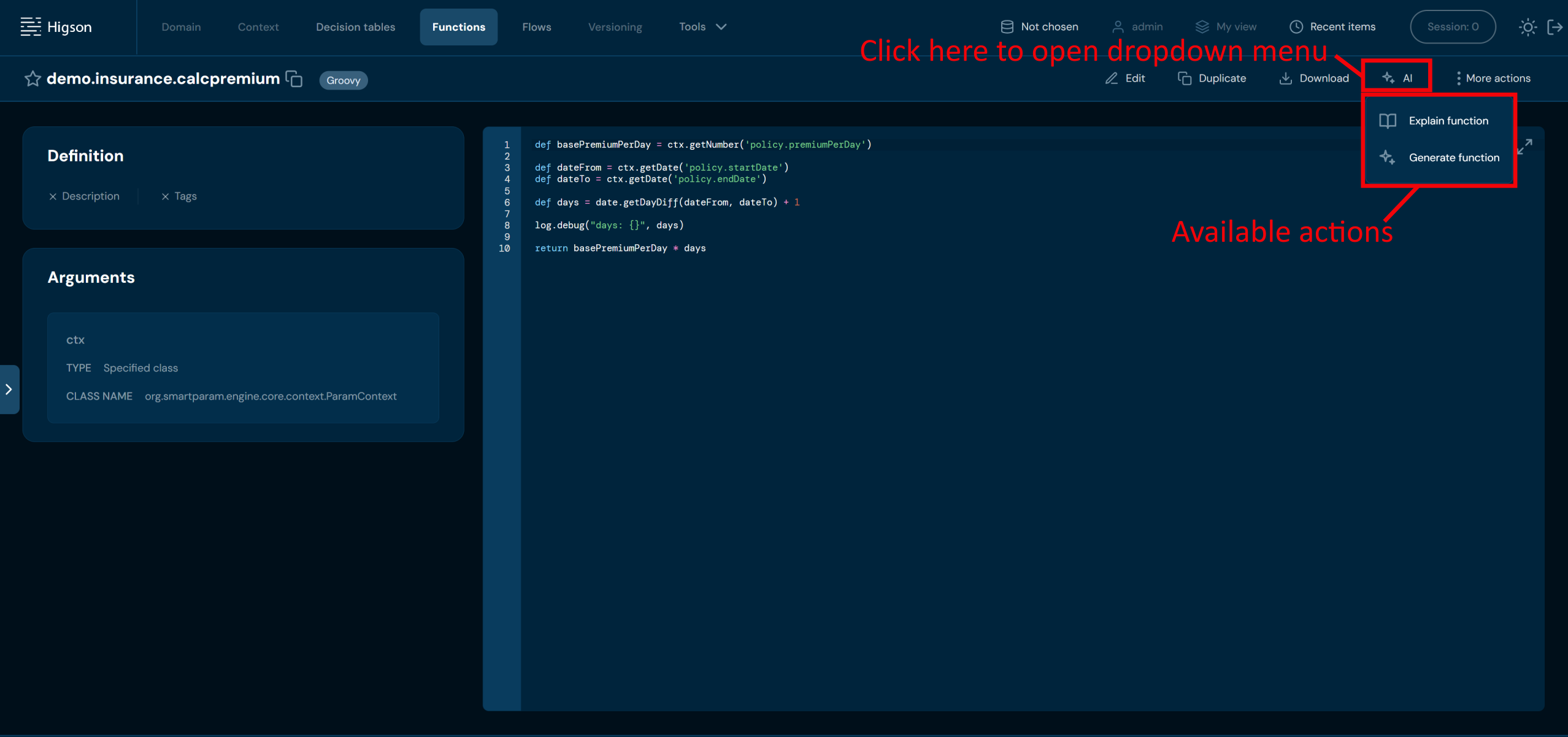
Explain Function#
Explain function generates a plain-language description of the current function. The explanation is produced from the function body and argument definitions.
To use Explain function:
- Open any function from the Functions list.
- In the actions bar, click AI.
- Select Explain function from the dropdown.
- The Function explanation dialog appears with the AI-generated description.
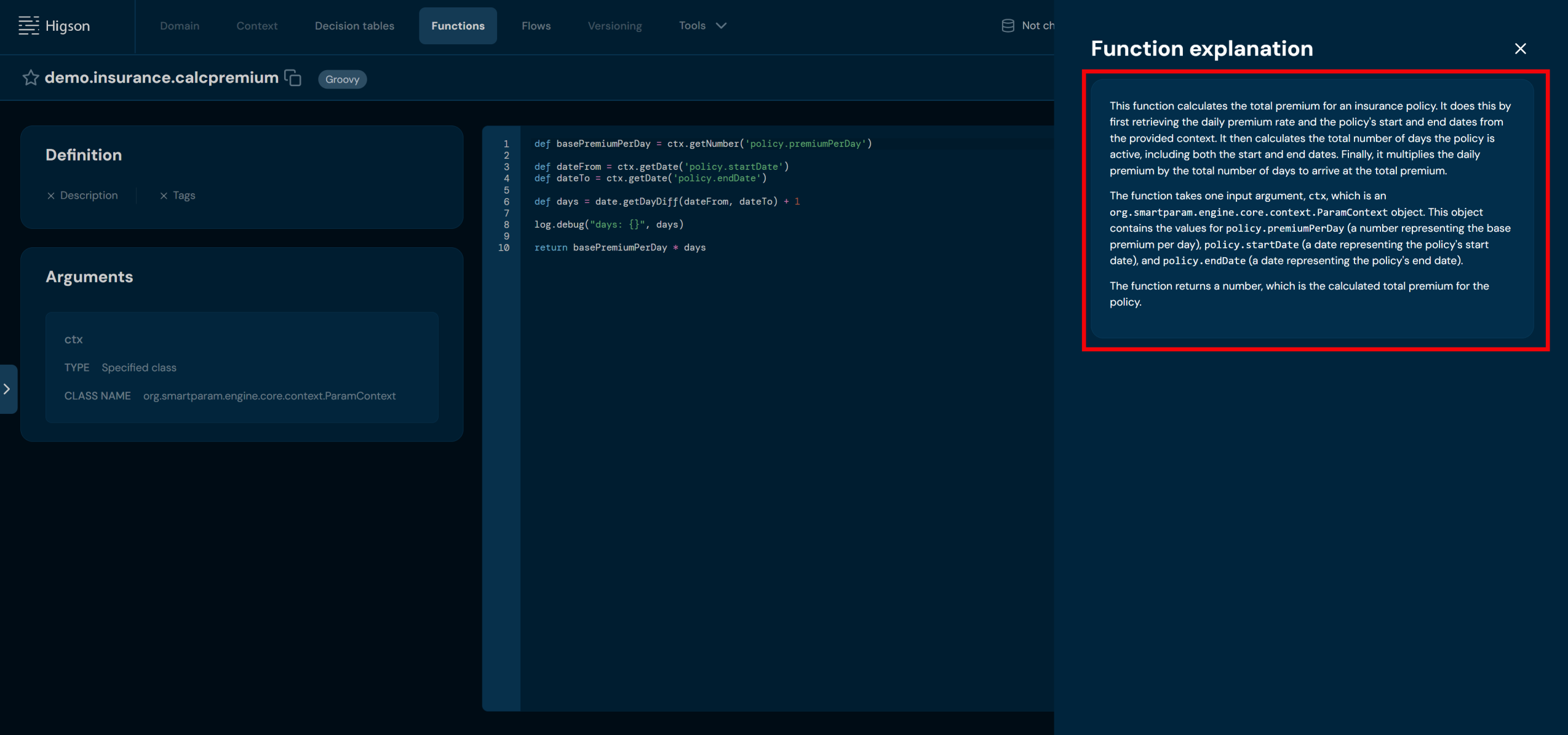
The explanation covers the function’s purpose, its input arguments and their types, and the value it returns.
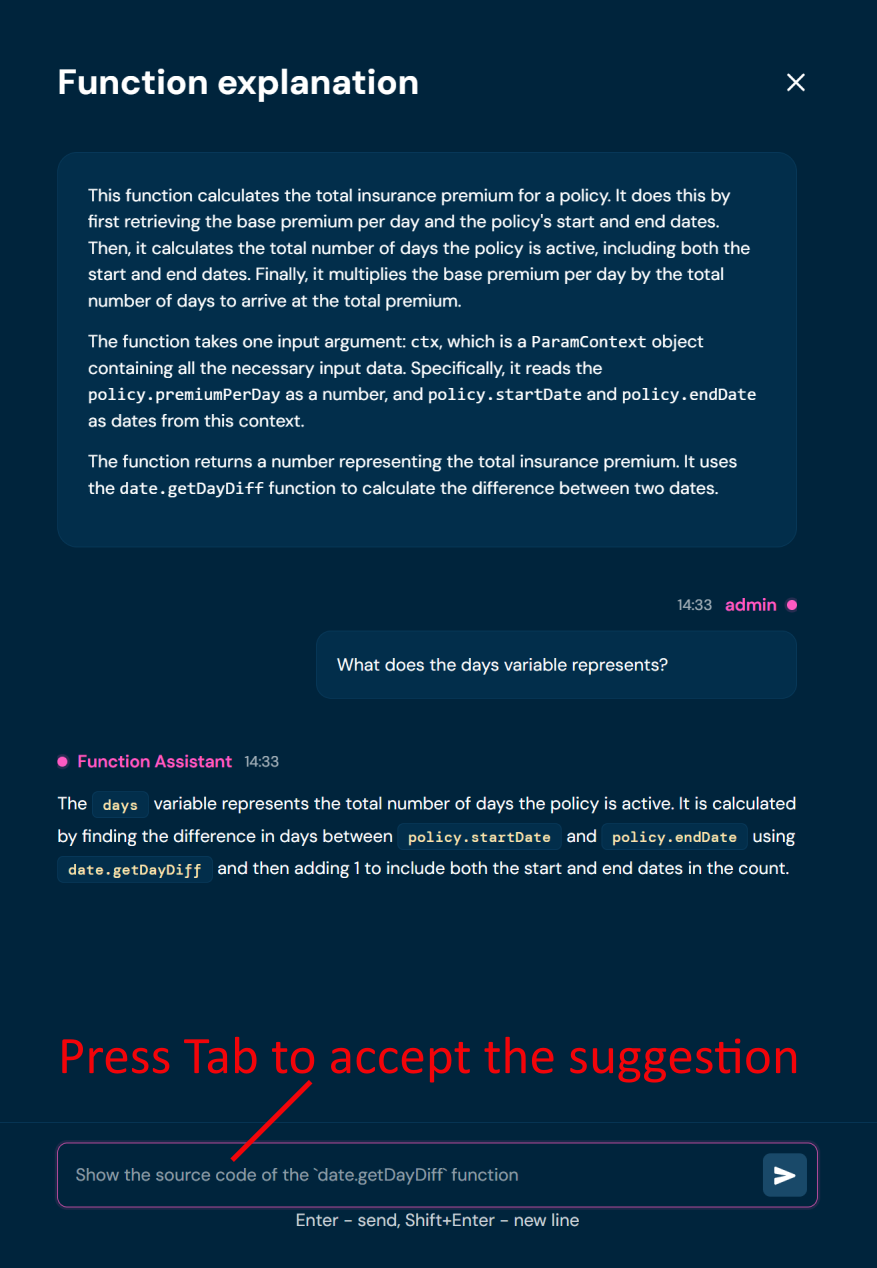
To continue the conversation:
- Type your question in the message field at the bottom of the dialog and press Enter to send it, or click the Send button. Use Shift+Enter to add a line break without sending.
- The Function Assistant replies below your message, using the function body and arguments as context.
- Press Tab in the message field to accept the next suggested prompt.
Generate Function#
Generate function allows you to describe the desired behavior in natural language and receive a generated Groovy function body.
To use Generate function:
- Open any function from the Functions list.
- In the actions bar, click AI.
- Select Generate function from the dropdown.
- In the Describe the function dialog, enter a description of what the function should do in the Description field (required).
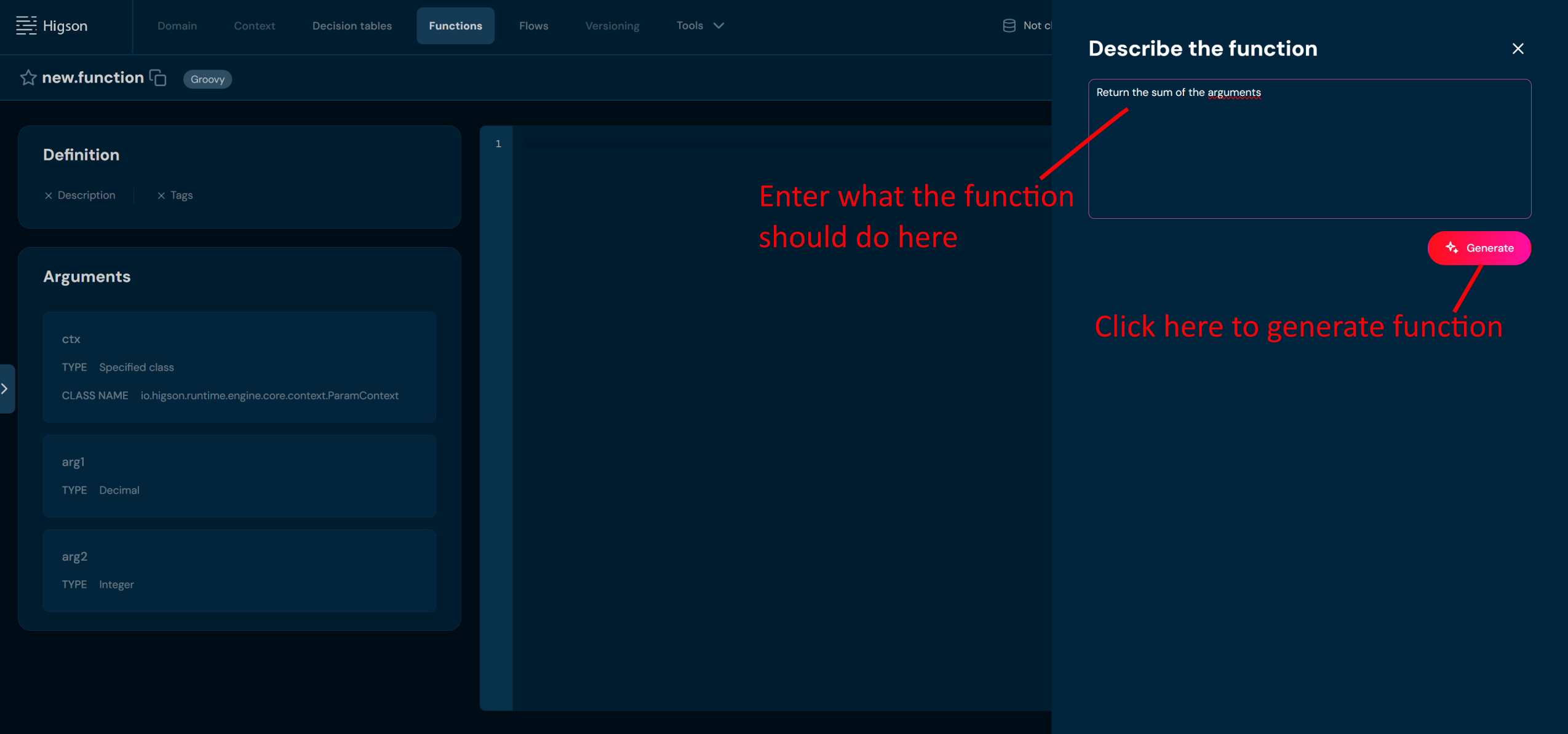
- Click Generate.
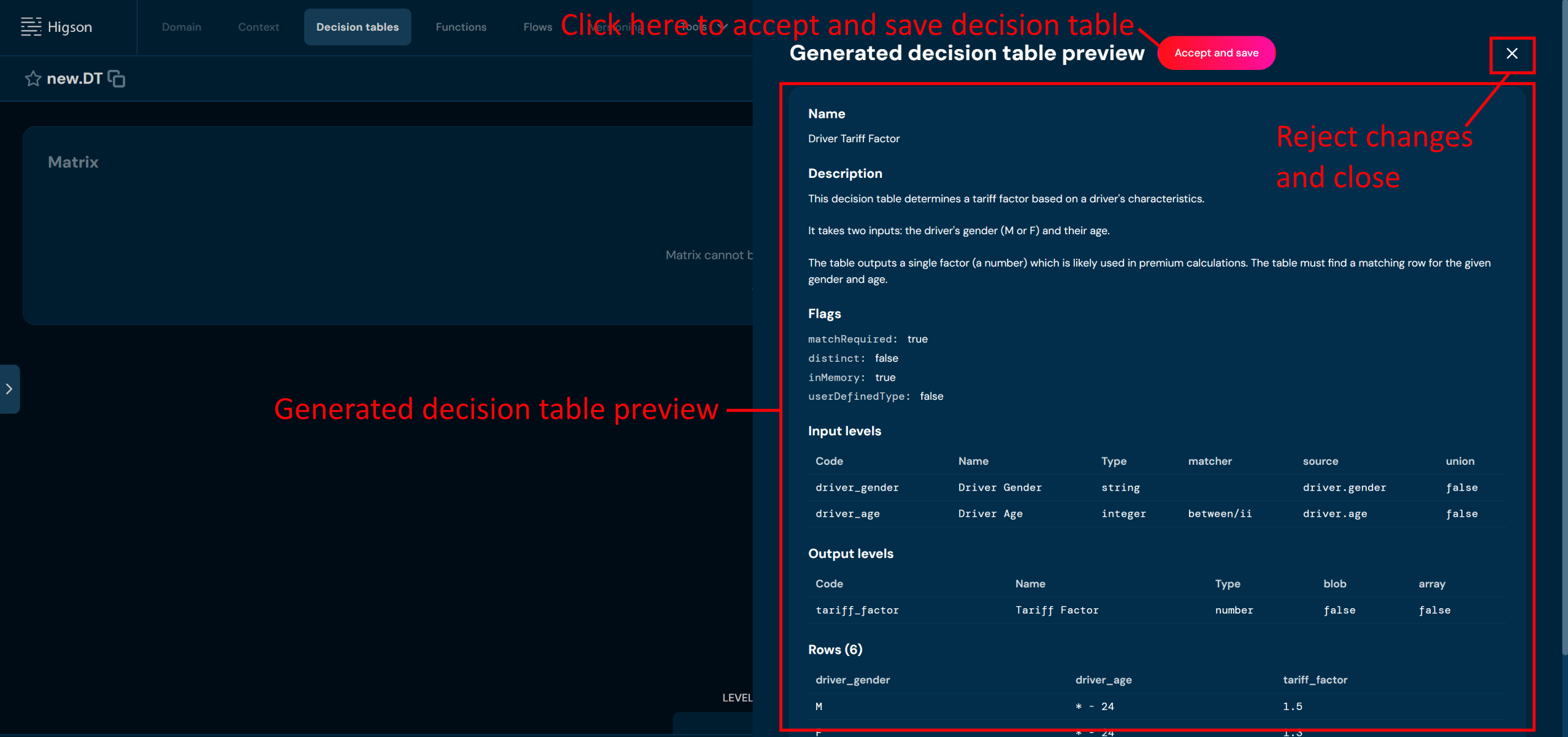
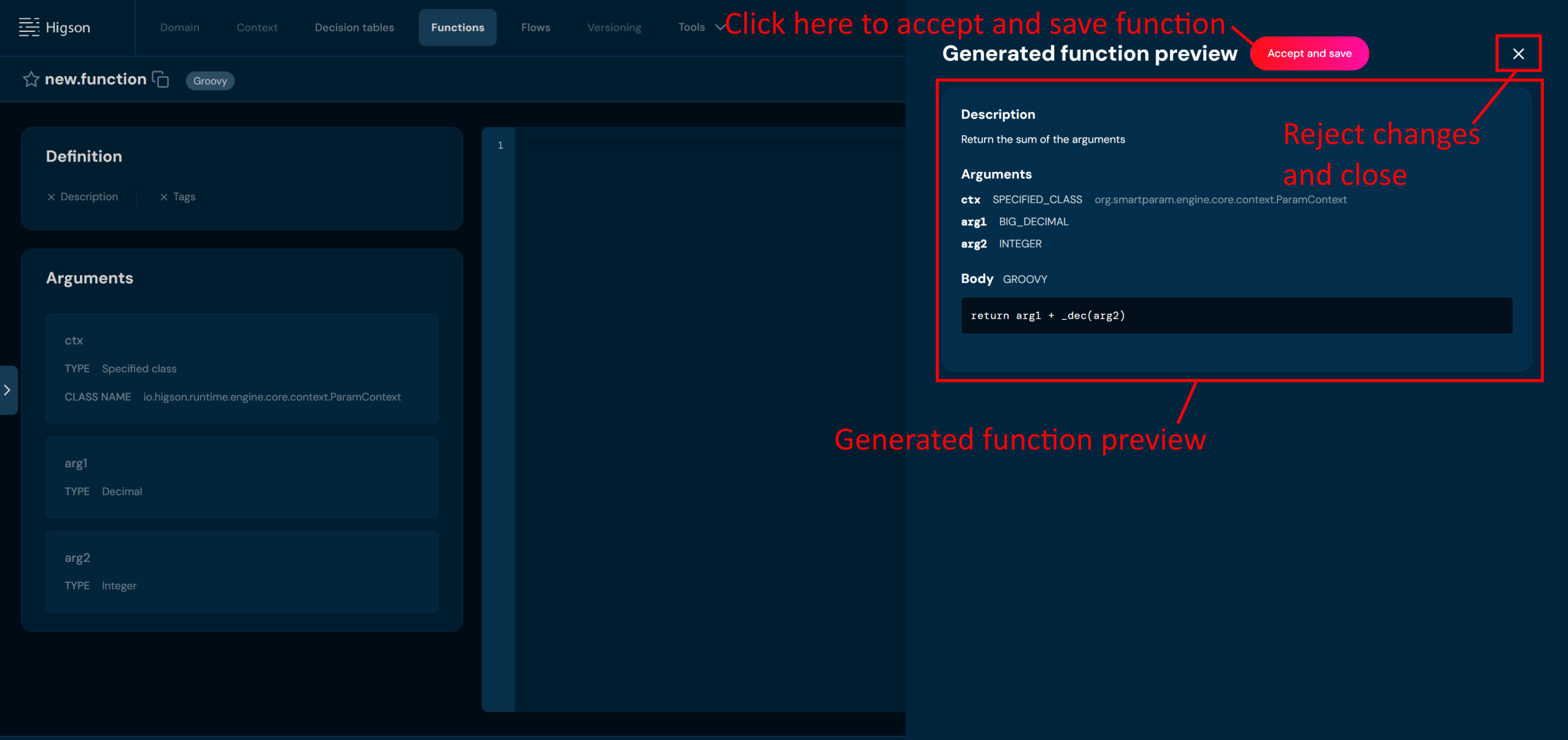
The AI generates a Groovy function body based on your description. The result is placed in the function body editor, where it can be reviewed before saving. You can discard the changes by closing the window.
AI Features in Decision Tables#
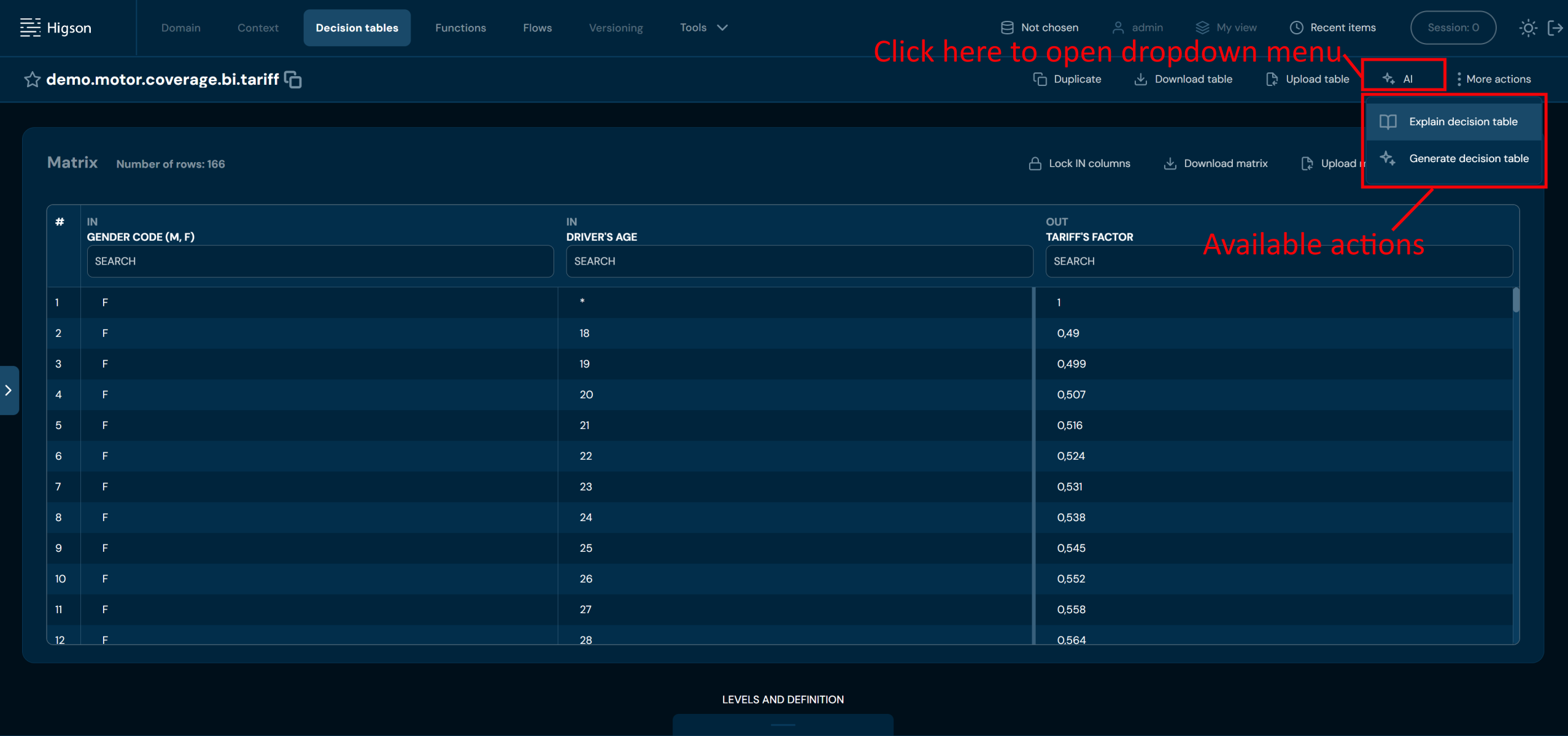
On the Decision table details screen, the AI button (✦ AI) is available in the actions bar. Clicking it opens a dropdown menu with two AI actions.
Explain Decision Table#
Explain decision table generates a plain-language description of the selected decision table — its inputs, outputs, and the logic it encodes.
To use Explain decision table:
- Open any decision table from the Decision tables list.
- In the actions bar, click AI.
- Select Explain decision table from the dropdown.
- The Decision table explanation dialog appears with the AI-generated description.
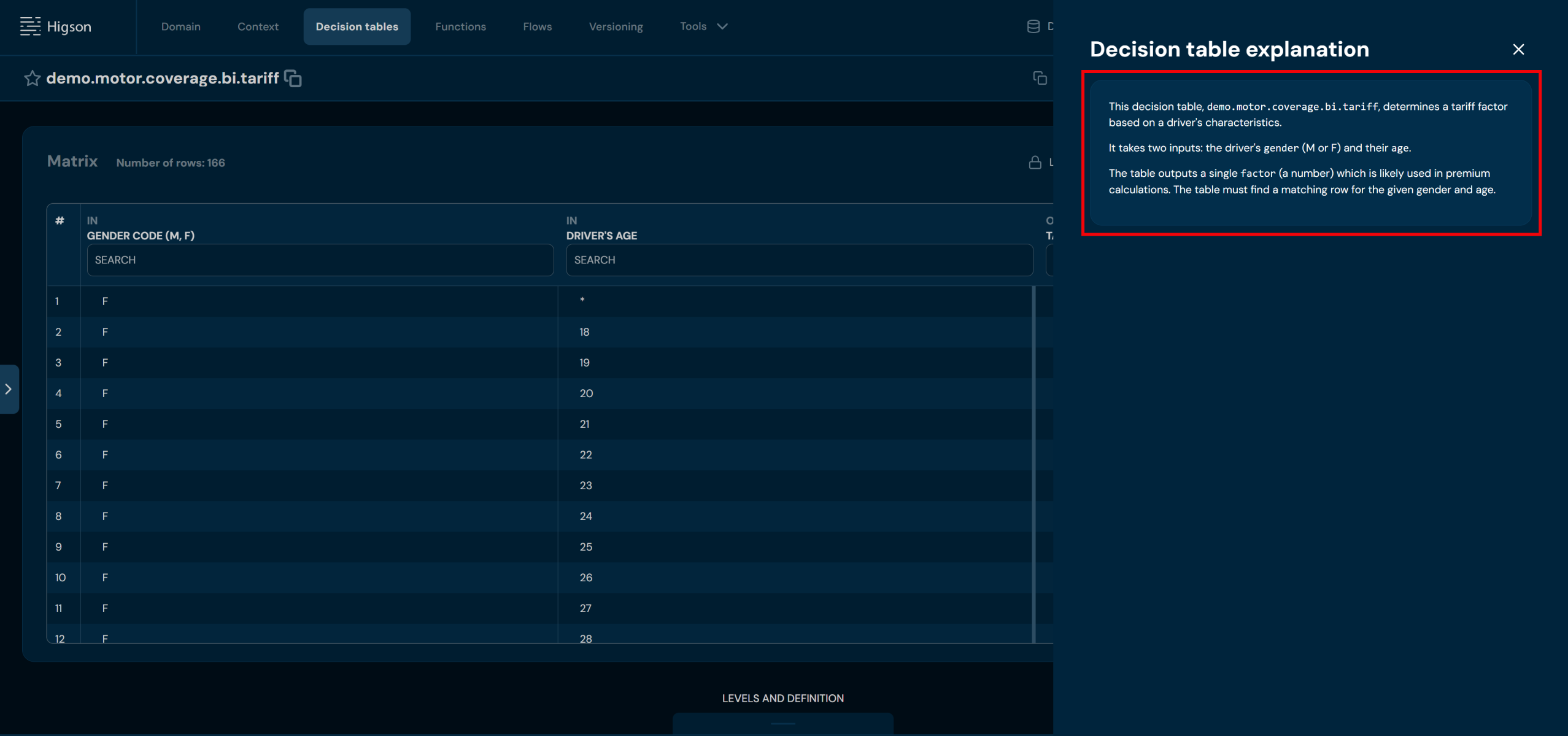
The explanation covers the table’s purpose and the meaning of each IN and OUT column.
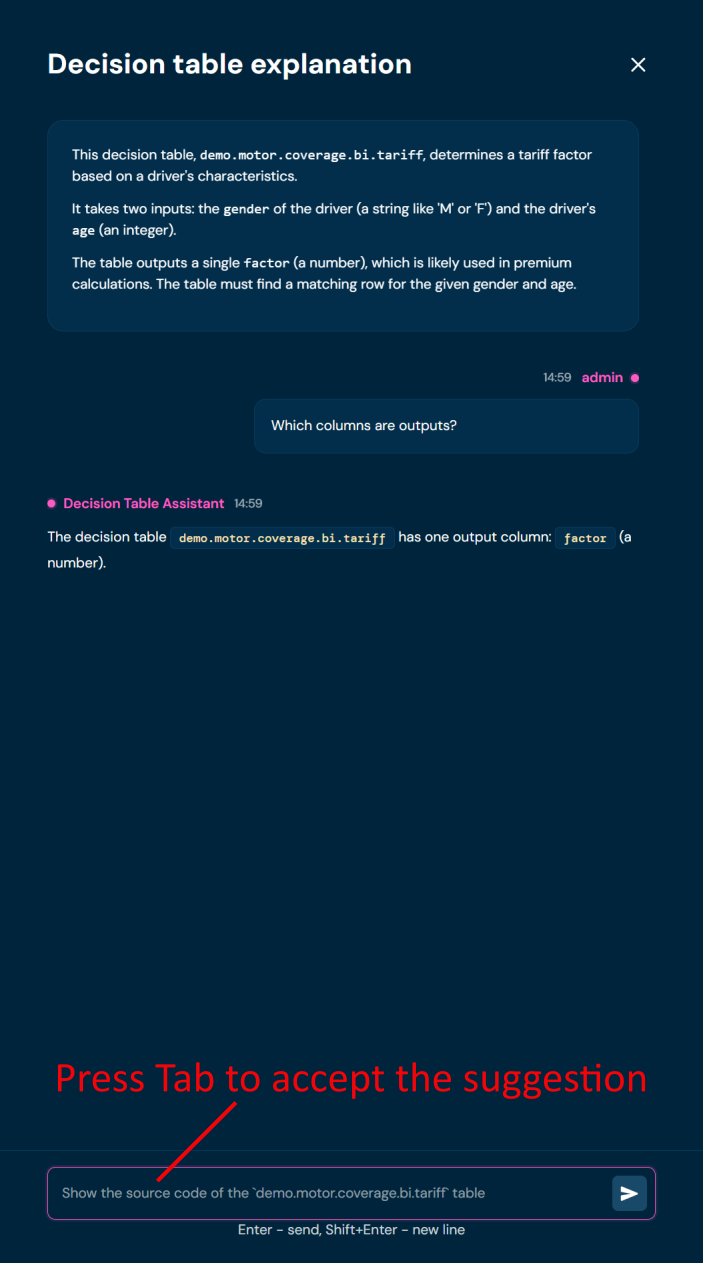
To continue the conversation:
- Type your question in the message field at the bottom of the dialog and press Enter to send it, or click the Send button. Use Shift+Enter to add a line break without sending.
- The Decision Table Assistant replies below your message, using the table’s levels and matrix as context.
- Press Tab in the message field to accept the next suggested prompt.
Generate Decision Table#
Generate decision table allows you to describe the desired decision logic in natural language and receive a generated table — including the column definition and matrix rows.
To use Generate decision table:
- Open any decision table from the Decision tables list.
- In the actions bar, click AI.
- Select Generate decision table from the dropdown.
- In the Describe the decision table dialog, enter a description of the business logic the table should implement in the Description field (required).
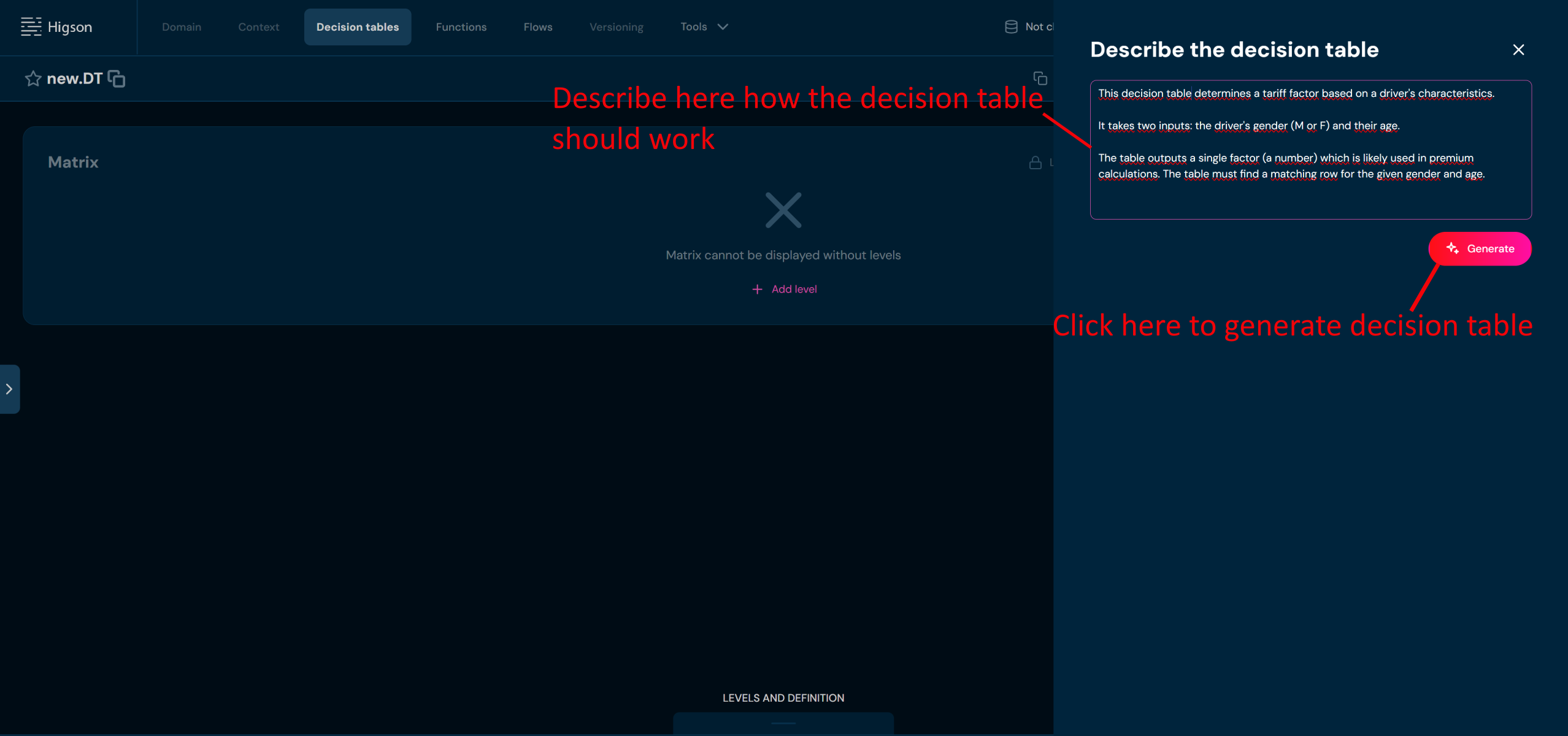
- Click Generate.
The AI generates the table structure and fills in the matrix rows based on your description. The result is displayed for review before saving. You can discard the changes by closing the window.