Higson Runtime REST is a web application that provides REST API for decision table/function/domain access. It is a REST implementation of Java’s Higson Runtime jar. It is available in two forms:
- Spring boot’s executable jar, available here: https://www.higson.io/docs/d-success
- Docker image, available here: https://hub.docker.com/repository/docker/decerto/higson-runtime-rest
Environment#
Higson Runtime REST is a Java application and can run with any Java 8 or higher on Windows, MacOS X and Linux/Unix.
CLI#
To run Runtime-Rest from cli you must pass four properties:
- loader.path - path to jdbc driver
- higson.database.url
- higson.database.username
- higson.database.password
Download latest version of higson runtime rest and database driver (postgresql for example)
|
|
Docker#
To run Higson Runtime REST as a docker image, there is need to build a separate docker image based on decerto/higson-runtime-rest image, add your database driver jar and run Higson Runtime REST jar with additional path.
Example:
|
|
Additionally, you need to pass 3 properties:
- higson.database.url
- higson.database.username
- higson.database.password
An invocation example:
|
|
Using Higson Runtime REST#
This short tutorial will guide you through the process of running Higson Runtime REST as a docker image and invoking decision table/function/domain element.
Prerequisites#
In order to run examples from this article you will need:
- running docker. See https://docs.docker.com/installation/#installation for details on setting Docker up for your machine.
- a favorite REST API Client to send requests such as Postman
- a favorite internet browser
Setting Up Docker Images#
The tutorial will be based on our motor insurance. It consists of the insurance web application, Higson Studio, and Higson Runtime REST modules. There is a docker-compose.yml file that makes the whole application easy to run. Just download a project from GitHub, open terminal in that directory, and run the following command:
|
|
If you look closely inside the docker-compose.yml file, you will see that Higson Runtime REST docker image needs three additional properties to be passed to run properly:
- higson.database.url : JDBC url to Higson’s database
- higson.database.username : Higson’s database username
- higson.database.password : Higson’s database password
If you want to connect to other database types such as Oracle, Postgres, MsSQL or MySQL, then you must build your own docker image and provide your database driver. Here’s a Docker file example that copies custom database driver and runs Runtime REST application:
|
|
- Demo app should be available at
localhost:48080/demo - Higson Studio should be available at
localhost:38080/higson/app - Higson Runtime REST should be available at
localhost:8081
To access higson services use followed credentials: User: admin Password: admin
Getting Decision Table Value#
In this example we will use the demo.motor.coverage.position decision table. It maps an insurance coverage code (input coverage.code, type string) to its ordinal position (output, type integer). With matchRequired set to true, a coverage code that is not defined in the table raises an error.
The table matrix is as follows:
┌───────────┬────────────────┐
│ code (IN) │ position (OUT) │
├───────────┼────────────────┤
│ BI        │       1        │
│ PD        │       2        │
│ MED       │       3        │
│ PIP       │       4        │
│ UMBI      │       5        │
│ UMPD      │       6        │
│ COMP      │       7        │
│ COLL      │       8        │
│ ERS       │       9        │
└───────────┴────────────────┘
Let’s get the value of a demo.motor.coverage.position decision table for the BI coverage code. Here’s the request we’re going to use:
|
|
It consists of 2 main parts: ctx and elements. The former represents the input values we want to pass to Higson. We can pass there simple as well as complex objects. The latter is a list of Higson elements to invoke.
When we send this request to the localhost:8081/api/execution/invoke url, we should receive the following response:
|
|
We receive a list of executed Higson elements with corresponding values.
Let’s see how the response will look like if more than one row will be returned from the decision table. In this example, we are going to use the demo.motor.dict.vehicle.available decision table. Here’s the request:
|
|
Besides a new decision table (parameter) code and context property, you can see how to invoke more than one Higson element in a single JSON request. Let’s see the response:
|
|
As we see, each element has its own JSON section in returned array. What’s more, each row in the decision table’s matrix corresponds to one complex element in the resultValue array.
Calling Function#
Let’s get the computed value of the demo.insurance.calc.premium function. Here’s the request we’re going to use:
|
|
It’s basically the same request as the one used in the decision tables section. However, we pass here three context key-value pairs instead of one. Here’s the response we should get by calling the localhost:8081/api/execution/invoke endpoint:
|
|
Again, the same response format as in the decision table’s.
Accessing Domain Attributes#
Last but not least, let’s see how to access domain attributes through invoke API. We’ll be using examples from this article. Let’s see how to evaluate a position attribute of a coverage BI domain element:
|
|
The main difference between domain element and decision table/function is the presence of 2 additional attributes: profileCode and attributeCode, which names are self-describing. Let’s look at the response:
|
|
As we see, the response format is the same as in the decision table/function section.
If you want to learn more or discover other available endpoints, there is a Runtime REST swagger online documentation available at: http://localhost:8081/swagger-ui/index.html.
Accessing Swagger UI#
The Swagger UI is served from the root of the Runtime REST application. The URL components are determined as follows:
- host: localhost (or the container’s IP address if accessed externally)
- port: the
server.portproperty (default8081), or the host port mapped to it in Docker - context-path: the
server.servlet.context-pathproperty, empty by default (Docker image and standalone jar). When Runtime REST is deployed as a WAR, it is the context of that application in the servlet container.
The resulting address format is:
http://[host]:[port]/[context-path]/swagger-ui/index.html
The OpenAPI definition used by the Swagger UI is available at [context-path]/api/v3/api-docs. Both paths are accessible without authentication. Calling the endpoints from the Swagger UI requires credentials for the configured security type (e.g. a JWT token for jwt).
Docker-based deployments#
With the default Docker image the context-path is empty and Runtime REST listens on the host port mapped to 8081 (for example 18081):
http://localhost:18081/swagger-ui/index.html
The Higson Studio Swagger UI is served from a separate application, typically at:
http://localhost:38080/higson/api/swagger-ui/index.html
Bundle installations#
When Runtime REST is deployed as a WAR in the bundle’s servlet container, the context-path is the application context (for example higson/rest) and the port is taken from the conf/server.xml connector:
<Connector port="38080" protocol="HTTP/1.1" ... />
This translates to:
http://localhost:38080/higson/rest/swagger-ui/index.html
The Higson Studio Swagger UI is deployed under the higson/api context in the same servlet container:
http://localhost:38080/higson/api/swagger-ui/index.html
Generating Runtime REST JSON from Tester#
To generate a request to Runtime Rest, navigate to Tools -> Tester. Click “Add Test”, then add the elements for which you want to generate an example request. In the example below, the following elements have been selected:
- Decision Table,
- Function,
- Domain Element,
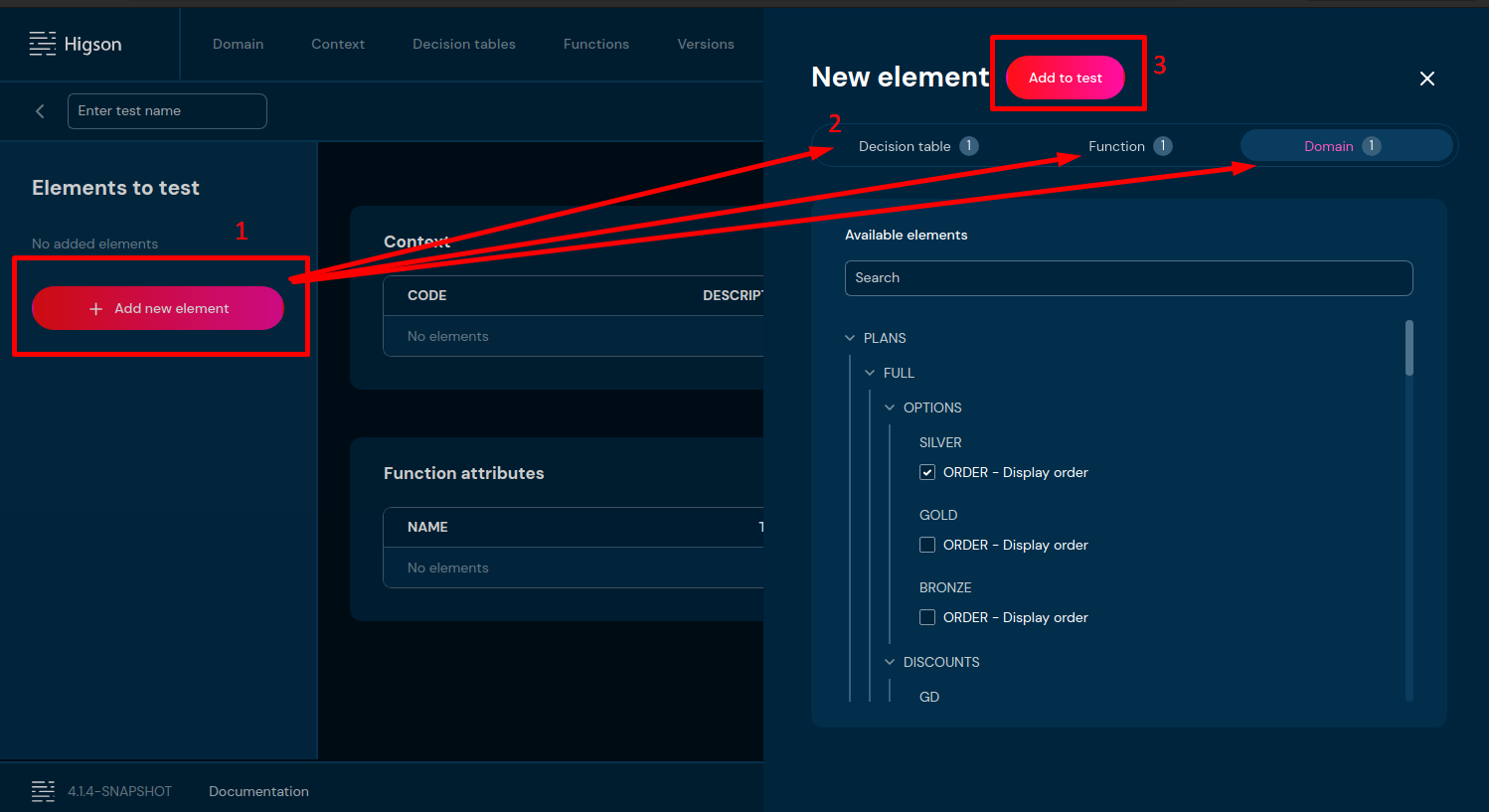
- Click “Add element” on the left side.
- Select the elements for which you want to generate an example request.
- Add the selected elements to the test.
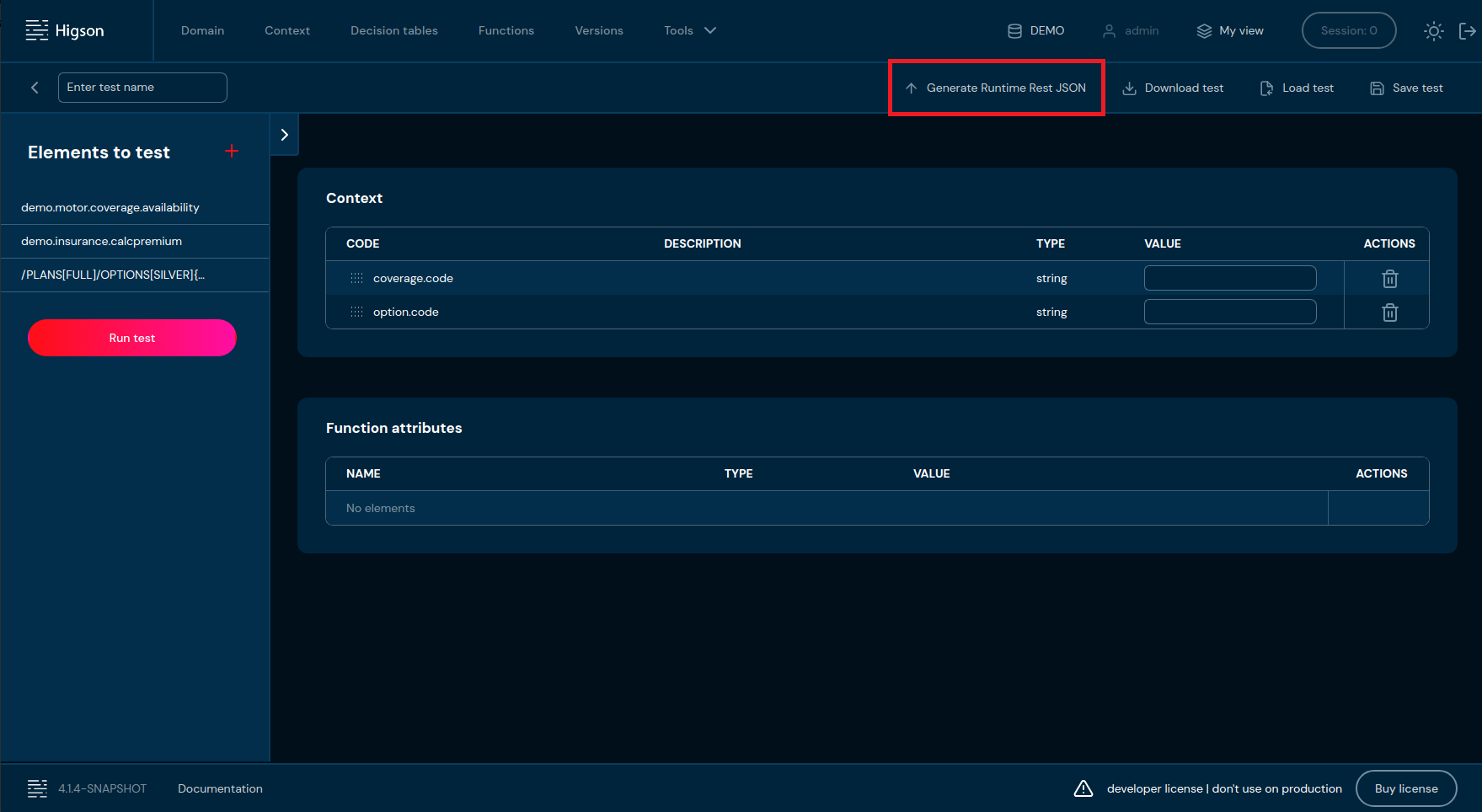
Now you can click the “Generate Runtime Rest JSON” button, which will generate an example request without context values.
|
|
If you need to generate an example request with context values, you must first run the test by clicking “Run Test” button. This will populate the Context table with all available context values.
Next, fill in the desired context values and click “Run Test” again.
Then click “Generate Runtime Rest JSON”.
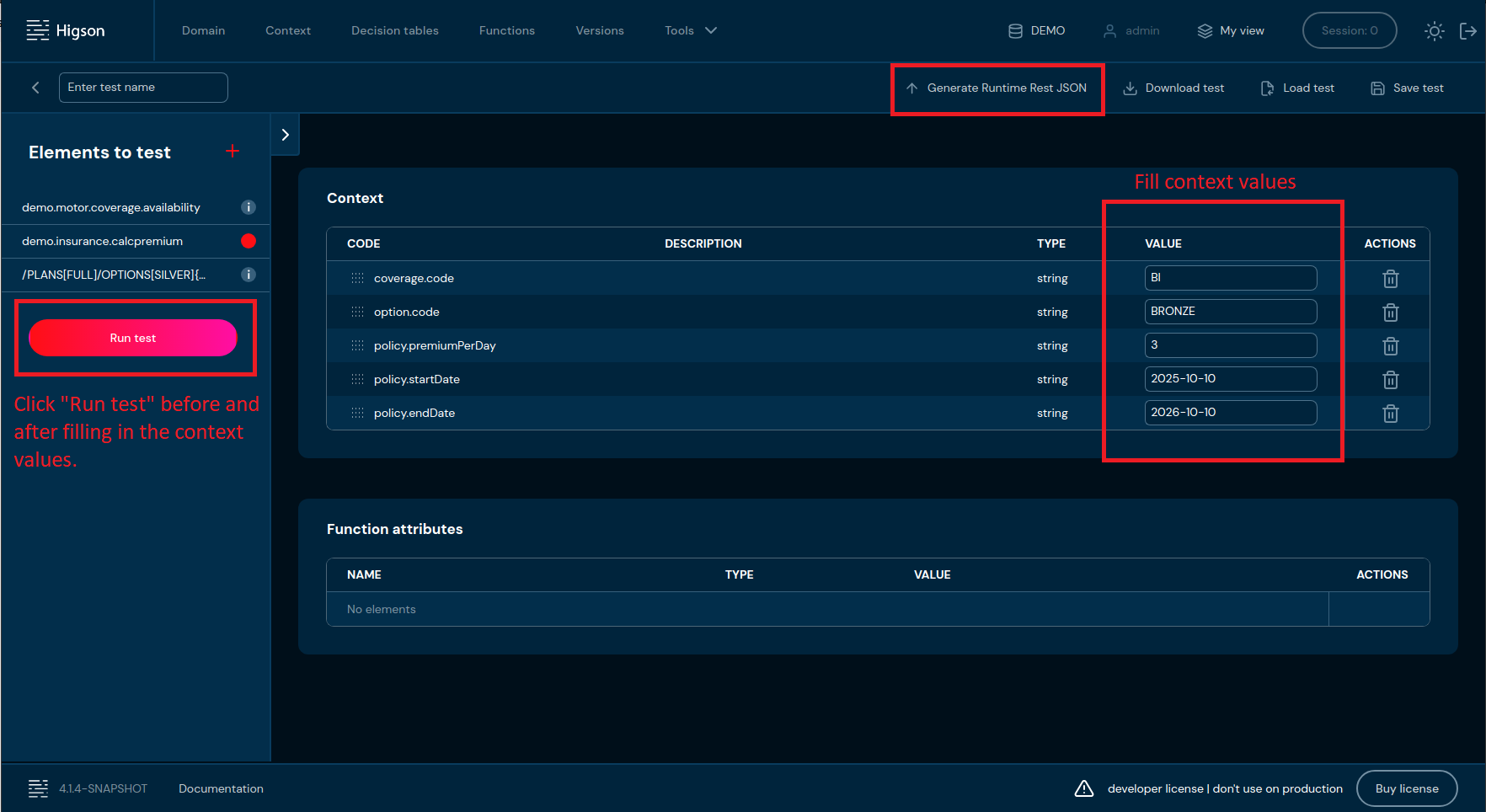
Now the generated example request will include the values from the context.
|
|