A snapshot is a ZIP file containing the configuration of business logic in Higson Studio. It can include the entire configuration or only selected parts. Its primary purpose is to facilitate the transfer of changes between environments — users can export a snapshot from one environment and import it into another. This makes data migration simple and eliminates the need for administrator intervention, database restores, system downtimes, or other complex operations. The download and upload of ZIP files are performed directly through the Higson Studio GUI.
Snapshot Structure
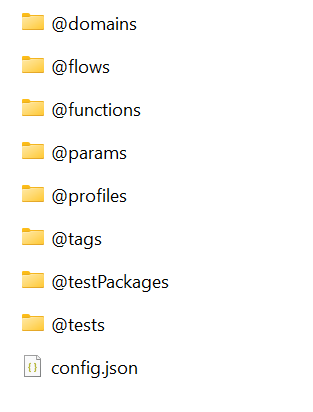
The folders within a snapshot correspond to the main modules of Higson Studio. A full snapshot contains:
- Domain
- Functions
- Decision Tables (params)
- Flows
- Profiles
- Tags
- Tests
- Test Packages
Additionally, snapshot includes a configuration file in JSON format.
Snapshot Content Control
Users have full control over what data is included in a snapshot. The built-in interface allows filtering of the content during both export and import. During export, selections can be made at two levels:
- General – Users choose which modules to include in the snapshot (domain, profiles - including context, decision tables, functions, tags).
- Detailed – Additional filters can be applied to decision tables and functions.
During import, users maintain full control over which elements are loaded into the environment. After a snapshot is imported, the system generates an import report, and the changes are placed in a session. Only when the session is published do the changes take effect in the environment, allowing users to either approve or discard them.
Snapshot Download#
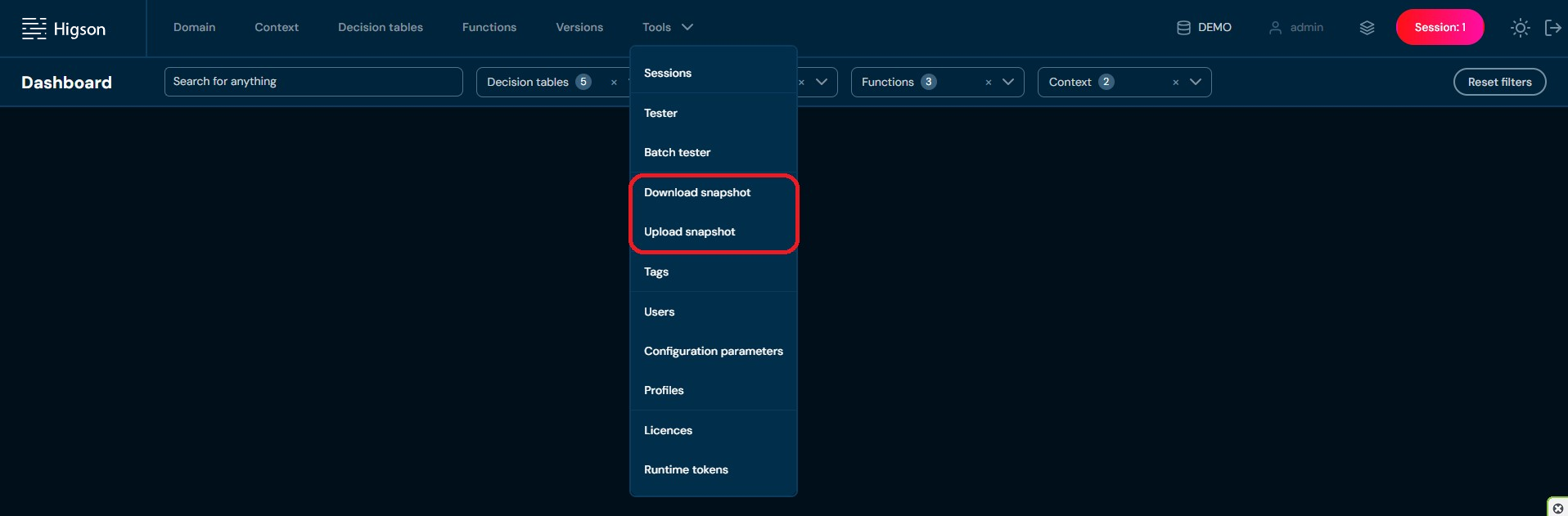
To see the Download snapshot view select Download snapshot in Tools from Main Toolbar:
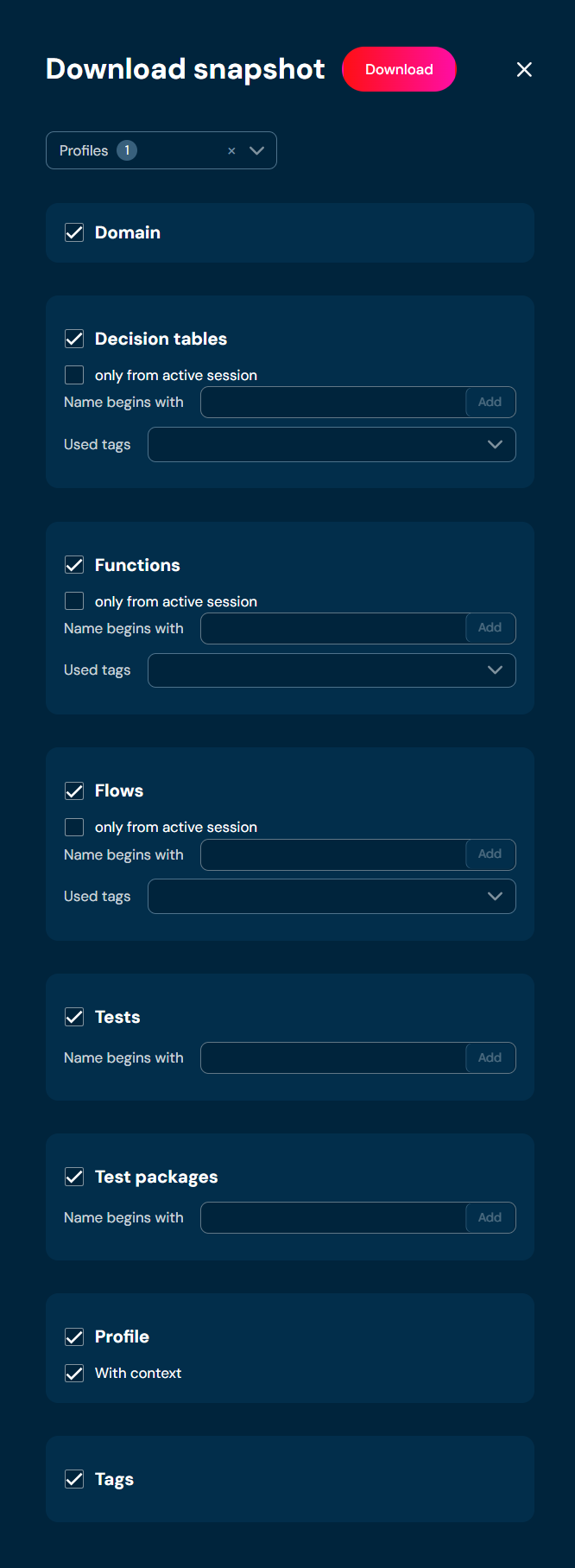
After that, you will see a screen allowing you to choose the elements that you want to be in a snapshot:
-
Profiles
-
Domain
-
Decision tables
-
Functions
-
Flows
-
Tests
-
Test packages
-
Profile
-
Tags
-
Choosing the Profiles:
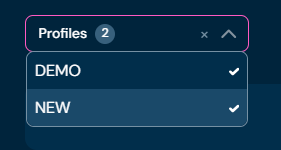
The snapshot download will contain functions, decision tables and flows, which are versioned inside the selected profiles. You can choose one or more profiles. In this case, the snapshot download will contain functions, decision tables and flows from two selected profiles:
-
Choosing the Domain:

When you choose Domain snapshot download will contain the domain with published changes and the current user’s session changes by default.
-
Choosing Decision tables:
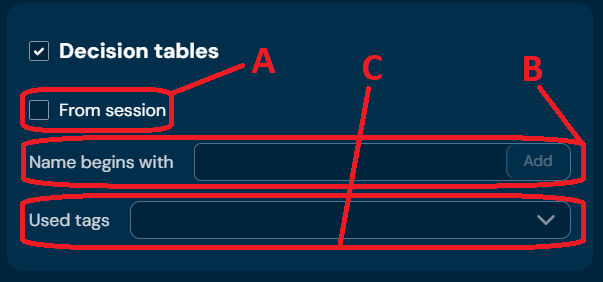
When you choose Decision tables snapshot download will contain decision tables:
a) which will be from the current session if marked (A)
b) which will be filtered by name if filled and added in (B)
c) which will be marked by a specific tag if selected in (C)
-
Choosing Functions:
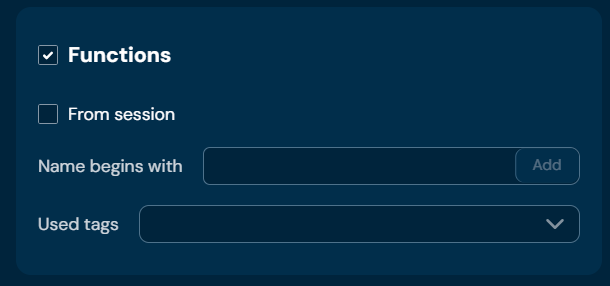
When you choose Functions snapshot download will contain functions - filtered the same way as Decision Tables.
-
Choosing Flows:
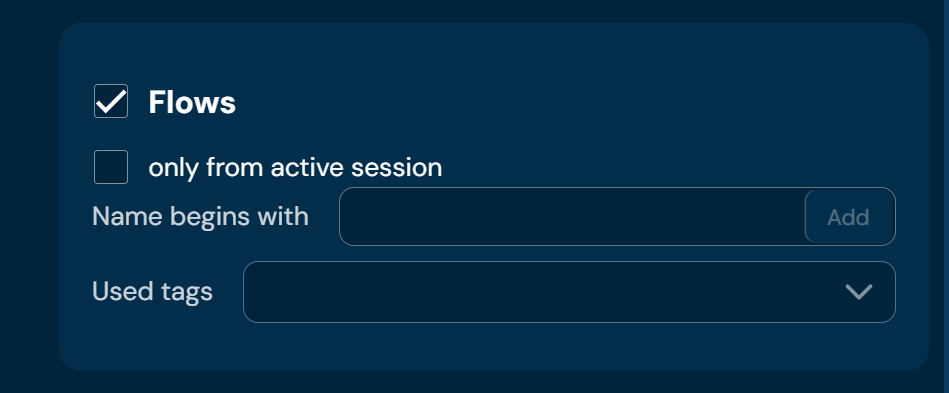
When you choose Flows snapshot download will contain flows - filtered the same way as Decision Tables.
-
Choosing Tests:
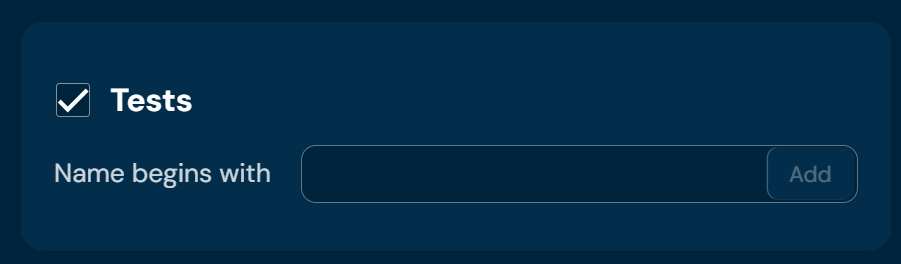
When you choose Tests snapshot download will contain Tests. Tests may be filtered by name.
-
Choosing Test packages:
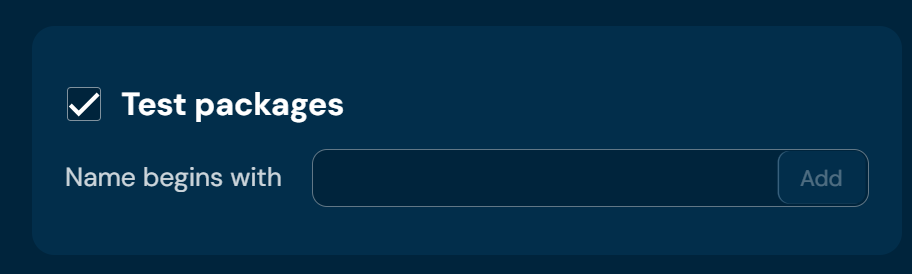
When you choose Test packages snapshot download will contain Test packages. Tests packages may be filtered by name.
-
Choosing Profile:
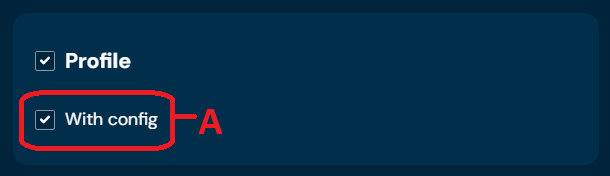
If you choose Profile, the snapshot download will contain the configuration of the profile.
The data contained in the snapshot may contain elements also from the context (A). Context definition can only be downloaded together with the profile definition. If you do not mark the checkbox Profile, the snapshot download will contain only functions, decision tables, and tags.
-
Choosing Tags:
When you choose Tags snapshot download will contain tags.
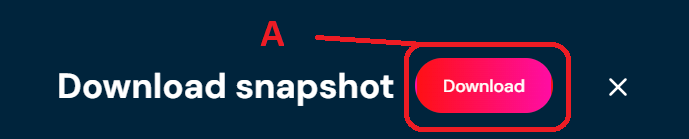
Finally, after applying configuration to snapshot download - to download the snapshot, you need to click the Download button (A):
Snapshot Upload#
In order to see Upload snapshot view select Upload snapshot in Tools from Main Toolbar:
Then Upload snapshot view will appear:
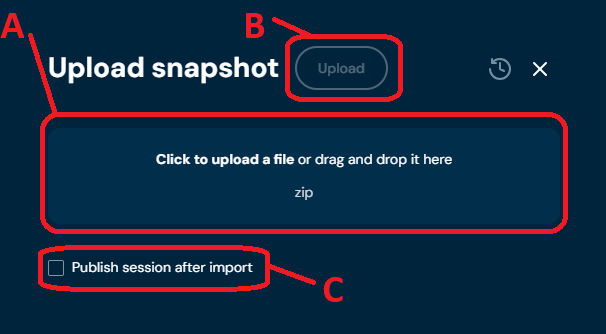
When you choose a file in (A) and click the Upload button (B), the upload will take place. When you choose the upload option (C) all changes from the snapshot will be published right away.
When the snapshot file is selected additional upload options will appear:
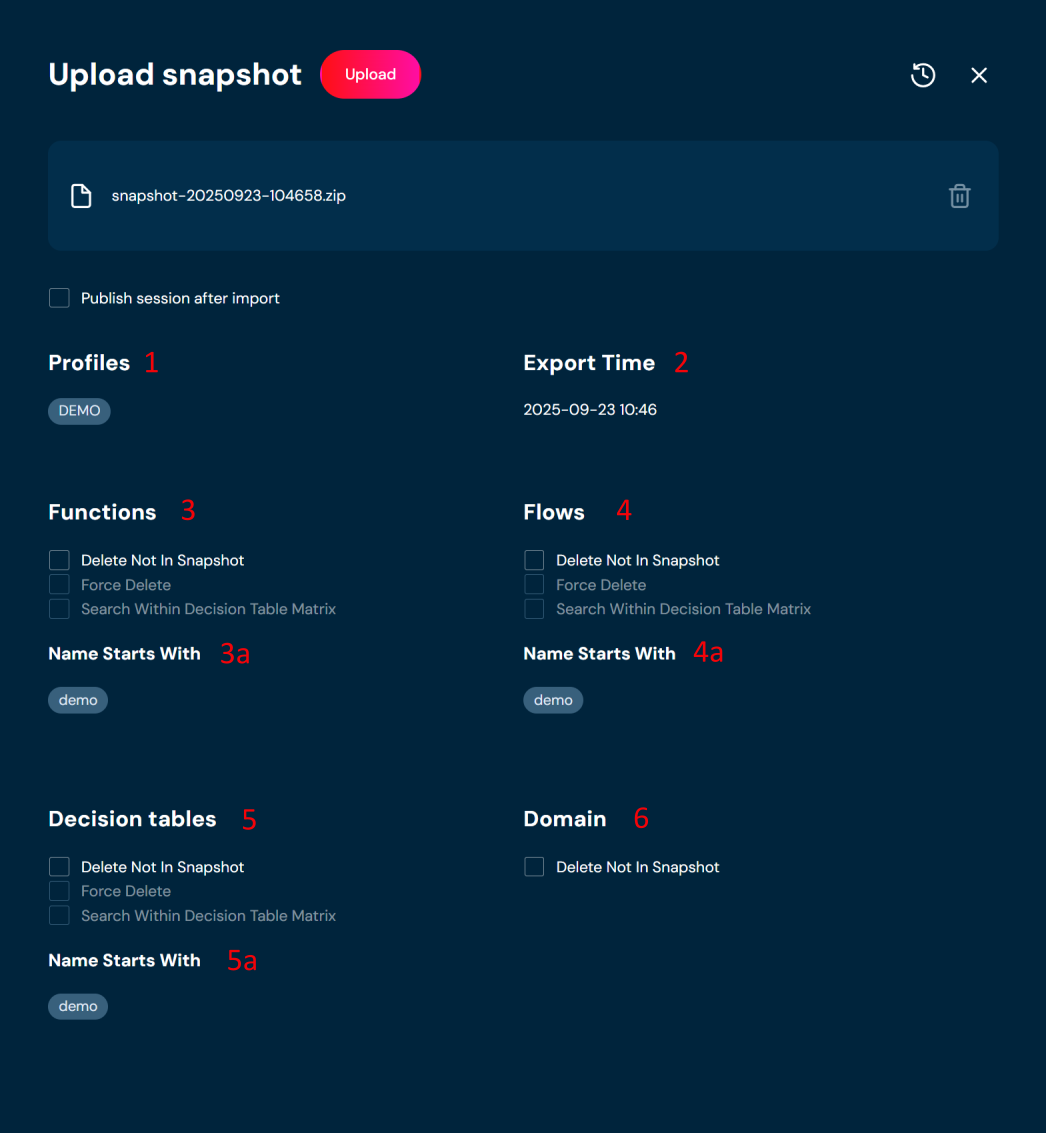
| No. | Item | Description |
|---|---|---|
| 1 | Profiles | List of profiles included in the snapshot. |
| 2 | Export time | Export time of the snapshot |
| 3 | Functions | Options available for functions during snapshot import. You will find details below. |
| 3a | Function filters | List of filters used for functions during snapshot export – the same criteria will also apply during the import. You will find details below. |
| 4 | Flows | Options available for flows during snapshot import. You will find details below. |
| 4a | Flows filters | List of filters used for flows during snapshot export – the same criteria will also apply during the import. You will find details below. |
| 5 | Decision tables | Options available for decision tables during snapshot import. You will find details below. |
| 5a | Decision tables filters | List of filters used for decision tables during snapshot export – the same criteria will also apply during the import. You will find details below. |
| 6 | Domain | Removes domain configuration elements which do not exist in the snapshot. |
Removing not in snapshot
- Remove not in snapshot - removes objects that are on the environment and are not in the snapshot file. During the snapshot upload, the export parameters used during the snapshot creation are taken into account. This means that if filters were applied during the export — such as Name begins with, Used tag, etc. — the same criteria will also apply during the import.
Example:
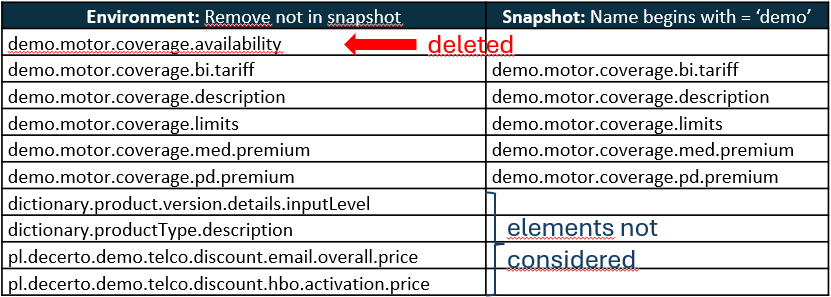
The environment contains 10 decision tables (first column of the table below). We want to import a snapshot that was exported with the filter Name begins with = ‘demo’ (second column of the table below). During the import, we enable the Remove not in snapshot option for decision tables. In this case, only the decision tables whose names start with ‘demo’ will be considered during the import. As a result, if the decision table demo.motor.coverage.availability is not present in the snapshot, it will be removed from the target environment. However, tables with names starting with dictionary or pl will remain in the environment — even if they are not included in the snapshot — because they do not match the Name begins with = ‘demo’ condition.
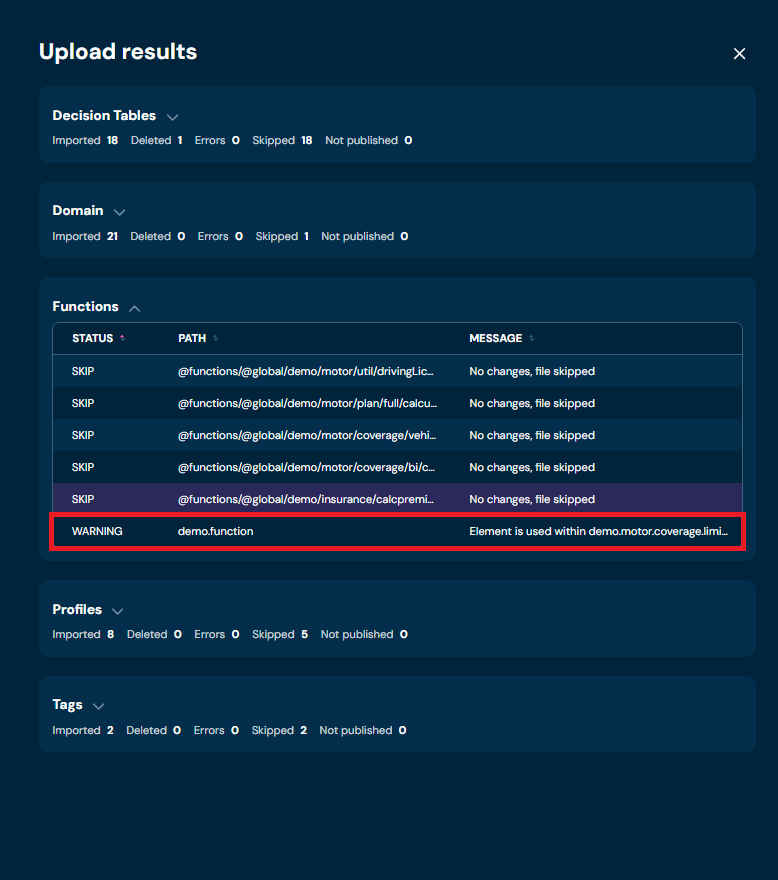
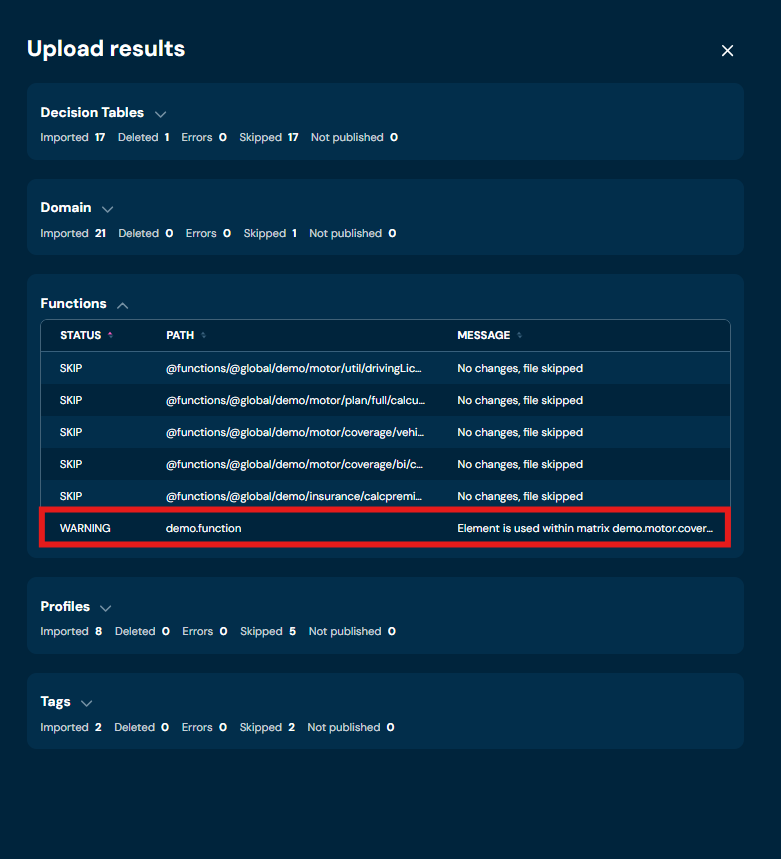
If an element scheduled for deletion is referenced by another component — for example, a function used as the value source in the IN level of a decision table — the element will be retained. A warning indicating the dependency will be logged in the snapshot upload report (see screenshot below). This mechanism is designed to maintain referential integrity within the environment and prevent deletion of in-use objects.
- Force Delete - The force delete flag allows you to force the deletion of items for which, for some reason, this deletion is not recommended. If the element is in use, removing it will cause errors.
- Search Within Parameter Matrix - Selecting this option will ensure that if a decision table or function is not present in the snapshot, not only domain elements and source value of IN levels decision tables will be searched, but also the matrices of the decision tables. This mechanism is designed to maintain referential integrity within the environment and prevent deletion of in-use objects. In the basic version, Higson does not check the matrix for performance reasons. If it finds a conflict it returns a warning (see screenshot below).
After the snapshot uploads, summary results with detailed information will appear in a dropdown list form:
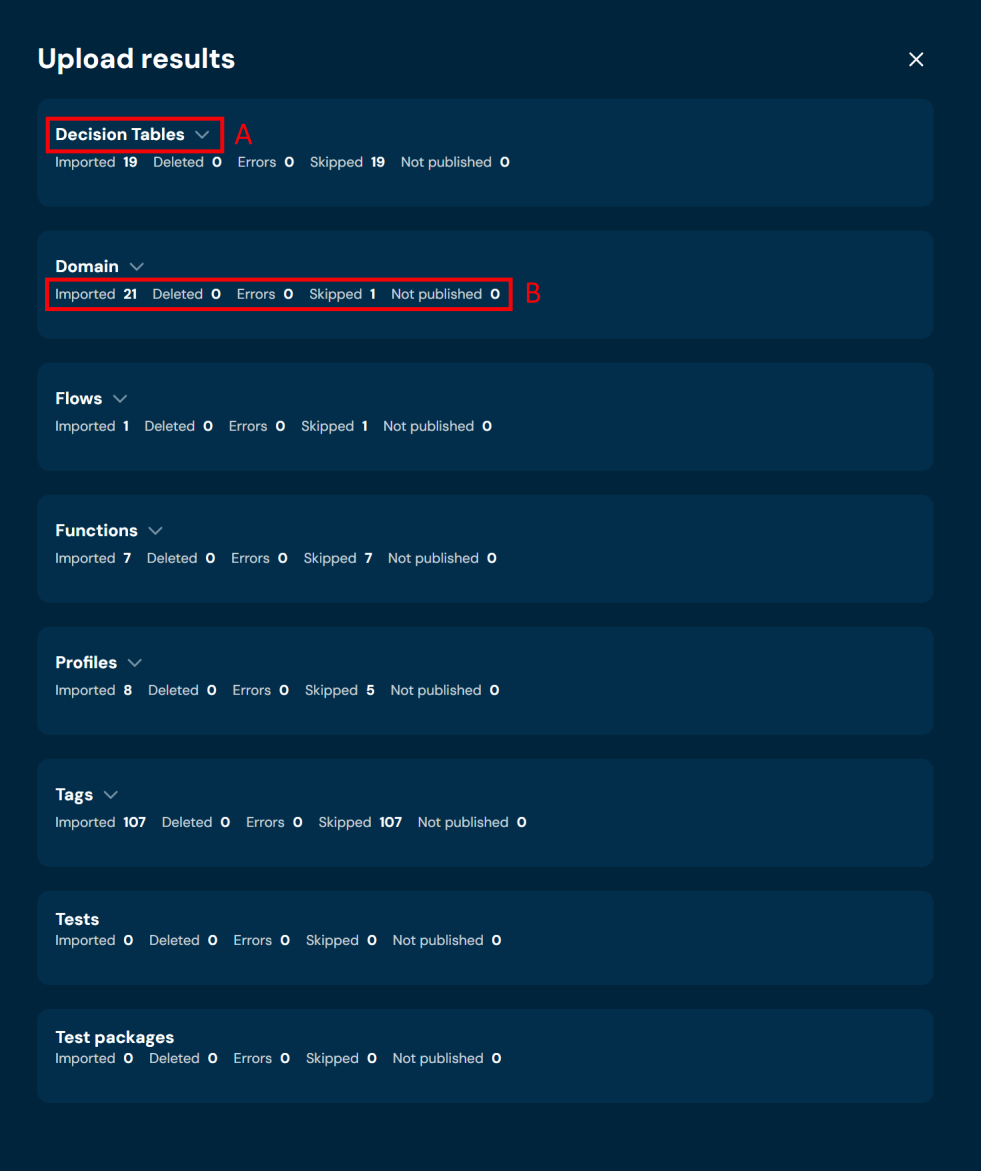
In summary, there is information on how many elements were in status:
| No. | Status | Description |
|---|---|---|
| 1. | Imported | Elements imported |
| 2. | Deleted | Elements deleted |
| 3. | Errors | Elements with errors occurred |
| 4. | Skipped | Elements skipped |
| 5. | Not published | Elements not published |
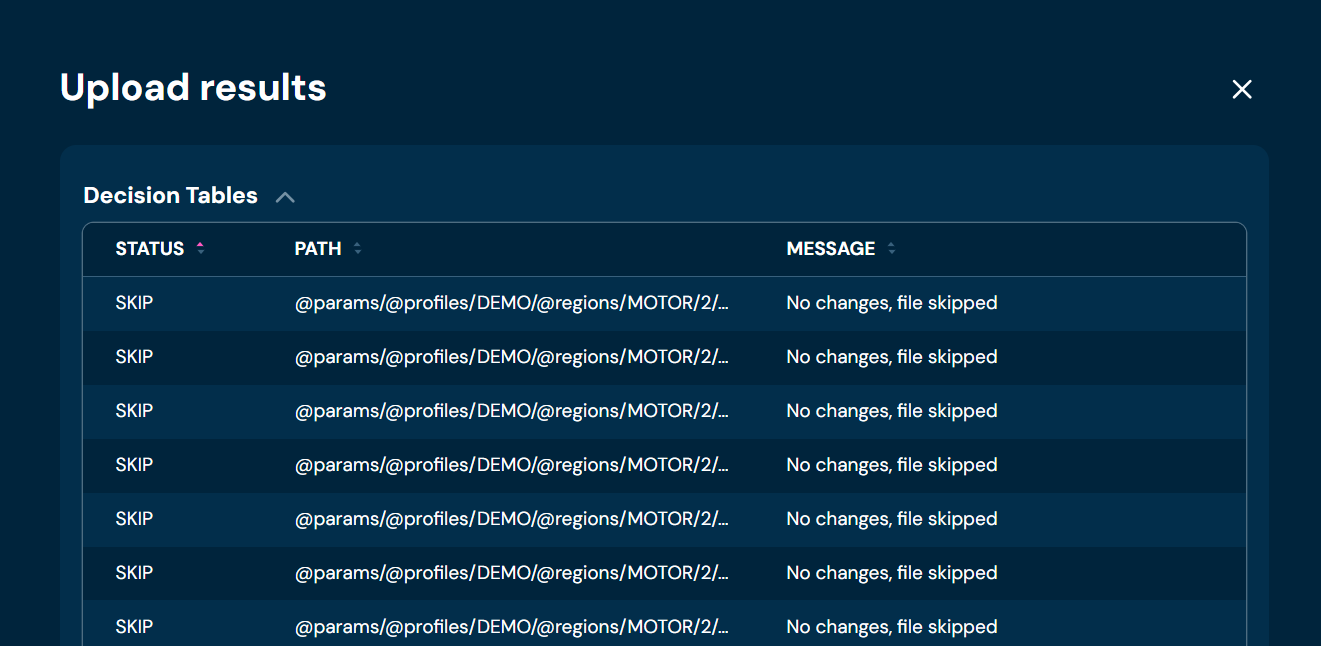
Every status section can be expanded (A) for more detailed information with a description per element, e.g.:
Historical Snapshot Uploads#
There is also a historical Snapshot uploads view available. After clicking on (A) from the Upload snapshot view:
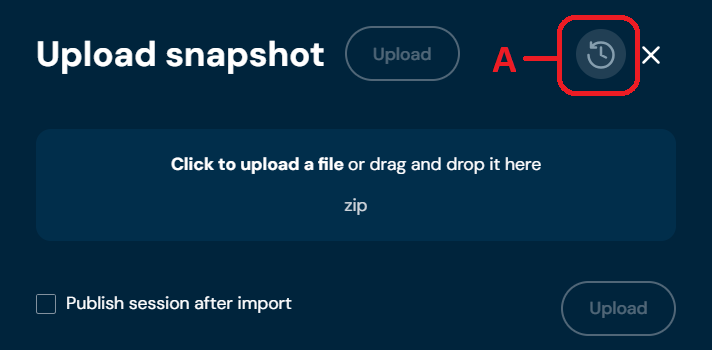
you will see the Snapshot uploads view with historical uploads in the form of a table:
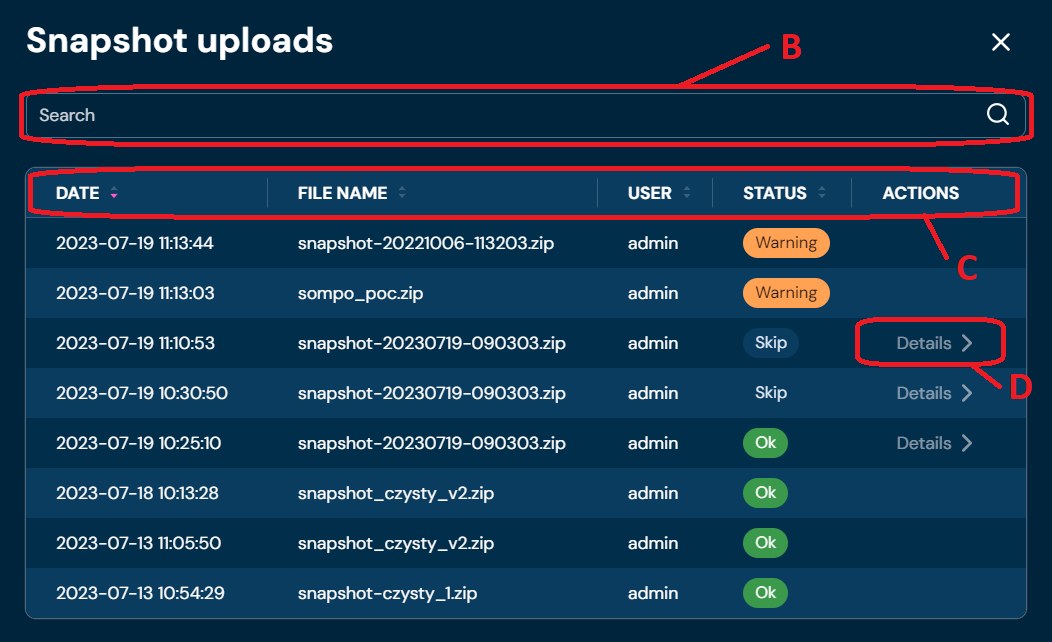
with column names (C):
| No. | Column name | Description |
|---|---|---|
| 1. | Date | Date of snapshot upload |
| 2. | File name | The file name of the file from which the snapshot was uploaded |
| 3. | User | User name which performed snapshot upload |
| 4. | Status | Summary status of snapshot upload: Warning, Skip, Ok, Error |
| 5. | Actions | Contains expandable Details (D) if any message upload exists |
After clicking on (D) you will be redirected to view with detailed information as a dropdown list like in the Upload Snapshot summary view.
Insertable field (B) allows filtering table data by Date and File name column.