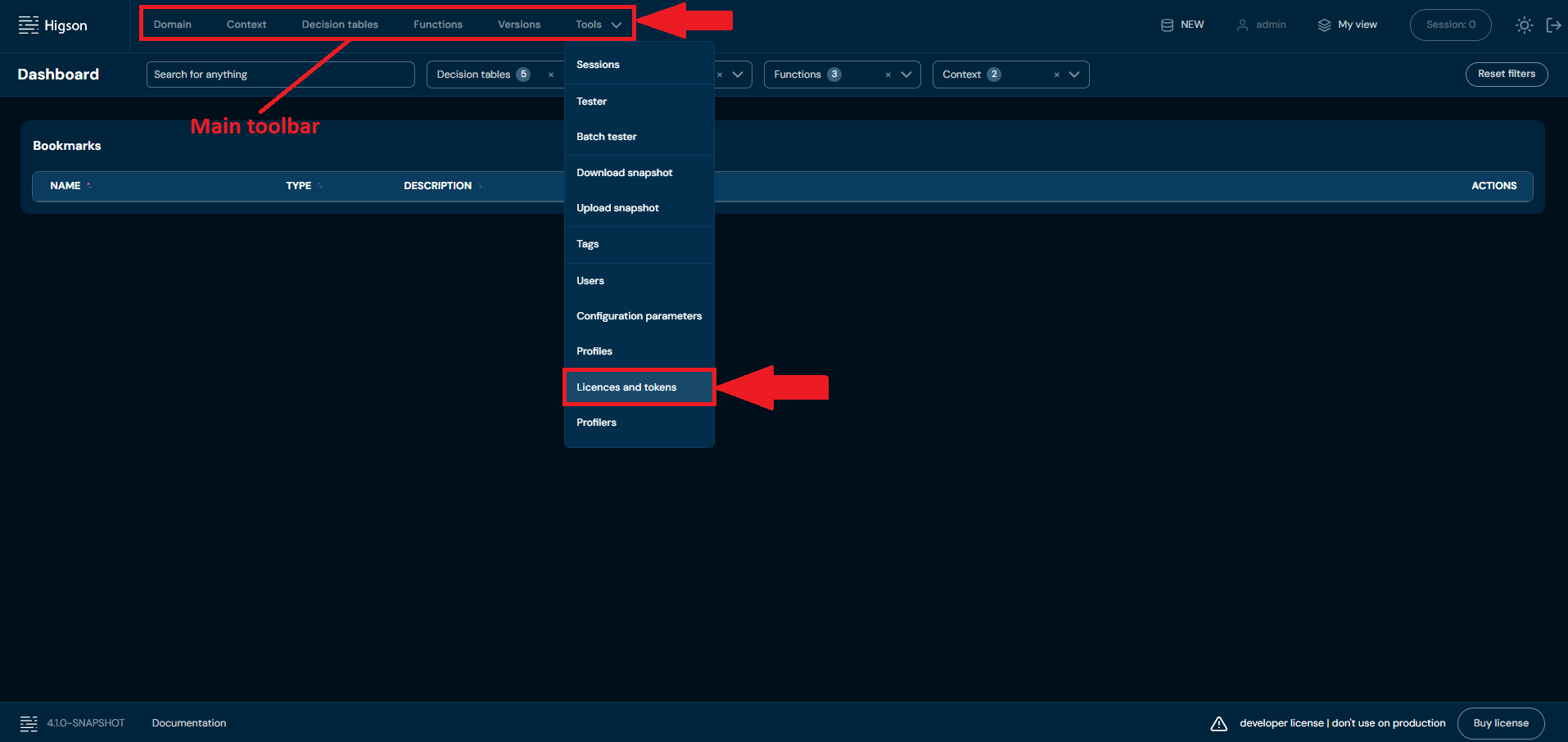
Licenses are a screen that allows you to manage licenses. You can add new licenses and remove old ones. To access the license screen, please select Tools in Main Toolbar and select Licences and tokens
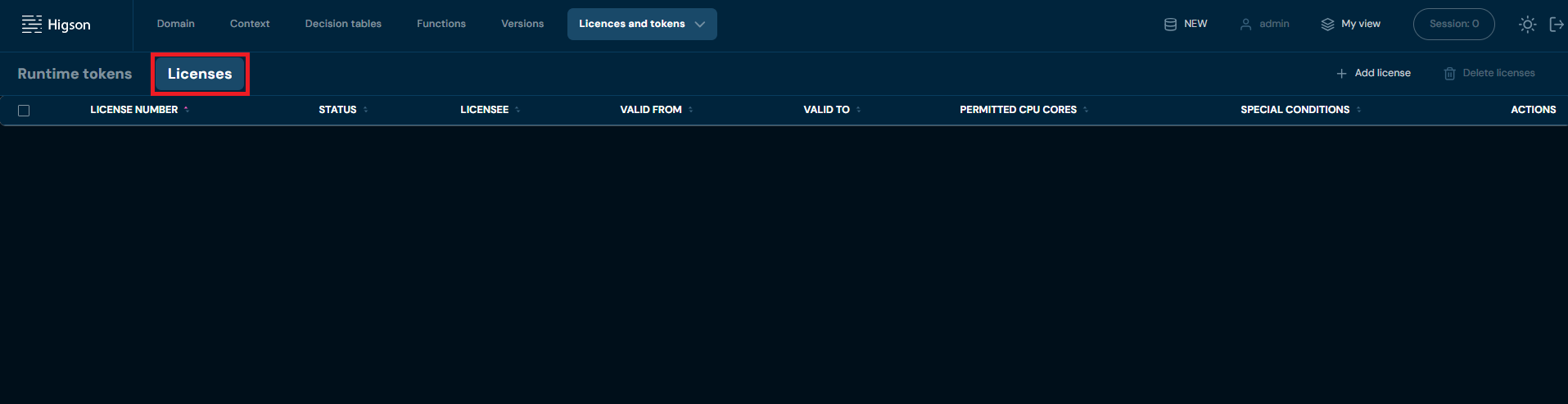
And go to Licenses tab
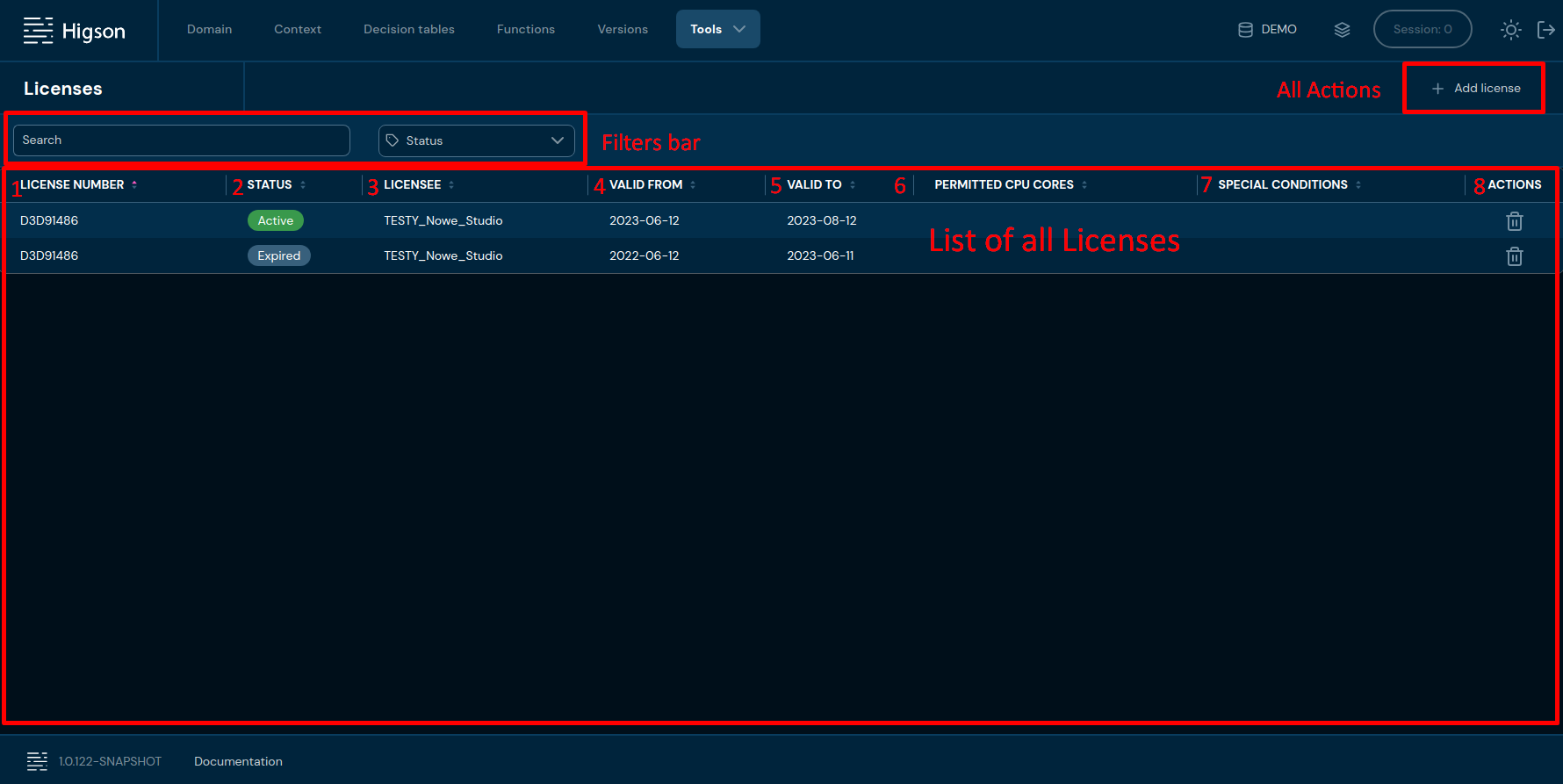
After you enter Licenses you will see screen of all licenses:
| No. | Column name | Description |
|---|---|---|
| 1. | License number | Unique license identification number. You can sort table by License number pressing arrow icon. |
| 2. | Status | This column indicates the current status of the license. It can have several possible labels such as active, expired. The status provides a quick way to determine if the license is currently valid and its scope. You can sort table by Status pressing arrow icon. |
| 3. | Licensee | Title of the License. You can sort table by Licensee pressing arrow icon. |
| 4. | Valid from | Date of the license validity. You can sort table by Valid from date pressing arrow icon. |
| 5. | Valid to | Date of the license expire. You can sort table by Valid to date pressing arrow icon. |
| 6. | Permitted CPU | Information about the maximum number of CPU cores cores which the software or service covered by the license can be used. You can sort table by Permitted CPU cores pressing arrow icon. |
| 7. | special | Additional license conditions. You can sort table conditions by Special conditions pressing arrow icon. |
| 8. | actions | List of quick access actions. Currently only Remove action is available here. Remove action delete desired license |

| No. | Filter name | Description |
|---|---|---|
| 1. | Search text field | Filter by any string provided by the user. |
| 2. | Status | Filter by selected license status |
Add License#
If you want to add a new license follow these steps:
-
Select Tools in Main Toolbar and select Licensee
-
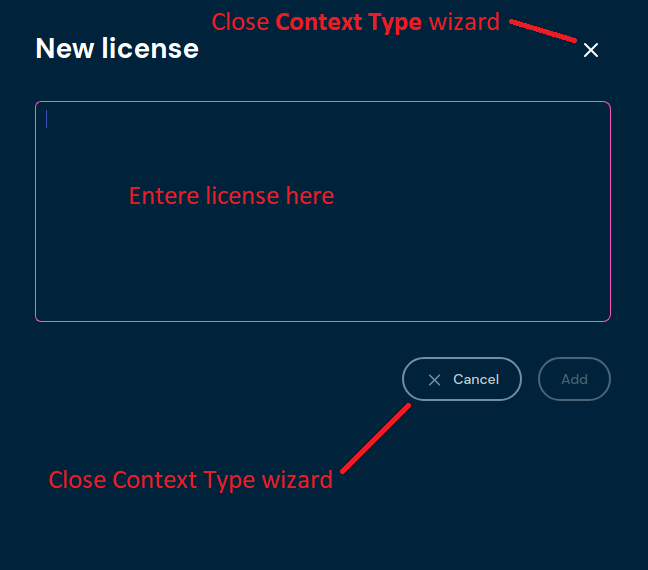
Choose + Add license
-
Enter your license code and press Add button
a. If a valid license code is entered, information about the license will appear.
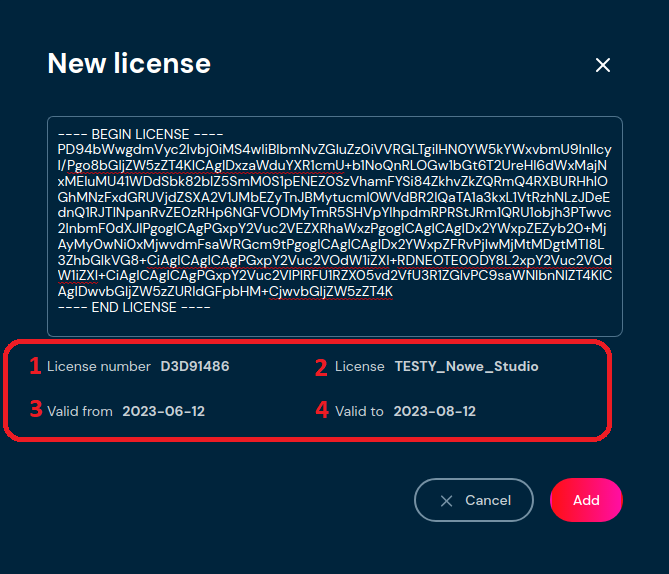
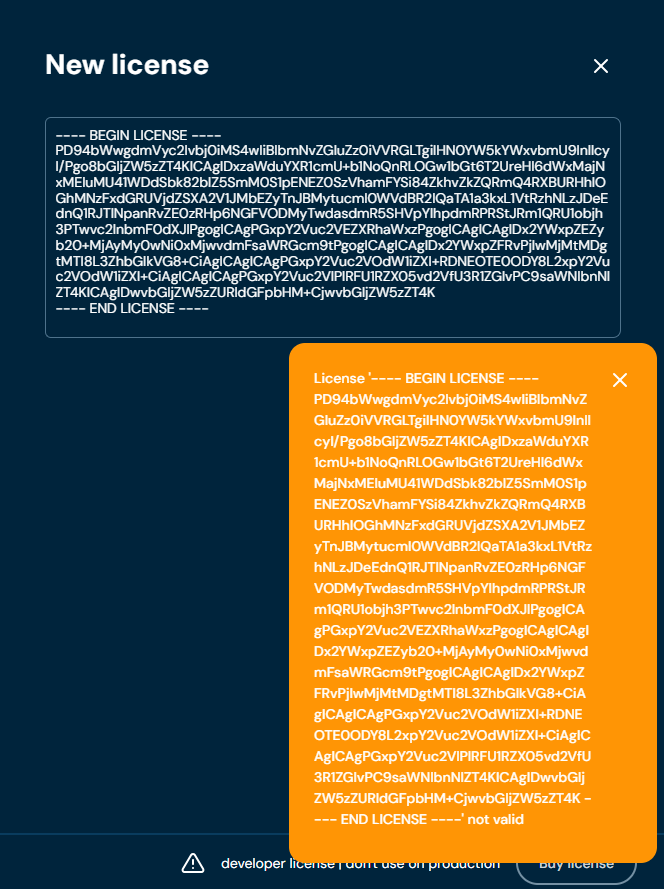
No. Column name Description 1. License number Unique license identification number. 2. License Title of the License 3. Valid from Date of the license validity. 4. Valid to Date of the license expire b. If an invalid license code is entered, an error message about the incorrect license code will appear.
Remove License#
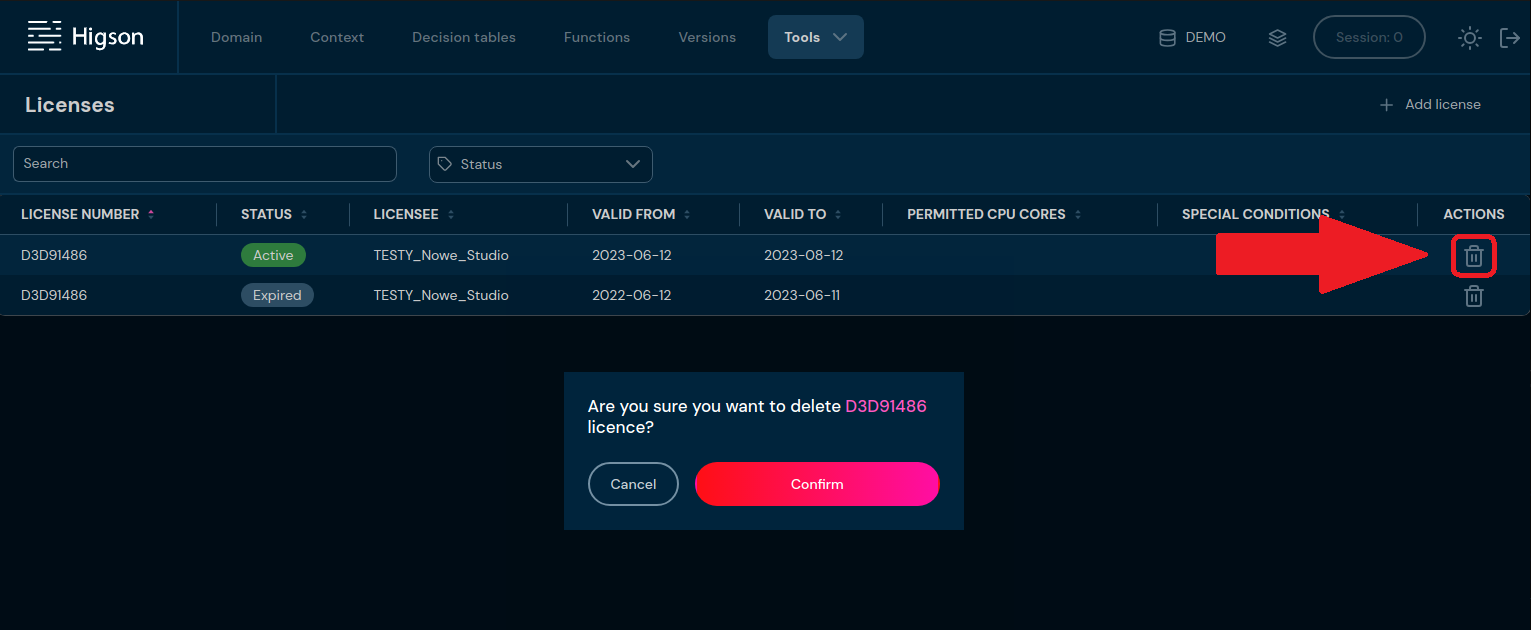
If you want to remove license choose Delete icon and confirm it pressing Confirm button
commit