Creating AI Model-Based Decision Tables in Higson Studio#
Higson Studio allows the creation of decision tables utilizing artificial intelligence (AI) models. In this approach, the AI model serves as the matrix of the decision table. The definition and levels are configured similarly to standard decision tables; however, the matrix is represented by the ONNX file. Higson Studio does not perform model training – it is assumed that the model has been previously prepared in an external environment and converted to the ONNX format.
Use Case#
Use a trained AI model (in ONNX format) to predict a client’s monthly insurance premium based on their demographic and lifestyle data. Below is a description of the process for configuring and deploying such a table using an AI model in the ONNX format.
To get started, create a new decision table in Higson Studio. Navigate to the Decision tables tab and select the Add decision table action.
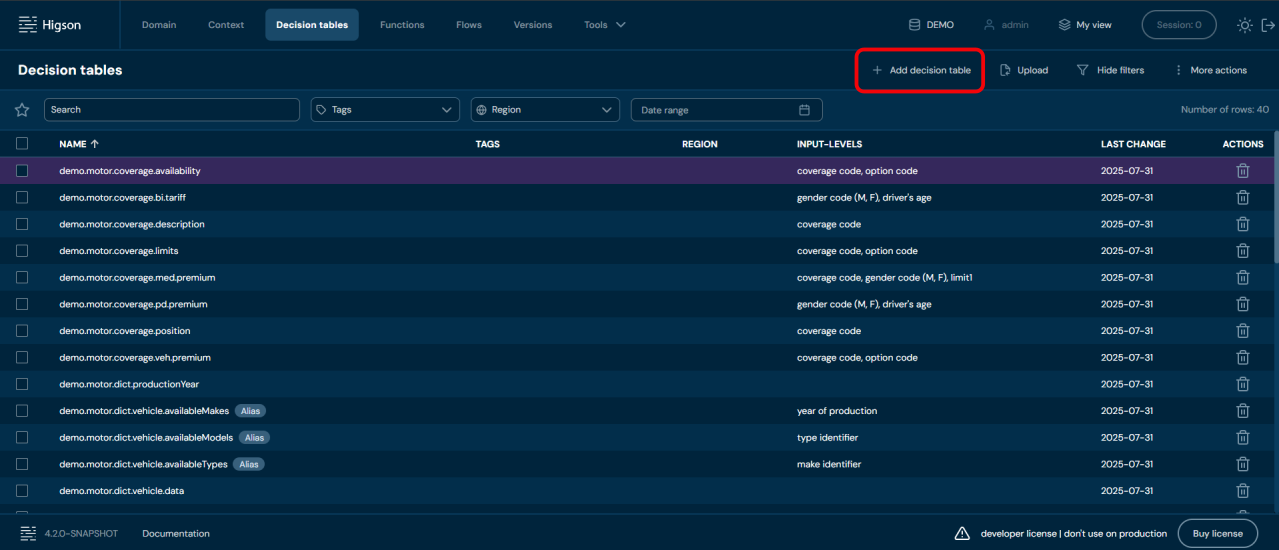
-
Assign a name to your decision table and click Next to proceed to the next step.
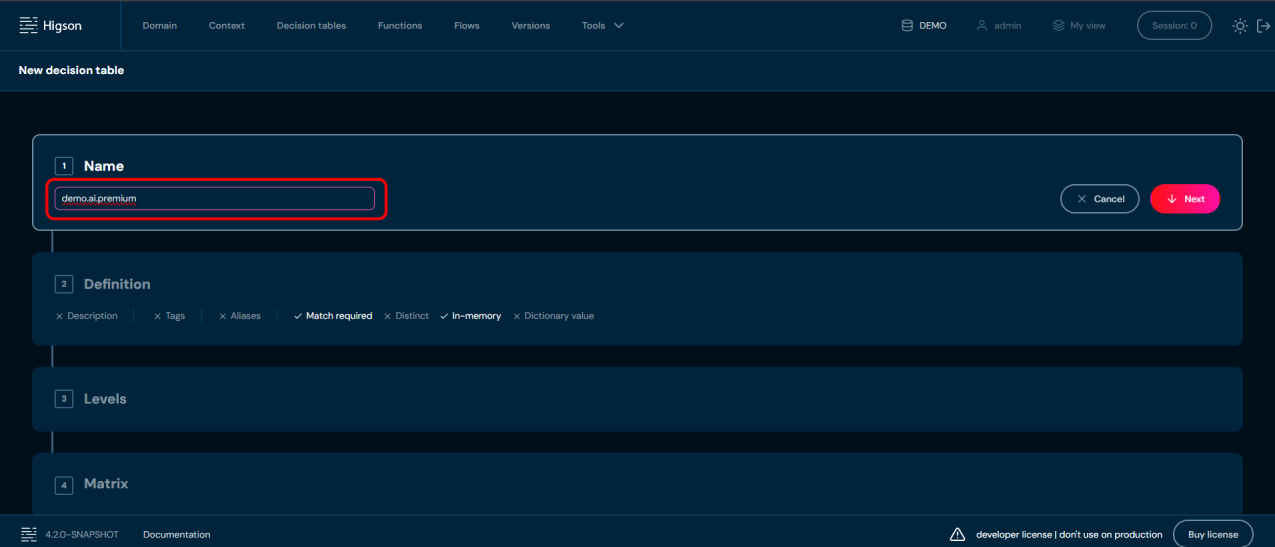
-
In the second step, under the Definition section, set AI Model Source as the data source for decision-making. Then, click Next to continue.
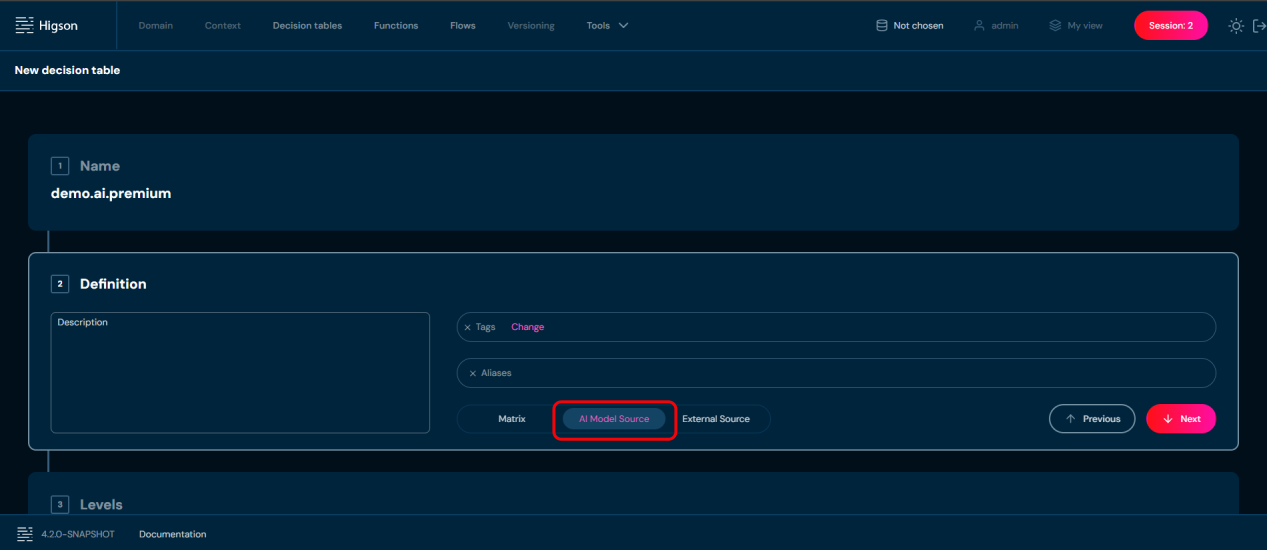
-
In step 3, similar to standard decision tables, you need to define:
- Input levels (in) – the input data passed to the AI model.
- Output levels (out) – the expected responses generated by the AI model.
Please note, that for decision tables with an AI model data source, only decimal data type is available.
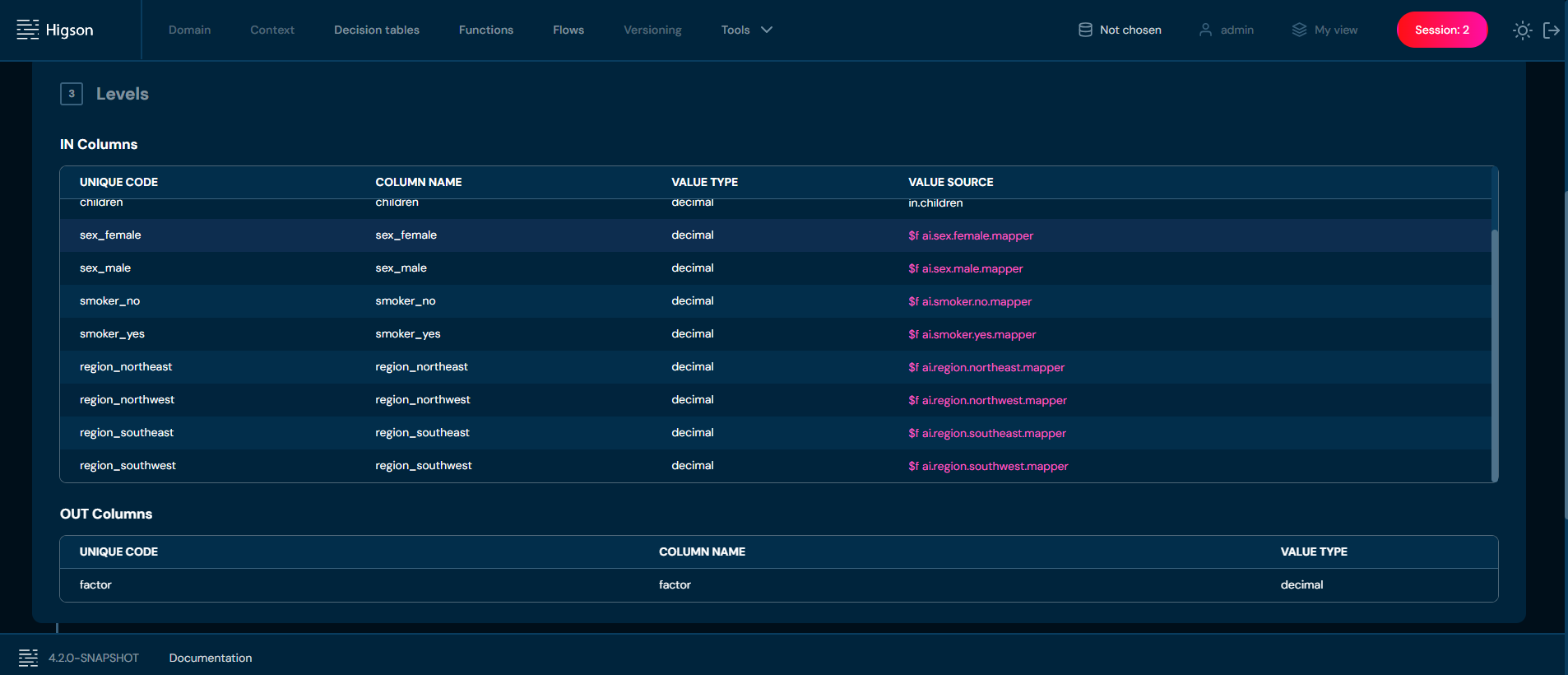
- In step 4 of the configuration wizard:
- You need to upload a onnx file containing the trained AI model.
- During upload, the file is automatically validated for correct format and model structure.
The onnx file added in this way serves as the matrix of our decision table.
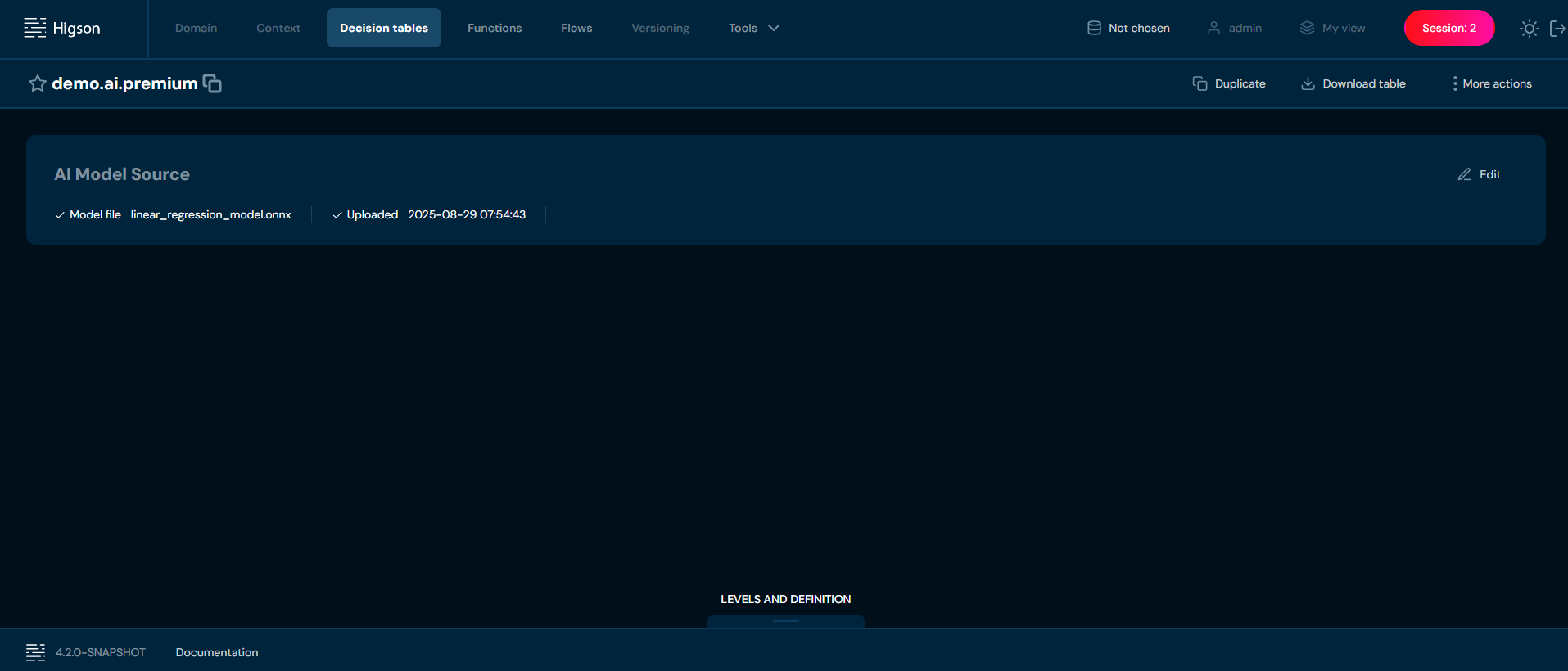
Once the decision table is correctly configured and saved, it can be invoked through Higson Runtime REST. At this stage, the ONNX file logic is validated.
Mapping Decision Table Levels to Model Inputs and Outputs#
Higson binds decision table levels to model features by position, not by name. The codes and labels assigned to input and output levels are never compared with the input and output names declared inside the ONNX file — they are identifiers used only inside Higson.
Input Levels#
All input levels are passed to the model as a single tensor of type float with shape [N, number_of_input_levels], where N is the number of value rows evaluated in one call. The column order of that tensor is exactly the order in which input levels are defined in the decision table.
Only the first input declared by the model is used. Its name is read from the ONNX file and the tensor is bound to it, whatever that name happens to be (for example input or float_input).
Every input level value is parsed as a float, so all values reaching the table must be numeric.
Output Levels#
Only the first output declared by the model is read, and it must be a float tensor with shape [N, number_of_output_levels]. Its columns are assigned to output levels positionally, in the order the output levels are defined.
The result row produced by the runtime is the concatenation of the input values and the predicted values, so output levels are always read after all input levels.
Example#
A table predicting an insurance premium defines eleven input levels and one output level. The model exported from scikit-learn declares a single input named input with shape [N, 11] and a single output named variable with shape [N, 1]. The names input and variable play no role — only the positions do:
| Position in the model tensor | Decision table level | Level kind |
|---|---|---|
| 0 | age |
in |
| 1 | bmi |
in |
| 2 | children |
in |
| 3 | sex_female |
in |
| 4 | sex_male |
in |
| 5 | smoker_no |
in |
| 6 | smoker_yes |
in |
| 7 | region_northeast |
in |
| 8 | region_northwest |
in |
| 9 | region_southeast |
in |
| 10 | region_southwest |
in |
| 0 (output tensor) | price |
out |
Note that the categorical features sex, smoker and region are one-hot encoded during training, and each encoded column is declared as a separate input level — in exactly the same order that was used to train the model.
Requirements for the Model#
- Exactly one input, a
floattensor of shape[N, number_of_input_levels]. - The first output must be a
floattensor of shape[N, number_of_output_levels]. - All input and output levels must use the decimal data type.
- Input levels must not use a matcher, a reverse matcher, or a union.
- Output levels must not be arrays and must not be blobs.
- The decision table must not use match required, distinct or in-memory, and must not be a dictionary (user-defined type).
- Categorical features must be encoded numerically (for example one-hot) and exposed as separate input levels, in the same order that was used when training the model.
What Is Validated and What Is Not#
Higson Studio validates the following when the model file is uploaded and when the table is saved:
- the file extension is
.onnxand the file can be opened as a valid ONNX session, - every input and output level uses the decimal data type,
- input levels have no matcher, no reverse matcher and no union,
- output levels are not arrays and not blobs,
- the decision table definition does not use match required, distinct, in-memory and is not a dictionary.
The following is not validated at any point:
- the number of features expected by the model against the number of input levels,
- the number of values returned by the model against the number of output levels,
- any agreement between level codes and the input/output names declared in the ONNX file.
Because of that, a mismatch between the table and the model surfaces only when the parameter is evaluated for the first time in the runtime.
| Change made to the table | When it is detected |
|---|---|
| Input levels reordered | Not detected. Features reach the model in the wrong positions and the predictions are silently incorrect. |
| Input level added or removed without retraining the model | Runtime error on the first evaluation of the parameter. |
| Output level added or removed | Not detected by validation; the extra level is empty or the extra prediction is dropped. |
| Non-numeric value passed to an input level | Runtime error on evaluation, raised while parsing the value. |
Note: Whenever you change the order or the number of input levels, the model has to be retrained and re-exported with the matching column order. Renaming a level is safe, because names are not part of the binding.
Limitations#
- Multi-input models are not supported. A model that declares a separate named input per feature will not work — only its first input receives data and the evaluation fails.
- Classification models exported with
skl2onnxare not supported when their first output islabelof typeint64. The first output must be afloattensor; anything else fails during evaluation.
Recommended Way of Exporting the Model#
Export the model with a single input of type FloatTensorType, and keep an explicit, fixed list of feature columns so the training order can be reproduced in the decision table:
|
|
When defining the decision table in Higson Studio, add the input levels in exactly the same order as feature_columns, and add the output levels in the order in which the model returns its predictions.
Enabling AI Model Source in Higson Runtime#
Evaluating AI-model decision tables relies on the ONNX Runtime library. To keep the runtime lightweight for deployments that do not use AI models, this library is optional and the feature is disabled by default.
To run AI-model decision tables in your own application you have to do two things:
-
Add the ONNX Runtime dependency to your application’s classpath. It is declared with
providedscope inhigson-runtime, so it is not pulled in transitively and must be added explicitly:<dependency> <groupId>com.microsoft.onnxruntime</groupId> <artifactId>onnxruntime</artifactId> <version>1.20.0</version> </dependency>Supported version: Higson is tested and verified against
onnxruntime1.20.0. Using any other version of the library is not guaranteed to work correctly and is not supported.The pre-built Higson Runtime REST application already ships with this dependency, so no change is required when you use it.
-
Enable the feature switch so the runtime initializes the ONNX environment on startup:
higson:
  runtime:
    ai-model:
      enabled: true
When using the
HigsonEngineFactorydirectly (without the Spring Boot starter), callfactory.setAiModelEnabled(true)beforefactory.create().
The effective value is printed in the runtime configuration banner on startup as AI model source enabled.
Note: If a decision table backed by an AI model is evaluated while the feature is disabled, the runtime throws an
AiModelSourceDisabledExceptionnaming the affected parameter and reminding you to sethigson.runtime.ai-model.enabled=trueand add theonnxruntimedependency.