Runtime tokens are a screen that allows you to manage tokens. You can add new token and remove old ones. To access the runtime tokens screen, please select Tools in Main Toolbar and select Runtime tokens.
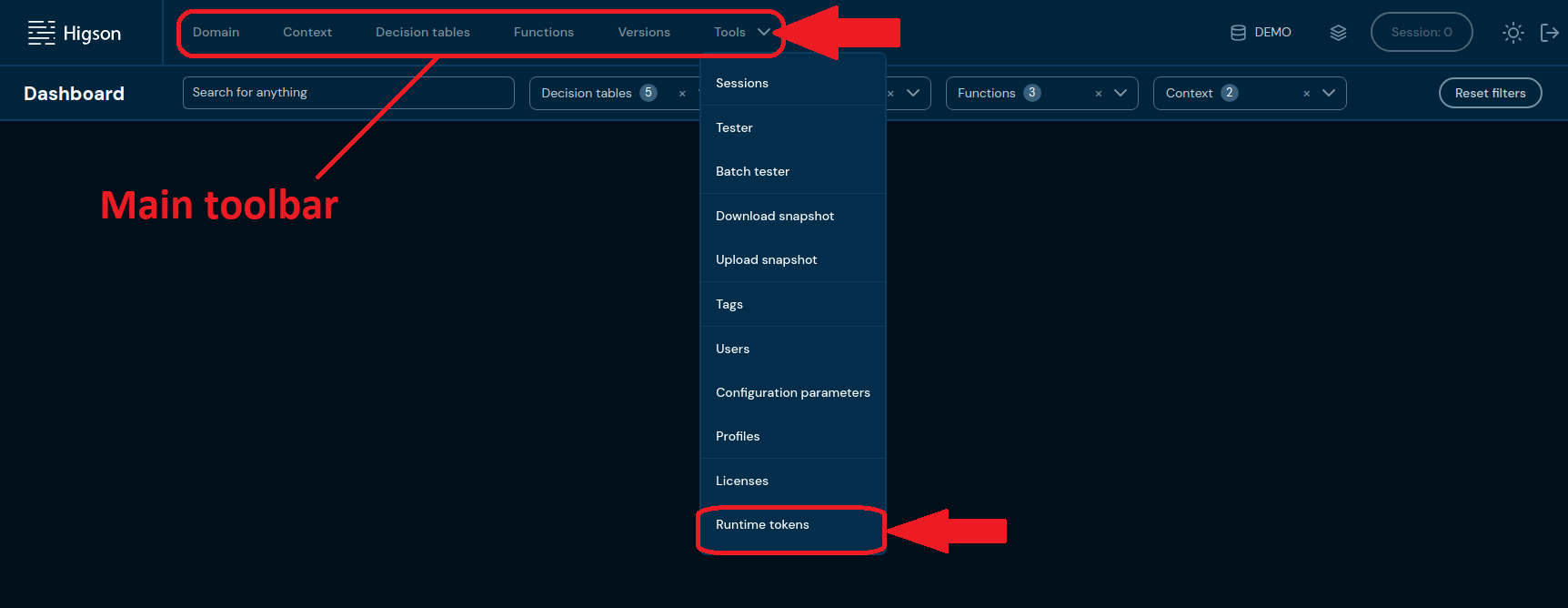
After you enter Runtime tokens you will see screen of all tokens:
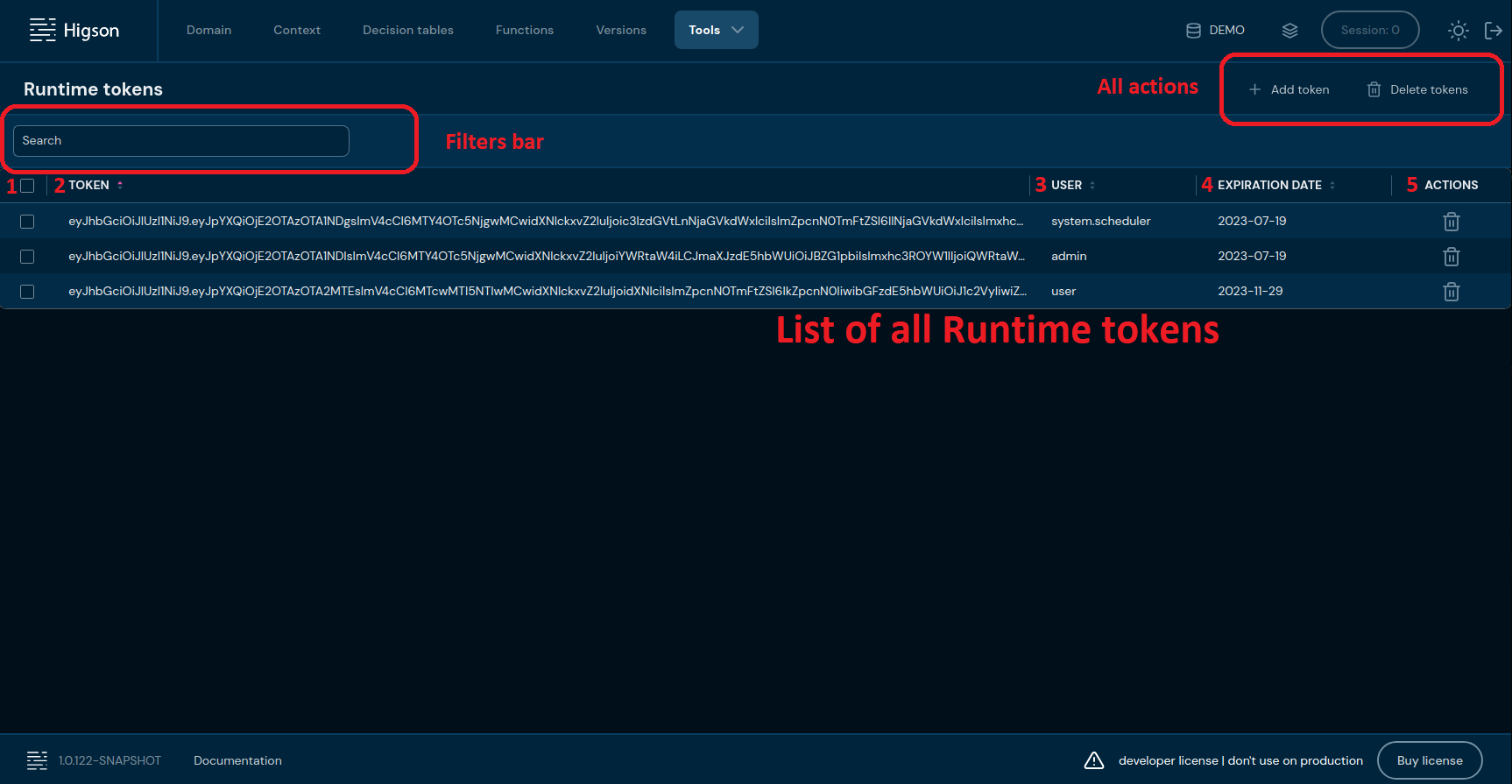
| No. | Column name | Description |
|---|---|---|
| 1. | Checkbox | Checkbox allows you to select all tokens. |
| 2. | Token | Present token value. |
| 3. | User | User to whom the token is assigned. |
| 4. | Expiration | Token validity period date. |
| 5. | Actions | List of quick access actions. Currently, only the Remove action is available here. The Remove action deletes the desired license. |
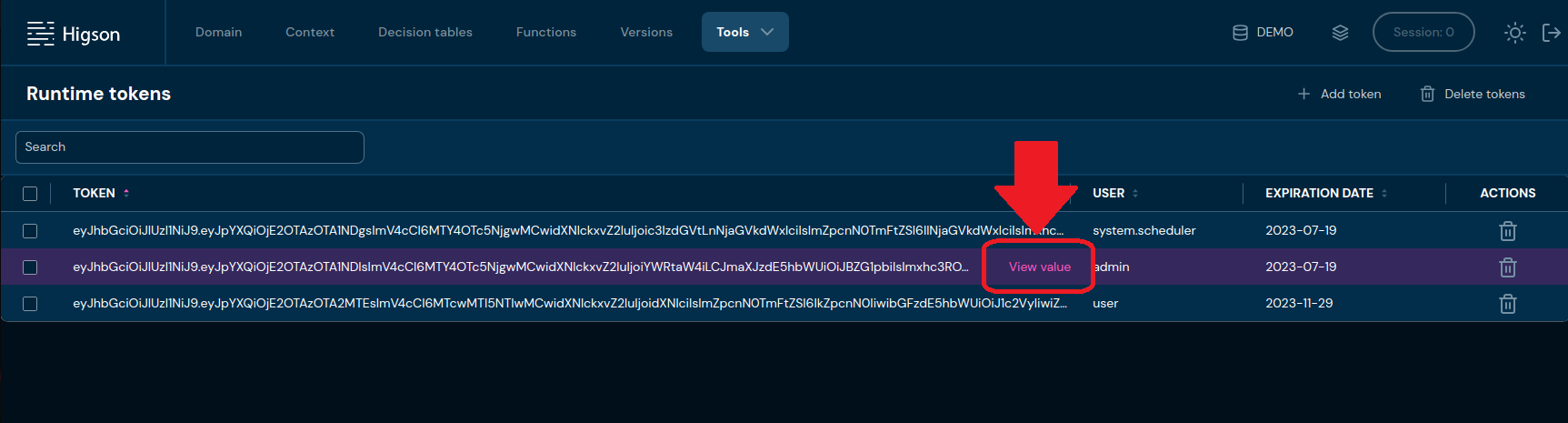
If you hover on table row, you can click View value to see full Runtime token value
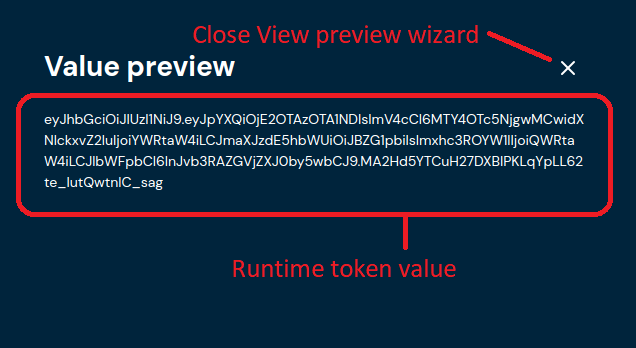
On the screen will present Value preview
Currently, there is only one filter Search which filter list of tokens by any string provided by user.

Runtime token actions#

| No. | Action name | Description |
|---|---|---|
| 1. | Add token | Opens a runtime token wizard. Allows generating new tokens. |
| 2. | Delete tokens | Allows removing all selected tokens. |
Action - Add token#
If you want to generate a new token for user, follow these steps:
-
Select Tools in Main Toolbar and select Runtime tokens
-
Chose + Add token
-
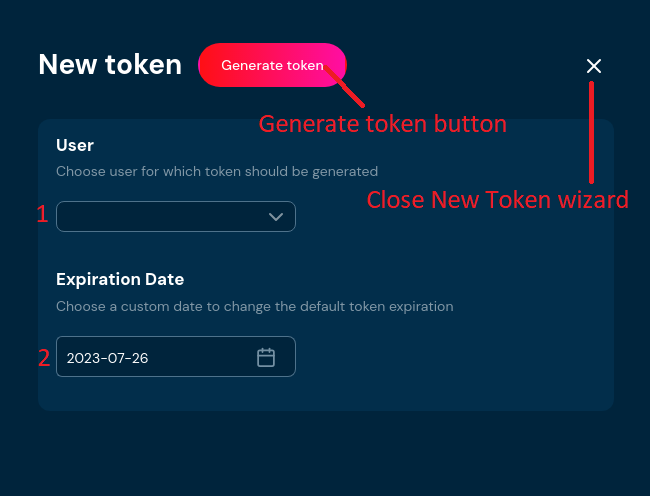
In point 1 select the user for whom the token should be generated. In point 2 choose the date until which the token should be valid.
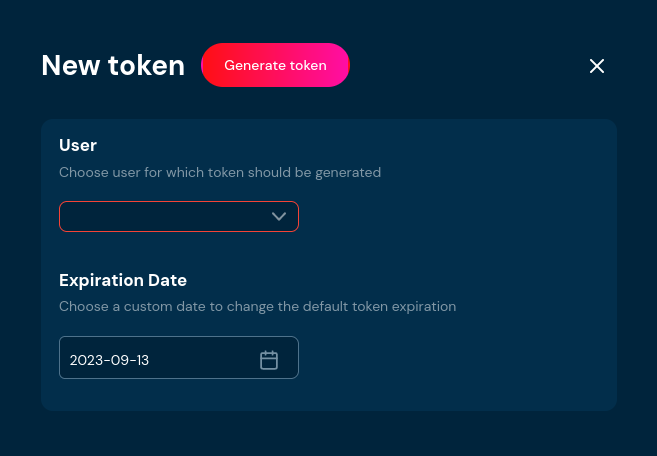
a. If you leave the username empty, and you click Generate token button, you will see a validation error message
-
Generate token by clicking in Generate token button
Action - Delete tokens#
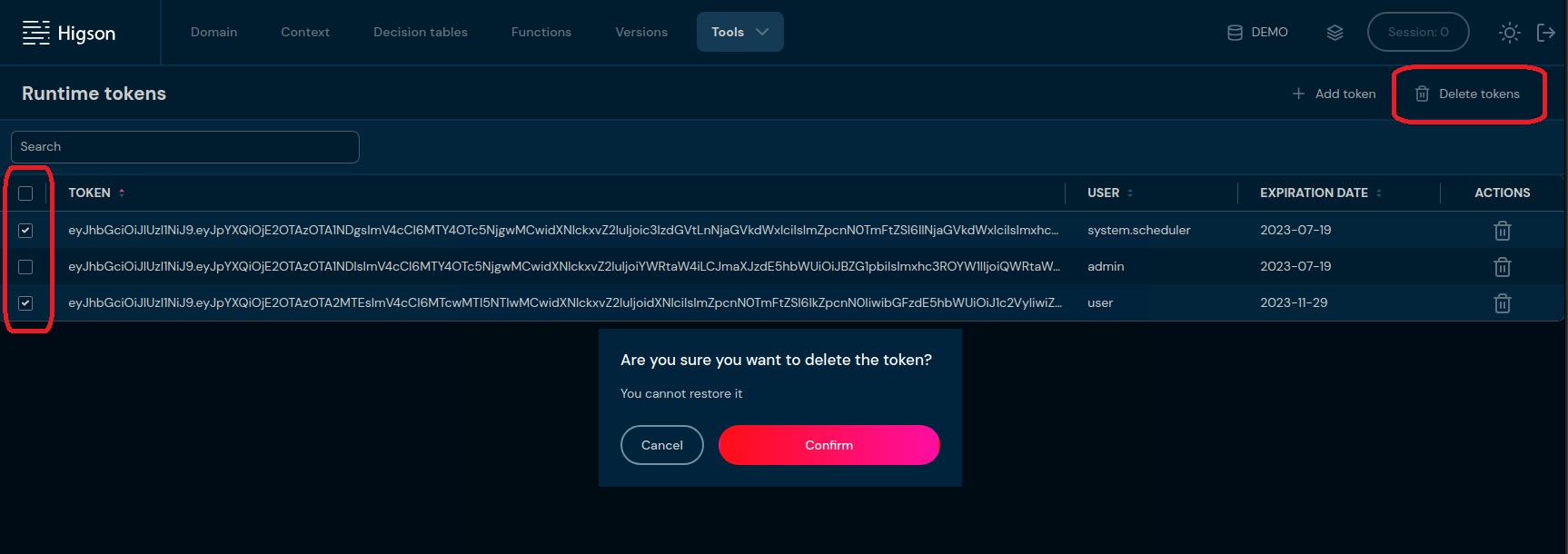
If you want to delete more than one token, you can use the checkbox on table left side and press Delete tokens. You will see the confirmation wizard where you can Confirm or Cancel your action.
Action - Delete single token#
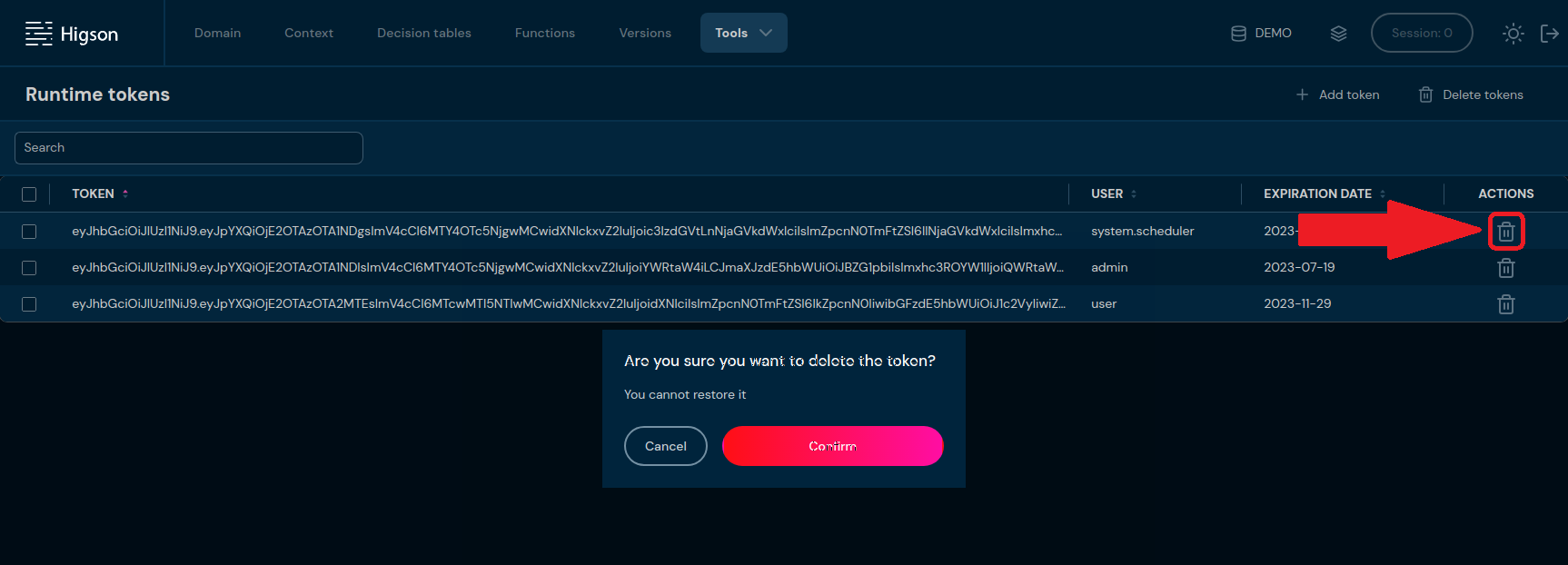
If you want to delete only one token, you can click on the trash icon in the Actions column**.** You will see the confirmation wizard where you can Confirm or Cancel your action.