Dashboard is the first screen the user sees after logging in to Higson. From here, the user can access every functionality Higson has to offer. Dashboard has two main features:
- Global search - allows the user to search through all elements (Domain, Context, Decision Tables, Functions) created in Higson,
- Bookmarks - allow the user to add custom shortcuts for quick access to specified elements such as: Domain Configuration Elements, Decision Tables, Decision Tables’ Filters, Functions, Functions’ Filters, Sessions’ Filters.
Dashboard view:
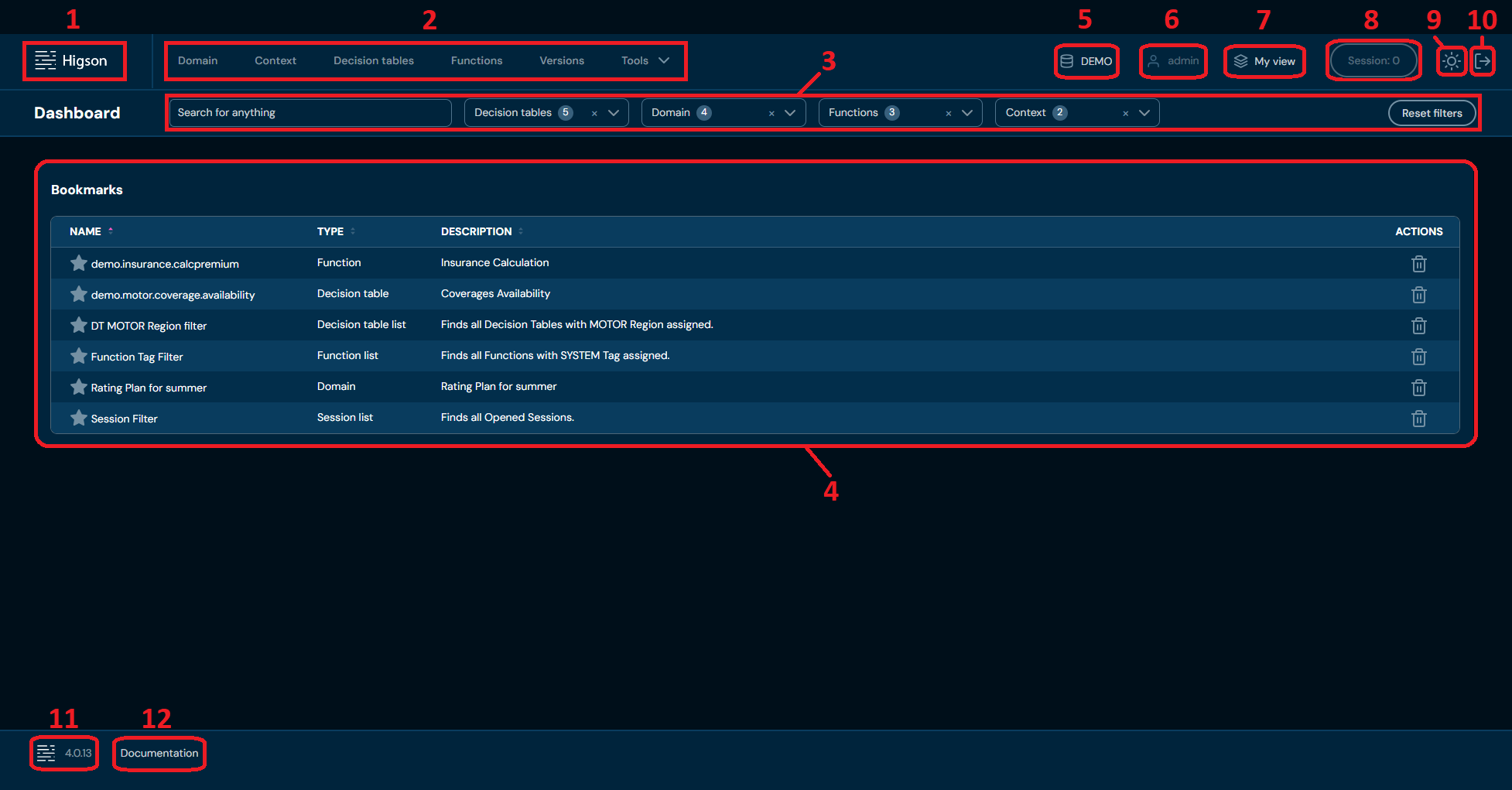
| No. | Name | Description |
|---|---|---|
| 1. | Higson logo | Redirects to Dashboard. |
| 2. | Main Toolbar | Allows to navigate to all Higson functionalities. |
| 3. | Global search filters bar | All Global search filters are available here. To learn more about Global search, go here. |
| 4. | Bookmarks | List of all Bookmarks saved by the user. To learn more about Bookmarks,go here. |
| 5. | Selected Profile | Information about currently selected Profile. Left-clicking expands drop-down list with all available Profiles. To learn more about Profiles, go here. |
| 6. | User Info | Information about currently logged in user. |
| 7. | My View | Brings up screen that allows the user to change currently visible Version for each Region. To learn more about My View, go here. |
| 8. | Session button | Information about number of elements in opened Session. Button is greyed out when Session is closed. Left-clicking brings up Session preview screen of the user’s opened Session. To learn more about Sessions, go here. |
| 9. | Change Theme | Allows to switch between Dark/Light theme. |
| 10. | Log out | Allows the user to log out of Higson. |
| 11. | Version Info | Information about installed Higson version. Hovering the mouse over Version Info shows a tooltip with details about the client and server versions. |
| 12. | Documentation | Left-clicking opens documentation in new browser tab. |
Global search#
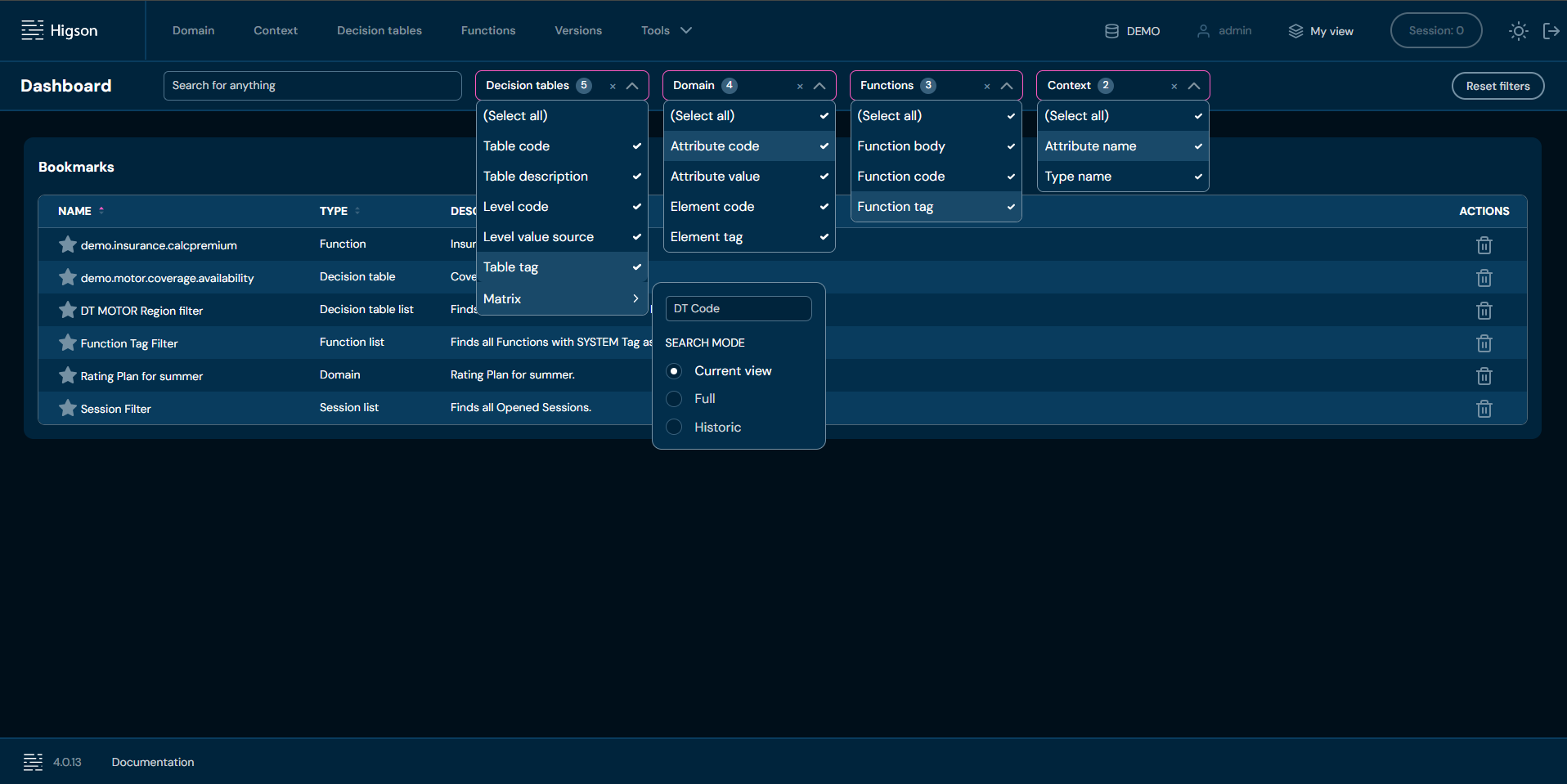
As mentioned above, Global search allows the user to search through all elements (Domain, Context, Decision Tables, Functions) created in Higson. All filters except the matrix filter are selected by default.
You can see all available filters in the picture below:
If you want to initiate searching, follow these steps:
-
Select desired filters in Global search filters bar.
-
Enter string in the Search field.
a. After string is provided, Higson will show search results in place of Bookmarks table.
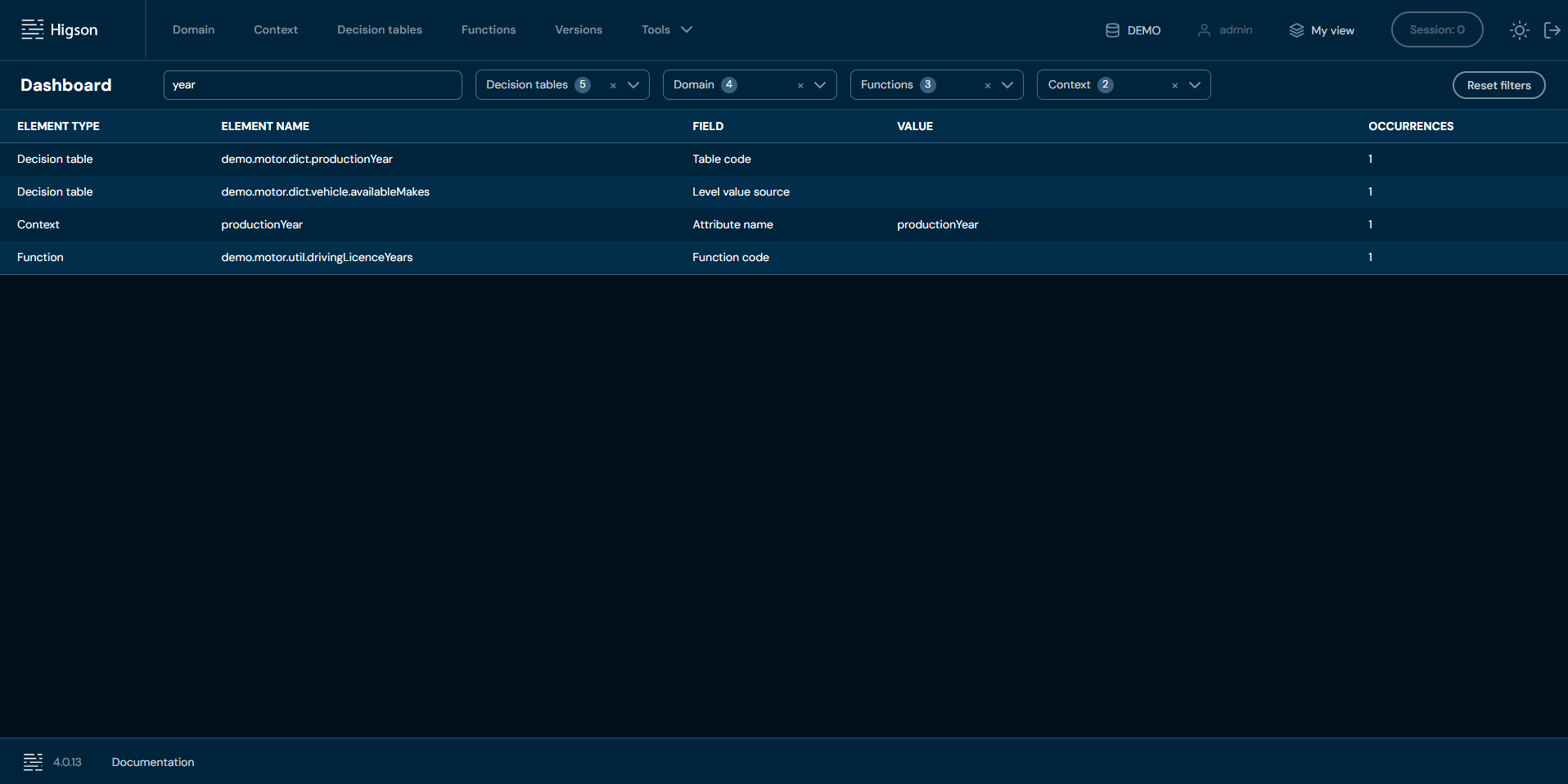
b. Left-clicking on Element name in the record will redirect you to the specified element.
-
“Optional”: Remove string from Search field to restore Bookmarks table.
Bookmarks#
As mentioned above, Bookmarks allow the user to add custom shortcuts for quick access to specified elements such as: Domain Configuration Elements, Decision Tables, Decision Tables’ Filters, Functions, Functions' Filters, Sessions’ Filters. Left-clicking on a Bookmark will redirect the user to the appropriate element/ filter.
Bookmarks table (List of all bookmarks):
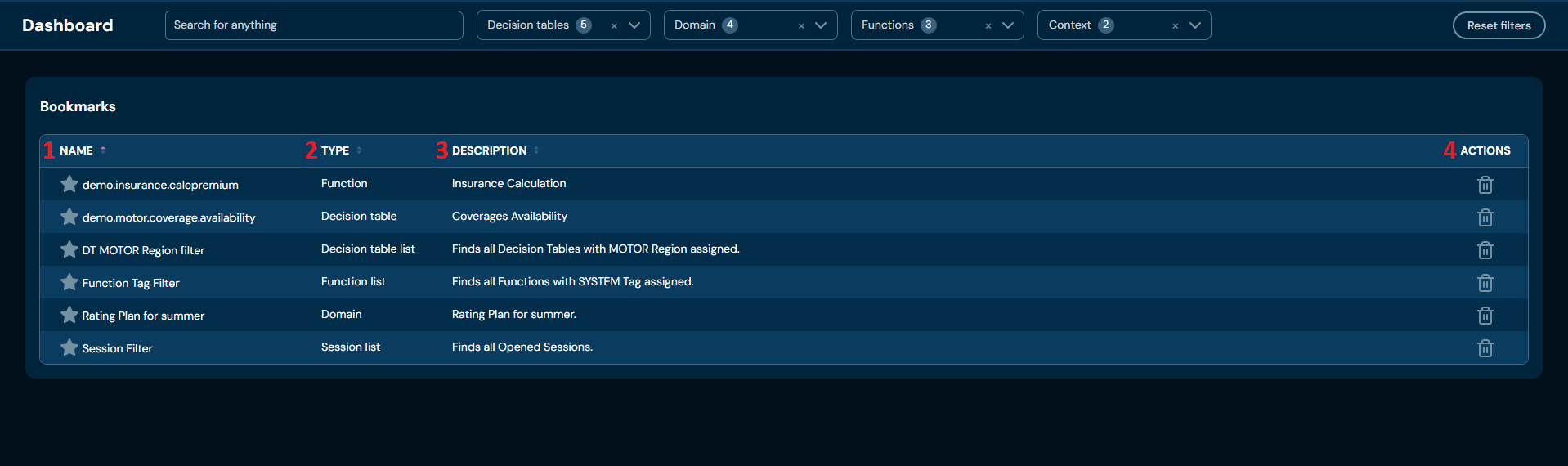
| No. | Name | Description |
|---|---|---|
| 1. | Name | Name of the bookmark. By default, name of the bookmark is the same as name of the element, but the user can enter custom name. |
| 2. | Type | Type of element bookmark refers to. |
| 3. | Description | Description of bookmark provided by the user. |
| 4. | Actions | List of actions. Currently only remove action is available. Remove action deletes bookmark. To learn more about removing Bookmarks, go here. |
Bookmarks - Add new bookmark#
The bookmark will be added using the Decision table as an example:
-
Choose Decision tables in Main toolbar.
-
Left-click on Decision table you wish to add bookmark to.
a. Left-clicking on the Decision table opens the Decision table details screen.
-
Left-click on star icon.
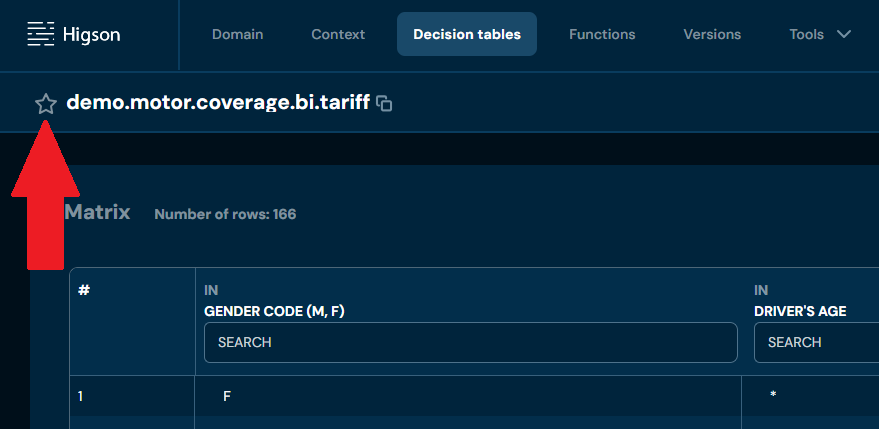
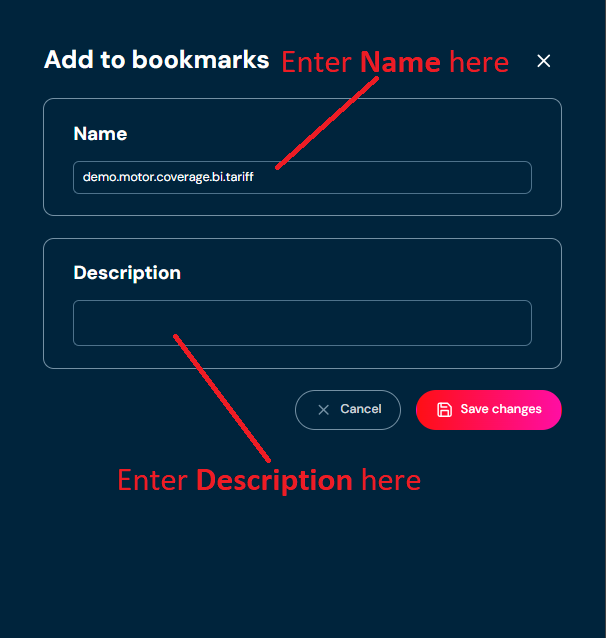
a. Left-clicking on star icon brings up Add to bookmarks screen.
-
Enter Name and Description. Name field is filled with element name by default.
-
Choose Save changes.
a. Bookmark of the element is saved in the list of all bookmarks.
Bookmarks - remove#
If you want to remove bookmark, follow these steps:
-
Choose Higson logo in the top-left corner.
a. If you already are on the Dashboard screen, skip this step.
-
In the List of all bookmarks (Bookmarks table), choose Remove action (bin icon) for the desired bookmark.
a. If you see Global search results instead of Bookmarks table, choose Reset filters in Global search filters bar.
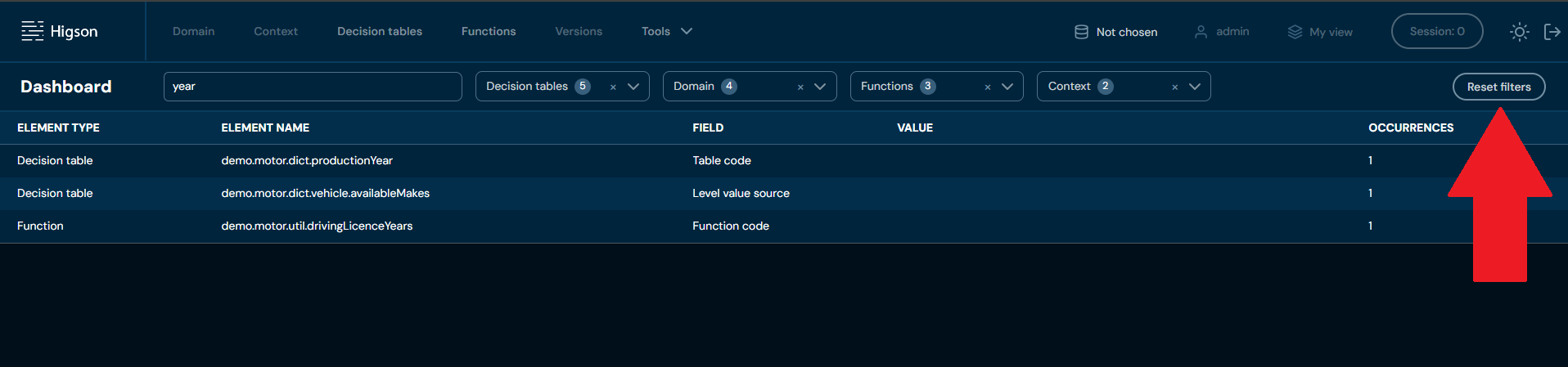
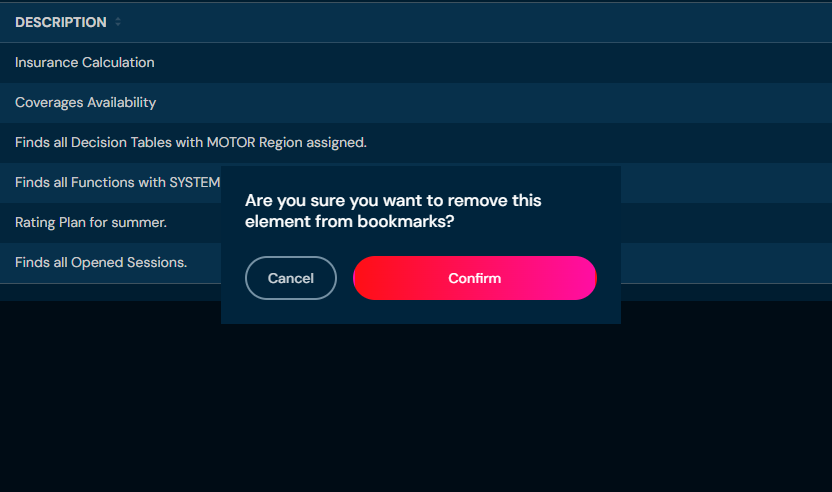
b. After choosing Remove action, confirmation pop up will appear.
-
Choose Confirm.
a. Bookmark is being removed from the list of all bookmarks.
My View#
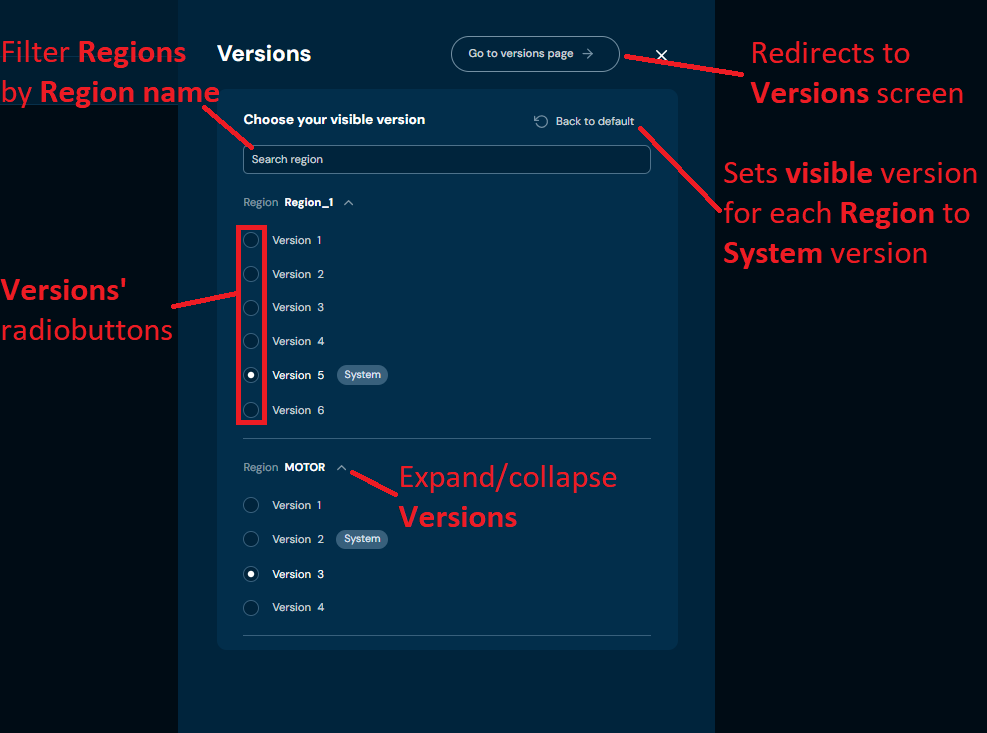
My View allows the user to change the currently visible Version for each Region in the selected Profile. Bear in mind that changing the visible version in the My View screen DOES NOT affect Regions in the Versions screen in any way.
My View screen: