This screen allows adding and removing configuration parameters. This functionality is dedicated to Higson system administrators. It allows editing table CONFIGPARAMS in higson database schema. Table state can be different depending on installation environment.
To access the screen, go to Main Toolbar and select Configuration parameters.
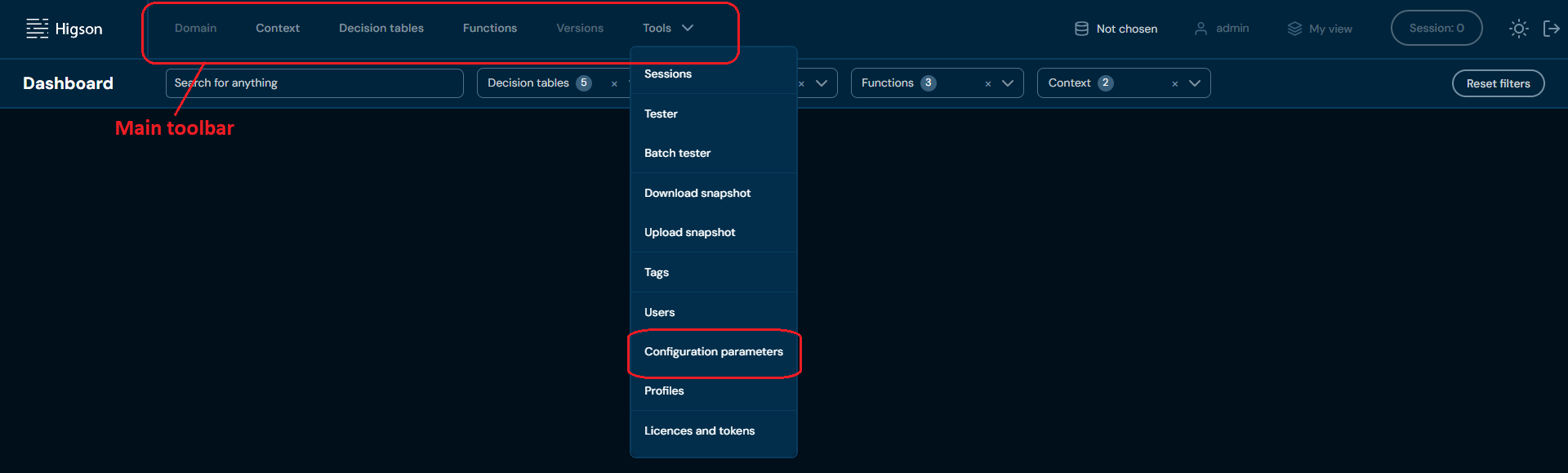
After entering the screen, you will see the list of all created configuration parameters.

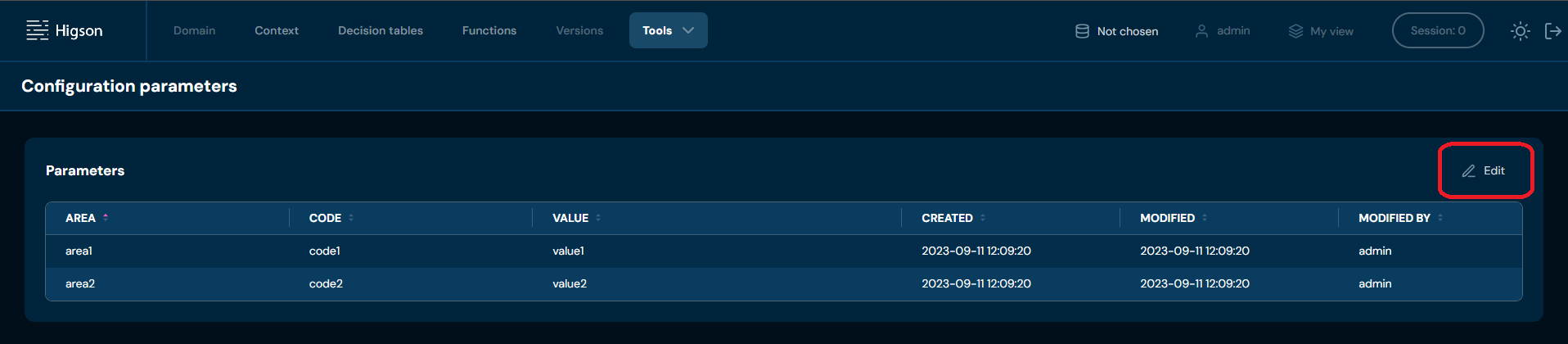
Each element is described by five qualities:

| No. | Column name | Description |
|---|---|---|
| 1. | Area | Area name for the configuration parameter. |
| 2. | Code | Code for the configuration parameter. |
| 3. | Value | Name for the configuration parameter. |
| 4. | Created | The date when configuration parameter was created. |
| 5. | Imported | The date when configuration parameter was imported. |
| 6. | Modified by | The name of the user who last made the changes to the selected configuration parameter. |
There is only one available action:
| No. | Action name | Description |
|---|---|---|
| 1. | Edit | Allows to make changes in configuration parameters |
When in edit mode more actions are available:

| No. | Action name | Description |
|---|---|---|
| 1. | Edit | Edit existing configuration parameter |
| 2. | Add new parameter | Add new row in the table allowing creating new configuration parameter |
| 3. | Delete | Delete selected configuration parameter |
| 4. | Cancel | Cancel all the changes in the table |
| 5. | Save changes | Save all the changes in the table |
Adding new configuration parameter#
-
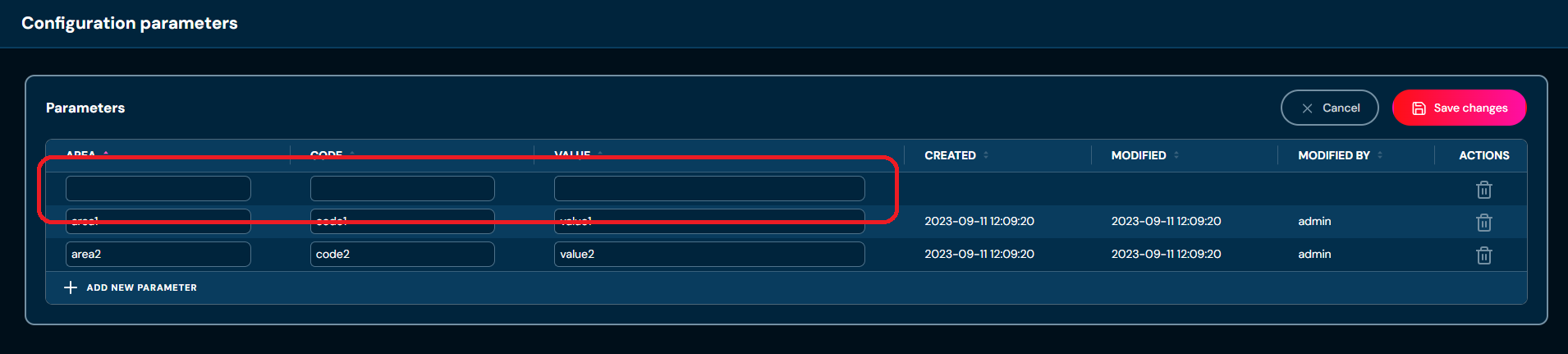
Firstly, go to edit mode by clicking Edit button
-
Click on Add new parameter

-
Fill in all the necessary information
-
And Save changes
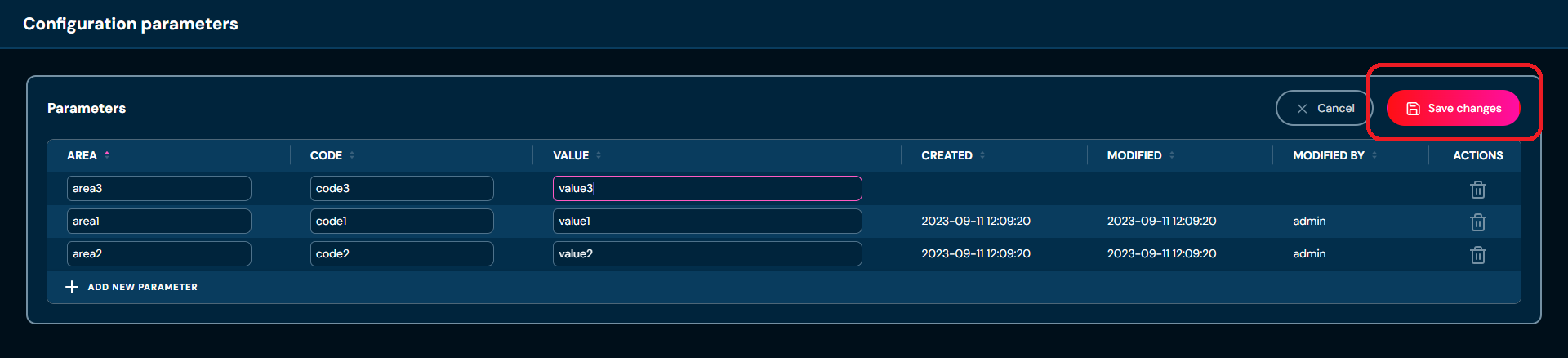
That’s it, new configuration parameter has been added.